Managing passwords is one of the biggest digital headaches. If you’ve ever struggled with remembering dozens of logins or worried about weak passwords, Apple has quietly built a solution for you. While macOS has had a password manager for years, macOS Sequoia introduces a dedicated Passwords app, making it far easier to use and manage.
In this article, we’ll explore how the app works, how to generate and save secure passwords, how two-factor codes and passkeys are handled, and how your data is protected across devices. Whether you’re brand new to Apple’s password manager or you’ve used it before only inside Safari, this guide will take you through everything step by step.
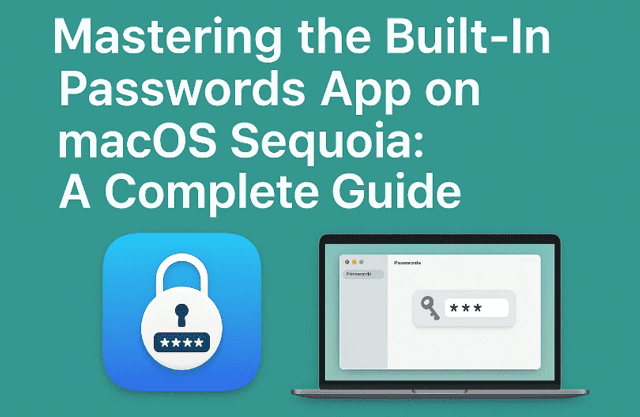
1. Introduction: Why Use a Password Manager?
Let’s be honest—most of us reuse passwords. That’s dangerous. A single data breach could expose your entire digital life. That’s where a password manager steps in: it generates strong, unique passwords for every site, remembers them for you, and fills them in automatically.
Apple has baked this into macOS and iOS for years, but with macOS Sequoia, the tool gets its own dedicated app called Passwords. That means you no longer have to dig into Safari or System Settings—it’s now front and center.
2. Creating and Saving Passwords in Safari
The most common way you’ll use Apple’s Password Manager is right inside Safari. Here’s how it works:
- When you sign up on a website, Safari automatically suggests a strong password.
- A small popup appears inside the password field, showing you the Passwords app icon along with the site’s icon.
- You can accept the strong password suggestion with a single click.
👉 Sometimes, sites are built in a way that doesn’t trigger the inline suggestion. In that case, Safari shows a key icon at the right of the password field. Clicking it gives you options:
- Generate a strong password
- Generate one without special characters (useful if a site doesn’t allow symbols)
- Use an existing password already stored for that site
- Use a recently generated password
This flexibility ensures you always have a secure option ready.
3. Logging In With Autofill and Key Icons
Later, when you revisit the site, Safari remembers. Typing your email or username triggers the login suggestion. Click it, and Safari fills both your username and password automatically.
Sometimes, Safari may only fill in the username, requiring you to click the password field separately. In that case, use the key icon again to pick the stored password.
This means most of the time, you’ll never even need to open the standalone Passwords app—the browser handles it all.
4. Exploring the New Passwords App in macOS Sequoia
Now let’s move to the standalone Passwords app, introduced in macOS Sequoia. You can launch it via Spotlight, Launchpad, or by adding it to your Dock.







When you open the app, it starts locked. You unlock it using your Mac password or Touch ID (if your Mac supports it).
The interface looks familiar, like Notes or Reminders:
- Left sidebar shows pinned categories
- Main pane lists all entries
- Click an item to see details
This centralized app makes managing credentials far easier than the old method.
5. Managing Entries: View, Copy, and Edit
Clicking on any entry reveals:
- The username or email
- The saved password (hidden until you hover or click “Copy”)
- The linked website
One key security feature: passwords are tied to websites. This prevents phishing. If someone tricks you with archive1.org instead of archive.org, Safari won’t autofill the stored password—protecting you from handing it to a fake site.
6. Two-Factor Authentication Codes (2FA)
Many websites now use two-factor authentication (2FA). The Passwords app handles this seamlessly:
- Add a verification code by scanning a QR code or pasting a setup key.
- Once added, the app automatically generates and updates time-based codes.
- Safari and apps can autofill these codes just like passwords.
This eliminates the need to juggle separate authenticator apps.
7. Editing, Notes, and Custom Data
Every entry can be edited:
- Change usernames or passwords
- Add notes to keep track of which account belongs to which purpose
- Store work vs. personal credentials
Example: if you manage multiple logins for the same site, you can use notes to label each one clearly.
8. Adding Passwords Manually
Not every password starts inside Safari. If you log in manually somewhere:
- Safari will ask whether to save the password.
- You can also add entries manually by clicking the plus button in the app.
This ensures even older accounts you created years ago can be pulled into the manager.
Now a major question asked by one of our reader Hazel R “Passwords refuses to update a compromised password!! Will not save the new one. What next? A quick search showms this is not just me experiencing this flaw.”
Step-by-step Soution that can fix the Above Problem (in order)
- Manually update the entry (works around the bug).
Open Passwords → pick the affected login → Edit → replace the password → Save. This is Apple’s documented way to update a password on Mac and bypasses the “didn’t save” issue from the in-app change flow. - Change on the site, then accept Safari’s save prompt (or save manually).
When you change the password on the actual website, you should get a “Save/Update Passwords” prompt. If you don’t, do step 1 immediately after. Users report the built-in flow sometimes fails to update; manual edit reliably sticks. - Make sure you’re editing a password (not a passkey) and that you have permission.
If the item shows as Passkey, there isn’t a traditional password to edit; create a new Password item or keep the passkey. If the login is inside a Shared Group and you’re not the owner (or have view-only access), you may be blocked from saving edits—check group permissions in Passwords → the group → Manage. - Force a clean sync.
Go to System Settings → Apple Account → iCloud → Passwords and toggle Sync this Mac off, wait 30 seconds, then on again. This often clears stale entries not updating locally. - Update macOS Sequoia and restart.
Several threads indicate a restart after a point-update made new password prompts behave correctly again. Keep macOS 15.x current. - Eliminate duplicates & fix the website field.
If you have two entries for the same site/username, delete the old one so autofill doesn’t keep preferring it. Also ensure the Website field matches the real login domain (including subdomain and https). Apple’s guide supports directly editing these fields. - Last resort: reset default keychains (only if corrupted).
Very rarely, a damaged keychain blocks saves. Apple’s guidance: Keychain Access → Settings → Reset Default Keychains (you’ll re-enter account passwords afterward). Do this only if the earlier steps fail.
Why this happens
Apple’s own forums have multiple reports that the Passwords app sometimes doesn’t write back the new password when you initiate the change from the “Compromised/Upgrade” path—people get locked out or see the old password persist. The manual Edit → Save path is the consistent workaround while Apple polishes the flow.
Here is the quick summary why Passwords won’t save a changed “Compromised” password?
Change it on the website, copy the new password, then open Passwords → Edit → paste → Save. If it still refuses: update macOS Sequoia, restart, and toggle iCloud → Passwords → Sync this Mac off/on. Make sure it’s not a passkey (those can’t be edited as passwords) and that you’re not in a Shared Group without edit rights. Remove duplicates or re-create the login if needed.
9. Extra Features: Wi-Fi, Passkeys, and More
The Passwords app isn’t just for website logins:
- Wi-Fi passwords: Every network you’ve joined on your Mac or iPhone is listed. You can copy or even generate a QR code to share with friends.
- Passkeys: A new, more secure login method that doesn’t rely on traditional passwords. Sites adopting passkeys show them directly in the app.
This makes Passwords a true hub for all your digital keys.
10. Deleting, Restoring, and Safety Nets
Accidentally deleted a password? No problem.
- Deleted items remain in a trash folder for 30 days.
- You can restore them with one click.
This is a great safety net, ensuring you don’t lose access by mistake.
11. Security Recommendations and Weak Password Warnings
Apple goes further by offering security health checks:
- Flags weak passwords like “123456”
- Warns if a password appears in known data leaks
- Encourages you to replace compromised logins
This feature helps you proactively strengthen your digital defenses.
12. Passwords in the Menu Bar for Quick Access
One of Sequoia’s best features: Passwords in the menu bar.
Turn this on in settings, and you get a key icon on the top menu. With Touch ID or your Mac password, you can instantly search and copy credentials without even opening the app.
13. System Settings and Autofill Options
Under System Settings → General → AutoFill & Passwords, you can:
- Toggle password and passkey suggestions
- Enable autofill in apps (not just websites)
- Auto-delete used verification codes from Messages
This integration ensures the manager works system-wide, not only in Safari.
14. Importing, Exporting, and Sharing Passwords
Migrating from another manager? The Passwords app lets you:
- Import CSV files exported from other managers
- Export passwords into CSV for backup (⚠️ not recommended unless stored securely)
- Create shared groups to share logins with family or colleagues securely via iCloud
15. Syncing Across Devices with iCloud
One of the biggest advantages is sync via iCloud:
- Your passwords stay available on Mac, iPhone, and iPad
- Create on one device, see it on all others instantly
- Works only on iOS/iPadOS 18+ and macOS Sequoia
For families in the Apple ecosystem, this is seamless.
16. Accessing Passwords on Windows PCs
What about Windows? Apple offers iCloud for Windows. With it, you can access your Apple-stored passwords on a PC too. Learn more at Apple’s support page.
17. Third-Party Apps and Browser Support
Other Mac apps can already use Passwords via the autofill framework. Browsers like Chrome and Firefox may add support, but until then you can still use the menu bar shortcut to quickly copy/paste credentials.
18. Should You Still Use a Third-Party Password Manager?
Apple’s Passwords app is excellent, but third-party tools like 1Password or Bitwarden still have strengths:
- Better cross-platform support (Android, Linux)
- Business/team sharing features
- Advanced organization (tags, vaults)
Many users run both side-by-side. Safari will prompt to save to both.
19. How Secure Is Apple’s iCloud Password Sync?
Apple confirms in its iCloud Security Overview that Passwords are end-to-end encrypted. That means only your devices can decrypt them, not even Apple. With Advanced Data Protection, security goes even further.
20. Frequently Asked Questions (FAQ)
Q1. Is Apple’s Passwords app free?
Yes. It’s built into macOS and iOS/iPadOS at no extra cost.
Q2. Can I migrate from Chrome or 1Password?
Yes, export your passwords into a CSV and import via the app’s menu.
Q3. Do I need the standalone app if Safari already autofills passwords?
Not always. The app is most useful for managing, editing, or copying passwords directly.
Q4. What happens if I forget my Mac password?
Since Passwords is locked with your Mac login/Touch ID, you’ll need to reset your Mac account password to regain access.
Q5. Is it safe to export passwords?
Only do this temporarily and store securely. CSV files are plain text and risky if left on your computer.
21. Final Thoughts
Apple’s decision to bring Passwords into its own app in macOS Sequoia is a big quality-of-life upgrade. The functionality isn’t new—it’s been part of Safari and System Settings for years—but having it in one place makes it much more approachable.
From generating strong passwords to syncing them across all your Apple devices with iCloud, the system is both powerful and secure. Add features like two-factor codes, passkeys, and Wi-Fi password sharing, and you’ve got a manager that rivals most third-party solutions for everyday users.
If you live inside the Apple ecosystem, you might not need anything else.
⚠️ Disclaimer
Exporting and storing passwords in plain text (CSV) is not secure. Only use that feature temporarily if migrating from another manager. Always enable two-factor authentication for sensitive accounts.
Tags
macos passwords app, password manager mac, macos sequoia, apple icloud passwords, safari autofill, mac password sync, mac security tips
Hashtags
#macOS #PasswordsApp #AppleSecurity #PasswordManager #iCloud #TwoFactor #Passkeys








all fine until Passwords refuses to update a compromised password!! Will not save the new one. What next? A quick search showms this is not just me experiencing this flaw.
Thanks for flagging this! There’s a known quirk where changing a “Compromised” password from inside Passwords doesn’t always save the new one. The most reliable workaround is:
Change the password on the website, copy the new password first,
Open the Passwords app → select that login → Edit → paste the new password → Save.
If that still won’t save, update macOS to the latest Sequoia point release, restart, and make sure iCloud Passwords is syncing (System Settings → Apple Account → iCloud → Passwords → toggle Sync this Mac off/on). Also check you’re not viewing a passkey or a shared group entry you don’t have edit rights for. More details i have added in the post.