File sharing across different operating systems has historically been frustrating. Whether you’re moving a photo from your iPhone to a Windows PC, or sending a PDF from Linux to a friend’s Android phone, traditional methods often feel slow, clunky, or limited by compatibility issues.
Fortunately, with the right tool, you can eliminate these barriers and send files across devices instantly, wirelessly, and securely. In this article, we’ll take a close look at Bling, a cross-platform file transfer app, and show you how to use it step by step.
Along the way, I’ll explain setup instructions, recommended settings, troubleshooting tricks, and professional tips to get the fastest transfer speeds possible. By the end, you’ll be confident about transferring files between iPhone, Android, Mac, Windows, and Linux without the usual headaches.
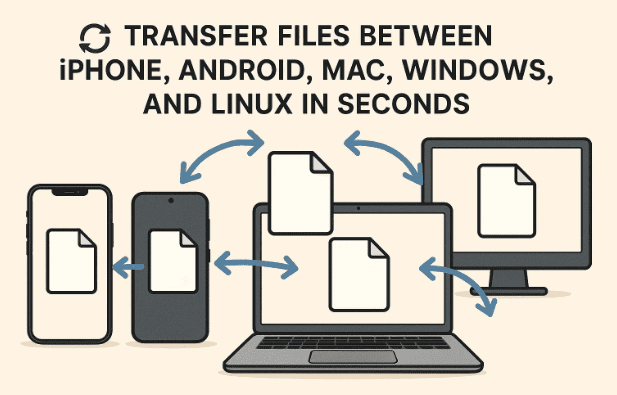
1) Why File Sharing Across Operating Systems is Hard
Before jumping into solutions, let’s acknowledge the problem. Each operating system — Windows, macOS, Linux, iOS, and Android — has its own ecosystem.
- Apple prefers AirDrop for iPhone and Mac, but it doesn’t work with Windows or Linux.
- Android offers Nearby Share, but that won’t help you if your friend uses an iPhone.
- Windows uses Bluetooth or email attachments, both of which can be painfully slow for large files.
- Linux users often end up falling back to cloud services, which requires uploading and downloading.
These fragmented solutions create a nightmare when you need a single, universal method to send files quickly and securely. That’s where Bling steps in.
2) Meet Bling: The Cross-Platform Transfer App
Bling is designed as a cross-platform file transfer tool that works on iPhone, Android, Windows, Mac, and Linux.
What makes Bling different is its wireless-first approach. Instead of relying on USB cables or third-party cloud services, Bling connects your devices directly over the same Wi-Fi or local network. This gives you:
- Faster transfer speeds compared to Bluetooth.
- No internet dependency (transfers happen locally).
- Support for all file types (photos, videos, PDFs, apps, documents).
- Simple setup with one account across all devices.
By centralizing file sharing into one app, you no longer need to juggle different tools depending on who you’re sending files to.
3) How to Download and Install Bling on Windows, Mac, Linux, iPhone, and Android
Installing Bling is straightforward, but the method varies slightly depending on your platform. Let’s go step by step.
On Windows
- Open the Microsoft Store.
- Search for “Bling App”.
- Click Install and wait for the setup to complete.
- Alternatively, visit the official website bling.net and download the Windows installer.
On macOS
- Open Safari or another browser.
- Go to bling.net.
- Download the Mac installer.
- Double-click the
.dmgfile and drag the app to your Applications folder.
On Linux
- Visit bling.net.
- Select the Linux version (usually
.debor.rpmpackages). - Open your terminal and run:
sudo dpkg -i blingfile.debor use your package manager to install.
On iPhone (iOS)
- Open the App Store.
- Search for Bling.
- Tap Get and authenticate with your Apple ID or Face ID.
On Android
- Open the Google Play Store.
- Search for Bling App.
- Tap Install.
No matter which system you use, the setup process is similar: install → log in → connect.
4) Creating and Logging Into Your Bling Account
Once installed, you’ll need to create a Bling account to sync your devices.






- Open Bling on your device.
- Enter your email address.
- Check your inbox for a verification code.
- Enter the code in the app to complete signup.
This email-based login avoids passwords, making it quick but still secure. If you already have an account, just log in using the same email on all your devices.
5) Recommended Settings for Smooth Transfers
Before sending your first file, it’s worth exploring the Settings menu in Bling. Adjusting a few options makes your experience smoother.
- Disable Auto Startup: If you prefer opening the app only when needed, toggle this off.
- Enable/Disable Sound Effects: Choose whether Bling plays a sound when sending or receiving files.
- Auto Access: Enable this on your personal devices for faster transfers without manual approvals.
- Save Location: Set a default folder (e.g., Downloads, Documents) where incoming files are stored.
- Speed Diagnostics: Turn this on if you want to monitor transfer performance.
- Speed Limits: If you’re on a shared network, you can cap send/receive speeds. For personal use, keep this off to maximize transfer rates.
Taking a moment to configure these ensures fewer interruptions later.
6) Managing Your Profile and Devices
Bling also includes a Profile and Devices tab to manage your setup.
- Searchable by Name: This option lets others find you by your registered name or email. Handy for quick sharing, but remember it uses your data connection.
- Device Management: From the Devices tab, you can view all linked devices, rename them, or remove any old devices you no longer use.
Keeping your devices list clean avoids confusion when transferring files between multiple gadgets.
7) Testing Bling: Sharing Files Between Devices
Let’s move to the fun part—sending a file.
Example: Sending from an Android phone to a Windows PC.
- Open Bling on both devices.
- On your Android, tap Send.
- Select the file (photo, video, or document).
- Choose your Windows PC from the devices list.
- The file transfers wirelessly and appears in your default folder on Windows.
If you’re on iPhone, the steps are the same: select a file → choose recipient device → send.
8) Factors That Affect File Transfer Speed
While Bling is designed for speed, several factors influence performance:
- Router Speed: Faster Wi-Fi routers (Wi-Fi 5 or Wi-Fi 6) drastically improve transfers.
- Phone Wi-Fi Hardware: Newer phones can handle faster connections.
- Network Traffic: Sharing bandwidth with many devices may slow down transfers.
- File Size: Larger files will naturally take longer, though still much faster than email or Bluetooth.
For best results, keep both devices close to your router and connected to the same network.
9) Pro Tips and Troubleshooting Common Problems
Sometimes, you might hit small roadblocks. Here are some fixes.
- File Transfer Stuck on iPhone: If progress freezes, unlock your iPhone, open the Gallery (if sharing from there), then return to Bling. This usually resolves stuck transfers.
- Device Not Showing Up: Ensure both devices are on the same Wi-Fi. If still missing, log out and log back in.
- Slow Speeds: Disable speed limits in settings and check your Wi-Fi router performance.
- Can’t Find Recipient: If “Searchable by Name” is disabled, you’ll need to connect using linked devices.
By applying these quick fixes, most issues resolve without frustration.
10) File Security: Passwords and Compression Options
While Bling itself handles file transfers securely, you may want extra protection for sensitive files. One option is compressing your files into a ZIP or RAR archive and adding a password.
Tools like 7-Zip or WinRAR let you:
- Compress files before transfer.
- Set strong passwords for encryption.
- Reduce file size slightly for faster sharing.
This ensures your files remain secure, even if someone accidentally gains access to your device mid-transfer.
11) Frequently Asked Questions (FAQ)
Q1. Does Bling need the internet to transfer files?
No. Files transfer over your local Wi-Fi network, so internet data isn’t consumed.
Q2. Can I transfer files from iPhone to Linux?
Yes. Install Bling on both devices, log in, and send files just like you would on other platforms.
Q3. Are there file size limits?
Bling does not impose strict file limits, but your router speed and device storage are practical constraints.
Q4. Is Bling free?
Yes, the app is free to install and use across platforms.
Q5. Can I transfer files without creating an account?
No. You need at least a basic Bling account for device linking and security.
12) Disclaimer and Best Practices
This tutorial is for educational purposes. Always download Bling from the official website (bling.net) or trusted app stores (Microsoft Store, App Store, Google Play). Avoid third-party downloads, as they may contain malware.
Also, while Bling uses encrypted transfers, for highly sensitive data you should add an extra layer of encryption (e.g., password-protected archives).
Finally, remember that transfer speeds depend heavily on your network environment—results may vary.
✅ Tags & Hashtags
Tags: file transfer, cross-platform, Bling app, Windows, Mac, Linux, Android, iPhone, wireless sharing, productivity tools
Hashtags: #FileTransfer #CrossPlatform #Windows #Mac #Linux #Android #iPhone #BlingApp #Productivity








