Setting up a new Wi-Fi router might seem complicated at first, but with the right steps, you can configure your Mercusys AC10 router in minutes and unlock its full performance potential.
Whether you just bought it for your home, office, or want to upgrade your old router, this guide will walk you through every option — from initial setup to advanced features like QoS, parental control, MAC cloning, DDNS, and more.
Let’s begin by understanding what makes this router special.
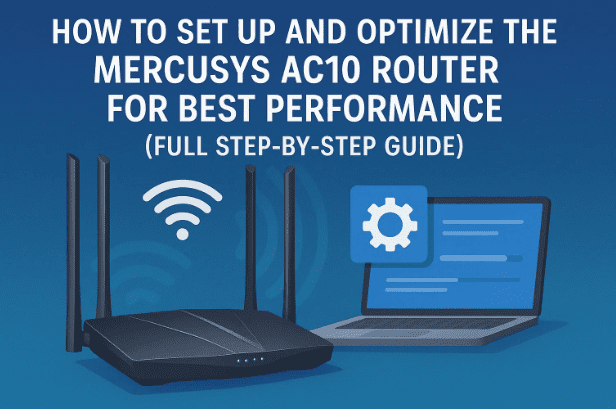
1. Overview of the Mercusys AC10 Router
The Mercusys AC10 is an AC1200 dual-band Wi-Fi router that delivers up to 867 Mbps on the 5GHz band and 300 Mbps on the 2.4GHz band.
It’s ideal for homes with multiple connected devices — like phones, TVs, and laptops — offering stable connections and simple management through its web dashboard.
The router supports several useful technologies:
- Dual-band Wi-Fi (2.4GHz + 5GHz)
- PPPoE, Static, Dynamic, L2TP, PPTP internet types
- MAC address cloning
- QoS bandwidth management
- Guest Wi-Fi and Parental Control
- Firmware updates via official site
Now that you know what it offers, let’s explore how to log in and navigate its interface.
2. Logging In and Understanding the Dashboard
After connecting your router to power and your internet cable to the WAN port:
- Connect your computer or smartphone to the Wi-Fi named something like Mercusys_XXXX.
- Open a browser and type http://mwlogin.net or 192.168.0.1 to access the login page.
- Create an admin password (this is for the router, not your Wi-Fi network).
Once you log in, you’ll see the main dashboard — a graphical overview of your connection and devices.
Here’s what you’ll notice:
- Internet icon: shows if your router is online and the connection type (Dynamic IP, PPPoE, etc.)
- Router info: device name, MAC address, IPv6 address
- Wireless section: displays SSID, password, and channels for both 2.4GHz and 5GHz
- Guest Network: enables or disables a visitor Wi-Fi
- Ethernet section: shows which LAN ports are active
This screen acts as your control hub for everything — from checking IP addresses to changing Wi-Fi names.
3. Internet Setup Options Explained
Before customizing Wi-Fi, your first step is to ensure the router connects properly to your Internet Service Provider (ISP).
The Mercusys AC10 supports five types of internet connections:



| Type | Description | Common Use |
|---|---|---|
| Dynamic IP (DHCP) | Automatically receives IP from ISP. | Most home broadband routers. |
| Static IP | ISP provides fixed IP, subnet, and gateway. | Offices or advanced users. |
| PPPoE | Requires username/password from ISP. | Common in home fiber or DSL. |
| L2TP / PPTP | Used for VPN or remote networks. | Special corporate setups. |
Let’s go step by step:
Step 1: Go to Internet from the main menu.
Step 2: Choose your connection type.
- For PPPoE: enter the username and password given by your ISP.
- For Dynamic IP: simply connect the cable — no input needed.
- For Static IP: fill in IP, Subnet, Gateway, DNS values manually.
If you’re unsure which to use, check your ISP invoice or contact their customer support.
4. Wireless Settings: Configure 2.4GHz and 5GHz Networks
Once your internet connection works, it’s time to personalize your Wi-Fi.
The Mercusys AC10 provides two wireless bands:
- 2.4GHz – Better range, slightly lower speed
- 5GHz – Faster, ideal for close-range devices
You can change your Wi-Fi name (SSID), password, and security type.
Recommended settings:
- SSID (Wi-Fi name): e.g.,
Home_WiFiorOfficeNet - Security: WPA/WPA2-Personal (most secure and widely supported)
- Password: Use a mix of letters, numbers, and symbols.
Example:MySecure@2025 - Hide SSID: Optional; hides your Wi-Fi from public scanning.
💡 Tip: Keep both 2.4GHz and 5GHz enabled so all devices (old and new) can connect easily.
5. Creating and Managing a Guest Network
If you frequently have guests or clients, enabling a Guest Wi-Fi is a great idea.
This keeps your personal devices private and safe.
Steps:
- Open Guest Network in the dashboard.
- Enable either 2.4GHz or 5GHz (or both).
- Set a simple SSID, e.g.,
Guest_WiFi. - Choose WPA2-Personal security and create a short password, like
guest1234.
This separate network gives visitors internet access without letting them see shared drives or smart devices on your main network.
6. Using MAC Clone to Restore ISP Connection
Some ISPs lock your service to a specific MAC address (the unique ID of your old router).
If you replace that router, your internet might stop working even with the right credentials.
MAC Clone solves this:
- Open MAC Clone under Internet settings.
- Click “Clone MAC Address” — it copies your computer’s or old router’s address.
- Save settings and reboot.
This tricks your ISP into recognizing the new router as your previous one — restoring connectivity instantly.
7. Quick Setup Wizard: Easy Configuration for Beginners
If you’re setting up for the first time, the Quick Setup option is the fastest way.
Here’s how it works:
- Select your time zone.
- Choose your internet type (PPPoE, Dynamic IP, etc.) and enter details.
- Configure Wi-Fi names and passwords.
- Review and save settings.
After a quick reboot, your router will be online and ready.
It’s the best choice for beginners or when resetting the router.
8. Advanced Network Settings and Performance Optimization
The Advanced section is where you can fine-tune performance.
Here’s what you’ll find:
• Network Status
Shows whether the router is connected to the internet, the IP address assigned, DNS servers, and MAC info.
• NAT (Network Address Translation)
Enabled by default — allows multiple devices to share one IP. Leave it ON.
• WAN Port Speed
Always select Full Duplex mode (e.g., 1000 Mbps Full Duplex) for best performance.
If 1 Gbps doesn’t appear, check your Ethernet cable — upgrade to a Cat6 cable for full speed.
• LAN Settings
Lets you change your internal IP range (e.g., from 192.168.0.1 to 192.168.10.1).
Stick within private IP ranges to avoid conflicts.
9. Wi-Fi Power, Channel, and Scheduling Settings
This router allows advanced Wi-Fi tuning to balance performance and stability.
Transmit Power
- High: Better coverage but may cause heat buildup.
- Medium: Ideal for medium-sized homes.
- Low: Best for small apartments or night-time power saving.
Channel & Bandwidth
Set Auto — the router picks the least congested channel.
Manual tuning is possible if you detect interference.
Wi-Fi Schedule
You can automatically turn Wi-Fi off at specific hours — perfect for offices or kids’ study time.
To set this:
- Go to Wireless Schedule.
- Click Add, choose time range, and save.
10. Security, Firewall, and Access Control
Security is vital to keep unwanted users and attacks away.
Recommended settings:
- SPI Firewall: ON (protects against malicious traffic)
- Ping from WAN: OFF (prevents external pings)
- Ping from LAN: ON (for internal testing)
Access Control
This feature lets you decide which devices can connect.
Two modes:
- Blacklist: Block selected devices.
- Whitelist: Allow only listed devices, block everything else.
This is great for parents or small offices who want strict control.
IP & MAC Binding
Ensures each device always gets the same IP, preventing ARP spoofing and network hijacking.
11. Quality of Service (QoS): Prioritize Devices for Speed
If multiple users stream, game, or download simultaneously, QoS (Quality of Service) ensures important devices always get top speed.
Steps to use QoS:
- Go to QoS / Bandwidth Control.
- Enable QoS.
- Set upload and download bandwidth (as per your plan).
- Assign priorities — e.g.,
- High: Gaming PC, Smart TV
- Medium: Phones
- Low: Cameras, Smart bulbs
💡 Tip: QoS is perfect for households with kids or gamers — it prevents lag spikes and uneven speeds.
12. Parental Controls: Safe Browsing for Kids
This is one of the most family-friendly features of the AC10 router.
You can:
- Create a profile for each child or device.
- Set daily or hourly time limits.
- Block inappropriate websites.
- Pause internet instantly with one click.
All of this can be managed from the router interface or the Mercusys mobile app.
13. System Maintenance: Firmware, Backup & Restore
Keeping your router updated ensures stability and security.
Firmware Update
- Visit the Official Mercusys Website.
- Go to Support → Downloads and select your exact router model.
- Download the correct firmware file.
- In your router’s System → Firmware Upgrade menu, upload it.
⚠️ Important: Never install firmware meant for another model — it can permanently damage (brick) your router.
Backup & Restore
Before experimenting with new settings, back up your configuration.
If something goes wrong, simply restore the file and your old setup returns instantly.
Factory Reset
This restores the router to its default state.
Use it if you forget your password or when changing ISPs.
14. Diagnostic Tools and Router Management
In the System Tools menu, you’ll find several handy utilities:
- Ping Test: Check if your internet is working and measure latency.
- System Log: View all activity — connections, reboots, or failed logins.
- Scheduled Reboot: Automatically restart the router at intervals to maintain speed.
- LED Control: Turn off indicator lights for night use.
- Time Settings: Adjust clock or timezone for accurate scheduling.
Each tool ensures your router remains reliable, secure, and optimized.
15. FAQs About Mercusys AC10 Router
Q1. How do I log into my Mercusys router if I forget the password?
Press and hold the Reset button on the back for 10 seconds. It restores default login at mwlogin.net.
Q2. How can I check who’s connected to my Wi-Fi?
Go to Clients → view all connected devices and their MAC/IP. You can rename or block any device instantly.
Q3. Can I use Mercusys AC10 as a range extender?
Yes, under Operation Mode, select Access Point mode to extend existing Wi-Fi.
Q4. Is it safe to enable WPS?
No, keep WPS disabled to avoid brute-force attacks. Always use WPA2 with a strong password.
Q5. What if my internet speed is lower than expected?
Check your cable category (use Cat6), ensure WAN port speed is set to Full Duplex, and disable unnecessary background devices in QoS.
16. Disclaimer
This article is for educational and configuration guidance purposes. Always download router firmware only from the official Mercusys website. Changing advanced settings like VLAN, DDNS, or port forwarding should only be done if you understand the risks. Incorrect configuration may lead to connectivity issues or security vulnerabilities.
Tags & Hashtags
Tags: Mercusys AC10 router setup, router configuration guide, Wi-Fi optimization, QoS settings, MAC clone, parental control, guest Wi-Fi, router firmware, PPPoE setup, Mercusys support
Hashtags: #MercusysAC10 #RouterSetup #WiFiGuide #HomeNetwork #InternetTips #QoS #ParentalControl #WiFiSecurity








