Most of us are used to seeing a list of available Wi-Fi networks when we open the wireless settings on our laptops or smartphones. But did you know that routers also allow you to hide Wi-Fi networks so that they don’t appear in that list at all?
This can sometimes cause confusion. If the network doesn’t appear in the list, how do you connect to it in the first place? That’s exactly what we’ll explain in this guide.
We’ll cover:
- What hidden Wi-Fi networks are and why people use them.
- Why hiding a Wi-Fi network is not a foolproof security measure.
- How to connect to a hidden Wi-Fi network on Windows 11.
- How to connect to a hidden Wi-Fi network on an iPhone.
- Common issues you might run into and how to fix them.
- Frequently asked questions.
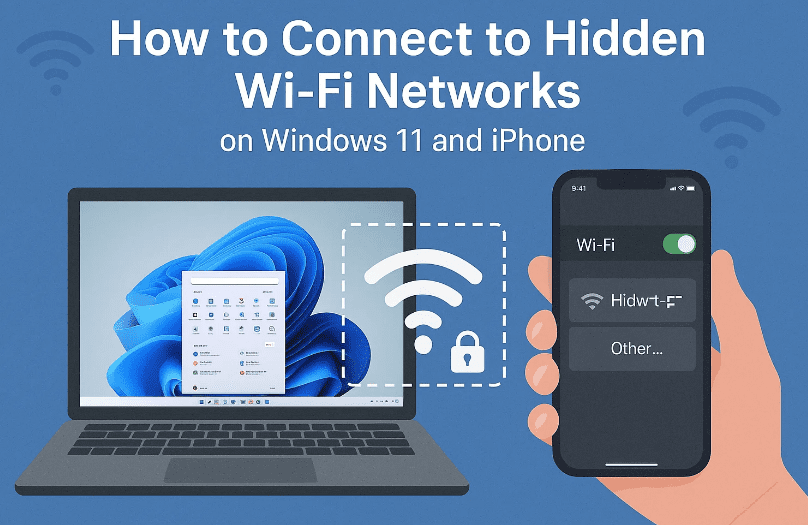
By the end of this article, you’ll be able to confidently connect to hidden Wi-Fi networks on your own devices.
🔎 What Is a Hidden Wi-Fi Network?
A hidden Wi-Fi network is simply a wireless network where the SSID (Service Set Identifier) — the network name — is not broadcast publicly. Normally, when you click on available Wi-Fi networks, your device listens for broadcasted SSIDs and displays them.
With hidden networks:
- The router is still transmitting Wi-Fi signals.
- The SSID is suppressed, meaning it doesn’t appear in the normal list.
- To connect, you must manually enter the network name and password.
Why do people hide Wi-Fi networks?
Some common reasons include:
- To prevent neighbors or guests from casually attempting to connect.
- To reduce clutter in areas with many overlapping Wi-Fi networks.
- As an added layer of obscurity for guest networks.
However, let’s address an important misconception.
⚠️ Are Hidden Wi-Fi Networks More Secure?
At first glance, hiding your SSID might feel like a security upgrade. But in reality, hidden Wi-Fi networks are no more secure than visible ones.
Here’s why:
- Tools such as Wi-Fi analyzers can still detect hidden SSIDs.
- Hackers can capture wireless traffic and uncover the network name.
- True Wi-Fi security comes from using strong encryption methods such as WPA3 or WPA2, not just hiding the SSID.
So if you are considering hiding your Wi-Fi purely for security reasons, think again. It may reduce casual connections, but it will not protect you against targeted attacks.











That said, hidden networks still exist in many homes and offices, so knowing how to connect to them is useful.
💻 How to Connect to a Hidden Wi-Fi Network on Windows 11
Let’s begin with Windows 11. Connecting to a hidden Wi-Fi network here requires a bit of manual input.
Before you start, make sure you have:
- The exact SSID (network name). Even a single typo will prevent you from connecting.
- The Wi-Fi password.
Step-by-step guide
- Open the Wi-Fi menu
- Click the network icon on the taskbar.
- Select Wi-Fi to see available networks.
- Select “Hidden Network”
- Scroll to the bottom of the list.
- You should see an option called Hidden Network.
- Click Connect.
- Enter the network name (SSID)
- A prompt will ask you to type the network name.
- Enter it carefully. For example:
NWFH_Guest - If you mistype it (e.g., “MWFH_Guest”), even the correct password won’t work.
- Enter the password
- Once the SSID is accepted, you’ll be prompted for the Wi-Fi password.
- Type it in and click Next.
- Verify the connection
- If everything is correct, you’ll see the status change to Connected, secured.
- You’re now on the hidden Wi-Fi network.
Troubleshooting tips for Windows
- If multiple hidden networks appear in your list, check the signal strength and security type. Choose the one that matches your expected network.
- If you repeatedly see “Can’t connect to this network”, double-check both SSID and password. One wrong character is enough to fail the connection.
- If your router is nearby, ensure the hidden network signal is strong enough to be detected.
📱 How to Connect to a Hidden Wi-Fi Network on iPhone
The process on an iPhone is slightly different but just as straightforward.
Again, you’ll need:
- The exact SSID (case-sensitive).
- The correct Wi-Fi password.
Step-by-step guide
- Open Settings
- Go to the Settings app on your iPhone.
- Select Wi-Fi
- Tap Wi-Fi to see available networks.
- Choose “Other…”
- Scroll down past the visible networks.
- Tap Other….
- Enter the SSID
- In the Name field, type the exact Wi-Fi network name.
- Example:
NWFH_Guest
- Select the security type
- Choose the correct security protocol (WPA2, WPA3, etc.).
- This must match the router settings.
- Enter the password
- Type in the Wi-Fi password.
- Tap Join.
- Confirm the connection
- If successful, the iPhone will display the Wi-Fi icon at the top of the screen.
- The network will show as connected, sometimes labeled as “Hidden Network.”
📊 Hidden Wi-Fi on Other Devices
While we focused on Windows 11 and iPhone, most modern devices follow a similar pattern:
- Android phones → Go to Wi-Fi settings → Add network manually → Enter SSID and password.
- MacBooks → Open Wi-Fi settings → “Join Other Network” → Enter details.
- Tablets → Usually mirror the steps of their OS counterpart (iOS or Android).
The key concept is always the same: you must know the exact SSID and password in advance. Without them, you cannot connect.
🛠️ Common Problems and Fixes
Hidden Wi-Fi networks can be tricky. Here are the most common issues and their solutions:
- Problem 1: Can’t connect despite correct password
→ Double-check the SSID. One wrong letter or space will prevent connection. - Problem 2: Multiple hidden networks detected
→ Look at signal strength and security type. Pick the one that matches your router’s configuration. - Problem 3: Keeps disconnecting
→ Ensure your router is broadcasting strongly enough. Move closer to the router or extender. - Problem 4: Wrong security setting
→ If you choose WPA2 when the router uses WPA3, it won’t connect. Confirm your router’s settings.
🙋 Frequently Asked Questions
Q1. Is hiding my Wi-Fi network a good security practice?
Not really. It may stop casual attempts but won’t protect against hackers. Strong WPA2/WPA3 encryption and a strong password are far more important.
Q2. Can hidden networks still be hacked?
Yes. Tools like Wi-Fi analyzers can detect hidden SSIDs. Always prioritize encryption over hiding.
Q3. Do hidden networks affect internet speed?
No. Hiding an SSID doesn’t change performance. Speed depends on bandwidth, signal strength, and router quality.
Q4. Why do I see multiple “Hidden Network” options in Windows?
That means multiple routers nearby are broadcasting hidden SSIDs. You must select the one belonging to your network.
Q5. Will my device remember a hidden network?
Yes. Once you connect manually, your device will save the credentials and reconnect automatically in the future.
⚖️ Disclaimer
Hiding a Wi-Fi network does not guarantee increased security. This guide is for educational purposes only to help you connect to legitimate networks you are authorized to use. Always use strong passwords and modern encryption standards (WPA2/WPA3) to secure your Wi-Fi.
✅ Conclusion
Connecting to hidden Wi-Fi networks on Windows 11 or iPhone is simple once you understand the process. The crucial points are:
- You must know the exact network name (SSID).
- The password and security type must match the router settings.
- Hidden networks are not inherently more secure, so use strong encryption instead.
Whether you’re troubleshooting at home, visiting a friend’s house, or dealing with office setups, knowing how to join hidden Wi-Fi networks can save time and frustration.
Tags
connect hidden wifi windows 11, connect hidden wifi iphone, hidden wifi network setup, wifi troubleshooting guide, ssid not broadcasting, join hidden network manually, wifi security tips
Hashtags
#WiFi #Windows11 #iPhone #Networking #HiddenWiFi #SSID #TechTips #CyberSecurity








