If you’re like me, you’ve probably delayed an iPad software update once or twice because some new visual tweak didn’t click right away. But useful features are a different story—they’re the things that make everyday tasks faster, calmer, and more “of course it should work like that.” With the upcoming iPadOS 26, Apple is finally shipping several of those “of course” improvements. And yes, after spending time with the new build and cross-checking Apple’s documentation and early reports, I think these changes are worth your attention.
In this in-depth guide, we’ll walk through five headline features—what they do, why they matter, and exactly how to use them. We’ll mix in practical setup steps, real-world tips, troubleshooting notes, and a short FAQ at the end. Along the way, I’ll flag what’s officially documented by Apple and what’s new as of the iPadOS 26 release window, so you can make an informed decision about updating.
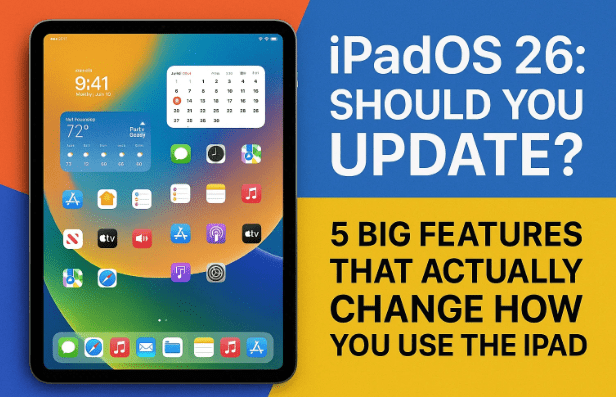
1) The New Phone App on iPad: Calls That Feel Native
Let’s start with the sleeper hit: a proper Phone app on iPad. You’ve long been able to make and receive calls on iPad through your iPhone (Apple calls this Calls on Other Devices, part of Continuity), but iPadOS 26 elevates this flow with a polished, iPad-native experience. The essential plumbing still relies on your iPhone (same Apple ID, nearby, Wi-Fi, etc.), and the setup is quick.
Why it’s useful
There are moments when your iPhone is in a bag, across the room, or simply not the device you’re using. The new Phone app cuts friction: you can search contacts, dial numbers, accept incoming calls, and manage audio directly from the iPad, without digging for your phone.
One-time setup (takes 60–90 seconds)
We’ll turn on relay calling from your iPhone and then enable it on your iPad:
On your iPhone
- Open Settings → Phone → Calls on Other Devices.
- Turn on Allow Calls on Other Devices.
- In the device list, enable your iPad.
On your iPad
- Open Settings → FaceTime.
- Turn on Calls from iPhone (this switch allows the iPad to place/receive calls via your iPhone).
Now launch the Phone app on your iPad. You’ll see a familiar dialer and call history. Try placing a call from Contacts or the Keypad—audio will route through your iPad speakers or a paired headset.
Tip: If you don’t want your iPad to ring during quiet hours, toggle the feature off temporarily on either device or use Focus modes to control interruptions.
What’s new in iPadOS 26? Besides the native feel, Apple is touting improved call polish and deeper integration with other system apps; early coverage has also highlighted realtime features arriving with the new stack. Regardless, the Continuity underpinning (Calls on Other Devices) remains Apple-documented and reliable.
2) Preview App on iPad: Real PDF Workflows (Finally)
Mac users have loved Preview for years. With iPadOS 26, Preview comes to iPad in a proper, stylus-friendly way. You can open PDFs, fill forms, annotate, sign with Apple Pencil, and export—without hunting for a third-party app. Apple’s pages for iPadOS 18 already teased “Preview comes to iPad,” and the new cycle solidifies it as a staple.








Why it’s useful
If you work with bank forms, client contracts, tax documents, school PDFs, scanned worksheets, or anything you’d rather not print, Preview turns the iPad into a legitimate document station.
Opening PDFs in Preview
You have two easy paths:
- From Files app: Tap the PDF → Open in Preview (you can set Preview as the default handler so future PDFs open there automatically).
- Long-press a PDF → Open With → Preview to override app-by-app.
Filling forms, annotating, and signing
- Open the PDF in Preview.
- Tap Form Filler—Preview will detect form fields so you can type with the software keyboard or a hardware keyboard.
- Tap the Markup tools to highlight, draw, or add notes.
- Choose Signature to sign with Apple Pencil (or finger), then place and resize the signature block.
Tip: Tap the … menu for options like Rotate, Dark/Light appearance, Share, or Get Info.
Reality check: Multiple reports and Apple’s own feature rundowns make it clear that a dedicated Preview on iPad is now part of the first-party toolkit, designed with Pencil in mind. That’s a real workflow win compared with the pre-18 era (where the Markup sheet felt more “mini-tool” than full app).
3) A Smarter Cursor: Easier to Spot, Easier to Drive
If you use a mouse or trackpad with iPad, iPadOS 26 brings a quiet but welcome usability lift: when you shake the pointer (move it rapidly side to side), it momentarily enlarges, making it easy to locate—similar to macOS. This has surfaced repeatedly in beta chatter and early user reports, and it matches Apple’s recent push to make iPad workflows feel more “desktop fluent.”
Why it’s useful
- On a desk setup, it’s easy to “lose” the pointer on a high-resolution display. The enlargement is an instant “there you are.”
- For accessibility, quick discovery reduces eye strain and fidgeting.
Using the cursor well
- Pair a Magic Keyboard, Magic Trackpad, or any Bluetooth mouse.
- Practice the hover targets: buttons subtly “magnetize” to the pointer, and text insertion is precise.
- If the pointer isn’t auto-hiding as expected in your beta build, note that some users have flagged this as a bug; check for updates as releases stabilize.
Tip: Combine a trackpad with Keyboard Shortcuts (hold ⌘ to see app shortcuts) and you’ll fly through apps, especially now that more apps surface commands in the new menu system.
4) Window Management That Makes Sense: Resize, Arrange, Focus
Windowing on iPad used to be the “almost there” story. Stage Manager improved things a lot on M-series iPads, but iPadOS 26 pushes it further: resizable, movable windows with quick layouts and better multi-app flow. Apple’s Stage Manager pages already document resizing, overlapping windows, grouping, and swift app switching—and the new cycle iterates on those foundations with desktop-like polish.
Why it’s useful
- Real multitasking: Keep reference material open alongside your main app.
- Flexible layouts: Snap two or three apps side-by-side, or float a utility window.
- Context bundles: Group apps (e.g., Research set: Safari + Notes + Preview; Creative set: Photos + Files + Pixelmator).
Hands-on basics
- Turn on Stage Manager (if your model supports it): Control Center → Stage Manager toggle.
- Resize a window by dragging its edges or corners.
- Move windows by dragging the title/toolbar area.
- Use the “traffic light” controls (close, minimize, full-screen) in the corner of many app windows to manage space quickly.
- Drag from the Dock to drop a second or third app into the current space; arrange to taste. (Apple Support)
Tip: Keep one “anchor app” (like your writing app) centered, and treat secondary windows (Preview, Files) as floating tools you summon and dismiss as needed.
5) The New Menu Bar & Floating Tab Bar: Deeper App Commands, Fewer Taps
This might be my favorite “quality of life” upgrade. Modern iPad apps can now present a top menu bar (and a floating/customizable tab bar) that exposes more commands in one predictable place—similar to the Mac’s philosophy. Apple introduced this direction in iPadOS 18 (tab bar that morphs into a sidebar) and it’s steadily spreading to more apps with 26, making complex app features discoverable and one-click accessible.
Why it’s useful
- You no longer have to remember hidden long-presses or deep submenus.
- Editing, formatting, navigation, and “power user” options are simply up there, where your pointer (or finger) naturally goes.
Try it in practice
- Open Calendar, Reminders, Files, or Preview.
- Move your pointer or swipe down near the top to reveal the menu/command options.
- Watch how the tab bar adapts: in portrait it may sit at the top; in landscape it may transform into a sidebar for roomy navigation.
Tip: If you prefer fewer surprises, spend 5 minutes exploring each app’s top commands once after updating. That small investment pays off with faster muscle memory.
Step-by-Step: Set Up the Five Features in One Sitting
Let’s string this all together so you (or a family member) can get everything configured smoothly:
- Update and Check Compatibility
- Back up to iCloud or a Mac first.
- Update to iPadOS 26 when it’s available on your model. (Apple has announced the release timing; as with every major iPadOS, rollout may stage by region or device.)
- Enable Calls from iPhone
- iPhone: Settings → Phone → Calls on Other Devices → enable your iPad.
- iPad: Settings → FaceTime → Calls from iPhone.
- Test by placing a quick call from the new Phone app on iPad.
- Make Preview Your Default for PDFs
- In Files, long-press a PDF → Open With → Preview (set as default when prompted).
- Open a tax form or contract and try Form Filler, Markup, and Signature with Apple Pencil.
- Tune Your Pointer Workflow
- Pair a mouse or trackpad (Settings → Bluetooth).
- Practice the shake-to-locate gesture; note it may vary slightly by build until final release.
- Embrace Windowing
- Enable Stage Manager via Control Center if available.
- Drag in a second app from the Dock; resize and stack.
- Use corner controls to minimize/close quickly.
- Explore the Menu Bar / Floating Tab Bar
- Open a few Apple apps and reveal the top command area.
- Notice how complex options are now fewer taps away.
Real-World Use Cases (Where These Features Shine)
- Paperwork Afternoon: Download a PDF, open it in Preview, fill forms, sign with Pencil, save, and email—no Mac required.
- Desk Setups: Use a Magic Keyboard or external trackpad, enjoy the findable cursor, and control multiple windows without juggling Split View gymnastics.
- Light Office Days: Keep Calendar and Reminders open; use the menu bar to add events or bulk-edit lists without hunting.
- Calls During Focus Work: Leave your iPhone in another room; answer from iPad, jot notes in Notes or Preview during the call.
Troubleshooting & Pro Tips
- iPad won’t place calls? Double-check you’re signed into the same Apple ID on both devices; ensure Wi-Fi is enabled. On iPhone, verify Allow Calls on Other Devices is on and your iPad is checked. On iPad, confirm Calls from iPhone is on under FaceTime.
- PDF opens in another app: In Files, long-press → Open With → Preview. If another app “steals” PDFs, reset the default by repeating this step.
- Pointer not enlarging? Update to the latest iPadOS 26 build; early betas showed mixed behavior. The feature is rolling out across devices as Apple stabilizes the release.
- Window layouts feel messy: Use the corner controls (close/minimize/full) to quickly normalize. For deep focus, full-screen your primary app and keep others as small floaters you summon as needed.
- Menu bar “disappears”: Move the pointer to the top or perform a short downward swipe near the top edge to reveal it again. Behavior varies slightly by app, but the pattern is consistent.
Frequently Asked Questions
Q: Do I need an iPhone nearby for the new Phone app to work?
A: Yes—the underlying feature is Calls on Other Devices (Continuity). Your iPad relays the call through your iPhone that’s signed into the same Apple ID. Configure it once on both devices and you’re set.
Q: Is Preview on iPad really “full Preview” like on the Mac?
A: It’s designed for iPad with strong PDF viewing, annotations, form filling, and Pencil signing. Feature parity isn’t one-to-one with macOS, but for everyday document work, it’s powerful and first-party.
Q: Do these windowing features require an M-series iPad?
A: Richer windowing with Stage Manager requires supported models (generally newer iPads with more RAM/graphics headroom). Check Apple’s Stage Manager documentation for model specifics before you rely on it.
Q: Will all third-party apps adopt the new menu/tab bar style?
A: Apple’s own apps lead the way, and many third-party developers follow over time. Expect a staggered adoption curve as developers update their iPad interfaces.
Q: When is iPadOS 26 actually rolling out?
A: Apple has announced the release window; feature availability and timing can vary by region and device, so keep an eye on the Software Update screen on your iPad as the date approaches.
Should You Update?
If your daily iPad routine includes documents, calls, multitasking, or keyboard/trackpad use, these five updates are not small tweaks—they remove friction you feel every single day. The iPad finally behaves more like the flexible computer it has the hardware to be, and less like a phone-first OS stretched onto a big screen.
From where I sit, if your iPad supports iPadOS 26 and you’re comfortable with a major update cycle, yes—update. The gains in Preview, calling, windowing, cursor ergonomics, and discoverable commands add up to a calmer, more capable tablet.
Official Resources (Help & How-To)
- Apple: Preview comes to iPad (iPadOS) – app overview and Pencil-friendly design.
- Apple Support: Make and receive phone calls on iPad/Mac – exact settings for iPhone and iPad.
- Apple Support: Stage Manager on iPad – resizing, overlapping windows, groups, and layouts.
Disclaimer
Features, visuals, and behaviors described here reflect Apple’s current announcements, support documentation, and pre-release/launch-window information for iPadOS 26. Roll-out dates, device eligibility, and small UI details can change as Apple finalizes the release. Always back up your iPad before updating and review Apple’s official notes for your specific model.
Tags
iPadOS 26, iPad preview app, iPad phone app, iPad window management, Stage Manager iPad, Apple Pencil PDF, iPad cursor, iPad multitasking, iPad menu bar, iPad tips
Hashtags
#iPadOS26 #iPadTips #ApplePencil #PDFonIPad #StageManager #iPadMultitasking #Apple #iPadTutorials


