Switching from an Android phone to a new iPhone is an exciting upgrade—but if you’re not careful, you might run into a frustrating issue: losing your WhatsApp chats during the transfer.
Many users make the common mistake of setting up their new iPhone completely before transferring WhatsApp data. Once setup is complete, you may find there’s no official way to transfer WhatsApp chats from Android to iPhone—unless you reset the iPhone and start over.
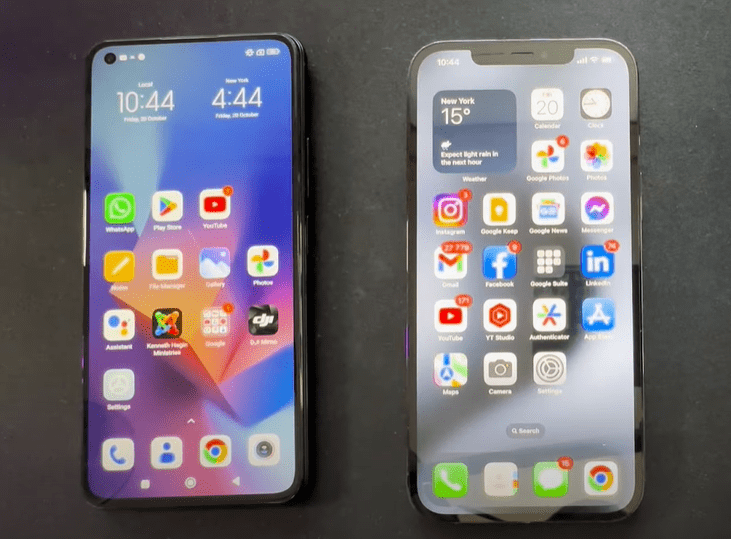
But here’s the good news: you can transfer WhatsApp chats without resetting your iPhone, using either the official method (which requires a full reset) or a third-party tool. This article will guide you through both methods step-by-step.
🛠 Method 1: Official WhatsApp Transfer Method (Requires Resetting Your iPhone)
✅ What You’ll Need:
- An Android device with your current WhatsApp chats.
- A new iPhone not yet fully set up.
- Access to Wi-Fi.
- The Move to iOS app on your Android phone.
⚙️ Steps:
- Reset Your iPhone to Factory Settings
- Go to Settings > General > Transfer or Reset iPhone > Erase All Content and Settings.
- This will reset your device so you can follow the official WhatsApp transfer steps.
- Install Move to iOS on Android
- Download the Move to iOS app from the Play Store.
- Open the app and accept the terms.
- Begin iPhone Setup Again
- Turn on your iPhone and start the setup process.
- When prompted, choose “Move Data from Android”.
- Get the Code & Connect Devices
- Your iPhone will show a six-digit code.
- Enter this code on your Android device in the Move to iOS app.
- Choose What to Transfer
- Select WhatsApp, along with any other data you want (contacts, messages, calendar).
- Tap Start to begin the transfer.
- Complete the Setup
- Once transfer is complete, continue setting up your iPhone.
- After setup, install WhatsApp and log in using the same phone number.
- You will see your old chats restored.
🚨 Note:
This method only works during the initial setup. If your iPhone is already set up, you’ll have to reset it and start from scratch.
🧩 Method 2: Transfer WhatsApp Chats Without Resetting Your iPhone (Using Software)
If you don’t want to reset your new iPhone, there is a much easier and safer method—use third-party WhatsApp transfer software. This works on both Windows and Mac.
✅ What You’ll Need:
- Android phone with WhatsApp installed.
- iPhone (already set up is okay).
- A computer (Windows or Mac).
- Data transfer cables (USB-C for Android and Lightning or USB-C for iPhone).
- WhatsApp transfer software (link available in the article).
⚙️ Steps:
- Install WhatsApp Transfer Software on Your Computer
- Download and install the software from the official site (refer to the link provided in this article).
- Connect Both Devices to the Computer
- Use USB cables to connect your Android and iPhone.
- Allow required permissions on both devices (click Trust on iPhone).
- Prepare Android WhatsApp for Transfer
- Open WhatsApp on Android and go to Settings > Chats > Chat Backup.
- Enable End-to-End Encrypted Backup and generate a 64-digit encryption key.
- Save the key safely.
- Create a Fresh Backup on Android
- Immediately after creating the encryption key, create a new backup.
- This ensures the backup is synced with the encryption key.
- Start the Transfer
- On the software, choose Android as the source and iPhone as the destination.
- Enter the 64-digit encryption key in the prompt.
- Click Transfer and allow the process to complete.
- Login on iPhone
- The software may ask you to log into WhatsApp on the iPhone.
- Disable Find My iPhone temporarily if prompted.
- Continue with the process until the transfer is complete.
- Restore WhatsApp Data
- Once the iPhone restarts, open WhatsApp and verify that all your chats and media have been successfully restored.
🎉 Final Thoughts
Whether you choose the official method or the software route, transferring WhatsApp chats from Android to iPhone is completely possible—even without resetting your iPhone.
- The official method is free but requires a full reset.
- The third-party software offers convenience and preserves your current iPhone setup—no reset needed.
Choose the option that best suits your needs. This article provides you with everything you need to make the switch smoothly and without losing your valuable conversations.
📁 Tags and Hashtags
Tags: WhatsApp Transfer, Android to iPhone, iPhone WhatsApp Restore, WhatsApp Chat Transfer, Move to iOS, iPhone Setup, WhatsApp Data Backup, End-to-End Encryption, WhatsApp Migration
Hashtags:
#WhatsAppTransfer #AndroidToiPhone #iPhoneWhatsApp #MoveToiOS #WhatsAppBackup #iPhoneTips #SwitchToiPhone #MobileDataTransfer #NoResetNeeded #EndToEndEncryption