For years, one of the biggest frustrations for iPhone users was the lack of a built-in way to resize or compress photos without relying on shortcuts or third-party apps. While macOS had Preview for decades, iOS users were left juggling apps like Shortcuts, Mail “tricks,” or external editors just to get a smaller file size or a different format.
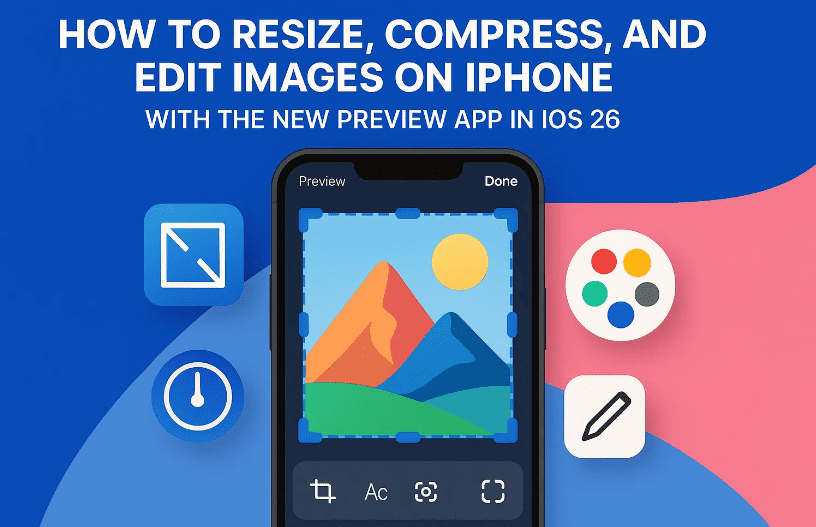
That changes with iOS 26. Apple has quietly brought a Preview app to the iPhone, and it is more powerful than most people realize. With this tool, you can now:
- Resize images by pixel, percent, or inch dimensions.
- Compress photos for email, uploads, or storage savings.
- Change file formats (HEIC → JPEG, PNG, etc.).
- Crop and mark up images before export.
- Duplicate and adjust files directly inside the Files app.
- Even work with screenshots and copied images.
In this complete guide, we’ll walk step by step through how you can use the new Preview app on iOS 26 to take control of your images.
📸 Why Image Resizing and Compression Matter
Before diving into the steps, let’s clarify why this feature is so important.
- Email and Messaging Limits: Many email clients reject attachments larger than 20–25MB. Even a single high-resolution photo can exceed that.
- Website Uploads: Government forms, job portals, or online applications often require images under 100KB or specific pixel sizes.
- Storage Management: Full-resolution iPhone images (especially ProRAW or HDR) can take up 10–75MB per shot. Compressing helps free space.
- Compatibility: The default iPhone format is HEIC, which is great for efficiency but not always supported by websites or older devices. Exporting to JPEG ensures universal compatibility.
🔄 Sending Photos to Preview from the Photos App
Let’s start with the most common scenario: you’ve taken a picture with the Photos app and need to resize or compress it.
- Open Photos and select the image.
- Tap the Share button at the bottom (the standard iOS share sheet).
- Look for the Preview app icon.
- If you don’t see it, scroll sideways or tap More.
- From there, you can Edit Actions and pin Preview so it always appears near the top.
Once tapped, the photo is exported from Photos into Preview, where it becomes a new “document.”
💡 Note: This doesn’t delete the original photo — Preview simply makes a new copy that you can now work with.
✂️ Resizing an Image in Preview
After your photo is in Preview, resizing is straightforward.
- Tap the three dots menu at the top.
- Select Adjust Size.
Here, you’ll find several options:
- Units: Pixels, Percent, or Inches.
- Resolution setting: Useful if you need a print-ready DPI.
- Scale proportionally: Keeps aspect ratio locked.
👉 Example: A website requires images no larger than 1000px wide.
- Change the width to 1000px.
- With “scale proportionally” enabled, the height adjusts automatically.
- Tap the checkmark to confirm.
Your photo is now resized without distortion.









💾 Exporting and Compressing Images
Resizing is only half the task — often you also need to compress or change the format.
- In Preview, tap the file name at the top.
- Choose Export.
- Select your desired format:
- HEIC: Best for saving space on iPhone.
- JPEG: Best for compatibility with websites and other devices.
- PNG: Best for graphics with transparency.
- Use the quality slider to compress.
- Slide down to reduce file size (useful if you need under 100KB).
- Slide up for maximum quality (but larger files).
Finally, choose a save location in the Files app, rename the file if necessary, and tap Save.
Now you’ve got a perfectly resized and compressed copy ready for upload or sharing.
✏️ Cropping and Marking Up Before Export
Sometimes resizing isn’t enough — you may need to crop out unwanted parts or annotate the image.
Here’s how:
- Open the photo in Preview.
- Tap the Crop tool.
- Drag the corners to select the area you want.
- Tap Crop to finalize.
Beyond cropping, Preview also gives you markup tools:
- Add text annotations.
- Draw with Apple Pencil or finger.
- Insert shapes (arrows, boxes, circles).
- Add stickers for emphasis.
This makes Preview a full editor for quick adjustments before resizing or exporting.
🗂️ Where Are These Files Saved?
Here’s one thing to note: when you send an image from Photos to Preview, it creates a new file in iCloud Drive → Preview folder.
- That temporary file remains even after you export a resized version.
- Over time, the Preview folder may fill with duplicates.
👉 Best practice: occasionally go into Files > iCloud Drive > Preview and delete old working copies to avoid clutter.
The exported versions you intentionally saved will remain in your chosen folders (like Documents > Images).
📂 Working with Images Already in the Files App
If you’ve already saved an image file from Safari, Mail, or another app, the workflow is even simpler:
- Tap the file in Files.
- Instead of a static preview, it will open directly in Preview.
- From there, you can resize, crop, compress, or export as before.
⚠️ Important: If you edit directly, you’ll overwrite the file. To keep the original, first use Duplicate → save it elsewhere → then edit the duplicate.
📸 Screenshots and the Copy-to-Preview Trick
Screenshots behave a little differently. By default, the screenshot editor doesn’t show Preview in the Share menu.
Workaround:
- Take a screenshot (Volume Up + Side button).
- Tap the thumbnail → Copy.
- Open Preview → New Document → New from Clipboard.
Now you can resize, crop, or export the screenshot just like any other image.
This trick also works for other apps that don’t natively “share” into Preview. If you can copy the image, you can paste it into Preview.
⚡ Shortcut vs. Preview: When to Use Which
- Shortcuts: Great for repetitive tasks (e.g., always resize to 1000px wide and compress to 75%).
- Preview: Best when you need flexibility (different sizes, formats, or markup each time).
Now with iOS 26, you don’t need to download third-party apps unless you require specialized editing.
❓ FAQ
Q1: Does resizing in Preview reduce quality?
Yes — reducing pixel dimensions lowers resolution. For web use this is fine, but always keep an original copy if you may need the full resolution later.
Q2: Can I convert HEIC to JPEG without losing quality?
Technically, converting introduces recompression. However, if you set JPEG quality to maximum, the difference is negligible for most uses.
Q3: What happens if I crop directly in Preview?
The crop applies to the file currently in the Preview folder. If you want to preserve the original, duplicate first.
Q4: Can Preview handle PDFs or other file types?
On macOS, yes. On iOS 26, current reports suggest Preview is focused on images, but support may expand over time.
Q5: What about batch resizing multiple images at once?
Currently, the iOS version doesn’t support batch processing. For now, Shortcuts or Mac Preview remain better for bulk edits.
⚠️ Disclaimer
This guide is based on iOS 26, which is still a relatively new update. Features may change with future releases. Always back up your original images before resizing or compressing, especially for important documents or high-quality photos.
📑 Tags
resize images on iphone, compress photos ios 26, preview app iphone, heic to jpeg conversion iphone, crop images iphone, export images ios preview, files app image editing, ios 26 new features
📢 Hashtags
#iOS26 #iPhoneTips #PreviewApp #ImageEditing #HEIC #JPEG #PhotoTips #iPhonePhotography #FilesApp #Apple







