Do you often feel overwhelmed by the endless flood of promotional emails in your Gmail inbox? Or have you ever seen the dreaded warning, “Your Gmail storage is full”? You’re not alone! Whether it’s for personal or professional use, most of us rely heavily on our Gmail accounts. But over time, our inboxes fill up with unnecessary junk—making it hard to find what really matters.
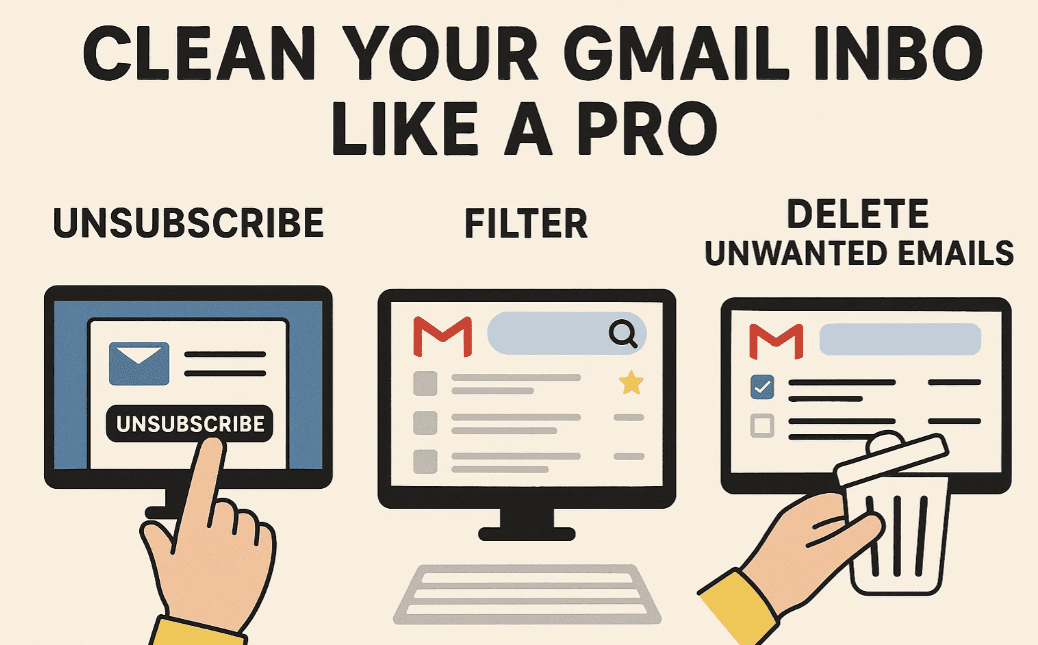
In this article, you’ll learn two powerful and detailed methods to clean your Gmail inbox: one manual and one using a smart email cleaning tool. We’ll guide you through filtering, unsubscribing, and deleting bulk emails step-by-step to give your inbox a fresh start.
✉️ Why Cleaning Your Gmail Inbox Is Important
Before diving into the steps, let’s understand why inbox cleanup is more than just digital hygiene:
- Frees Up Storage: Gmail gives you 15GB of space, shared with Google Drive and Photos. A clogged inbox eats into this space.
- Improves Productivity: Finding important emails gets easier when clutter is removed.
- Avoids Missing Important Messages: Your essential mails won’t get buried under promotional spam.
🔍 Method 1: Manually Unsubscribe and Delete Promotional Emails
This method requires no third-party tool. It’s a safe, Gmail-native way of managing your email overload.
Step 1: Identify Unwanted Promotional Emails
- Open Gmail.
- In the search bar, type:
unsubscribeThis filters emails that include an “unsubscribe” link—typically promotional emails. - Gmail will now show all such emails that you’ve probably subscribed to or were added to unknowingly.
Step 2: Unsubscribe from Unwanted Senders
- Click on any email.
- Scroll down or look at the top near the sender name — you’ll usually find an “Unsubscribe” link.
- Click it and follow the prompt.
- After unsubscribing, click the three dots in the email and choose Delete this message.
Step 3: Bulk Delete Promotional Emails
- After searching for “unsubscribe,” click the checkbox on the top left to select emails.
- Click Select all conversations that match this search (a yellow alert bar appears).
- Press the Delete icon 🗑️ to remove them in bulk.
Step 4: Organize with Labels
If you want to keep certain promotional emails for future reference:
- Select the emails.
- Click the Label icon → Create New Label → Name it like “Promotional Offers”.
- Gmail will organize them under that label for later use.
🔧 Method 2: Use a Smart Email Cleaning Tool (Caution Advised)
If you want to automate this process, you can try tools like Clean Email. But please read the disclaimer before using any third-party tools.
Step 1: Connect Clean Email to Your Gmail
- Go to Clean Email.
- Click Try for Free.
- Log in with your Gmail account and grant permission.
Step 2: Analyze and Organize Inbox
Once the tool syncs:
- You’ll see filters like:
- Unread Emails
- Old Emails
- Promotional Emails
- Top Senders
- Use options like:
- Unsubscribe: Stops future emails.
- Block Sender: Blocks and deletes all existing emails from them.
- Clean Inbox: Auto-sorts emails into categories for action.
Step 3: Use the Free Trial
- Free plan allows:
- Clean up to 1,000 emails.
- Unsubscribe from 25 senders.
- Click Start Free Trial and begin cleaning.
⚠️ Disclaimer: Third-party tools like Clean Email require access to your Gmail content. Use them only if you’re comfortable sharing access. If your email contains sensitive data, we strongly recommend using the manual method (Method 1) for full control and privacy.
🤔 Frequently Asked Questions
Q1. Will deleting emails from Gmail delete them permanently?
Yes, but they remain in the Trash for 30 days unless emptied manually.
Q2. Can I recover deleted promotional emails?
Only if they are still in the Trash folder.
Q3. Are email cleaner tools safe?
Tools like Clean Email are reputable, but they do require access to your Gmail. Read privacy policies carefully before using.



🏁 Final Words
Email overload is real, but manageable. Whether you go the manual route or use a smart tool, cleaning up your inbox can make a huge difference in how efficiently you work. Take out a few minutes today and give your Gmail a clean sweep—you’ll thank yourself later.
🔖 Tags:
gmail cleanup, gmail inbox full, email management, unsubscribe from emails, clean gmail, delete promotional emails, filter emails in gmail, gmail tips
📢 Hashtags:
#GmailTips #InboxZero #EmailCleanup #DigitalProductivity #Unsubscribe #PromotionalEmails #GmailHacks #CleanEmail








