Email is still at the heart of our digital lives, even with all the modern communication apps available today. For those who prefer Yahoo Mail and want to connect it with the new Outlook desktop app, one essential step is using an App Password.
Outlook has been modernized, and Yahoo has tightened security by requiring app-specific passwords when connecting to third-party email apps. If you’ve ever tried to add Yahoo Mail into Outlook and received confusing error messages, chances are you didn’t set up your app password correctly.
This article will guide you in detail on how to generate an app password in Yahoo Mail and then use it to configure your Yahoo account inside the new Outlook app. I’ll also explain alternative login options, IMAP/SMTP settings, and common mistakes you should avoid.
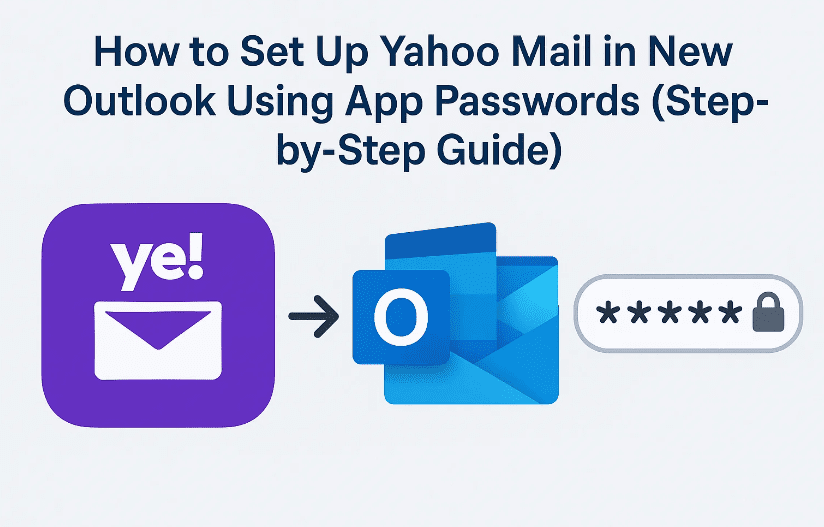
1. What Is an App Password and Why Do You Need It?
Before we jump into the technical part, let’s first clear the concept.
An app password is a special 16-character code generated by Yahoo that allows a third-party application like Outlook, Thunderbird, or Apple Mail to access your Yahoo account securely.
Why not just use your Yahoo password?
Because Yahoo now enforces two-step verification (2FA) for stronger security. Many desktop and mobile email apps can’t handle this second verification process, so app passwords act as a bridge.
👉 In short:
- Your Yahoo password = for logging into Yahoo Mail directly.
- Your App password = for logging into external apps like Outlook.
2. Pre-Requisites Before Starting
Let’s pause for a moment before moving to the setup.
To successfully connect Yahoo Mail with Outlook, you need:
- A valid Yahoo Mail account.
- Access to your Yahoo Account Security settings.
- Two-Step Verification enabled on your Yahoo account.
- The new Outlook app installed on your computer. (Download: Outlook for Windows)
- Stable internet connection.
If any of these are missing, you may face errors during setup.
3. Step 1 – Log In to Your Yahoo Mail Account
Naturally, the first step is to sign into Yahoo:






- Go to Yahoo Mail Login.
- Enter your Yahoo email ID and password.
- If two-step verification is already enabled, confirm the login with OTP or authentication method.
Once you’re in, you’ll be on the Yahoo Mail dashboard.
4. Step 2 – Accessing Account Info and Security Settings
Now, let’s head over to the account management area:
- On the top-right, click your profile icon.
- From the dropdown, choose Account Info.
- You may be asked to verify again (re-enter password or OTP).
This will open the Yahoo Account Info dashboard.
👉 On the left-hand menu, click Account Security.
This is the page where you manage login methods, app passwords, and security settings.
5. Step 3 – Enable Two-Step Verification in Yahoo
Just like with Google, Yahoo requires Two-Step Verification (2FA) before app passwords can be created.
If you don’t see the app password option, that means 2FA isn’t enabled yet.
To enable:
- On the Account Security page, find Two-Step Verification.
- Turn it on.
- Enter your phone number.
- Choose whether you want verification by SMS or phone call.
- Enter the OTP you receive and confirm.
Once completed, refresh the page. The App Password option will now be visible.
6. Step 4 – Generate an App Password in Yahoo Mail
Now comes the main part:
- On the Account Security page, locate App Password.
- Click Generate app password.
- Yahoo will ask you to name the app. For clarity, type Outlook.
- Click Generate password.
A 16-character code will appear.
⚠️ Important: You will only see this code once. After clicking Done, you cannot retrieve it again.
👉 So make sure you:
- Copy it immediately.
- Store it in a secure password manager.
- Avoid saving it in plain text or sticky notes.
If you lose it, you’ll need to generate a new one.
7. Step 5 – Add Yahoo Mail in New Outlook
Now let’s switch to Outlook.
- Open the Outlook app on your PC.
- Go to File > Add Account.
- Enter your Yahoo email address.
- When prompted for a password, don’t enter your Yahoo account password. Instead, paste the app password you just generated.
At this point, Outlook will try to connect.
8. Step 6 – Entering IMAP Server Settings in Outlook
Sometimes Outlook detects the settings automatically, but in some cases, you’ll need to enter them manually.
Here are the correct Yahoo IMAP/SMTP settings:
- Incoming Mail (IMAP):
- Server:
imap.mail.yahoo.com - Port:
993 - Requires SSL: Yes
- Server:
- Outgoing Mail (SMTP):
- Server:
smtp.mail.yahoo.com - Port:
465or587 - Requires SSL: Yes
- Requires Authentication: Yes
- Server:
👉 Make sure your app password is used for both incoming and outgoing servers.
9. Step 7 – Completing the Setup and Verifying
Once all details are entered:
- Click Continue.
- Outlook will verify the account details.
- If everything is correct, your Yahoo inbox will appear in Outlook.
You can now send and receive emails through Outlook using your Yahoo account.
10. Alternative Method: Without App Passwords
What if you don’t want to use app passwords?
You can also log in by simply entering your Yahoo email and password during Outlook setup. Outlook will then open a Yahoo login window where you can authorize access.
👉 Difference:
- With app password = Works through IMAP, secure, recommended for power users.
- Without app password = Uses OAuth login, simpler but may fail in older Outlook versions.
11. Best Practices for Security
Let’s take a short break and highlight safety tips:
- ✅ Always enable two-step verification on Yahoo.
- ✅ Generate a separate app password for each app.
- ✅ Revoke unused app passwords to reduce risks.
- ❌ Never share app passwords with anyone.
- ❌ Don’t store them in insecure locations.
12. Troubleshooting Common Errors
Even if you follow everything, errors can happen.
Here are some common ones:
- Error: “Could not connect to server”
→ Check IMAP/SMTP server settings and ports. - Error: Password incorrect
→ Ensure you entered the app password, not your Yahoo login password. - App password option not visible
→ Enable Two-Step Verification first. - Emails not syncing
→ Recheck IMAP settings, make sure SSL is enabled.
13. FAQs on Yahoo Mail and Outlook Setup
Q1: Can I use the same app password for multiple devices?
Yes, but it’s better to generate unique ones for each device.
Q2: What happens if I delete an app password?
The app will immediately lose access, and you’ll need to generate a new one.
Q3: Can I set up Yahoo Mail in Outlook without IMAP?
Yes, but IMAP is recommended as it syncs emails across devices.
Q4: Does this work in the older Outlook versions too?
Yes, but steps may vary slightly. Always use the latest Outlook for best results.
Q5: Are app passwords safer than using my Yahoo password?
Yes, because they are app-specific and can be revoked anytime.
14. Final Thoughts
Setting up Yahoo Mail inside the new Outlook may feel intimidating at first, especially when you see terms like “IMAP settings” or “app password.” But once you follow the steps carefully—log into Yahoo, enable two-step verification, generate the app password, and then enter the correct server details—it becomes straightforward.
App passwords are not just a hurdle; they’re actually a security feature that protects your account. Think of them as keys that can be revoked anytime without changing your main password.
So whether you’re managing multiple email accounts in Outlook or just want a unified inbox, this setup method ensures your Yahoo Mail works smoothly and securely.
Disclaimer: This article is for educational purposes. Always generate and use app passwords on your own devices. Never share them with untrusted apps or individuals.
Tags
yahoo mail, outlook setup, yahoo outlook app password, yahoo imap settings, yahoo smtp, secure email setup, add yahoo to outlook, email configuration guide
Hashtags
#YahooMail #Outlook #AppPassword #EmailSetup #IMAP #SMTPSecurity #AccountSecurity #dtptips








