Journaling has always been a practice tied to pen, paper, and personal reflections. But in 2025, Apple has decided to reimagine this tradition in a digital-first way with the Journal app on iPadOS 26.
Previously available only on the iPhone, Apple’s Journal app is finally making its way to the iPad—a platform much better suited to writing, sketching, and organizing your thoughts. If you’ve ever wanted a digital diary, a memory tracker, or even just a log of everyday events, this app is worth your attention.
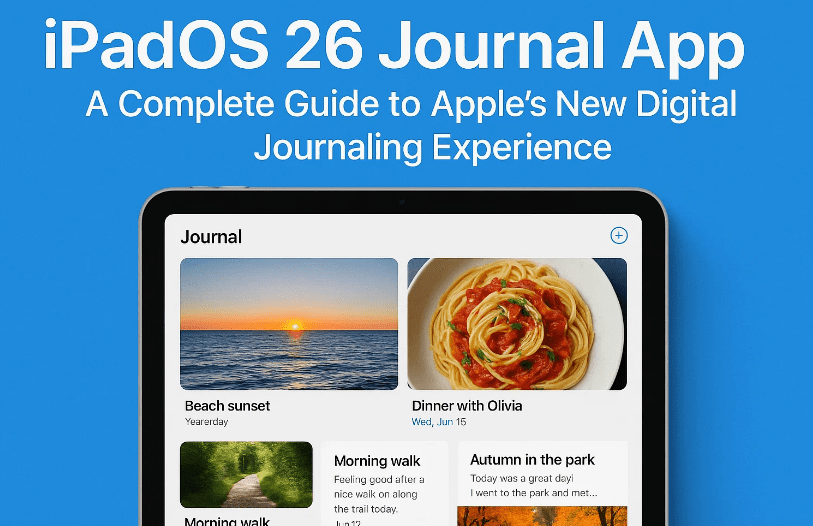
In this article, we’ll take a deep dive into:
- What the Journal app is and how it works.
- How to set up multiple journals.
- The key features including Insights, Places, Photos, and Voice entries.
- Practical examples of how journaling can be useful beyond “keeping a diary.”
- Step-by-step guidance for creating and managing entries.
- Tips, limitations, and what to expect as iPadOS 26 rolls out.
📌 Table of Contents
- Why Journaling Matters (and Why Apple Cares)
- Setting Up the Journal App on iPad
- Exploring Insights and Places
- Creating and Managing Multiple Journals
- Making Your First Entry
- Adding Photos, Voice Notes, and Moods
- Editing and Deleting Entries
- Practical Uses of the Journal App
- Advantages Over Third-Party Journal Apps
- Limitations to Keep in Mind
- Frequently Asked Questions
- Tags & Hashtags
1. Why Journaling Matters (and Why Apple Cares)
Journaling may sound like something reserved for creative writers, teenagers, or mindfulness coaches. But in reality, it’s simply the act of recording meaningful snippets of your life.
For example, the author of this story shared how his 95-year-old mother kept calendars with short notes like:
- “Painted the living room.”
- “Planted beans in the garden.”
- “Visited family.”
They weren’t essays—just small entries. But collectively, these notes created a life story in fragments.
Apple recognizes that more and more people want this type of digital record. Instead of relying on third-party apps, they’ve now built it directly into iPadOS 26 with privacy-focused integration.
2. Setting Up the Journal App on iPad
Once iPadOS 26 is installed, you’ll find Journal pre-installed. The first launch reveals a clean and minimalistic interface designed not to overwhelm.
- On the left sidebar, you’ll see two sections: Insights and Places.
- On the right panel, your journals and entries will appear.
- At the top right corner, a “+” button lets you create new journals or entries instantly.
By default, the app gives you one permanent journal that cannot be deleted. Think of it as your “base log.” From there, you can add as many other journals as you like.
3. Exploring Insights and Places
Apple has added two clever dashboards:
- Insights → Shows your journaling streaks, entry counts, and how often you attach photos or notes. This works like a motivational tracker, encouraging consistency.
- Places → Maps out the locations where your entries (or photos) were made. For travelers, this becomes a digital map of memories.
Both features can be hidden if you find them distracting by tapping the three-dot menu → Edit → Uncheck the sections you don’t want.












4. Creating and Managing Multiple Journals
Here’s where things get exciting. Apple doesn’t restrict you to a single diary. You can create multiple themed journals:
- 🛠 Home Projects – Track when you painted rooms, replaced appliances, or did repairs.
- 👨👩👧 Family – Capture small moments with loved ones.
- ✈️ Travel Journal – Write about trips, with photos and locations automatically logged.
- 📚 Work Log – Record milestones, meetings, or even brainstorming sessions.
To create one:
- Tap the “+” next to Journals.
- Name it (e.g., “Woodworking Projects”).
- Assign a color and icon.
- Save and begin adding entries.
This flexibility makes it far more useful than traditional diaries.
5. Making Your First Entry
Adding an entry is straightforward:
- Tap the “+” button in the top right corner.
- Enter a title.
- Write your thoughts using:
- On-screen keyboard.
- A physical keyboard (like the Magic Keyboard Folio).
- Or even the Apple Pencil, which makes handwritten notes feel natural.
The Apple Pencil support is especially powerful—it bridges the gap between analog note-taking and digital archiving.
6. Adding Photos, Voice Notes, and Moods
A text-only journal is fine, but Apple goes further:
- Add Photos → Select from your library or take a new one with the iPad camera.
- Add Voice Notes → Record short reflections, useful if you don’t want to type.
- Add Location → Pin where you were at the moment.
- Add Mood → Quickly log how you felt when writing.
This combination transforms the Journal app into a multimedia memory keeper. Imagine flipping back years later and not just reading what you wrote, but seeing where you were, what you looked at, and how you felt.
7. Editing and Deleting Entries
Mistakes happen—or sometimes you just want to update an entry.
- To edit → Tap Edit, make changes, then tap the ✔ checkmark.
- To delete → Swipe the entry from right to left and hit Delete.
Deleted entries go to Recently Deleted, meaning you can recover them if needed. This is Apple’s safety net against accidental loss.
8. Practical Uses of the Journal App
The Journal app isn’t just for writing down your feelings. Think of it as a personal logbook.
Some practical ways to use it:
- Home maintenance tracking (roof repairs, AC replacements).
- Fitness milestones (log workouts or weight changes).
- Work achievements (finished projects, promotions).
- Travel diary with photos and GPS tags.
- Personal growth reflections—capturing how your mood changes over time.
The key is that entries don’t need to be long. Even a single sentence (“Planted tomatoes today”) builds a historical record that becomes meaningful over years.
9. Advantages Over Third-Party Journal Apps
Plenty of journaling apps already exist (Day One, Diaro, Journey). So why use Apple’s?
- Native integration → Works seamlessly with iPadOS and iCloud.
- Privacy → Apple encrypts journal data locally.
- Simplicity → Minimal interface with no subscription fees.
- Cross-device sync → Entries appear on iPhone and iPad automatically.
For most users, this makes it the most frictionless journaling option.
10. Limitations to Keep in Mind
Of course, it’s not perfect. A few drawbacks:
- No advanced tagging or search (yet).
- Limited formatting options for text (bold, italics, headings missing).
- Journal export is not as flexible as some third-party apps.
- The “journaling suggestions” feature currently requires an iPhone.
That said, these are early days. Apple tends to expand features in later updates.
11. Frequently Asked Questions
Q1: Can I delete the default journal?
No. The default journal is permanent. But you can create and delete additional ones.
Q2: Are my entries private?
Yes. They’re encrypted and stored securely within iCloud.
Q3: Can I use handwriting with Apple Pencil?
Absolutely. You can write full entries with Pencil, making it feel like a traditional diary.
Q4: Can I add audio recordings?
Yes. Tap the microphone icon when creating an entry to record your voice.
Q5: Will it work on older iPads?
Journal is tied to iPadOS 26. If your iPad supports the update, you’ll have access.
Tags
apple journal app, ipados 26 features, ipad journaling, digital diary apple, apple pencil journaling, ipad productivity apps, ios journaling tools
Hashtags
#iPadOS26 #AppleJournal #iPadApps #DigitalDiary #ProductivityTools #ApplePencil
⚠️ Disclaimer: This article is for educational purposes. Features described here are based on iPadOS 26 beta at the time of writing and may evolve in the final public release. Always check Apple’s official iPadOS Journal App page for the latest updates.






