We all have notebooks filled with important handwritten notes—whether you’re preparing for competitive exams, creating classroom materials, or storing personal thoughts. But what if you want to convert those notes into digital, editable text without typing them manually?
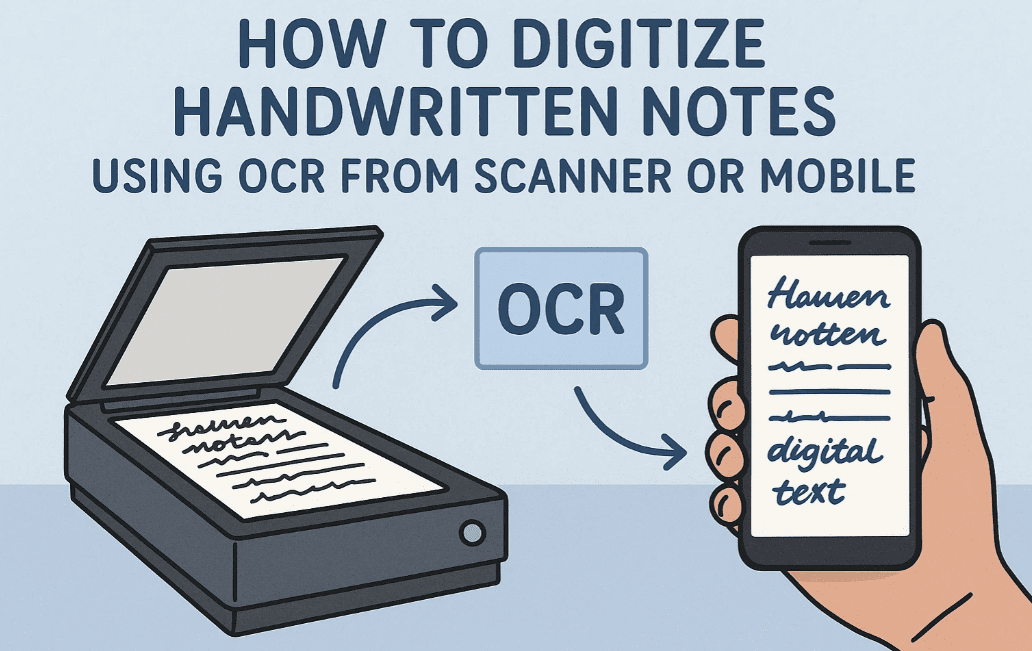
In this blog, you’ll learn:
- How to scan handwritten pages using a scanner or mobile phone
- How to convert the scanned image into digital text using OCR (Optical Character Recognition)
- How to get the best results (even for Hindi notes!)
- Bonus tools and software that make the process seamless
Let’s begin the step-by-step process to convert your paper notes into editable digital files using both a scanner and mobile device.
🛠️ What You Need Before You Start
You’ll need one of the following setups:
Option 1: Using a Scanner
- A flatbed scanner (any basic model works)
- A laptop or desktop with scanning software (built-in or third-party)
- OCR-supported software like Google Docs, Adobe Acrobat, or OnlineOCR
Option 2: Using a Mobile Phone
- A smartphone with a good camera
- OCR apps like:
- Google Lens
- Microsoft Lens
- CamScanner
- Text Scanner [OCR]
Now, let’s cover both methods in detail.
📄 Method 1: Digitize Notes Using a Scanner
Step 1: Set the Right Scanner Settings
When scanning handwritten pages:
- Select Grayscale (Not Color) – this improves contrast and OCR accuracy
- Adjust Brightness and Contrast:
- Brightness: 20–30
- Contrast: High enough to eliminate light backgrounds
- Use the Preview or Pre-scan option to check how your text looks
- Crop extra space manually to remove margins or borders
🔍 Tip: If your handwriting is in blue ink or colored pen, grayscale helps improve detection by reducing distractions from the page lines.
Step 2: Save the Scanned Image
Save the file in JPEG or PNG format (for image-based OCR)
OR save as PDF (if your OCR software supports scanned PDFs).
Example filename: Notes_Page1_Scanned.png
Step 3: Convert Image to Text Using OCR
Using Google Docs (for free)
- Open Google Drive
- Upload your scanned image or PDF
- Right-click on the file > Open with > Google Docs
- It will open in a new document, and OCR will auto-convert the text
You’ll see the image on top and editable text below it. You can:
- Correct errors
- Adjust font and spacing
- Save as DOCX or PDF
📱 Method 2: Digitize Handwritten Notes Using Mobile Phone
If you don’t have a scanner, use your smartphone.




Step 1: Use Google Lens (Best Free Option)
- Open the Google Lens app or use Google Photos > Lens
- Take a photo of the handwritten page
- Lens will highlight text areas automatically
- Tap and drag to select text > Copy
- Paste it into Notes, Word, or Google Docs
✅ Works well for both Hindi and English handwriting
Step 2: Use Microsoft Lens (More Control)
- Download Microsoft Lens from Play Store or App Store
- Select “Document” mode
- Capture the handwritten note
- Choose “Actions > Extract Text”
- Save or share the extracted text
✨ Bonus Tip: Clean Handwriting = Better Accuracy
OCR accuracy depends heavily on:
- Clear, neat handwriting
- Uniform ink color (avoid multicolor)
- Flat, well-lit images
Even if the OCR result is 80–90% accurate, correcting the rest is easier than typing it all manually!
looking for a way to convert this text into audio we have this article
📝📢 From Paper to Podcast: Convert Handwritten Notes into MP3 Audio in Minutes (2025 Guide)
❓ Frequently Asked Questions
Q: Can I digitize Hindi handwritten notes?
🅰️ Yes! Both Google Lens and OCR in Google Docs can read Hindi. You may need to correct some characters manually, but it works very well.
Q: What format should I save the output in?
🅰️ Use Google Docs, Word (.docx), or plain text (.txt) based on your editing needs.
Q: Can I digitize multi-page handwritten notes?
🅰️ Yes. Scan or click photos page by page and compile the extracted text in one document.
Q: Is there any free OCR software for desktop?
🅰️ Yes. Try:
🎁 Related Recommendation [Affiliate link]
🎧 Want to listen to your notes on the go? Convert your digitized text into audio using free text-to-speech tools. And for better listening experience, check out this portable MP3 player with Bluetooth:
👉 https://amzn.to/3I5YKdo
✅ Tags:
convert handwritten notes to digital, ocr tools for hindi, scan notes to text, digitize notes using google lens, handwriting recognition apps, mobile scanner apps, google docs ocr, pdf ocr converter, student study hacks, text extraction from paper
✅ Hashtags:
#DigitizeNotes #OCRTools #GoogleLens #ScanToText #HandwritingToDigital #StudyHacks #TextRecognition #GoogleDocsOCR #MobileScanning #HindiOCR
🔐 Disclaimer: OCR tools rely on image quality and handwriting clarity. Minor text errors may occur and should be reviewed before publishing or sharing. The methods shared here are intended for educational and personal use only.
Final Words
If you’re preparing for exams, writing school notes, or archiving handwritten journals, digitizing your notes using OCR can save you hours of effort. Whether you use a scanner or a smartphone, the tools available today are fast, free, and surprisingly accurate.
Try it out today—and make your handwritten efforts timeless by turning them into digital assets!








