Backing up your data is one of the most important things you can do to protect yourself against sudden drive failures, accidental deletions, malware infections, or even theft. Yet, many laptop users wonder: “What’s the best medium to back up my files — should I use an SD card, a USB stick, or an SSD?”
This is not just a technical question — it’s also a question of cost, convenience, and long-term reliability. With 256GB SD cards available for under $25, the temptation to use them as a cheap backup solution is real. But is it a good idea? Let’s dive into the details step by step.
📌 Why Backups Are Critical
Before we compare SD cards, USB sticks, and SSDs, it’s worth taking a moment to emphasize why backups matter so much.
- Hard drives fail — even modern SSDs can suddenly stop working.
- Data corruption happens — system crashes or power outages can damage files.
- Human mistakes are common — we all delete the wrong folder sometimes.
- External threats exist — ransomware or malware can encrypt your files.
- Physical risks — laptops can be stolen, lost, or damaged.
Ask yourself: if your laptop’s drive died this very moment, what would you lose? Photos? Work documents? School projects? If the answer makes you nervous, you already know why you need a proper backup.
🃏 The Warranty Myth
A lot of people see “lifetime warranty” stamped on an SD card or USB stick and think, “Great, my data will be safe!” Unfortunately, that’s a misunderstanding.
- What a lifetime warranty really means: If the card fails, the manufacturer replaces the hardware.
- What it doesn’t mean: They don’t recover your data. Once the files are gone, they’re gone.
So, while a lifetime warranty might save you $25 on a new card, it won’t bring back your photos, projects, or business records. That’s why the warranty argument is almost irrelevant when we talk about backups.
⚡ The Nature of Flash Memory
Now let’s look at the heart of the issue: flash memory.
- Cheap flash memory (found in SD cards and USB sticks):
- Designed for casual use (photos, videos, transferring files).
- Limited write cycles — the more you write, the sooner it wears out.
- Perfectly fine for short-term storage, but risky for long-term, repeated backups.
- High-quality flash memory (used in SSDs):
- Better controller chips and wear-leveling algorithms.
- Supports far more read/write cycles.
- Built for system drives, meaning reliability is far better.
So while both use flash technology, they aren’t created equal.
💡 Comparing Backup Options
Let’s go step by step and compare SD cards, USB sticks, SSDs, and traditional hard drives.
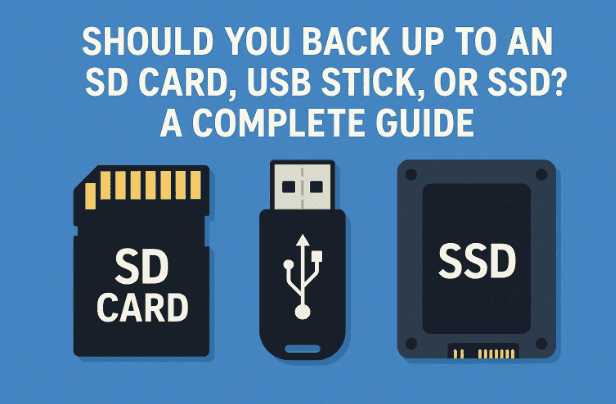
1. SD Cards
- Pros:
- Extremely portable.
- Cheap per card for smaller sizes.
- Fits directly into laptops with card readers.
- Cons:
- Built with cheap flash memory → wears out faster.
- Data recovery is almost impossible if they fail.
- Not designed for daily write-intensive tasks like backups.
👉 Verdict: Best for temporary or travel backups of small files. Not recommended for primary backups.
2. USB Sticks (Thumb Drives)
- Pros:
- Easy plug-and-play.
- Good for transferring files between machines.
- Affordable and widely available.
- Cons:
- Same issue as SD cards: cheap flash memory.
- Limited write endurance.
- Risky for scheduled or automated backups.
👉 Verdict: Works well for quick copies or one-off transfers. Not safe for long-term backup strategies.







3. Solid State Drives (SSDs)
- Pros:
- High endurance flash memory.
- Extremely fast read/write speeds.
- Portable external SSDs available.
- Cons:
- More expensive per terabyte compared to hard drives.
- Speed is overkill for backups (you don’t need blazing speed to copy files once a day).
👉 Verdict: Excellent as a system drive or travel backup, but not cost-effective as a dedicated long-term backup solution.
4. Traditional Hard Drives (HDDs)
- Pros:
- Cheap per terabyte (best storage value).
- Reliable for backup usage (less write-wear compared to flash).
- Large capacities (up to 20TB+).
- Cons:
- Slower than SSDs.
- Mechanical parts can fail if dropped.
👉 Verdict: The best overall choice for regular backups — cost-effective, reliable, and spacious.]
📊 Backup Medium Comparison Table
| Storage Type | Pros | Cons | Best Use Case |
|---|---|---|---|
| SD Card | – Very portable- Cheap (small sizes)- Fits directly in laptops with card readers | – Cheap flash memory wears out fast- Limited write cycles- Data recovery nearly impossible if it fails | Temporary or travel backups of small files; quick copies on the go |
| USB Stick | – Easy plug-and-play- Affordable- Good for file transfers between devices | – Same durability issues as SD cards- Risky for scheduled/automated backups- Small capacity compared to HDD/SSD | Moving files between computers; short-term portable backups |
| SSD (External) | – Very fast read/write speeds- Durable (no moving parts)- Higher-quality flash memory | – More expensive per TB- Speed overkill for backups- Sudden failures possible | System drives, portable travel backups, hybrid backup setups |
| HDD (External) | – Cheapest per TB- Huge capacities available (up to 20TB+)- Reliable for backups- Easier (sometimes) to recover data from failures | – Slower than SSDs- Mechanical parts vulnerable to drops/shocks | Primary long-term backup drive; system image storage |
| Cloud Backup | – Offsite safety (protection from theft/fire)- Automatic syncing- Accessible from anywhere | – Limited free space- Internet speed limits restore times- Ongoing subscription costs (for large storage) | Daily document syncing; secondary backup layer following 3-2-1 rule |
This table complements the detailed explanations above and gives readers a visual comparison they can use to decide what’s best for their situation.
🛠️ Recommended Backup Strategies
So what’s the best way to approach backups? Let’s outline some practical strategies.
1. System Image Backups
Create full snapshots of your system (including OS, apps, and files). These let you restore your laptop exactly as it was.
- Best stored on: External HDD or external SSD.
- Tools: Macrium Reflect, Windows built-in Backup and Restore, or Time Machine (Mac).
If you are intrested in backup i think you will be intrested in this too: How to Create and Restore System Image Backups Using Macrium Reflect
2. File-Based Backups
Copy only the files you care about (documents, photos, projects).
- Best stored on: HDD, SSD, or cloud storage.
- Tools: SyncBack, FreeFileSync, or even built-in File History (Windows).
3. Cloud Backups
Automatic, continuous backups to a cloud service.
- Best stored on: Services like Google Drive, Dropbox, OneDrive, iDrive.
- Pros: Offsite protection, automatic syncing.
- Cons: Limited free space, slower restores for huge data.
4. Hybrid Approach
The smartest solution is often a mix:
- Use an external HDD for large, regular system image backups.
- Use a cloud service for daily documents and project syncing.
- Optionally, keep an SSD or USB stick for travel “on-the-road” backups.
🚀 Practical Example Workflow
Here’s what a balanced backup setup could look like for a laptop user:
- Weekly: Plug in a 2TB external hard drive → run a full system image backup.
- Daily: Use OneDrive or Dropbox to automatically back up documents and desktop files.
- While Traveling: Copy important new files to a USB stick or SD card as a temporary safety net.
This way, you’re covered against both small accidents (accidentally deleting a file) and major disasters (complete drive failure).
❓ Frequently Asked Questions
Q1: Are SD cards safe for backups if I only back up once a month?
They’re safer than nothing, but riskier than an HDD. Occasional use is fine, but don’t make it your only backup.
Q2: Can an SSD last forever for backups?
No storage lasts forever. SSDs wear out slower than SD cards, but they’re still vulnerable to sudden electronic failure.
Q3: What’s the most cost-effective backup medium in 2025?
External HDDs remain the best balance of cost, space, and reliability.
Q4: Should I use more than one backup method?
Yes! The golden rule of backups is the 3-2-1 rule:
- 3 copies of your data.
- 2 different storage types.
- 1 copy stored offsite.
Q5: Do cloud backups replace external drives?
Not entirely. Cloud backups are great for convenience, but restoring hundreds of gigabytes from the cloud can be painfully slow. Use both.
⚠️ Important Disclaimer
No storage medium is 100% fail-proof. Always assume any one device could fail at any time. That’s why redundancy is key — don’t rely on a single SD card, SSD, or even one external hard drive. Multiple backups across different mediums and locations provide true protection.
✅ Bottom Line
- SD cards/USB sticks: Good for short-term or travel backups. Not reliable for long-term storage.
- SSDs: Fast and durable, but costlier. Great for primary drives, less so for backups.
- HDDs: Best long-term, cost-effective solution for most people.
- Cloud services: Essential extra layer for critical files.
At the end of the day, any backup is better than no backup. But if you want peace of mind, invest in a proper external drive (HDD or SSD) and supplement with cloud services. Backing up is not just a tech chore — it’s the cheapest form of insurance you’ll ever buy.
Tags
backup storage, SD card backup, USB stick backup, SSD backup, HDD backup, cloud backup, external drive, data protection, file recovery, laptop backup, 3-2-1 backup rule
Hashtags
#Backup #DataSecurity #USB #SSD #SDCard #CloudStorage #TechTips #LaptopCare








