Windows 11 keeps evolving, and Microsoft’s next big update—version 25H2—is officially rolling out. It introduces stability improvements, better AI integration, and an overall performance boost compared to earlier versions.
If your PC is still running Windows 11 version 23H2 or 24H2, now is the perfect time to move forward. With version 23H2 reaching end of life (EOL), your system will soon stop receiving important security updates and bug fixes.
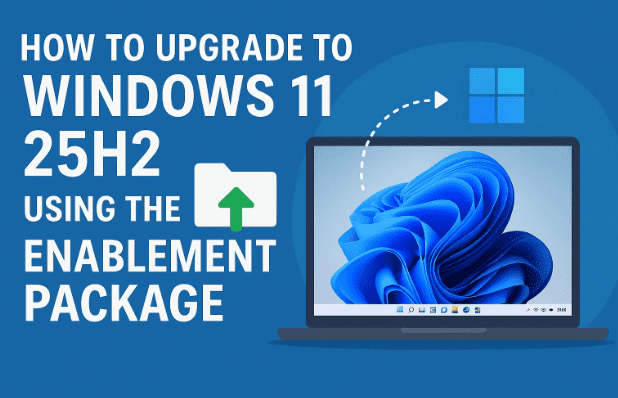
In this article, we’ll walk through the fastest way to upgrade to Windows 11 25H2 using the KB5054156 Enablement Package—the same lightweight method Microsoft uses for quick version rollouts inside organizations.
<a id=”overview”></a>
1️⃣ Understanding Windows 11 25H2
Let’s begin by understanding what Windows 11 25H2 actually is. Microsoft follows a half-yearly feature update model, where “H1” and “H2” indicate the half of the year in which updates are released.
So, 25H2 stands for the second half of 2025 update. Unlike full OS reinstallations, these releases are usually small, incremental updates built on top of the same Windows kernel and file system.
Key Highlights of 25H2
While 25H2 doesn’t overhaul the user interface, it includes:
- Optimizations for system performance and battery life.
- Improved Windows Copilot integration.
- Better file explorer responsiveness.
- Enhanced compatibility for ARM64 devices.
- Ongoing fixes for reported 24H2 bugs.
In short, it’s a stability and refinement release—not flashy, but essential for long-term reliability.
<a id=”reasons”></a>
2️⃣ Why You Should Upgrade
If you’re still on 23H2, you’re running on borrowed time. Microsoft has announced that Windows 11 23H2 will reach End of Life on November 15, 2025.
That means no more:

- Security updates
- Driver fixes
- Performance patches
- Feature enhancements
After that date, your PC becomes vulnerable to security risks.
Upgrading ensures:
- Continued protection against new vulnerabilities.
- Access to Microsoft’s latest tools and AI features.
- Seamless compatibility with new software versions.
So, whether you use Windows at home or in a business setup, staying current is crucial.
<a id=”enablement”></a>
3️⃣ What Is the KB5054156 Enablement Package?
Before we jump into the upgrade, let’s understand what the enablement package actually does.
Normally, upgrading to a new Windows version involves a large ISO download and a lengthy installation. But since Windows 11 24H2 and 25H2 share the same core files and structure, Microsoft provides a small update file—called an Enablement Package—to unlock the new version instantly.
Think of it as a feature switch that activates the new capabilities already included in your system.
Benefits of the Enablement Package:
- Extremely Fast: Takes only one restart to complete.
- Small File Size: Usually under 200 MB.
- Safe and Official: Directly from Microsoft’s Update Catalog.
- No Data Loss: Keeps your files, settings, and apps intact.
The specific package we’re using is:
KB5054156 – Feature Update to Windows 11, Version 25H2
You can find the official listing at Microsoft’s update catalog:
🔗 https://www.catalog.update.microsoft.com
<a id=”requirements”></a>
4️⃣ System Requirements and Prerequisites
Before installing the enablement package, make sure your system meets the following conditions.
✅ Basic Requirements
- Windows 11 Version 24H2 must already be installed.
- Minimum 20 GB of free space on your C: drive.
- System must be fully updated through Windows Update.
- TPM 2.0 and Secure Boot should be enabled.
If you’re on 23H2, you must first upgrade to 24H2 before using the enablement package. (We’ll cover that next.)
<a id=”steps”></a>
5️⃣ Step-by-Step: Upgrade from Windows 11 24H2 to 25H2
If your system is already on 24H2, congratulations—you’re just one step away. Let’s walk through the process carefully.
Step 1: Download the Enablement Package
Visit the official Microsoft Update Catalog and search for KB5054156. You’ll find two files:
- x64-based systems (for most modern PCs)
- ARM64-based systems (for ARM-powered devices like Surface Pro X)
Download the version that matches your architecture.
Step 2: Run the Installer
Locate the downloaded .msu file (e.g., windows11.0-kb5054156-x64.msu) and double-click it.
You’ll see the Windows Update Standalone Installer window appear.
Click Yes when prompted to install the update.
Step 3: Restart Your PC
Once the update finishes, it will ask for a restart. Click Restart now.
Your system will reboot, apply the update, and boot into Windows 11 25H2 within minutes.
Step 4: Confirm the Version
After rebooting:
- Press Windows + I to open Settings.
- Go to System → About.
- Under Windows specifications, check the version number.
You should now see:
Version: 25H2 (OS Build XXXX.XXX)
That’s it! You’re done. No lengthy installation, no complex setup — just a quick switch.
<a id=”upgradepath”></a>
6️⃣ How to Upgrade from 23H2 to 24H2 First
If you’re still on Windows 11 23H2, the enablement package won’t work directly. You’ll first need to move to 24H2 using Windows Update or an ISO file.
Here’s how:
Option 1: Use Windows Update
- Open Settings → Windows Update.
- Click Check for updates.
- Install Feature update to Windows 11, version 24H2 when it appears.
Restart once it’s complete.
Option 2: Use Microsoft’s Media Creation Tool
If the update doesn’t appear:
- Visit the official download page: https://www.microsoft.com/software-download/windows11
- Click Create Installation Media or Download Now.
- Run the tool and choose “Upgrade this PC now.”
Once you’re on version 24H2, proceed with the KB5054156 enablement package to jump to 25H2 instantly.
<a id=”verify”></a>
7️⃣ Verifying the Update Installation
It’s always a good idea to confirm that your update applied correctly.
To check:
- Press Win + R, type
winver, and press Enter. - A window will show your current build version.
If it says “Version 25H2,” your installation is successful.
You can also verify through:
- Settings → Windows Update → Update History Look for “Feature update to Windows 11, version 25H2 (KB5054156)”.
<a id=”issues”></a>
8️⃣ Known Issues and Fixes in Windows 11 25H2
No software release is perfect, and Microsoft maintains a Known Issues list for every update. You can view the latest on their official page:
🔗 Windows 11 Version 25H2 Known Issues
As of October 2025, two minor issues remain:
- Display Color Calibration Bug: Some high-refresh monitors may reset color profiles after reboot.
- Fix: Reapply calibration settings or reinstall the monitor driver.
- Wi-Fi Connectivity Fluctuation: Affects certain Realtek adapters on older laptops.
- Fix: Install the latest network driver from your OEM website.
Microsoft is already pushing cumulative patches to resolve these issues, so ensure automatic updates are turned on.
<a id=”faq”></a>
❓ 9️⃣ Common Questions and Answers
Q1. Can I upgrade directly from 23H2 to 25H2?
No. You must first upgrade to 24H2, then apply the KB5054156 enablement package.
Q2. Does this method delete my files or apps?
Not at all. This is a non-destructive update—your data remains untouched.
Q3. Is the enablement package safe?
Yes. It’s an official Microsoft update used by IT administrators worldwide for controlled rollouts.
Q4. How long does the entire process take?
On average, less than 10 minutes from start to finish (including restart).
Q5. What’s new in Windows 11 25H2?
It’s mainly a stability and maintenance update with improved Copilot integration, better ARM support, and smoother animations.
<a id=”conclusion”></a>
🏁 10️⃣ Final Thoughts
Upgrading to Windows 11 version 25H2 doesn’t need to be complicated. Thanks to Microsoft’s enablement package system, you can update your OS in minutes instead of hours.
If your PC is already running 24H2, you’re just one restart away from the newest and most secure Windows build. For users on 23H2, take the extra step to upgrade before support ends.
Remember — keeping your Windows installation up to date isn’t just about getting new features; it’s about security, performance, and longevity.
Check back regularly for cumulative updates and patches to ensure your system stays optimized and future-ready.
Disclaimer:
This article is intended for educational and informational purposes only. Always download official updates and packages directly from Microsoft’s website or the Windows Update Catalog. Unauthorized or third-party sources may contain modified files that pose security risks.
Tags: Windows 11 25H2, Windows 11 enablement package, KB5054156, Windows 11 update guide, Windows feature update, Windows 11 upgrade tutorial, Microsoft update catalog, Windows 23H2 end of life
Hashtags: #Windows11 #WindowsUpdate #Windows11Tips #Microsoft #Windows11Upgrade #KB5054156 #TechGuide #OSUpdate #Windows11Features








