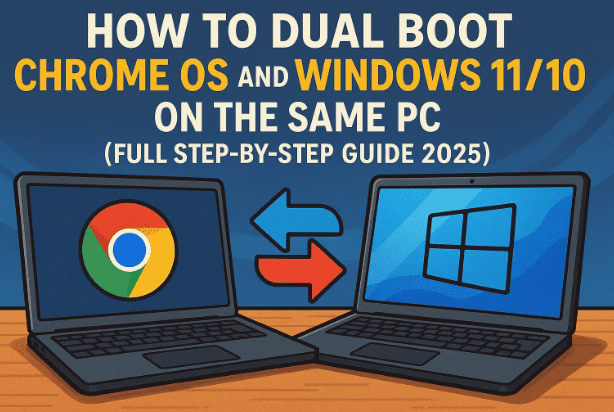
Have you ever wanted to experience the simplicity and speed of Chrome OS without giving up your Windows PC?
Well, the good news is — you don’t have to buy a Chromebook. You can dual boot Chrome OS alongside Windows 10 or Windows 11 on your existing laptop or desktop.
This means you’ll be able to switch between Chrome OS and Windows any time you like — perfect for those who love Chrome OS’s lightweight design but still need Windows for heavy applications.
In this detailed tutorial, we’ll explain how to safely install Chrome OS on your PC alongside Windows, the tools you’ll need, and every command involved.
We’ll also cover troubleshooting tips and answer common questions at the end.
🌐 1. What Is Chrome OS and Why Try It?
Chrome OS is a Linux-kernel-based operating system developed by Google. It’s lightweight, secure, and optimized for web-based tasks. The beauty of Chrome OS lies in its simplicity — most applications run in the cloud, and the interface is incredibly fast.
A few major highlights include:
- Fast boot times: Usually under 10 seconds.
- Built-in Play Store: Access to millions of Android apps.
- Automatic updates and strong sandboxing: Keeps your system safe.
- Perfect for productivity and education: Runs smoothly on even older hardware.
So if you already own a Windows PC, dual-booting Chrome OS gives you the best of both worlds — Chrome’s speed and Google ecosystem with Windows’ compatibility and flexibility.
⚙️ 2. Before You Begin: Key Requirements
Before diving into the installation process, make sure you have the following:
- A Windows 10 or Windows 11 PC
- At least 16GB of free disk space (100GB recommended for smooth performance)
- A 64-bit CPU (Intel or AMD)
- An active internet connection
- Administrator privileges on your PC
You’ll also need to download a few essential tools, which we’ll cover later.
🔧 3. Step 1 – Disable Hibernation, Fast Startup, and Secure Boot
Chrome OS requires full control of your hardware during installation. Certain Windows power features like hibernation and fast startup, along with BIOS settings like Secure Boot, can interfere with the setup. Let’s disable them first.
💤 Disable Hibernation
- Open Command Prompt (Admin).
- Type the following command and press Enter:
powercfg.exe /hibernate offThis turns off Windows hibernation mode.
⚡ Disable Fast Startup
- Open Registry Editor by typing
regeditin the Start menu. - Navigate to:
HKEY_LOCAL_MACHINE\SYSTEM\CurrentControlSet\Control\Session Manager\Power - On the right panel, find HiberbootEnabled.
- Double-click it and set the value from 1 to 0.
- Click OK and close Registry Editor.
This ensures Windows won’t auto-lock system files at boot.
🔒 Disable Secure Boot
- Restart your computer and enter the BIOS/UEFI (press F2, F10, F12, or Del, depending on your manufacturer).
- Navigate to the Security or Boot tab.
- Find Secure Boot and set it to Disabled.
- Press F10 to save and exit.
Your system is now ready for a dual-boot environment.





🧩 4. Step 2 – Install WSL and Ubuntu on Windows
To install Chrome OS, we need Linux commands. Instead of booting a separate Linux system, we can use WSL (Windows Subsystem for Linux) — a built-in Windows feature that lets you run Linux directly inside Windows.
- Open PowerShell (Admin).
- Type the following command and hit Enter:
wsl --install - Wait for WSL to install. Once done, it will automatically install Ubuntu as your Linux distribution.
- When prompted, create a username and password.
After setup, you’ll have a working Linux environment to execute installation commands.
💽 5. Step 3 – Create a New Partition for Chrome OS
Chrome OS needs its own partition to install on. Here’s how to create one safely:
- Right-click on This PC → Manage → Disk Management.
- Right-click your main drive (usually C:) and choose Shrink Volume.
- Enter the amount of space you want to allocate (e.g., 100 GB).
- Click Shrink and you’ll see unallocated space.
- Right-click it → New Simple Volume → Format as NTFS → Name it ChromeOS.
This will be the partition where Chrome OS is installed.
🌍 6. Step 4 – Download Required Files (Brunch, Chrome OS Image, GRUB2Win)
Let’s now gather the necessary components. You’ll need three main downloads:
1️⃣ Brunch Framework
Brunch acts as a compatibility layer that turns the official Chrome OS recovery image into a version that runs on standard PCs.
Download Link:
👉 https://github.com/sebanc/brunch/releases
Download the latest Brunch release ZIP file.
2️⃣ Chrome OS Recovery Image
You can get the official recovery images from the cros.tech website.
Different processors require different image versions:
| Processor | Chrome OS Recovery Code Name |
|---|---|
| Intel 6th–9th Gen | Shyvana |
| Intel 10th Gen | Jinlon |
| Intel 11th Gen and newer | Voxel |
| AMD Ryzen | Gumboz |
Download Link:
👉 https://cros.tech/
Type your processor code name (e.g., Shyvana) and download the latest stable build (version 121 or newer).
3️⃣ GRUB2Win
This utility helps create a dual boot menu, allowing you to select between Windows and Chrome OS at startup.
Download Link:
👉 https://www.majorgeeks.com/files/details/grub2win.html
📦 7. Step 5 – Extract and Prepare Installation Files
Now that we have all files, let’s organize them.
- Create a new folder named ChromeOS on your Chrome OS partition.
- Inside it, create another folder named brunch.
- Extract all downloaded ZIPs (Brunch, Chrome OS Image, GRUB2Win).
- Move all extracted files into the ChromeOS folder.
- You should now have six total files inside this folder.
- Rename the Chrome OS recovery image file to:
chromeos.bin
This will make it easier to reference during installation.
🗂️ 8. Step 6 – Mount Chrome OS Folder in Ubuntu
We now need to mount the ChromeOS directory so Ubuntu (inside WSL) can access it.
- Open File Explorer, navigate to your ChromeOS folder.
- Copy its full path from the address bar.
- Replace all backslashes () with forward slashes (/), make all letters lowercase, and remove the colon.
For example:
C:\ChromeOS
becomes
/mnt/c/chromeos
Now open Ubuntu and type:
cd /mnt/c/chromeos
This sets Ubuntu’s current working directory to your ChromeOS folder.
⚙️ 9. Step 7 – Run the Chrome OS Installation Command
Before installing, update the required packages:
sudo apt update && sudo apt -y install pv cgpt
Enter your Ubuntu password when asked.
Now run the main installation command. Replace placeholders as shown below:
sudo bash chromeos-install.sh -src chromeos.bin -dst /mnt/(your drive letter)/brunch/chromeos.img -s (drive size)
Example:
sudo bash chromeos-install.sh -src chromeos.bin -dst /mnt/j/brunch/chromeos.img -s 95
(If your Chrome OS partition is 97GB, use 95GB for safety.)
This process can take 20–30 minutes depending on system speed.
When finished, it will ask whether you want to install Chrome OS as single boot or dual boot.
Type:
dual boot
and press Enter.
You can now close Ubuntu.
🧭 10. Step 8 – Configure Dual Boot with GRUB2Win
Now we’ll set up GRUB2Win so that your system shows a menu at startup allowing you to choose between Windows and Chrome OS.
- Open the ChromeOS partition — you’ll see two new files:
chromeos.imggrub.txt
- Open
grub.txtin Notepad and copy all its contents. - Run the GRUB2Win installer and complete setup.
- Open GRUB2Win → click Manage Boot Menu.
- Create a new entry → under “Type,” select User Creation.
- A Notepad window will open — paste the copied text from
grub.txt. - Save quickly (delay can cause an error).
- Ignore any warnings, click Apply, and close the window.
Restart your PC once done.
🚀 11. Step 9 – Boot into Chrome OS for the First Time
You’re almost there! Let’s finalize your setup.
- Restart your computer.
- Enter the BIOS/Boot menu and go to the Boot Order section.
- Make sure GRUB2Win Boot Manager is set as the first boot option.
- Press F10 to save and exit.
Upon reboot, you’ll now see the GRUB2Win boot screen.
Choose the Brunch option to load Chrome OS.
The first boot might take a few minutes — you’ll see the Brunch Framework logo first, followed by the Chrome OS logo.
Once it loads, go through Google’s setup wizard, sign in with your Google Account, and that’s it!
You now have Chrome OS and Windows running on one machine — ready to switch between anytime you boot.
🧰 12. Troubleshooting Common Errors
Even with careful steps, some users might face issues. Let’s go through quick fixes.
| Issue | Cause | Solution |
|---|---|---|
| Chrome OS doesn’t appear in boot menu | GRUB2Win misconfigured | Reopen GRUB2Win → “Manage Boot Menu” → re-add the Brunch entry |
| Ubuntu can’t find folder | Path format incorrect | Ensure /mnt/c/chromeos uses lowercase and forward slashes |
| Installation stuck | Slow HDD or large partition | Wait 30–40 minutes or use SSD for better speed |
| Secure Boot warning | BIOS setting active | Re-enter BIOS and disable Secure Boot |
| Chrome OS boot fails | Incompatible image | Make sure you used correct code name (Shyvana, Jinlon, Voxel, Gumboz) |
💬 13. FAQ: Chrome OS Dual Boot Questions
Q1. Can I use Chrome OS Flex instead?
Chrome OS Flex is designed for enterprise devices and doesn’t officially support Play Store or Android apps. The Brunch method is better for full Chrome OS functionality.
Q2. Will dual booting delete my Windows files?
No, as long as you install Chrome OS on a separate partition. Always back up your data just in case.
Q3. How much storage does Chrome OS need?
A minimum of 16GB works, but 64–100GB is recommended for app installs and updates.
Q4. Is it safe to use my Google Account?
Yes. Chrome OS runs directly from Google’s recovery image, so account security is intact.
Q5. Can I uninstall Chrome OS later?
Yes. Simply delete the ChromeOS partition and remove the GRUB2Win entry from the boot menu.
Q6. Will I get Play Store access?
Yes, the Brunch framework fully enables the Play Store, letting you install Android apps directly.
🧠 14. Final Thoughts & Disclaimer
Dual-booting Chrome OS with Windows is one of the best ways to experience Google’s ecosystem on your existing hardware. It gives you access to Android apps, Chrome extensions, and fast performance — all while keeping your Windows setup intact.
However, it’s important to follow each step carefully, especially when modifying system partitions or BIOS settings.
Once installed, you’ll enjoy a clean, fast, and modern desktop experience — ideal for work, browsing, or lightweight gaming.
Disclaimer:
This article is for educational purposes only. Dual booting involves modifying partitions and bootloaders, which can cause issues if done incorrectly. Proceed at your own risk, and always back up important data before installation.
Official Resources:
- Brunch Framework → https://github.com/sebanc/brunch/releases
- Chrome OS Recovery Images → https://cros.tech/
- GRUB2Win → https://www.majorgeeks.com/files/details/grub2win.html
#ChromeOS #Windows11 #DualBoot #BrunchFramework #TechGuide #GooglePlay #ChromebookAlternative








