Installing Linux for the first time can seem confusing — especially when you get stuck at the very first step: creating a bootable USB drive. But don’t worry — by the end of this article, you’ll know exactly how to make one using a small yet powerful tool called Rufus.
Whether you’re trying Ubuntu, Linux Mint, Fedora, or any other distribution, the process is nearly identical. This guide will explain each step carefully, along with important precautions, tips, and troubleshooting advice to make sure your bootable USB works perfectly the first time.
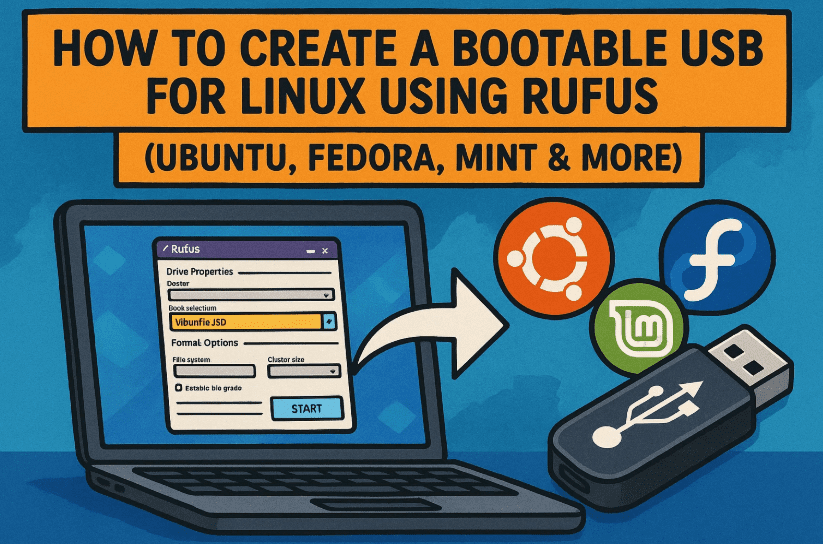
🧩 What Is a Bootable USB and Why You Need One
Before we begin, let’s quickly clarify what a bootable USB is.
A bootable USB is a flash drive that contains an operating system installer — such as Linux, Windows, or even recovery tools — configured in a way that allows your computer to start (“boot”) from it.
In this case, we’ll use Rufus to write a Linux ISO image onto a USB drive so that your PC can recognize it as a bootable installation medium.
This method is faster, cleaner, and more reliable than using DVDs or older installation disks.
🧰 What You’ll Need Before Starting
To make the process smooth, make sure you have everything ready.
You’ll need the following:
- A USB drive (8 GB or more):
The Linux ISO and installation files will be written here, so make sure to back up anything important — the drive will be formatted completely. - A Linux ISO file:
You can download one from your preferred distro’s official site: - Rufus software:
Rufus is a free and trusted tool to create bootable drives. You can get it from the official website:
👉 https://rufus.ie
🪄 Step 1: Download Rufus (Official Source)
Let’s begin by downloading the tool that will do all the heavy lifting.
- Open your web browser and go to rufus.ie.
- On the homepage, scroll down to the “Download” section.
- Click the latest version (for example, Rufus 4.x Portable).
Rufus is small (under 2 MB) and doesn’t require installation. You can just run the
.exefile directly after downloading.
Once you have Rufus, keep it somewhere easy to find — like your desktop or downloads folder.



💽 Step 2: Plug in Your USB Drive
Now, connect your USB drive to your computer. Rufus will automatically detect it once you open the program.
- Make sure it’s at least 8 GB in size.
- Ensure no important data is stored on it. Rufus will erase everything.
When the drive appears under Device, you’re ready to move to the next step.
📂 Step 3: Load Your Linux ISO File
Here’s where you choose which Linux distribution you want to install.
- In Rufus, find the dropdown labeled Boot selection.
- Click Select and browse to your downloaded Linux ISO file (e.g.,
ubuntu-22.04.iso,fedora-39.iso, etc.). - Once selected, Rufus will automatically detect the type of image and prepare the necessary options.
💡 The process is identical for all Linux distros — whether Ubuntu, Fedora, Debian, or Linux Mint.
So far so good? Great — now it’s time for one of the most important parts: selecting the correct partition scheme.
⚙️ Step 4: Select the Correct Partition Scheme (GPT or MBR)
This part determines whether your computer can boot properly from the USB. Choosing the wrong option might cause boot errors or installation failures later.
Let’s make sure you choose the correct one.
🧠 What Are GPT and MBR?
- GPT (GUID Partition Table):
Works with modern UEFI BIOS systems. Supports larger drives and newer features. - MBR (Master Boot Record):
Used by Legacy BIOS systems. It’s older and has some limitations, but still common on older PCs.
If you’re not sure what your system uses, follow these quick steps:
🔍 How to Check Your Partition Type in Windows
- Right-click the Start Menu and select Disk Management.
- Find the drive where Windows is installed (usually labeled Disk 0 with your C: drive).
- Right-click it → select Properties.
- Go to the Volumes tab.
- Under Partition style, you’ll see either:
- GUID Partition Table (GPT) → choose GPT in Rufus.
- Master Boot Record (MBR) → choose MBR in Rufus.
Once you know the right scheme, select it from Rufus’s Partition Scheme dropdown.
Leave the other options (File System, Cluster Size, etc.) unchanged — Rufus handles these automatically.
🧱 Step 5: Write the ISO to the USB Drive
Now comes the actual writing process.
- Double-check your settings:
- Correct USB drive selected under Device
- Correct ISO file loaded
- Correct Partition Scheme (GPT or MBR)
- Click Start.
A dialog box appears asking for the write mode. Choose:
✅ “Write in ISO Image mode (Recommended)”
Then click OK to begin.
⚠️ Important: All data on your USB will be permanently erased. Double-check that you’ve selected the correct drive before proceeding.
Now sit back and relax — Rufus will handle everything. Depending on the size of your ISO and the speed of your USB, this process may take anywhere from 3 to 10 minutes.
Once complete, Rufus will display “READY” at the bottom. That means your bootable Linux USB is finished.
🖥️ Step 6: Boot from Your USB Drive
To test or install Linux, you’ll now boot from your new USB.
- Restart your computer.
- During startup, press your system’s boot key:
- Dell → F12
- HP → ESC or F9
- Lenovo → F12
- ASUS → F8
- Acer → F12
- Choose your USB drive from the boot menu:
- If your system uses Legacy BIOS, select the USB (Legacy) option.
- If your system uses UEFI, select the USB UEFI option.
Selecting the wrong one may lead to “boot device not found” errors, so match it with the partition scheme you chose earlier.
If all goes well, you’ll see your Linux distribution’s welcome screen — confirming your bootable USB works perfectly.
💡 Bonus Tip: Try Linux Without Installing It
Here’s a cool feature:
Most Linux distributions allow you to “Try Linux without installing” directly from the boot menu.
This lets you:
- Explore the desktop environment.
- Check your Wi-Fi, sound, and graphics compatibility.
- Test features before committing to installation.
You can use this same USB later to repair a broken system, recover files, or reinstall Linux whenever needed. Keep it handy!
❓ Frequently Asked Questions (FAQ)
Q1. Can I use this USB for multiple Linux distributions?
No. Each time you create a new bootable drive, Rufus formats the USB. Use one USB per distro or reflash it each time.
Q2. What if Rufus doesn’t detect my USB drive?
Try removing and reinserting it, or running Rufus as Administrator. If the issue persists, test with a different USB port.
Q3. Should I choose “DD Image mode” instead of ISO mode?
ISO mode is recommended for most users. DD mode is only for certain raw disk images that fail to boot otherwise.
Q4. Can I make the USB bootable on both UEFI and Legacy systems?
Some Linux ISOs (like Ubuntu) support hybrid booting, meaning they work with both. Still, GPT for UEFI and MBR for Legacy remains the safest rule.
Q5. Is Rufus safe to use?
Yes. Rufus is open-source, lightweight, and virus-free when downloaded from the official site rufus.ie.
🏁 Final Thoughts
And that’s it! You’ve successfully created a bootable Linux USB drive using Rufus.
It’s one of those simple yet powerful tools every PC user should know about. Whether you’re exploring Linux for the first time or setting up a professional workstation, this process remains your first and most essential step.
From here, you can either try Linux in live mode or proceed to install it on your hard drive. Once you’ve got the hang of it, creating bootable drives will take you less than five minutes every time.
⚠️ Disclaimer
This article is for educational purposes only. Always download Linux ISOs and software from official sources to avoid corrupted or unsafe files. Formatting a USB drive will erase all its contents — proceed carefully and back up any data first.
#Linux #Rufus #Ubuntu #Fedora #LinuxMint #BootableUSB #TechGuide #OperatingSystem #UEFI #MBR








