When it comes to improving your Windows experience, there’s no shortage of software out there—yet most people stick to the same big-name apps everyone talks about. But what about the underrated gems? The tools that quietly make your PC faster, more productive, or just more fun—without costing you a single rupee?
Well, in this article, I’m diving into 11 free Windows apps that are not only incredibly useful, but also lightweight, actively maintained, and in some cases, better than the famous paid alternatives.
Some of them will save you time, others will save you money, and a few might even save you from boredom at work. And yes—Microsoft would probably prefer you didn’t know about some of these, because they make third-party alternatives look really good.

So grab your cup of coffee, and let’s start exploring.
📋 Table of Contents
- Lively Wallpaper – A Free Alternative to Wallpaper Engine
- Blip – Share Files Seamlessly Across Devices
- SpaceDesk – Turn Your Tablet into a Second Screen
- Loaf – The Fake Windows Update Prank Tool
- Ditto Clipboard Manager – Supercharged Copy-Paste
- One Calendar – All Your Calendars in One Place
- PDF24 Creator – The Offline PDF Toolkit
- Zotero – The Researcher’s Best Friend
- Calin UI – macOS Look & Feel on Windows
- Crapixer – One-Click PC Cleanup
- Fan Control – Fine-Tune Your PC Cooling
- FAQs
- Final Thoughts
1. Lively Wallpaper – A Free Alternative to Wallpaper Engine
If you’ve ever used Wallpaper Engine from Steam, you know it’s fantastic for animated wallpapers. But there are two downsides:
- You have to launch Steam every time you want to use it.
- It uses up more system resources than it should.
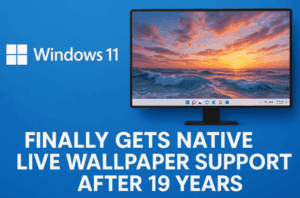
Lively Wallpaper (official site) solves both problems. It’s completely open source, runs without Steam, and lets you set dynamic wallpapers from videos, GIFs, or interactive web pages.
Key features:
- Supports multi-monitor setups and ultrawide screens.
- Automatically pauses wallpapers during full-screen apps to save resources.
- Highly customizable—choose your own videos or download from the community.
💡 Tip: If you’re on a laptop, turn on the “Pause on battery” feature to save battery life.
2. Blip – Share Files Seamlessly Across Devices
While LocalSend is popular for offline file sharing, Blip (official site) takes it up a notch. It works both peer-to-peer over Wi-Fi and via the internet, meaning you can share files even if the devices aren’t on the same network.
Why it’s better:
- Works across Windows, macOS, Linux, Android, iOS.
- Zero compression—your files stay at full quality.
- End-to-end encryption for privacy.
- Resumable transfers—if your connection drops, the transfer continues from where it left off.
Perfect for sending large videos or project folders without using cloud storage.


3. SpaceDesk – Turn Your Tablet into a Second Screen
Need more screen space but don’t want to buy a monitor? SpaceDesk (official site) lets you use your iPad, Android tablet, or even another PC as a second display.
How it works:
- Connect via Wi-Fi or USB tethering.
- Supports touch input from the secondary device.
- Works with multiple devices at the same time.
Latency is impressively low, making it great for productivity apps, design work, or even light gaming.
4. Loaf – The Fake Windows Update Prank Tool
This one’s for a bit of harmless office fun. Loaf (official site) creates a full-screen fake Windows update screen to prank your coworkers or friends.
Features:
- Locks the screen until the “update” is done (or you use a secret key combo).
- Looks identical to the real Windows update process.
⚠️ Disclaimer: Use this responsibly—don’t prank someone during important work!
5. Ditto Clipboard Manager – Supercharged Copy-Paste
Windows’ default clipboard can only store one item at a time. That’s where Ditto Clipboard Manager (official site) comes in.
What it does:
- Saves everything you copy—text, images, links, HTML.
- Lets you search your clipboard history.
- Customize hotkeys for quick pasting.
- Lightweight and runs quietly in the background.
If you do a lot of writing, coding, or research, this is a must-have.
6. One Calendar – All Your Calendars in One Place
If you juggle multiple calendars—Google, Outlook, iCloud—One Calendar (Microsoft Store link) combines them into one clean, color-coded interface.
Features:
- Supports offline mode with local caching.
- Color-coded events for quick recognition.
- Works on Windows, Android, and iOS.
No more switching between apps to check appointments.
7. PDF24 Creator – The Offline PDF Toolkit
Tired of uploading documents to online PDF editors? PDF24 Creator (official site) is a completely offline PDF editing suite.
It lets you:
- Merge, split, compress, and convert PDFs.
- Edit PDF content and add annotations.
- Convert images or Word files to PDF without losing quality.
It’s a perfect, free alternative to Adobe Acrobat—and without annoying ads.
8. Zotero – The Researcher’s Best Friend
Zotero (official site) is like a smart filing cabinet for students, academics, and researchers.
Why it’s amazing:
- Save articles, web pages, PDFs, and notes in one click.
- Automatic tagging and smart collections.
- Supports browser extensions and export in various citation formats.
Whether you’re writing a thesis or just collecting articles, Zotero keeps you organised.
9. Calin UI – macOS Look & Feel on Windows
If you admire macOS aesthetics but don’t want to leave Windows, Calin UI (official site) gives your desktop a Mac-like look.
It’s essentially:
- A macOS-style launcher.
- Customizable widgets and themes.
- Works well even on older PCs.
Great for those who want the visual appeal of macOS without switching systems.
10. Crapixer – One-Click PC Cleanup
Crapixer (official site) is a simple but effective PC cleaning tool.
It can:
- Remove junk files and broken shortcuts.
- Clear leftover data from uninstalled programs.
- Do a “one-click fix all” cleanup.
It’s lightweight, beginner-friendly, and safe for everyday use.
11. Fan Control – Fine-Tune Your PC Cooling
For PC enthusiasts who want more control over their hardware, Fan Control (official site) lets you manage fan speeds without going into the BIOS.
Features:
- Control CPU, GPU, and case fans individually.
- Create custom fan curves.
- Monitor temperatures in real-time.
This is especially useful for balancing noise levels and cooling efficiency.
12. FAQs
Q: Are all these apps really free?
Yes, all the apps listed here are free to use. Some may have optional donations or premium features, but the core functionality is free.
Q: Will these apps slow down my PC?
Most of them are lightweight. In fact, some (like Crapixer and Fan Control) can improve performance by optimising your system.
Q: Are these safe to install?
Yes, as long as you download them from the official links provided above.
Q: Which one should I install first?
It depends on your needs. For visuals, start with Lively Wallpaper. For productivity, Ditto Clipboard or One Calendar are great. For system performance, try Fan Control or Crapixer.
13. Final Thoughts
Windows is an incredibly flexible operating system, but you can unlock even more potential by adding the right tools.
From making your desktop look amazing with Lively Wallpaper, to sharing files instantly with Blip, to controlling every aspect of your hardware with Fan Control—there’s something here for everyone.
The best part? You don’t have to spend a single rupee to try them.
Tags: Windows free apps, Lively Wallpaper, Blip file sharing, SpaceDesk second screen, Loaf prank tool, Ditto clipboard manager, One Calendar, PDF24 Creator, Zotero research tool, Calin UI, Crapixer PC cleaner, Fan Control
Hashtags: #WindowsApps #FreeSoftware #ProductivityTools #WindowsCustomization #PCPerformance #TechTips #Windows10 #Windows11 #OpenSource #WindowsTools








