When it comes to WhatsApp backups, most people rely on Google Drive. While convenient, cloud storage isn’t always the best choice. You may run out of space, face account sync issues, or simply want to keep a secure offline copy of your data. Luckily, there’s a straightforward method to back up and restore your entire WhatsApp data directly to your PC — no paid tools required.
In this guide, we’ll walk through everything step by step. You’ll learn how to create a complete backup on your Android phone, transfer it safely to your PC, and restore it later when switching to a new device or reinstalling WhatsApp.
By the end of this article, you’ll have full control over your WhatsApp data, without being tied to Google Drive.
1. Why Back Up WhatsApp Data Locally Instead of Google Drive?
Before we begin, let’s answer the big question: why bother with local backups when Google Drive exists?
Here are a few good reasons:
- Storage limitations: Google Drive offers limited free space (15 GB shared across Gmail, Google Photos, and Drive). Large WhatsApp media can quickly fill it up.
- Privacy concerns: Keeping backups offline gives you full control over your chats, photos, and documents.
- Independence: If you switch to a phone without Google services (like Huawei or custom ROMs), you’ll need local backups.
- Faster restore: Copying data directly from your PC is usually faster than downloading from the cloud.
So, having a local backup is like having a personal safety net — you’re not fully dependent on Google’s servers.
2. Preparations Before Starting
Before jumping into the backup process, make sure you have:
- An Android smartphone with WhatsApp installed.
- A PC or laptop with enough free space.
- A USB cable to connect your phone to the computer.
- Basic knowledge of navigating phone storage folders.
It’s also a good idea to create a dedicated folder on your PC named something like WhatsApp_Backups. This keeps everything organized in case you want to back up multiple times.
3. Step 1: Back Up WhatsApp Data on Your Android Phone
Let’s start with the phone side of things. This step ensures WhatsApp creates a local backup file inside your phone’s storage.
Steps:
- Open WhatsApp on your phone.
- Tap the three dots menu (top-right corner).
- Go to Settings → Chats → Chat Backup.
- Turn off Google Drive backup (to prevent it from overwriting local backups).
- Tap Back Up.
This creates a full backup of:
- Chat history
- Photos
- Videos
- Audio files
- Documents
Once the process is done, WhatsApp will show the time and date of the last local backup.











👉 At this point, the backup is saved to your internal storage in the WhatsApp folder.
4. Step 2: Transfer WhatsApp Data from Phone to PC
Now that the backup is ready, let’s move it to your computer for safekeeping.
Steps:
- Connect your phone to your PC using a USB cable.
- On your phone, grant permission for File Transfer (MTP mode).
- On your PC, open File Explorer and go to your phone’s storage.
- In the search bar, type WhatsApp.
- Open the WhatsApp folder.
Inside, you’ll see three important folders:
- Backups → contains system backup files.
- Databases → contains chat history (
msgstore.db.crypt12files). - Media → contains images, videos, voice notes, stickers, documents.
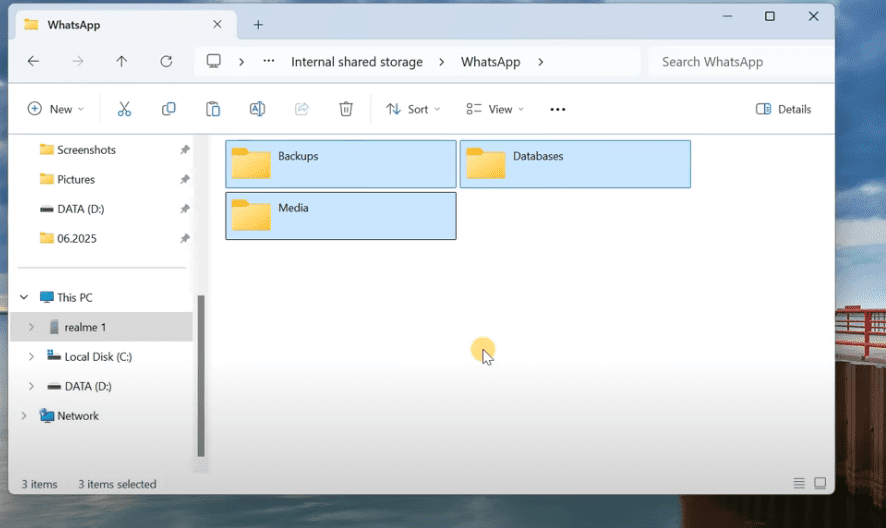
- Copy all three folders (Backups, Databases, Media) to your PC folder (e.g.,
C:\WhatsApp_Backups\).
💡 Tip: If you have a large amount of media, the copy process may take time. Be patient and make sure your phone stays connected during transfer.
And what if you are looking for a way to have Two WhatsApp Accounts on One iPhone Using Two Different Phone Numbers or How to Fix “No Valid QR Code Detected” Error When Logging into WhatsApp Web then go through these articles and I am sure you will love these too.
5. Step 3: Restore WhatsApp Data on a New or Reset Phone
Now, let’s see how to restore everything when switching to a new phone or after reinstalling WhatsApp.
Important Note:
If you keep your Google account signed in, WhatsApp may prioritize Google Drive backup over local backup, skipping your copied files. To avoid this, remove your Google account from the phone before starting the restore.
Steps:
- Install WhatsApp on your new phone (or reinstall on the same phone).
- Before verifying your number, connect the phone to your PC via USB.
- Copy the previously saved folders (Backups, Databases, Media) from your PC back into your phone’s WhatsApp directory.
- Disconnect your phone.
- Open WhatsApp → Verify your phone number.
- WhatsApp will automatically detect the local backup and prompt you to restore it.
- Tap Restore and wait.
Once the restore completes:
- Chats appear immediately.
- Media (photos, videos, documents) will load gradually in the background.
6. Troubleshooting Common Issues
Even with careful steps, you may run into issues. Here’s how to fix them:
- Issue: WhatsApp doesn’t detect backup
- Ensure you placed the folders in the correct internal storage directory.
- Disable your Google account before verifying WhatsApp.
- Issue: Media files missing after restore
- Check that the Media folder was fully copied.
- Large files may take extra time to appear after chats restore.
- Issue: PC doesn’t detect phone storage
- Enable USB file transfer mode on your phone.
- Install proper USB drivers for your phone brand.
7. Best Practices for Safe and Reliable Backups
To make sure you never lose important chats and media, keep these practices in mind:
- Perform a local backup at least once a month.
- Store your backup on an external drive in addition to your PC.
- Encrypt your backup folder with a tool like 7-Zip or VeraCrypt if it contains sensitive information.
- Avoid storing years of media on WhatsApp itself — archive important files separately.
8. Frequently Asked Questions (FAQs)
Q1: Can I use this method on iPhone?
No. iOS uses iCloud for backups, and Apple restricts direct access to WhatsApp folders.
Q2: What if my backup is very large (over 20 GB)?
The process may take longer, but it still works. Consider transferring over Wi-Fi using apps like AirDroid if USB is unstable.
Q3: Can I move the backup between different phone numbers?
No. WhatsApp backups are tied to the registered phone number. You must use the same number to restore.
Q4: Will restoring overwrite my current chats?
Yes. Restoring replaces the current chat database with the backup. Always save your latest chats separately if needed.
Q5: Is this method legal and safe?
Yes. You’re simply copying your own WhatsApp files without third-party tools.
9. Conclusion
Backing up WhatsApp to your PC without Google Drive is not only possible but also easy. With just a few steps — creating a local backup, transferring it to your computer, and restoring when needed — you gain full control over your chat history and media.
This method is especially useful if you’re:
- Switching to a new phone
- Avoiding cloud storage due to space or privacy concerns
- Keeping an offline archive of your conversations
So the next time you worry about losing chats, remember: your PC can be the safest vault for your WhatsApp data.
Disclaimer
This guide is for educational purposes. While the method is safe, always double-check file transfers and ensure backups are stored securely. WhatsApp may update its file structure in the future, so steps could vary slightly.
Tags
whatsapp backup without google drive, restore whatsapp chats from pc, whatsapp local backup android, transfer whatsapp to new phone, backup whatsapp media pc, restore whatsapp without cloud
Hashtags
#WhatsApp #Backup #Restore #AndroidTips #TechGuide #PCBackup #DataSafety








