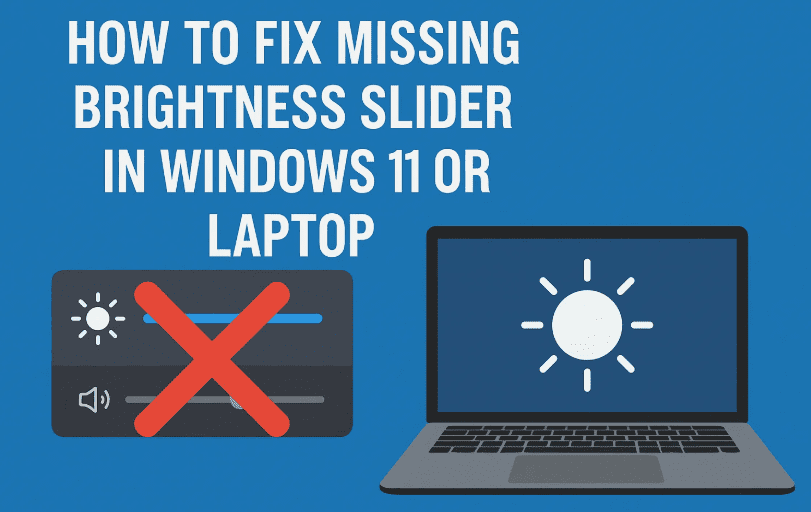
Is your brightness slider missing from the quick settings or display options in Windows 10 or Windows 11? You’re not alone. This issue can be frustrating, especially when working on a laptop without dedicated brightness keys or when automatic brightness is disabled.
In this guide, we’ll walk you through multiple methods to bring back the missing brightness slider. These solutions are safe, effective, and beginner-friendly.
🛠️ Step 1: Run System File Checker (SFC) Scan
The first thing you should do is check for corrupt system files that might be affecting the display settings.
Here’s how:
- Click the Search icon in the taskbar.
- Type
cmdand right-click on Command Prompt. - Select Run as Administrator.
- In the command window, type the following command:
sfc /scannow - Press Enter and let the scan run. It may take 5-10 minutes depending on your system.
💡 You can minimize the Command Prompt while it runs in the background.
🔁 Step 2: Disable and Re-enable Generic Monitor
Sometimes the system fails to detect the monitor correctly. Resetting it can fix the brightness slider issue.
Steps:
- Right-click the Start button and choose Device Manager.
- Expand the Monitors section.
- Right-click on Generic PnP Monitor (or a similar monitor name) and select Disable Device.
- Confirm the action by clicking Yes.
- Wait a few seconds, then right-click again and select Enable Device.
🎮 Step 3: Update Graphics Drivers
Outdated or buggy graphics drivers are a common cause for display-related issues.
To update your display driver:
- In Device Manager, expand the Display Adapters section.
- Right-click on your graphics card (Intel, AMD, or NVIDIA).
- Select Update Driver.
- Click on Search automatically for drivers.
- Follow on-screen prompts. If it says your drivers are up to date, you’re good.
🔄 Step 4: Update Windows
Updating your system often resolves bugs like the missing brightness control.
Do this:
- Search for Windows Update in the Start menu.
- Click Check for Updates.
- Install any available updates.
- Restart your PC after installation.
🚨 Don’t skip this step — it often solves persistent bugs.
🔧 Step 5: Restart the Display Enhancement Service
If none of the above fixes worked, restarting the Display Enhancement Service might do the trick.
Here’s how to do it:
- Search for Services in the taskbar and open the Services app.
- Scroll down and find Display Enhancement Service.
- Double-click to open properties.
- Click Stop to disable it temporarily.
- Set Startup type to Automatic.
- Click Start to enable it again.
- Click Apply and then OK.
- Restart your PC.
✅ Final Check: Is the Brightness Slider Back?
After completing the above steps, the brightness slider should now appear in:
- Quick Settings panel (click the network/battery icon in taskbar)
- Settings > System > Display > Brightness
If it’s back—awesome! If not, you may want to reinstall display drivers or use brightness control software as a temporary workaround.

🙋 Frequently Asked Questions
❓ Why does the brightness slider disappear in Windows?
It usually disappears due to:
- Corrupted system files
- Disabled monitor in Device Manager
- Outdated or incorrect display drivers
- Inactive system services (like Display Enhancement Service)
❓ Is it safe to disable and re-enable the monitor device?
Yes, it’s safe. You’re not disabling the actual screen—just refreshing the software interface.
❓ Can I manually adjust brightness if the slider doesn’t return?
Yes, you can try third-party apps like:
- ClickMonitorDDC
- Monitorian
Note: Use third-party tools at your own risk.
📝 Final Thoughts
This issue is surprisingly common, but fortunately, it’s fixable with a few quick tweaks. Whether it’s a driver hiccup or a system glitch, following the steps in this article should help you bring the brightness slider back on your Windows laptop.
If you’ve tried everything and still can’t fix it, consider reinstalling your graphics driver from the manufacturer’s website.
🏷️ Tags
Windows 11, Windows 10, Brightness Slider Missing, Laptop Display Issue, Windows Tips, Screen Brightness Fix, Device Manager, Graphics Driver Update
📢 Hashtags
#Windows11 #Windows10 #BrightnessFix #LaptopTips #ScreenSettings #TechHelp #DeviceManager #MicrosoftWindows
⚠️ Disclaimer
This article is intended for educational and troubleshooting purposes. Proceed with the steps only if you’re comfortable with making system-level changes. Backup your system before making major adjustments.








