Have you ever installed Windows 10 or Windows 11 on your laptop or PC and noticed that there’s no option to adjust brightness? This can be frustrating, especially if you’re working at night or in a bright environment and need more control over your screen brightness.
Normally, brightness controls appear in Settings → Display or in the quick action center, but in some cases, particularly on desktop PCs without dedicated drivers or on certain laptops, this option doesn’t show up at all.
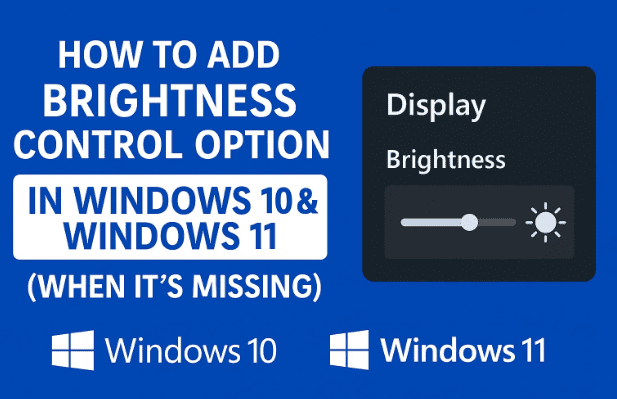
Don’t worry! There’s a very simple way to bring brightness control back by using a small, free app from the Microsoft Store. In this step-by-step guide, I’ll show you how to install, configure, and use it. Along the way, we’ll also explore why brightness options may go missing and what alternatives exist.
1. 🔎 Why Brightness Control May Be Missing
Before we jump into the fix, it’s important to understand why this happens in the first place.
- Driver issues: Missing or outdated display drivers often remove brightness controls.
- Desktop PCs: Many desktops don’t have built-in brightness control since external monitors usually handle it via buttons.
- Laptop bugs: After reinstalling Windows or updating to a new version, brightness sliders can disappear due to misconfigured power settings.
- Unsupported hardware: Very old laptops may not expose brightness adjustment at all.
In all of these cases, a software-based solution comes to the rescue. Let’s move to the next step.
2. 💾 Download Brightness Control from Microsoft Store
Windows makes it easy through the Microsoft Store. Here’s how:
- Open the Microsoft Store on your PC or laptop.
- In the search bar, type “Brightness Control”.
- Look for the app named Brightness Control (it usually appears at the top of the results).
- Verify it’s from a trusted developer and check the reviews.
- Click Get / Install.
That’s it! The app will now begin downloading. While it installs, let’s get ready to see how it works.
3. ⚙️ Install and Set Up the App
After you hit Install, Windows will take a moment to set up the app in the background. Once it’s finished:
- The app may not open like a normal window.
- Instead, it places an icon in your taskbar/system tray (the small area near your Wi-Fi and volume icons).
- If you don’t see it right away, click the arrow (^) in the system tray to expand hidden icons.
Now the Brightness Control tool is running silently and ready to use.
4. 🖱️ How to Use Brightness Control from Taskbar
So far we’ve done a good job installing—now let’s learn how to actually adjust brightness.
- Locate the Brightness Control icon in your system tray.
- Right-click the icon to open options.
- You’ll see several percentage levels (100%, 60%, 30%, 10%).
- Click the level you want.
The brightness of your screen will instantly change to the selected percentage.


5. 📉 Adjust Brightness by Percentage (10%, 30%, 60%, 100%)
This is where the app shines—precise brightness adjustment:
- 100% → Full brightness (ideal for daylight use).
- 60% → Comfortable for general office or study use.
- 30% → Best for dimly lit rooms.
- 10% → Perfect for late-night browsing to avoid eye strain.
You can experiment with different percentages until you find the level that feels comfortable for your eyes.
Tip: If you regularly work at night, consider pairing this with Night Light (built into Windows under Settings → Display → Night Light) to reduce blue light.
6. 🛠️ Troubleshooting: If It Still Doesn’t Show
If you’ve installed the app but can’t see or use it:
- Check hidden icons: Click the arrow (^) on your taskbar.
- Reinstall the app: Uninstall from Microsoft Store → reinstall again.
- Update display drivers: Go to Device Manager → Display adapters → Update driver.
- Check external monitor settings: If using a desktop with a standalone monitor, brightness might only be adjustable via the monitor’s physical buttons.
7. 🧩 Alternative Ways to Control Brightness
Apart from the Brightness Control app, here are other methods:
- Monitor buttons: On desktop PCs, brightness is usually adjusted directly on the monitor.
- Windows Mobility Center: Press Win + X → Mobility Center (on laptops).
- Third-party apps: Tools like f.lux (https://justgetflux.com/) can adjust brightness and color temperature automatically.
- Keyboard shortcuts: Many laptops have brightness keys (sun icons with +/–). Check your function keys.
8. ❓ Frequently Asked Questions (FAQ)
Q1. Why is the brightness slider missing in Windows 11?
A. It’s usually because the display driver isn’t installed. Update your graphics driver and restart.
Q2. Will Brightness Control work on desktop PCs?
A. Yes, but it simulates brightness by adjusting gamma levels. For true hardware-level control, use your monitor’s physical buttons.
Q3. Is the Brightness Control app free?
A. Yes, it’s available free on the Microsoft Store.
Q4. Can I set custom brightness percentages (like 45%)?
A. The default app only shows preset levels, but you can combine it with third-party utilities for finer control.
Q5. Does this affect battery life?
A. Lower brightness always reduces power usage on laptops, so yes—it can help extend battery life.
9. ⚠️ Disclaimer
- The Brightness Control app is provided through Microsoft Store, which ensures security, but always check developer details and reviews before installing.
- Brightness control through software may not be identical to hardware-level brightness, especially on desktops.
- For laptops, if the brightness option is missing due to driver issues, install the latest Intel/AMD/NVIDIA drivers from their official websites.
Tags
windows 10 brightness, windows 11 brightness, brightness control app, microsoft store apps, adjust brightness laptop, adjust brightness desktop, brightness missing windows fix, gamma brightness windows, night light windows, windows display settings
Hashtags
#Windows10 #Windows11 #BrightnessControl #LaptopTips #PCTweaks #MicrosoftStore #TechGuide
✅ Final Thoughts: If your PC or laptop is missing the brightness slider in Windows 10 or 11, don’t panic. With just a few steps, you can install the Brightness Control app from the Microsoft Store and easily adjust screen brightness using percentages. It’s a quick, safe, and effective solution—especially helpful for late-night work or eye comfort.








