If you’ve ever opened a Linux terminal or file manager, you may have noticed a collection of oddly named folders like /bin, /etc, and /usr. For someone coming from Windows or macOS, this can feel confusing. Instead of familiar “C:\Program Files” or “Documents,” Linux presents a tree of directories that all start from a single root symbol /.
This isn’t random at all—it’s part of a carefully designed hierarchy that has evolved over decades to keep Linux stable, secure, and organized. Whether you’re a beginner learning Linux for the first time, a system administrator managing servers, or simply someone who wants to know what happens “under the hood,” understanding these folders is essential.
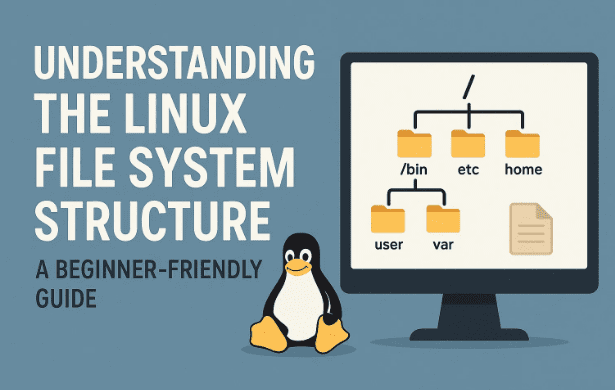
In this article, we’ll explore the Linux file system structure in detail. We’ll start with the root directory, explain why Linux uses a unified hierarchy instead of multiple drives, and then break down the purpose of each top-level directory one by one. Along the way, we’ll add context, practical examples, and even highlight situations where you should avoid tinkering.
🌳 The Root Directory /
Everything in Linux begins at a single point: the root directory, represented simply by a forward slash /. Think of it as the trunk of a tree from which all branches grow. Every file, folder, or device you see in Linux ultimately connects back to root.
This design is different from Windows, which uses separate drive letters like C: or D:. In Linux, all drives and partitions are mounted under the same hierarchy. For example, if you plug in a USB stick, instead of becoming “E:,” it appears inside /media/username/USBdrive.
One common point of confusion is the difference between / and /root. The /root directory is just the home folder of the root (administrator) user, while / is the starting point for the entire system. Keeping them separate helps maintain security and system integrity.
⚙️ /bin – Essential User Binaries
Now that we’ve established the starting point, let’s move to one of the most critical directories: /bin.
This directory contains the essential command-line tools required for the system to function, especially during boot or recovery. Without /bin, Linux would struggle to even start.
Here are some examples of what you’ll find inside:




- ls → Lists files in a directory
- cp → Copies files and directories
- mv → Moves or renames files
- cat → Displays file content
Unlike other command directories, /bin is always available, even if other parts of the system aren’t mounted yet. For this reason, it’s best to leave /bin untouched unless you know exactly what you’re doing—tampering here could break your system’s basic functionality.
🔧 /sbin – System Binaries
While /bin holds everyday commands usable by all users, /sbin (System Binaries) contains administrative tools that are mostly reserved for the root user. These are commands that deal with managing and maintaining the system at a deeper level.
Examples include:
- fsck → Checks and repairs file systems
- mount → Mounts devices and partitions
- shutdown → Powers down the system
As a regular user, you’ll rarely interact with /sbin, but for administrators, this is where many critical tools live. Since these commands affect the entire system, they usually require superuser privileges.
📚 /lib – Shared Libraries
Just as Windows programs often rely on .dll files, Linux commands need supporting code to run. This is where /lib (short for libraries) comes in.
Shared libraries allow multiple programs to reuse common functionality, like reading files, handling input/output, or managing memory. This prevents every command from having to carry its own redundant code.
You may also find:
- /lib32 → 32-bit libraries
- /lib64 → 64-bit libraries
- Kernel modules → Small pieces of code that extend the kernel’s functionality
Tampering with /lib is risky because breaking these libraries can prevent your system from even booting.
👤 /usr – Unix System Resources
The name /usr can be misleading—it doesn’t actually hold personal user files. Instead, it stands for Unix System Resources.
This directory contains user-space applications, documentation, and libraries that aren’t essential for booting but are needed for general system operation. For example:
- /usr/bin → Non-essential binaries for user applications
- /usr/lib → Libraries supporting user programs
- /usr/share → Shared resources like icons and documentation
The reason /usr mirrors some root-level directories is historical: it was meant to separate essential tools (in /bin) from non-essential but useful ones (in /usr/bin).
🖥️ /boot – Boot Loader Files
The /boot directory contains all the files your system needs to start up. This includes:
- The Linux kernel (vmlinuz)
- Initial RAM disk (initrd or initramfs)
- GRUB bootloader configuration (grub.cfg)
In dual-boot setups or encrypted systems, /boot may even sit on a separate partition to guarantee accessibility during startup. Since small mistakes here can prevent your system from booting entirely, changes should only be made carefully and with proper guidance.
💽 /dev – Device Files
In Linux, everything is treated like a file—including hardware. The /dev directory contains device files that act as interfaces to physical or virtual hardware.
Examples include:
- /dev/sda → First hard drive
- /dev/null → “Black hole” device that discards data
- /dev/tty → Terminal devices
There are two types:
- Block devices (e.g., hard drives)
- Character devices (e.g., keyboards)
It’s fascinating to look at, but interacting with /dev directly can affect your hardware, so handle with care.
⚙️ /etc – System Configuration
The /etc directory is the brain of your Linux system. It holds system-wide configuration files that control how everything behaves.
Most files here are plain text, making them easy to read and edit with a text editor. However, be very cautious—changes can affect your entire system. A small typo in /etc/fstab, for instance, can prevent your machine from booting correctly.
🏠 /home – User Home Directories
The /home directory is where everyday users keep their personal data. Each account gets its own subdirectory:
- /home/alex
- /home/emma
Here you’ll store documents, downloads, and hidden configuration files (often starting with a dot, like .bashrc).
Privacy is built in—users cannot access each other’s home folders unless permissions are changed. Meanwhile, the root user has a separate home at /root, kept outside /home for extra security.
💿 /media and /mnt – Mount Points
When you plug in a USB stick or insert a DVD, Linux automatically mounts it under /media. Each device gets its own subfolder, usually named after its volume label. This makes removable media easily accessible.
On the other hand, /mnt is reserved for manual mounts by administrators. For example, if you need to temporarily mount a failing hard drive or a network share, you would attach it under /mnt.
🔎 /proc – Process Information
The /proc directory is unique—it’s a virtual filesystem that reflects the current state of your system in real time. It doesn’t contain real files, but rather data pulled directly from the kernel.
Some key files include:
- /proc/cpuinfo → CPU details
- /proc/meminfo → Memory usage
- /proc/[PID] → Information about running processes
This directory is invaluable for monitoring and debugging. Tools like top and htop rely on /proc for their data.
⚡ /sys – Kernel and Hardware Interface
Similar to /proc, the /sys directory is a virtual filesystem. It provides a structured interface to devices, drivers, and kernel settings. Unlike /proc, many files in /sys can be written to, allowing tools to adjust hardware behavior on the fly.
For example, power management tools or udev rely on /sys to configure and monitor devices. Unless you’re developing drivers, you usually won’t need to interact here manually.
🔄 /run – Runtime Data
The /run directory is created early in the boot process and holds temporary runtime information. Everything inside disappears on reboot.
Examples include:
- /run/user → Session data for users
- /run/lock → Lock files to prevent duplicate processes
It replaces older directories like /var/run, consolidating runtime data in one place.
🌐 /srv – Service Data
The /srv directory is where service-related data lives, especially for servers. For example, a web server might store website files in /srv/www.
Not every Linux system uses /srv, but on servers hosting multiple services, it provides a predictable place for shared data.
📊 /var – Variable Files
As the name suggests, /var holds files that change frequently. Examples include:
- /var/log → System and application logs
- /var/cache → Cached data
- /var/lib → State information used by applications
Because logs and cache can grow quickly, servers often keep /var on a separate partition to avoid filling the root filesystem.
📝 /tmp – Temporary Files
The /tmp directory is shared among all users and applications for short-lived files. For instance, when you open a file in a text editor, temporary data may be written here.
Key points:
- Files are usually deleted automatically on reboot.
- /tmp has a sticky bit, ensuring users can only delete their own files.
- On some systems, /tmp is stored in memory (tmpfs), so writing very large files can consume RAM.
📦 /opt – Optional Software
Finally, we arrive at /opt. This directory is reserved for optional or third-party software not managed by the system’s default package manager.
For example:
- /opt/google/chrome → Google Chrome installation
- /opt/lampp → XAMPP web server stack
Not every system uses /opt, but it’s common in enterprise environments or when installing proprietary applications.
🎯 Conclusion
The Linux file system may look intimidating at first, but it’s built on a logical and time-tested structure. Each directory has a distinct role: some ensure the system boots, others hold user data, and some reflect real-time hardware status.
By learning this hierarchy, you gain more than just navigation skills—you gain confidence in troubleshooting, customizing, and truly understanding how Linux works. Whether you’re setting up your first Linux desktop or managing production servers, knowing “what lives where” is a foundational skill.
Disclaimer: This guide is for educational purposes. Editing system directories can break your Linux installation if done incorrectly. Always back up important files before making changes.
Tags: linux file system, linux directories explained, linux beginner guide, root directory, linux system administration, linux troubleshooting
Hashtags: #Linux #FileSystem #LinuxForBeginners #OpenSource #SysAdmin #TechGuide






