October 14, 2025 marks the end of an era—Microsoft officially stops supporting Windows 10. For millions of users around the world, this creates uncertainty. Without security updates, PCs become vulnerable to cyberattacks, malware, and potential data breaches.
The obvious solution Microsoft wants you to take is simple: buy a new computer with Windows 11 preinstalled. But what if you don’t want to spend hundreds—or even thousands—on new hardware, especially if your current machine works perfectly fine?
The good news: you don’t have to.
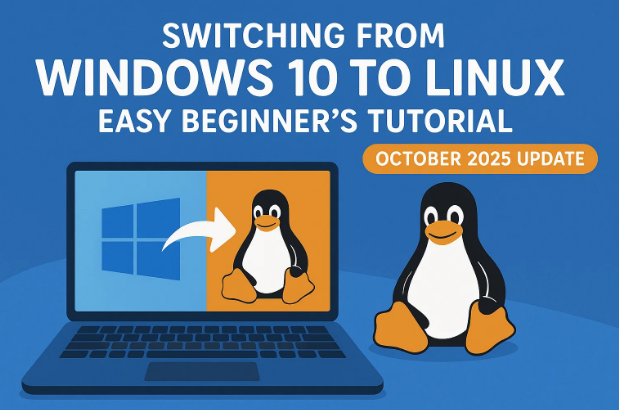
This guide will show you how to give your existing computer a new lease of life by installing Linux, a free and open-source operating system. If you’ve never used Linux before, don’t worry—we’ll cover everything step by step, from backing up your files to booting into your first Linux desktop.
1. 💰 Why You Don’t Need to Buy a New PC
When Windows 10 reaches end of support, Microsoft and hardware manufacturers naturally push users toward new devices. But let’s face it: most older computers are still powerful enough for everyday tasks such as browsing, emailing, streaming, or even light programming and office work.
Throwing away perfectly usable hardware just because of software support is wasteful—not only for your wallet but also for the environment. Linux provides a way to:
- Keep using your current computer safely.
- Bypass Microsoft’s restrictive Windows 11 hardware requirements.
- Enjoy an operating system that is fast, secure, and community-driven.
2. 🐧 What Is Linux and Why Choose It?
Linux is a free, open-source operating system that powers everything from smartphones (Android is Linux-based) to servers, supercomputers, and even spacecraft. For desktop users, Linux distributions (distros) like Linux Mint, Zorin OS, Ubuntu, and Fedora offer a modern, user-friendly experience.
Why switch to Linux?
- Free to download and use – no subscriptions, no hidden costs.
- Customizable – change the look, feel, and apps to match your needs.
- Lightweight – runs efficiently on older hardware.
- Secure – far fewer viruses target Linux compared to Windows.
- Privacy-focused – no forced telemetry like Windows.
3. 🗂️ Preparing for the Switch – Back Up Your Data
Before making any changes, it’s critical to back up your files. Think of this as insurance—you hope you won’t need it, but you’ll be glad it’s there if something goes wrong.
What to back up:
- Documents, spreadsheets, and PDFs.
- Photos and videos.
- Application data such as email archives.
- Browser bookmarks and saved passwords (export them if possible).
Where to back up:
- External hard drive/USB drive – simple and offline.
- Cloud storage – Google Drive, OneDrive, Dropbox, etc.
👉 If you’re setting this up for a parent, child, or less tech-savvy user, sit down with them and make sure everything important is saved. People often forget hidden files they’ll need later.
4. 🖥️ Choosing a Beginner-Friendly Linux Distribution
Not all Linux distributions are created equal. Some are highly technical, while others are designed with beginners in mind.
Here are some of the most recommended distros for new users:

- Linux Mint – Simple, familiar interface similar to Windows, widely recommended for beginners.
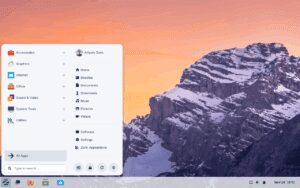
- Zorin OS – Clean design, polished visuals, easy learning curve.
- Ubuntu – Very popular, huge community, lots of tutorials available.
- Fedora – Great for users who want a balance of modern features and reliability.
👉 Recommendation: If you’re coming straight from Windows, start with Linux Mint or Zorin OS. They feel the most familiar.
5. 🔑 Creating a Bootable USB Installer
Now that you’ve chosen your Linux distro, you’ll need to install it using a bootable USB drive.
What you’ll need:
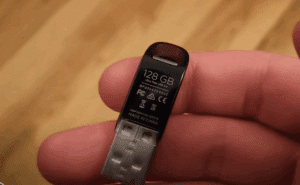
- A USB stick (minimum 4GB, but ideally 8GB or more).
- ISO file of your chosen distro (download from its official website).
- Flashing software (to write the ISO onto the USB).
Recommended flashing tools:
- Rufus (Windows only).
- Balena Etcher (cross-platform, simple, works on Windows, Linux, and macOS).
Steps:
- Download your Linux distro ISO file.
- Install Rufus or Balena Etcher.
- Insert your USB stick.
- Select the USB drive in the flashing software.
- Choose the ISO file you downloaded.
- Click “Flash” or “Start.”
This process will erase the USB and prepare it as an installer.
6. ⚙️ Accessing the BIOS and Boot Menu
Here comes a part that intimidates beginners but is actually simple: booting from USB via the BIOS menu.
When your computer starts up, press one of the following keys (depends on manufacturer):
- F2 – Common for Dell, ASUS.
- F12 – Often Lenovo, Acer.
- ESC or DEL – Used by many older desktops.
👉 If you’re unsure, look up “BIOS key [your laptop brand].”
Once inside BIOS:
- Go to the Boot Menu.
- Move your USB device to the top priority.
- Save and exit.
- Your PC will now boot from the Linux USB stick.
7. 👀 Trying Linux Before Installing
One of Linux’s best features is that you can try it out before installing.
When you boot from USB, most distros give you two options:
- Try – Run Linux directly from the USB (no changes to your hard drive).
- Install – Begin full installation.
👉 Use “Try” first to explore the desktop, check if Wi-Fi works, test the interface, and see if you like the look and feel.
8. 🛠️ Installing Linux – Step by Step
Once you’re ready, select Install from the USB menu.
Typical installation steps:
- Choose your language.
- Select your keyboard layout.
- Decide on installation type:
- Erase Disk and Install Linux (wipes Windows completely).
- Install Alongside Windows (dual-boot option).
- Select your timezone.
- Create a username and password.
The installer will then copy files and set everything up. This can take anywhere from 10 to 30 minutes depending on your computer.
9. 🌐 Post-Installation Setup (Browsers, Apps, Office Tools)
Congratulations! You’re now running Linux. But the journey doesn’t end here—let’s set up your system for everyday use.
- Browser: Install your preferred browser. Options include Chrome, Firefox, Brave, or Vivaldi. If you use Chrome on mobile, installing it here syncs bookmarks and passwords.
- Office Suite: Most Linux distros come with LibreOffice preinstalled (a free alternative to Microsoft Office). If you still need Office, you can access Microsoft 365 web apps directly in your browser.
- App Store: Every distro has a built-in “Software Center” where you can install apps with one click (just like an app store on your phone).
10. 💾 Tips for Older Hardware
Linux can breathe new life into machines that Microsoft has abandoned.
- For very old laptops (pre-2010), consider lightweight distros such as Lubuntu or Xubuntu.
- If you have 2GB of RAM or less, go for a minimal desktop environment like XFCE or LXQt.
- Always test a distro in “Try” mode first to ensure drivers (Wi-Fi, sound, graphics) work.
11. 🌍 Environmental and Cost Benefits
Switching to Linux isn’t just about software—it’s about sustainability.
- No forced obsolescence: You decide when to replace your machine, not Microsoft.
- Reduce e-waste: Millions of PCs end up in landfills due to artificial hardware restrictions.
- Save money: Linux is free, and so are most apps.
Keeping your existing PC running with Linux can easily extend its life by 5–10 years.
12. ❓ Frequently Asked Questions (FAQ)
Q1. Will Linux run my Windows apps?
Not all. Some apps work via Wine or emulators. Many have Linux alternatives (e.g., GIMP for Photoshop, LibreOffice for MS Office).
Q2. Is Linux safe from viruses?
Yes, Linux is far less targeted by malware. Still, good security practices are advised.
Q3. Do I need to know coding to use Linux?
No. Modern Linux distros are user-friendly and graphical, much like Windows or macOS.
Q4. Can I go back to Windows later?
Yes. You can reinstall Windows anytime using installation media.
Q5. Which distro should I pick if I’m overwhelmed?
Start with Linux Mint. It’s closest to Windows in design and easiest for beginners.
13. ✅ Conclusion – Take Control Back from Big Tech
The end of Windows 10 support doesn’t mean the end of your computer. Don’t fall for the narrative that you “must” buy a new machine. By switching to Linux, you:
- Save money.
- Keep control over your hardware.
- Gain a secure, fast, and customizable operating system.
Big tech companies thrive on planned obsolescence, but with Linux, you can fight back. Instead of throwing away your device, revive it, repurpose it, and enjoy many more years of useful service.
Take the plunge—boot Linux from a USB, explore, and see if it’s right for you. Once you experience the freedom of open-source computing, you may never look back.
⚠️ Disclaimer
This article is for educational purposes. While Linux is safe and reliable, always back up your data before making changes to your operating system. Installation steps may vary slightly depending on your hardware and chosen distribution.
Tags
Linux installation guide, Windows 10 alternatives, switching to Linux, beginner Linux tutorial, Linux Mint vs Zorin OS, free operating systems, PC sustainability
Hashtags
#Linux #Windows10End #SwitchToLinux #FOSS #LinuxMint #ZorinOS #OpenSource








