When using Linux for an extended period, one of the most common challenges you may face is running out of disk space. This is especially true on laptops or work setups where all data is stored locally. In such cases, the solution is often to clone your existing drive to a new, larger one.
Unlike Windows, cloning a disk on Linux is not always straightforward. Different distributions use different filesystems, and the built-in cloning options vary widely. But don’t worry—there are reliable tools and methods to handle this process. In this article, I’ll walk you through multiple graphical ways to clone your Linux disk safely, while also explaining what’s going on behind the scenes.
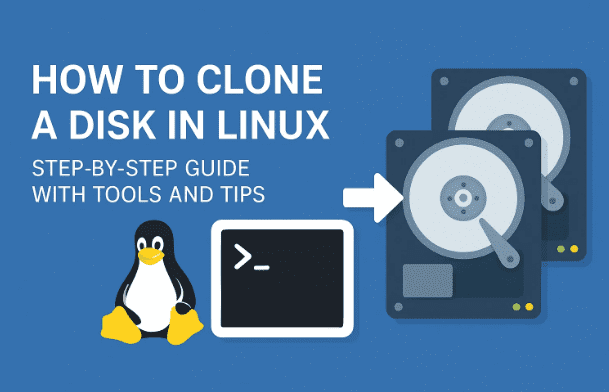
Whether you’re upgrading to a bigger SSD, replacing an old hard drive, or just creating a backup, this guide will help you understand the process clearly.
1. Why Cloning a Disk is Different on Linux vs. Windows
On Windows, disk cloning is simplified by a service called Volume Shadow Copy Service (VSS). This built-in feature allows Windows to “freeze” the state of a disk at a block level, ensuring no changes occur while copying.
That means you can clone an entire drive—even while it’s in use—without worrying about open files or unsaved changes.
On Linux, the story is different:
- Linux distributions use multiple filesystems (EXT4, Btrfs, XFS, etc.).
- Not all of them support snapshots out-of-the-box.
- Cloning while the system is running is riskier, so the best practice is to use offline tools that don’t rely on the OS being active.
This makes Linux more flexible but also slightly more complex when it comes to cloning.
2. Understanding Disk Snapshots and File Systems
Before we dive into the tools, let’s quickly understand why file systems matter.
- NTFS (Windows default): Supports snapshots through VSS.
- EXT4 (Ubuntu, Linux Mint, Zorin OS): Does not support snapshots natively.
- Btrfs (Fedora, OpenSUSE): Supports snapshots, but often requires additional setup.
- XFS (CentOS, RHEL): No snapshot support by default.
Snapshots let you freeze the state of the filesystem, but cloning usually requires moving every bit from one drive to another. That’s why specialized tools are necessary in Linux.
3. The Recommended Method: Using Rescuezilla
Let’s start with the most reliable option—Rescuezilla.
Rescuezilla is a free and open-source disk cloning and recovery tool. It works independently of your operating system, which means it doesn’t matter what Linux distribution or filesystem you’re using.



👉 Official website: https://rescuezilla.com
Features of Rescuezilla:
- Clone a disk to another of equal or larger size.
- Create full backups (disk images) and restore them later.
- Inspect files stored in backups.
- Can technically clone to smaller disks (advanced users only).
Steps to Use Rescuezilla:
Now let’s walk through the process step by step.
- Download Rescuezilla
- Head to the official Rescuezilla download page.
- Choose the latest ISO image.
- Create a Bootable USB
- Use tools like:
- Balena Etcher
- Fedora Media Writer
- GNOME Disk Image Writer (on GNOME-based desktops)
- Write the Rescuezilla ISO to a USB stick.
- Use tools like:
- Boot from USB
- Restart your computer.
- Enter the boot menu by pressing F7, F8, F12, or Esc (varies by manufacturer).
- Select the USB drive.
- Launch Rescuezilla
- Once booted, select Clone Disk.
- Choose the source disk (old one).
- Choose the destination disk (new one).
- Confirm and start the process.
- Update Bootloader
- After cloning, you may need to enter your BIOS/UEFI settings and set the new disk as the first boot option.
And that’s it—Rescuezilla takes care of the cloning process for you.
⚠️ Disclaimer: Cloning to a smaller disk requires manual partition resizing with tools like GParted. This is risky for beginners and can result in data loss. Always back up before attempting.
4. Alternative Method: Using GNOME Disks Utility
If you don’t want to boot into an external tool, another option is GNOME Disks Utility.
This tool is included in many Linux distributions and provides a simple graphical interface to create and restore disk images.
Steps with GNOME Disks:
- Open Disks from your applications menu.
- Select the source drive.
- Click the menu (⋮) and choose Create Disk Image.
- Save the image to another drive.
- On the target disk, choose Restore Disk Image.
This approach works well for backups or when replacing drives, but it’s not as straightforward as Rescuezilla for full cloning.
5. Filesystem-Level Snapshot Options in Linux
Some Linux filesystems, like Btrfs, allow snapshots. But remember, snapshots are designed mainly for rollback and recovery, not full cloning.
For example:
- Fedora uses Btrfs but does not enable snapshotting by default. You’d need to configure a tool like Snapper.
- Once set up, you can pair Snapper with graphical tools (like Btrfs Assistant).
This method is more complex and less portable, so unless you’re already using Btrfs, I recommend sticking to Rescuezilla or GNOME Disks.
6. Other Backup Approaches: Timeshift and Deja Dup
Disk cloning isn’t always necessary. If your main concern is backing up data or restoring your Linux system, there are simpler tools:
- Timeshift – Great for system-level backups and rollbacks.
- Deja Dup – Excellent for user data backups with cloud support.
These tools don’t clone your drive, but they ensure your important data and settings can be restored quickly after a reinstall.
👉 Timeshift GitHub
👉 Deja Dup GNOME Project
7. Step-by-Step: Preparing for Disk Cloning
Before cloning, make sure you’re ready:
- Check Disk Health
- Run
smartctlor use GNOME Disks to check for bad sectors.
- Run
- Backup Important Files
- Even if cloning, keep a separate copy of critical files.
- Disconnect Extra Drives
- To avoid mistakes, disconnect drives you don’t want to overwrite.
- Verify Space
- The destination disk must be equal or larger in size (unless you manually resize partitions).
8. Post-Cloning Steps: Bootloader & BIOS Setup
After cloning, your system may not boot immediately. Here’s what to check:
- UEFI/BIOS Boot Order: Enter setup and select the new disk.
- GRUB Repair (if necessary): Boot into a live Linux USB and run:
sudo grub-install /dev/sdX sudo update-grub - UUID Conflicts: If both old and new disks are connected, Linux may get confused. Remove or wipe the old drive after confirming the clone works.
9. Pros and Cons of Different Methods
Here’s a quick comparison to help you decide:
| Method | Ease of Use | Works Across Distros | Supports Smaller Disks | Best For |
|---|---|---|---|---|
| Rescuezilla | ⭐⭐⭐⭐⭐ | Yes | Advanced only | Full disk migration |
| GNOME Disks | ⭐⭐⭐ | Yes | No | Backups & restores |
| Btrfs Snapshots | ⭐⭐ | Only on Btrfs | N/A | Rollbacks, not cloning |
| Timeshift | ⭐⭐⭐⭐ | Yes | N/A | System backups |
| Deja Dup | ⭐⭐⭐⭐ | Yes | N/A | User data backups |
10. Common Questions (Q&A)
Q1: Can I clone a Linux disk while using it?
Technically, yes, but it’s not recommended. Use offline tools like Rescuezilla for safety.
Q2: What if my new disk is smaller than the old one?
You can resize partitions with GParted, but it’s risky. Always back up first.
Q3: Will my bootloader transfer automatically?
Usually yes, but sometimes you’ll need to reinstall GRUB manually.
Q4: Is cloning better than regular backups?
Not always. Cloning is useful for migration, but backups (Timeshift, Deja Dup) are often more practical for daily use.
11. Final Thoughts
Cloning a disk in Linux may feel intimidating at first, but with the right tool, it’s manageable. For most users, Rescuezilla is the easiest and most reliable choice. If you prefer built-in tools, GNOME Disks works fine for image-based backups.
For long-term protection, don’t just rely on cloning—combine it with Timeshift or Deja Dup to ensure both your system and personal files are safe.
Remember: take your time, double-check which disk you’re cloning to, and always keep backups. Mistakes here can be costly, but with preparation, you’ll have a smooth upgrade.
Disclaimer
Cloning disks involves the risk of data loss if done incorrectly. Always back up important files before attempting, and proceed carefully when selecting source and destination drives.
Tags
Linux disk cloning, Rescuezilla, GNOME Disks, Timeshift, Deja Dup, Linux backup, Btrfs snapshots, Linux system migration, SSD upgrade Linux
Hashtags
#Linux #DiskCloning #Rescuezilla #LinuxBackup #Timeshift #DejaDup #LinuxTips #OpenSource








