If you have ever wanted to run Android apps or games directly on your computer, you probably know that there are many emulators available in the market. From heavyweights like BlueStacks to lesser-known tools, the options are endless. But the real challenge is finding an emulator that is lightweight, fast, stable, and free of annoying ads.
After testing dozens of emulators over the years, I can confidently say that Mumu Player is one of the best Android emulators you can install on your Windows PC or Mac. With its latest update, it has become even more powerful, clean in design, and efficient in performance.
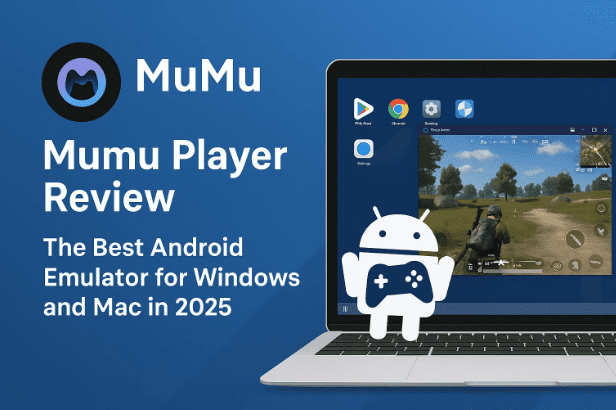
In this article, we’ll take a deep dive into everything you need to know about Mumu Player: its installation, features, system requirements, GPU/CPU optimization, multi-instance manager, new design changes, and why it stands out against other emulators. By the end, you’ll know exactly why Mumu Player deserves a spot on your system.
👉 Official Website: Mumu Player
📑 Table of Contents
- 1. Why Use an Android Emulator?
- 2. How to Download and Install Mumu Player
- 3. Multi-Instance Manager – Run Multiple Devices at Once
- 4. New Design Update – Clean, Modern, and Beautiful
- 5. Performance and Resource Usage
- 6. GPU Acceleration and Better Performance with Vulkan
- 7. Emulator Settings and Customization
- 8. Running Apps and Games Smoothly
- 9. How Does Mumu Compare to BlueStacks and Others?
- 10. Can It Run on Low-End PCs?
- 11. FAQs About Mumu Player
- 12. Final Thoughts
1. Why Use an Android Emulator?
Before diving into Mumu Player specifically, let’s answer the big question: why do people even need Android emulators?
Some common reasons include:
- Gaming on PC: Play mobile games like Clash Royale, PUBG Mobile, or Genshin Impact with keyboard and mouse.
- App Development: Developers can test Android apps without needing a physical phone.
- Productivity: Use Android apps such as WhatsApp, Instagram, or productivity tools directly on a bigger screen.
- Performance Boost: PCs usually have stronger hardware than smartphones, giving you smoother gameplay and multitasking.
That’s where Mumu Player comes in—it gives you all of these benefits while staying lightweight, ad-free, and stable.
2. How to Download and Install Mumu Player
Let’s move to the installation process. Thankfully, Mumu Player makes it very straightforward.
Steps to Install:
- Go to the official website: Mumu Player.
- Choose your platform: Windows or Mac.
- (Windows ARM support is also coming soon for Copilot+ PCs.)
- Download the installer and run it.
- Follow the on-screen setup wizard.
- Once installed, you’ll notice that it also installs a Mumu Player Multi-Instance Manager shortcut.
That’s it! You’re ready to launch your first virtual Android environment.
3. Multi-Instance Manager – Run Multiple Devices at Once
One of Mumu Player’s best features is its Multi-Instance Manager.
Here’s what you can do with it:






- Create multiple Android instances with a single click.
- Run different games or apps at the same time.
- Perform batch operations to manage all instances simultaneously.
- Allocate resources separately to each instance (CPU cores, RAM).
This is a game-changer if you’re:
- A gamer who wants to run multiple accounts.
- A developer testing apps in different environments.
- A power user who likes multitasking across apps.
4. New Design Update – Clean, Modern, and Beautiful
So far, so good. Now let’s talk about one of the most impressive changes in the latest Mumu Player update: its design language.
- The interface is sleek, minimal, and modern.
- Animations are smooth, giving it a polished look.
- Settings are well-organized and uncluttered.
- No intrusive ads are present anywhere.
This is where Mumu Player really stands apart. Many emulators load banners or pop-ups, but here, the ad-free environment makes it feel professional and distraction-free.
5. Performance and Resource Usage
Let’s now move on to performance—arguably the most important factor in choosing an emulator.
- CPU usage typically hovers around 5–6% during gameplay.
- GPU usage is modest, around 17–20% depending on the title.
- Even when playing games like Clash Royale, resource consumption stays low.
- Smooth multitasking is possible thanks to efficient resource management.
This balance is possible because Mumu Player prioritizes GPU acceleration over CPU-heavy operations.
6. GPU Acceleration and Better Performance with Vulkan
Another highlight is GPU acceleration.
- By default, Mumu Player uses the Vulkan graphics API, which offers better performance and rendering quality compared to DirectX.
- You can switch between Vulkan and DirectX depending on your PC’s compatibility.
- You can also force Mumu Player to use your dedicated GPU, ensuring much smoother gameplay.
This is particularly useful for mid-range and gaming PCs since the load shifts away from the CPU.
7. Emulator Settings and Customization
Mumu Player gives you deep customization options without overwhelming the user.
Here are the main areas you can tweak:
- Performance Presets: Choose from Low, Medium, High, or Custom depending on your system.
- Display Settings: Adjust resolution, DPI, and aspect ratio.
- Graphics Settings: Switch between Vulkan and DirectX.
- GPU Profiles: Simulate different Android GPUs such as Adreno 740.
- Developer Tools: Includes ADB (Android Debug Bridge) for developers who need app testing capabilities.
Everything is clearly labeled, making it easy even for beginners.
8. Running Apps and Games Smoothly
Launching apps on Mumu Player feels almost native.
- Android 12 environment ensures compatibility with the latest apps.
- Supports multi-tab system so you can run multiple apps at once.
- Home screen layout is clean, and when full, apps automatically move to a new page.
- No unnecessary bloatware is included—only what you install.
In practical usage, apps open quickly, games run smoothly, and multitasking feels effortless.
9. How Does Mumu Compare to BlueStacks and Others?
Many people naturally compare any emulator to BlueStacks, since it is the most popular. But popularity doesn’t always mean better.
Here’s a fair comparison:
- BlueStacks: Feature-rich, but heavy on resources and filled with ads.
- Mumu Player: Lightweight, faster to boot, clean UI, no ads.
Other emulators like Nox Player or LDPlayer fall somewhere in between, but Mumu Player wins because it strikes the perfect balance between performance, simplicity, and cleanliness.
10. Can It Run on Low-End PCs?
Yes, Mumu Player is surprisingly optimized for low-end PCs.
- It has a preset for 1 CPU core + 1 GB RAM, meaning even older systems can run it.
- Of course, performance will depend on your hardware, but the fact that such presets exist shows that Mumu Player is made with inclusivity in mind.
For casual users who just want to run apps or lightweight games, this is more than enough.
11. FAQs About Mumu Player
Q1: Is Mumu Player free to use?
Yes, it’s completely free with no hidden costs.
Q2: Does Mumu Player show ads?
No. Unlike many other emulators, Mumu Player is 100% ad-free.
Q3: What Android version does Mumu Player use?
Currently, it runs on Android 12, ensuring modern app compatibility.
Q4: Can I run multiple instances?
Yes, using the built-in Multi-Instance Manager.
Q5: Does it support Mac?
Yes, there’s a Mac version available, and support is expanding further.
Q6: Is this emulator safe to use?
Yes, downloading from the official website ensures safety.
12. Final Thoughts
Mumu Player is not just another Android emulator—it’s a clean, stable, and high-performing tool that prioritizes the user experience.
- Ad-free environment ✔️
- Lightweight and efficient ✔️
- GPU-powered smooth performance ✔️
- Multi-instance support ✔️
- Works on both Windows and Mac ✔️
Whether you’re a gamer, developer, or just someone who wants Android apps on PC, Mumu Player offers the best balance between speed and simplicity.
If you’ve struggled with bloated emulators like BlueStacks, switching to Mumu Player might just feel like a breath of fresh air.
👉 Download it here: Mumu Player Official Website
⚠️ Disclaimer
This article is based on personal testing and research. Always download software from the official website. Performance may vary depending on your PC specifications.
Tags: android emulator, mumu player, windows emulator, mac emulator, run android on pc, best emulator for gaming, vulkan android emulator
Hashtags: #MumuPlayer #AndroidEmulator #WindowsGaming #MacApps #TechGuide







