If you’ve ever launched Grand Theft Auto V and suddenly noticed there’s no sound, even though everything else on your PC works fine — system sounds, YouTube, or Spotify — then you’re not alone.
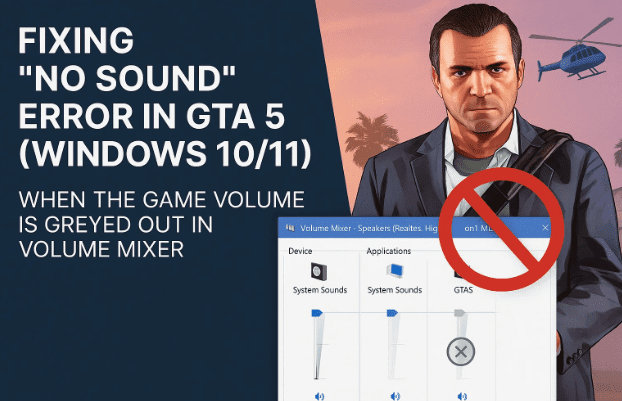
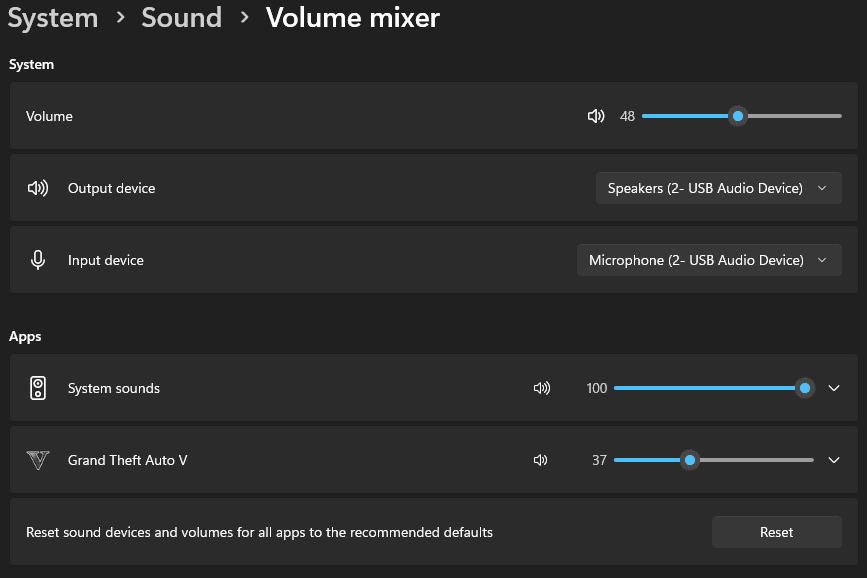
This issue often shows up inside the Windows Volume Mixer, where GTA V is listed but its volume slider is greyed out or stuck at 0%, as shown in the first image.
Let’s explore why this happens and how reinstalling DirectX for Windows can fix it permanently.
1️⃣ Understanding the GTA 5 No Sound Problem
When you open GTA V, you might notice everything looks normal — graphics load perfectly, the game starts smoothly — but there’s no audio output at all.
Even stranger, when you open Windows Volume Mixer (right-click the 🔊 speaker icon → Open Volume Mixer), the GTA V app volume slider appears greyed out or set to an unchangeable value (e.g., 1% or 0%).
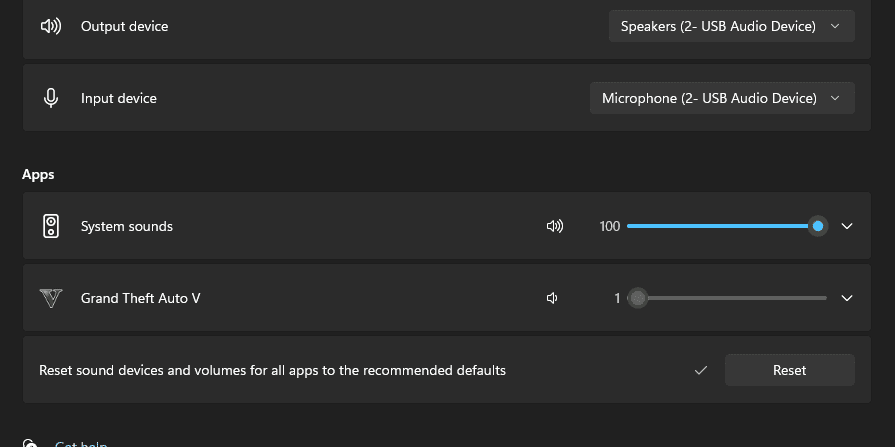
That means Windows detects the app but isn’t actually routing sound properly to your output device.
2️⃣ Symptoms You Might Notice
Before jumping into the fix, here are the common signs confirming it’s the same issue:
- GTA 5 appears in Volume Mixer but its slider is greyed out or won’t move.
- Other apps (like Chrome, YouTube, Spotify) play sound normally.
- The in-game audio settings in GTA 5 show normal volume levels but no sound plays.
- Changing output devices (like headphones or speakers) doesn’t help.
- Reinstalling audio drivers or restarting the PC doesn’t fix it.
So far, this means the issue is likely not your hardware — it’s a missing or corrupted DirectX audio component.
3️⃣ Causes Behind the No Sound Bug
Let’s understand what’s actually going wrong under the hood.
GTA 5 relies on Microsoft DirectX to handle both its graphics and sound layers. If certain DirectX audio libraries are missing or corrupted (especially XAudio2_7.dll or related files), Windows won’t allow the game to pass audio to the mixer — resulting in that greyed-out volume slider.
Here are a few possible causes:
- Recent Windows updates that removed or corrupted legacy DirectX files.
- Game updates that reset or mismatch DirectX dependencies.
- Conflicts with third-party audio drivers (especially USB headsets).
- Manual deletion of system files during cleanup utilities or registry edits.
4️⃣ Step-by-Step Fix: Reinstall DirectX
Now, let’s fix this issue once and for all.







✅ Step 1: Download the DirectX End-User Runtime
Go to Microsoft’s official page:
👉 Download DirectX End-User Runtime (June 2010)
This package includes the full set of DirectX 9.0c and additional files used by many older or cross-platform games like GTA V.
✅ Step 2: Run the Installer
- Extract the downloaded
.exefile to a folder. - Run the DXSETUP.exe file inside that folder.
- Wait for the installation to complete — it will reinstall all missing and corrupted DirectX components.
✅ Step 3: Restart Your PC
After the setup finishes, restart your system to apply changes fully.
✅ Step 4: Relaunch GTA 5
Now, open the game again.
If you check Volume Mixer, you’ll notice the GTA V slider is no longer greyed out — you can adjust it freely, and your game audio should work perfectly again.
5️⃣ Additional Troubleshooting Tips
If reinstalling DirectX doesn’t fix it immediately, try these quick checks before reinstalling the game:
🧱 A. Reset Volume Mixer Settings
- Go to Settings → System → Sound → Volume Mixer.
- Scroll down and click Reset sound devices and volumes to recommended defaults.
- Relaunch GTA V and test again.
🎧 B. Verify GTA 5’s Audio Output Device
Sometimes GTA 5 selects a different audio device than your system default:
- Open GTA V → Settings → Audio.
- Change the Output Device to your active one (e.g., Speakers, USB headset).
- Save and restart the game.
🔊 C. Update Audio Drivers
Update from Device Manager → Sound, video and game controllers → [Your audio device] → Update driver.
You can also reinstall using drivers from your motherboard or sound card manufacturer.
🧹 D. Disable Audio Enhancements
- Open Control Panel → Sound → Playback tab.
- Select your playback device → Properties → Enhancements.
- Check Disable all enhancements.
6️⃣ Frequently Asked Questions (FAQ)
Q1: Why did only GTA 5 lose sound but not other apps?
Because GTA 5 uses its own DirectX-based audio pipeline. If specific audio DLLs were missing or damaged, only the game would be affected — not your system audio.
Q2: Will reinstalling the game fix it too?
It might, but it’s unnecessary. The issue isn’t with GTA’s files — it’s with Windows’ DirectX components. Reinstalling DirectX is faster and safer.
Q3: Do I need to uninstall the old DirectX first?
No. DirectX is integrated into Windows, and newer versions automatically overwrite or repair missing files when reinstalled.
Q4: Is this issue common with Windows 11 updates?
Yes, especially after major updates or when switching between multiple audio devices (like USB DACs or Bluetooth headsets).
Q5: Can third-party “sound boosters” or “equalizer apps” cause this?
Yes. Some overlay apps interfere with the DirectSound layer, muting games unintentionally. Try disabling them temporarily if the problem returns.
🧠 Final Thoughts
This GTA 5 no sound error might seem confusing at first — especially when the game appears in your mixer but refuses to play sound. But in most cases, reinstalling DirectX End-User Runtime restores the missing audio libraries and fixes the bug instantly.
If the issue still persists after trying all methods, consider checking Rockstar’s official support forums or verifying your game files via Steam or Epic Games Launcher.
Tags: GTA 5 sound fix, DirectX reinstall, GTA 5 volume mixer greyed out, GTA 5 audio problem, GTA 5 no sound Windows 11, DirectX XAudio2 fix, GTA 5 sound not working, GTA 5 PC fix
#GTA5 #SoundFix #DirectX #Windows11 #GamingTroubleshooting #RockstarGames #AudioFix #GTAV #PCGaming #VolumeMixer








