Adobe Premiere Pro is one of the most widely used video editing applications in the world. It’s powerful, professional-grade, and packed with features. But sometimes, even the best tools can run into problems — and one of the most frustrating issues users face is when there’s no sound in Adobe Premiere Pro.
Imagine this: you open Premiere Pro, import your video clip, press play, and… silence. The footage plays perfectly, but there’s no audio. You double-check your speakers or headphones, but everything else on your computer has sound. If this sounds familiar, don’t worry — you’re not alone.
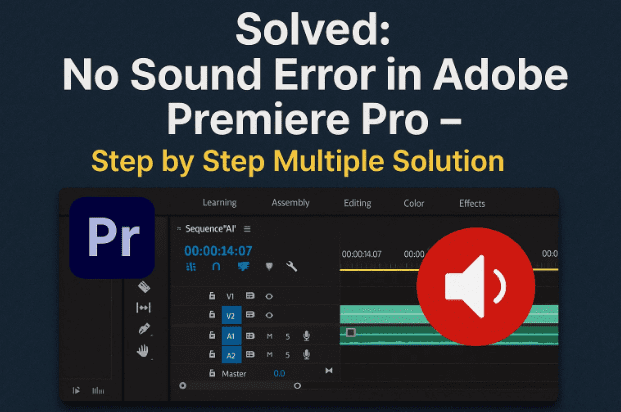
This error is fairly common, and the good news is that there are multiple solutions. In this guide, I’ll walk you through all of them step by step. By the end, you should be able to restore sound in Premiere Pro and continue editing without interruptions.
📌 Table of Contents
- Why No Sound Happens in Premiere Pro
- Solution 1: Check Audio Track Mixer Levels
- Solution 2: Verify Audio Hardware Preferences
- Solution 3: Enable Playback Devices in Windows
- Solution 4: Adjust Output Mapping
- Solution 5: Check Playback Preferences in Premiere
- Solution 6: Update or Reinstall Audio Drivers
- Other Tips That May Help
- Troubleshooting Common Scenarios
- Frequently Asked Questions
- Final Thoughts
🤔 Why No Sound Happens in Premiere Pro
Before we dive into fixes, let’s quickly understand why this problem occurs.
- Muted track or low mixer levels: Sometimes the audio mixer is set to very low values (or muted entirely).
- Wrong audio hardware settings: Premiere may be trying to play sound through the wrong device (for example, a disabled microphone or virtual audio cable).
- Disabled playback devices in Windows: If Windows has a device disabled, Premiere can’t use it.
- Incorrect output mapping: Audio channels may be mapped incorrectly inside Premiere.
- Driver issues: Outdated or corrupted audio drivers can prevent Premiere from accessing your sound hardware.
The best part? You don’t need to guess the cause. You can try each solution in order until the problem is resolved.
🔊 Solution 1: Check Audio Track Mixer Levels
Sometimes the issue is as simple as the audio mixer values not being set correctly.
Here’s what to do:
- In Premiere Pro, go to Window > Audio Track Mixer.
- Look at the volume sliders for your tracks.
- Make sure they are set to 0 dB (the neutral level).
- If they’re showing a negative value (like -∞ or -30), manually set them back to 0.0.
- Play your video again.
👉 In many cases, this alone fixes the problem. If not, let’s continue.
🎧 Solution 2: Verify Audio Hardware Preferences
Premiere Pro relies on your system’s audio hardware settings. If it’s pointing to the wrong device, you won’t hear sound.
Follow these steps:
- Go to Edit > Preferences > Audio Hardware.
- Under Device Class, make sure it is set to MME (not ASIO, unless you’re using specialized audio equipment).
- For Default Input, select your microphone (or disable if not needed).
- For Default Output, select the device you actually use — your headphones, monitor speakers, or Bluetooth speakers.
👉 Example: If you’re editing with headphones, choose Headphones. If you’re using a monitor with built-in speakers, select that monitor.

- Click OK to save.
- Restart Premiere Pro and test the audio.
If sound still doesn’t work, move on to the next method.
🖥️ Solution 3: Enable Playback Devices in Windows
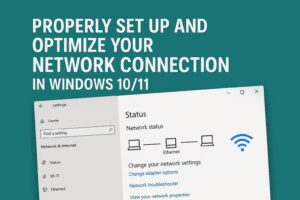
Sometimes the real culprit isn’t Premiere at all — it’s Windows disabling a playback device. If a device is disabled, it won’t show up in Premiere’s list.
Here’s how to check:
- Right-click the Speaker icon in the system tray.
- Select Sounds (or Open Sound Settings > More Sound Settings in Windows 10/11).
- Go to the Playback tab.
- Look for your speakers or headphones.
- If any are disabled, right-click and choose Enable.
- Click Apply > OK.
Now restart Premiere Pro, go back to Preferences > Audio Hardware, and select your enabled device.
🎚️ Solution 4: Adjust Output Mapping
Premiere lets you map audio output channels. If these are wrong, sound won’t come out.
- Go to Edit > Preferences > Audio Hardware.
- Look for Output Mapping.
- Under “Map Output for Adobe Desktop Audio,” ensure it’s set correctly to your chosen device.
- Click OK and restart Premiere Pro.
📽️ Solution 5: Check Playback Preferences in Premiere
Another place to check is Preferences > Playback.
- Go to Edit > Preferences > Playback.
- Under Audio Device, make sure Adobe Desktop Audio is selected.
- Click OK.
- Restart Premiere and test.
👉 Many users find this step crucial — without the right playback device, no sound will ever play.
🛠️ Solution 6: Update or Reinstall Audio Drivers
If none of the above fixes work, the problem may be with your audio drivers.
Here’s how to update them:
- Press Win + X and choose Device Manager.
- Expand Sound, Video and Game Controllers.
- Right-click on your sound device (e.g., Realtek, Intel Display Audio, etc.).
- Select Update Driver.
- Choose Search automatically for drivers.
If Windows doesn’t find anything:
- Download the latest driver from your laptop/PC manufacturer’s website.
- Install it manually.
👉 If the driver is corrupted, uninstall it:
- Right-click the device → Uninstall device → Restart your computer.
- Windows will reinstall a fresh version automatically.
💡 Other Tips That May Help
- Try different headphones or speakers. Sometimes the hardware itself is faulty.
- Switch USB ports (if using a USB audio device).
- Disable exclusive control: In Sound settings → Playback device → Properties → Advanced → uncheck “Allow applications to take exclusive control.”
- Reset Premiere Pro preferences: Hold Alt while launching Premiere Pro.
⚠️ Troubleshooting Common Scenarios
Here are some quick scenarios and fixes:
- Premiere shows sound meters moving but no sound: Wrong output device selected.
- Other apps have sound, but Premiere doesn’t: Check Premiere’s audio hardware preferences.
- Sound cuts in and out randomly: Update drivers or try disabling enhancements in Windows Sound settings.
- No sound only on export: Check export settings → Make sure Export Audio is enabled.
❓ Frequently Asked Questions (FAQ)
Q1. Why does Premiere Pro suddenly stop playing sound?
It’s usually due to a change in audio hardware (e.g., plugging/unplugging headphones) or driver conflicts.
Q2. Does this problem happen in Windows 11 too?
Yes, the same fixes apply.
Q3. Can I still edit without fixing sound?
Yes, but you’ll have no audio reference, making it difficult to sync or adjust clips. Always fix sound before editing seriously.
Q4. My export has no sound even though I hear it in the timeline. Why?
Check Export Settings and ensure “Export Audio” is checked.
Q5. Will reinstalling Premiere fix this?
Sometimes. But usually, it’s faster to adjust preferences or drivers.
✅ Final Thoughts
So far, we’ve covered multiple ways to solve the no sound issue in Adobe Premiere Pro: checking audio mixer levels, adjusting hardware preferences, enabling devices, remapping outputs, and updating drivers.
In most cases, the issue is fixed by simply selecting the correct output device in Premiere’s preferences or enabling a disabled playback device in Windows. If those don’t work, updating or reinstalling drivers almost always solves it.
Remember: Premiere Pro depends heavily on your system’s sound configuration. If Windows itself doesn’t recognize your speakers or headphones properly, Premiere won’t either.
Follow these steps one by one, and your editing workflow should be back on track in no time.
⚠️ Disclaimer
This guide is provided for educational purposes. Always download drivers and updates from official manufacturer websites or trusted sources.
📌 Tags & Hashtags
Tags: adobe premiere pro no sound fix, adobe premiere audio not working, premiere pro sound settings, adobe premiere troubleshoot audio, premiere no sound export, update audio drivers windows
Hashtags: #AdobePremierePro #NoSound #VideoEditing #AudioFix #PremiereTroubleshooting #CreativeCloud