Windows has always been known for flexibility, but many of its most powerful settings are buried deep inside the system. You often have to dig through the Control Panel, Registry Editor, Group Policy, or hidden menus to make small but important changes. That’s where WinAero Tweaker comes in.
This free tool acts as a central control panel for hundreds of Windows tweaks—many of which aren’t exposed in normal settings. With it, you can bring back classic features from Windows 7 or Vista, customize Windows 10 or 11, remove annoyances like ads and telemetry, and even unlock hidden options Microsoft doesn’t normally let you change.
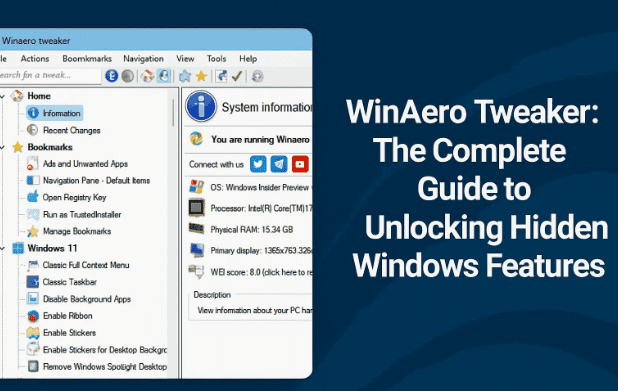
In this detailed guide, we’ll walk through everything you need to know about WinAero Tweaker—what it is, how to install it, the most useful tweaks it offers, and how to safely use it to personalize your system.
1) 🖥️ What Is WinAero Tweaker?
WinAero Tweaker is a free Windows customization utility created by Sergey Tkachenko, the developer behind WinAero.com. Unlike typical “PC optimizer” apps, WinAero Tweaker doesn’t make vague promises about speeding up your system. Instead, it provides a safe graphical interface for dozens of registry-based tweaks and hidden Windows options.
Everything it changes can be done manually with the Registry Editor or Group Policy—WinAero Tweaker simply makes it accessible, organized, and reversible.
Some highlights include:
- Restoring classic context menus in Windows 11.
- Disabling features like Copilot or unwanted telemetry.
- Unlocking hidden themes like Aero Lite.
- Customizing UI elements such as icons, fonts, and animations.
- Enabling hidden features like desktop stickers.
- Bringing back classic Windows apps (Photo Viewer, Calculator, Games).
The best part? It’s completely free, portable if you prefer, and safe to use because it works with Windows’ own configuration methods. But on dtptips.com we have also mentioned many Windows tweakers which I think you should have a look and choose which will be best for you:
- Customize Windows 11 Taskbar, Start Menu, and More with Windhawk
- Atlas OS: The Advanced Windows 11 Optimizer You Need to Know
- RyTuneX: The Ultimate Windows Optimizer Tool You Must Try
- Windows being Slow and Slower: Best Windows Optimizers You Actually Need in 2025
- or you can check the complete list of such articles!
2) 📥 How to Download and Install WinAero Tweaker
Getting started is easy:
- Visit the official WinAero Tweaker page.
- Download the latest version of the installer.
- Choose between:
- Installer version: Works like any normal program.
- Portable version: Extract and run without installing (great for USB drives).
- Launch the program. If using the installer, follow the setup wizard as you would with any other software.
Once opened, you’ll see a clean, well-organized interface divided into categories such as Appearance, Behavior, Desktop, Boot & Logon, Network, Privacy, and more.
3) 🛠️ Getting Started: The Interface and First Impressions
When you first launch WinAero Tweaker, you’ll notice a few helpful elements:
- System Information panel – Displays details about your hardware and OS.
- Sidebar with categories – Organizes tweaks logically (Appearance, Behavior, etc.).
- Detailed description area – Explains what each tweak does.
- Search box – Quickly find a specific tweak by typing keywords.
One of the most thoughtful touches is the “Recent Changes” tab, which logs every modification you make. This makes troubleshooting and rollbacks much easier.

4) 📝 Tracking Your Changes with “Recent Changes”
Before we dive into individual tweaks, let’s highlight this crucial feature.
- Every tweak you enable or disable is recorded with date and time.
- If something causes issues, you can see exactly what was changed.
- From the Actions menu, you can reset all tweaks with a single click.
This safety net means you can experiment freely without fear of breaking your Windows installation.
5) 🕹️ Classic Features You Can Re-Enable
Many users loved features from older Windows versions that Microsoft removed. WinAero Tweaker lets you bring them back:
- Classic Context Menu (Windows 11): Replace the new compact right-click menu with the full, classic menu.
- Disable Copilot: If you don’t use Microsoft’s AI assistant, you can turn it off entirely.
- Enable Aero Lite Theme: Brings back the glossy window frames from Windows Vista/7.
- Classic Calculator & Photo Viewer: Restore the familiar tools from Windows 7.
- Classic Games: Enjoy nostalgic Windows 7 games like Chess Titans.
This is one of the reasons many users turn to WinAero Tweaker—it keeps modern Windows functional without forcing Microsoft’s latest UI decisions.
6) 🎨 Appearance and Theme Tweaks
Now let’s move to visual customization.
- Theme Behavior – Stop themes from changing your mouse pointer.
If you use custom cursors, themes usually reset them. WinAero Tweaker lets you lock your cursor design so it stays consistent. - Slow Animations with Shift.
Want to see animations in slow motion? With this enabled, holding Shift while minimizing windows makes the animation go in slow motion. A fun, visual trick. - Advanced Appearance Settings.
- Change icon size.
- Adjust menu fonts and message box fonts.
- Tweak spacing and UI scaling beyond what’s in Settings.
Each tweak gives you fine-grained control over Windows’ look and feel—something power users have missed since Microsoft removed “Advanced Appearance” options from modern Windows.
7) 🖼️ Fun and Functional Desktop Customization
WinAero Tweaker also lets you personalize the desktop:
- Desktop Stickers
Add permanent, decorative stickers to your desktop. Once placed, they’re not clickable but can be edited or removed anytime via right-click → Edit Stickers. - Remove “Learn More” Links in Spotlight Wallpapers
If you use Windows Spotlight, you’ve seen the little “Learn more” icon. You can remove this clutter for a cleaner look.
These aren’t “must-have” features, but they add a layer of fun and creativity for users who enjoy a personalized workspace.
8) ⚡ Performance, Ads, and Privacy Controls
Beyond looks, WinAero Tweaker also addresses performance and privacy.
- Disable Background Apps: Stop apps from running unnecessarily in the background.
- Disable Telemetry: Prevent Windows from sending diagnostic data to Microsoft.
- Remove Ads and Suggestions: Block suggested apps and promoted content in Start, Settings, or File Explorer.
- Manage Microsoft Edge: Debloat or strip down Microsoft Edge if you feel it’s too cluttered.
Some of these tweaks may require a restart or sign-out, but they can dramatically improve performance and reduce distractions.
9) 🎮 Bringing Back Classic Windows Apps
Miss the Photo Viewer from Windows 7? Or the old Calculator? WinAero Tweaker makes it possible to:
- Re-enable Photo Viewer alongside the new Photos app.
- Restore the classic Calculator.
- Install classic Windows 7 Games like Solitaire and Chess Titans.
It even lets you enable the hidden Administrator account, which is normally disabled for security. This can be useful for advanced troubleshooting.
10) 🛡️ Safety Features and Rollback Options
Because WinAero Tweaker changes system settings, safety is built-in:
- Detailed explanations: Every tweak has a “Learn more” link that opens a blog post explaining what it does (and the manual registry steps).
- Reset All Tweaks: From the Actions menu, revert everything in one click.
- Recent Changes Log: Track exactly what was modified and when.
💡 Tip: Always reboot after applying major tweaks like disabling telemetry or applying classic themes, to ensure changes fully take effect.
11) ❓ Frequently Asked Questions (FAQ)
Q1. Is WinAero Tweaker safe?
Yes. It only applies settings available in Windows’ own registry and policies. It doesn’t install background services or spyware.
Q2. Do I need the portable or installer version?
Both work the same. Use portable if you don’t want to install it permanently.
Q3. Can WinAero Tweaker damage Windows?
No, but if you apply tweaks you don’t understand, it might cause unexpected behavior. Luckily, the “Reset All Tweaks” option can undo everything.
Q4. Does it work on both Windows 10 and 11?
Yes. Some features are Windows 11-only (like restoring classic context menus), but the majority work on both.
Q5. Do I need to restart after changes?
For some tweaks, yes (especially those affecting Explorer, themes, or privacy). The app will notify you.
12) ✅ Final Thoughts
WinAero Tweaker isn’t about “optimizing” your PC with vague claims. It’s about empowering you to take control of your Windows experience. Whether you want to:
- Bring back missing features from Windows 7,
- Improve privacy by disabling telemetry,
- Customize the desktop with stickers,
- Or simply prevent Windows from overriding your cursor,
…this tool gives you the flexibility to make Windows truly yours.
It’s lightweight, safe, and most importantly—reversible. With so many options packed in, you’ll almost certainly find something useful.
If you enjoy having control over your system, WinAero Tweaker is a must-have utility for Windows 10 and 11 users.
⚠️ Disclaimer
WinAero Tweaker modifies system-level settings via the Registry. While safe, always make changes one at a time and reboot after significant tweaks. If unsure, read the “Learn more” links provided in the app. Create a restore point for extra peace of mind before experimenting.
Tags
WinAero Tweaker, Windows 11 customization, Windows 10 tweaks, disable telemetry, Windows privacy, Aero Lite theme, classic Windows features, Windows optimization tools
Hashtags
#Windows11 #Windows10 #WinAero #Customization #Tweaks #Privacy #Optimization








