For years, thumbnails have been one of the most important parts of YouTube growth. They determine whether someone clicks your video or scrolls past it. Creators have experimented with countless strategies—bright colors, bold text, facial expressions, and even professional photoshoots—to grab attention.
But something big just changed. Thanks to a new free tool called Nano Banana from Google, the process of creating high-quality thumbnails has been revolutionized. What once required Photoshop expertise or expensive designers can now be achieved with simple prompts inside Google AI Studio.
In this article, I’ll take you through everything you need to know about this tool, from the basics of getting started to advanced thumbnail editing tricks. Along the way, we’ll also look at creative use cases, practical examples, and even answer some common questions.
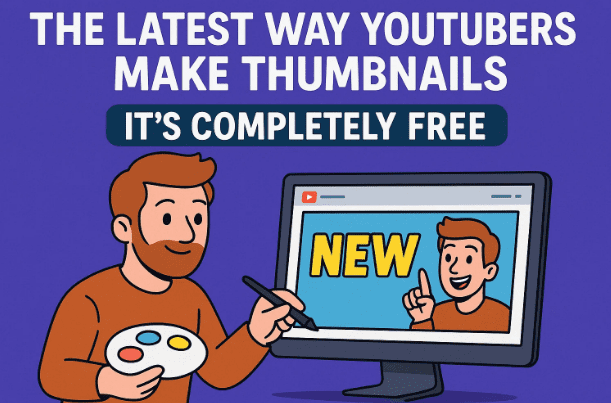
Let’s begin this journey into the future of thumbnail creation.
1. What is Nano Banana?
Nano Banana is a new AI-powered image editing tool built directly into Google AI Studio. It allows you to take an existing photo or screenshot and transform it into a completely new scene, style, or design—perfect for creating eye-catching YouTube thumbnails.
Unlike traditional editors like Photoshop, you don’t need layers, brushes, or masks. Instead, you simply type a description of what you want to see, and the AI generates it.
The best part? It’s completely free to use right now.
👉 Official link: Google AI Studio
2. Getting Started with Google AI Studio
Before we jump into thumbnails, let’s walk through how to access Nano Banana:
- Go to Google AI Studio.
- On the dashboard, click Try Nano Banana.
- You’ll be taken to a workspace where you can upload or drag-and-drop an image.
That’s it—you’re ready to begin editing.
3. Uploading and Preparing Your Images
Start with a thumbnail photo, a screenshot from your video, or even a selfie. Once uploaded, the tool gives you a prompt box where you describe the changes you want.



For example, if you upload your headshot, you can tell it:
- “Place this person in a modern coffee shop.”
- “Change the shirt to a hoodie.”
- “Make the lighting cinematic.”
Nano Banana takes care of the rest.
4. Maintaining Aspect Ratios
One important detail is that the tool maintains the aspect ratio of the uploaded image.
- If you upload a 16:9 thumbnail, it stays widescreen.
- If you upload a 9:16 vertical image, it stays vertical.
This is helpful because it ensures your output fits the platform you’re designing for without needing extra cropping.
5. First Prompt Example – Coffee Shop Scene
Let’s walk through a real example. Imagine you start with a headshot of yourself in a plain background.
You could type:
“Generate an image of this person sitting in a coffee shop, wearing a black button-up dress shirt. The coffee shop should look modern and hip, with a relaxing ambience. He should be working on a MacBook Pro, viewed from the front in a cinematic, moody style.”
The AI instantly transforms your simple photo into a professional-looking cinematic thumbnail background.
6. Refining Your Image with Edits
Sometimes the first result isn’t perfect. That’s when refining comes in.
For example, if an extra coffee mug appears in the background, you can simply prompt:
- “Remove the coffee mug.”
- “Have him look at the camera instead.”
- “Remove the laptop from the background.”
With each instruction, Nano Banana re-generates the image until it matches your vision.
This ability to iterate quickly is one of the biggest advantages compared to traditional photo editing.
7. Adding and Removing Elements
Another powerful feature is object insertion and removal.
- Add objects: “Place a neon sign behind him.”
- Remove distractions: “Remove the people from the background.”
This is especially useful when you want a clean thumbnail with no clutter.
8. Changing Clothing and Environment
Need to change your outfit without re-shooting photos? Easy.
- “Change black shirt to gray hoodie.”
- “Replace red hoodie with black hoodie.”
You can also swap entire settings:
- From subway station to recording studio.
- From busy street to gaming room.
9. Using Screenshots for Thumbnails
Sometimes you don’t have a photo. You only have a video screenshot.
No problem—upload it and give prompts like:
“Make this person stand in a subway station, wearing a red hoodie, looking at the camera. The scene should look cinematic.”
This instantly creates thumbnail-ready images from simple video stills.
10. Lighting, Ambience, and Style Adjustments
Lighting is everything in thumbnails. Nano Banana lets you describe mood and ambience:
- “Make the room moody with neon glow.”
- “Change ceiling lights to blue cast.”
- “Add cinematic shadows.”
Instead of needing to know Photoshop blending modes, you just describe the vibe.
11. Experimenting with Text Integration
While Nano Banana can add text, it’s still best to use editors like Photoshop, Canva, or TubeSpanner for professional typography.
But you can experiment with background text placement. For example:
- “Add the word ‘Studios’ as neon signage above the window.”
It might not be perfect, but it gives creative inspiration for later refinements.
12. Creative Fun Examples – Neon Signs, Chains, and More
Beyond serious thumbnail work, you can have fun:
- Add sunglasses.
- Put a gold rope chain like an 80s rapper.
- Change wall text into glowing neon.
These playful tweaks help thumbnails stand out in crowded feeds.
13. Professional Thumbnail Applications
Nano Banana isn’t just about fun—it’s a professional tool for creators.
Some use cases:
- Consistent Branding: Ensure your clothing matches your channel colors.
- Rapid Scene Creation: Put yourself in a studio, office, or exotic location without leaving home.
- Facial Adjustments: Make sure you’re always looking at the camera, which boosts click-through rates.
14. Color Testing and A/B Optimization
If you’re running YouTube’s thumbnail A/B testing, this tool saves time.
Example workflow:
- Upload your thumbnail.
- Prompt: “Change yellow background to light blue.”
- Prompt: “Change shirt color to complementary orange.”
- Export both versions for testing.
Now you have two polished designs in minutes instead of hours.
15. Removing Text and Logos from Old Images
Ever regretted saving a thumbnail with permanent text on it? Nano Banana can help.
Prompt:
“Remove YouTube logo and text from this image.”
The tool cleans it up while keeping background details intact.
16. Travel and Scene Simulation
Want to place yourself in a famous location?
For example:
- “Generate image of four people taking a selfie in front of the DMZ in North Korea.”
- Then: “Apply realistic color grading.”
While it may not be 100% perfect, it’s often convincing enough for thumbnails or B-roll.
17. Tips for Combining Nano Banana with Other Tools
While Nano Banana is powerful, you’ll often get the best results by combining it with other tools:
- Photoshop or Canva: Add text overlays and graphics.
- TubeSpanner: Quick thumbnail testing.
- Veo 3 (Google’s video AI): Convert generated images into short B-roll clips.
This workflow means you can go from idea → photo → thumbnail → video all inside the AI ecosystem.
18. Frequently Asked Questions (FAQs)
Q1. Is Nano Banana really free?
Yes, at the time of writing, it’s available for free inside Google AI Studio.
Q2. Can I use these images commercially?
Yes, but always check Google’s official usage policies to ensure compliance for monetized content.
Q3. Does Nano Banana replace Photoshop?
Not entirely. Photoshop is still better for detailed graphic design, but Nano Banana is perfect for fast scene changes and photo realism.
Q4. Can I edit multiple people in the same image?
Yes, but results may vary depending on prompt detail.
Q5. Will this work for Instagram and TikTok too?
Absolutely. Since it maintains aspect ratios, you can prepare images for multiple platforms.
19. Final Thoughts
Thumbnail creation has always been a bottleneck for YouTubers. It requires creativity, design knowledge, and time. With Nano Banana, Google has made it possible for anyone—regardless of skill level—to produce high-quality thumbnails in minutes.
From changing clothing colors to creating cinematic backgrounds, this tool gives creators more freedom than ever before. Combined with YouTube’s own thumbnail A/B testing, it opens new opportunities to optimize for clicks and growth.
The future of content creation isn’t just about videos—it’s about how quickly and effectively we present them. With tools like Nano Banana, the barrier between idea and execution has never been lower.
Tags
YouTube thumbnails, AI thumbnail generator, Nano Banana tool, Google AI Studio, YouTube growth tools, thumbnail editing, AI tools for creators, YouTube A/B testing, free AI tools
Hashtags
#YouTubeThumbnails #NanoBanana #GoogleAI #ContentCreation #YouTubeTips #AIForCreators
⚠️ Disclaimer: Nano Banana is an experimental AI tool provided by Google. Features may evolve, and outputs may not always be perfect. Always review AI-generated images for accuracy, and avoid using misleading or harmful representations in your thumbnails.