Imagine your computer’s speakers suddenly stop working — no sound during meetings, no music, no alerts. Replacing them isn’t always an immediate option. But what if you could use something you already own as a quick fix?
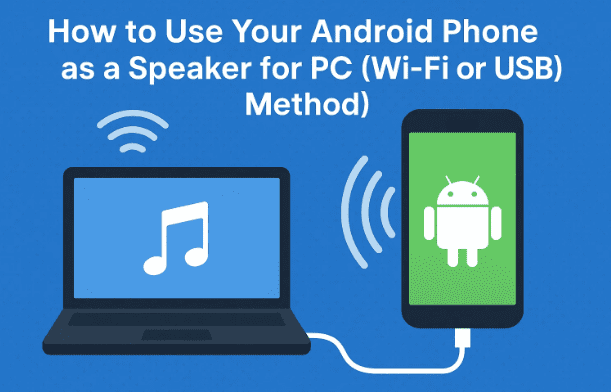
Yes, your Android phone can become your wireless or wired PC speaker in just a few minutes. This is especially useful if you want a portable sound solution or need a backup when your laptop’s internal audio fails.
In this article, we’ll go step by step through how to turn your Android phone into a computer speaker using an app called AudioRelay, available for both Windows and Android. You’ll learn both Wi-Fi and USB methods, understand their pros and cons, and even troubleshoot common sound issues.
Let’s get started!
What Is AudioRelay and How It Works
AudioRelay is a cross-platform application that streams your PC’s sound directly to your Android phone in real time. It can work over Wi-Fi (wireless) or USB tethering (wired).
You can download it for free from the official website:
🔗 AudioRelay Official Download Page
And the mobile version here:
🔗 AudioRelay on Google Play Store
When both apps are installed and connected, AudioRelay captures the computer’s audio output and transmits it to your phone’s speakers. It acts like a “virtual sound device” — you simply select it on your PC, and sound instantly streams to your Android device.
It’s an ideal solution if:
- Your laptop speaker is damaged.
- You want a private listening setup without Bluetooth headphones.
- You’re using a desktop that lacks external speakers.
- You’re experimenting with multi-room audio setups.
System Requirements and Preparations
Before we dive into installation, let’s make sure you have everything ready.
You’ll need:
- A Windows, macOS, or Linux computer.
- An Android phone (version 8.0 or higher recommended).
- A Wi-Fi connection (for wireless use) or a USB cable (for wired connection).
- The AudioRelay desktop client and Android app installed.
💡 Tip: If your Wi-Fi signal is weak or unstable, the USB method will give better quality and zero lag.




Installing AudioRelay on Your PC
Let’s start by setting up the PC client, which acts as the audio source.
- Go to the AudioRelay website.
- Choose the version for your operating system (Windows, macOS, or Linux).
- Download and install the setup file.
- Once installed, launch the program.
When you open it, you’ll see an interface showing:
- Your PC’s IP address
- Connection status
- Available devices
Keep this window open — you’ll need the IP address later when pairing your phone.
So far, you’ve completed the first half of the setup. Let’s now prepare your phone.
Installing AudioRelay on Your Android Phone
Next, head to your Android phone.
- Open the Google Play Store.
- Search for “AudioRelay” (developer: Azefsw).
- Tap Install and wait for the download to complete.
- Open the app and allow all permissions it requests — including microphone, Wi-Fi, and background access.
This ensures the app can communicate properly with your PC.
At this stage, both devices have AudioRelay ready. Now, we’ll connect them.
Method 1: Use Your Phone as a Wireless Speaker via Wi-Fi
If both your PC and phone are connected to the same Wi-Fi network, you can stream audio wirelessly.
Let’s walk through each step carefully.
Step 1: Check Network Connection
Make sure your computer and Android phone are on the same Wi-Fi network.
If they’re not, they won’t detect each other.
Step 2: Launch AudioRelay on Both Devices
- Open the AudioRelay PC client on your computer.
- Open the AudioRelay app on your Android phone.
Your phone might automatically detect your computer if both are on the same network.
If not, you’ll need to enter the IP address manually.
Step 3: Get Your PC’s IP Address
Look at the top of the AudioRelay window on your computer. It will show something like:192.168.1.5
Now, on your Android phone:
- Tap Connect manually.
- Enter the same IP address shown on your PC.
- Tap Connect.
Once connected, you’ll see your phone appear under the “Connections” section on your PC client.
Step 4: Play and Test Sound
Now, try playing a song or YouTube video on your computer.
If connected properly, the sound will come from your phone’s speakers.
Make sure:
- The PC volume is turned up.
- The AudioRelay virtual device is selected as the sound output.
- Your phone’s volume is not muted.
🎶 You now have a working wireless speaker system using your phone!
However, if you notice sound delay or choppy playback, you can tweak a few settings — let’s see how.
Improving Sound Quality and Reducing Lag
Sometimes, wireless audio can lag slightly depending on your Wi-Fi speed or distance between devices. Fortunately, AudioRelay provides settings to improve stability and sound quality.
Here’s what you can do:
1. Switch Audio Output Engine
In the Android app:
- Go to Settings → Audio Engine.
- Choose between OpenSL ES (default, lower latency) and AudioTrack (higher quality).
If you experience distortion, switch to AudioTrack for cleaner output.
2. Increase Audio Bitrate (Optional)
In the Premium version, you can enable uncompressed audio streaming.
This uses more bandwidth but provides clearer, studio-quality sound.
3. Reduce Background Load
Close other apps on your phone and PC while streaming. Background processes can consume resources and cause slight delays.
4. Keep Devices Close
The shorter the Wi-Fi distance between devices, the more stable the connection. Ideally, keep both devices within 5 meters of each other.
If Wi-Fi still gives you trouble, don’t worry — the USB method provides a completely lag-free solution.
Method 2: Use Your Phone as a PC Speaker via USB
This method is perfect when:
- You don’t have Wi-Fi.
- You want higher quality and zero delay audio.
- You’re using a desktop PC with wired setup.
Let’s go step by step.
Step 1: Connect the USB Cable
Use a standard USB cable to connect your Android phone to your computer.
Step 2: Enable USB Tethering on Your Phone
- Open Settings → Connections → Mobile Hotspot and Tethering.
- Turn on USB Tethering.
Your phone will now share its network interface with your PC.
Step 3: Verify Connection in AudioRelay
Open the AudioRelay PC client again. You’ll notice a new IP address assigned via USB.
Now, go to the AudioRelay Android app, tap Connect manually, and enter this new IP address.
If detected automatically, just select your PC from the list.
Step 4: Start Audio Streaming
Play any audio on your PC — you’ll instantly hear it through your phone’s speakers.
Because it’s a wired connection, the sound will be in sync with videos, making it ideal for watching movies or editing audio.
Step 5: Stop Streaming
When done, tap Stop on your phone’s app to disconnect.
If you want to switch back to your regular speakers, follow the tip below.
Tips for Audio Control and Device Management
After using AudioRelay, your computer might continue to list it as an active “virtual audio device.” To avoid confusion:
- Open your Control Panel → Sound → Playback Devices.
- Right-click on AudioRelay Virtual Device and select Disable when not in use.
- Re-enable it later when you want to stream again.
This helps your system automatically use your normal speakers or headphones when AudioRelay is turned off.
You can also adjust the volume level of the streamed audio directly from your PC client interface — this controls the playback level on your phone.
Troubleshooting Common Problems
Here are some frequent issues and how to fix them:
🔹 Phone Not Connecting to PC
- Check that both devices are on the same Wi-Fi network (for wireless mode).
- For USB mode, make sure USB tethering is turned on.
- Restart both the app and your PC client.
🔹 No Sound from Phone
- Verify that AudioRelay Virtual Device is selected as the sound output in Windows.
- Ensure PC and phone volumes are up.
- Try changing the Audio Engine from OpenSL to AudioTrack.
🔹 Sound Lag or Delay
- Keep devices close together if using Wi-Fi.
- Try the USB method for real-time playback.
- Avoid using heavy internet downloads during streaming.
🔹 App Requests Too Many Permissions
All permissions are necessary for device discovery and streaming. However, you can always revoke them later from Android Settings → Apps → AudioRelay → Permissions if needed.
❓ Frequently Asked Questions (FAQ)
Q1: Can I use Bluetooth instead of Wi-Fi or USB?
No, AudioRelay doesn’t support Bluetooth streaming. However, you can pair your PC and phone manually using Bluetooth if your system allows “audio sink” profiles — though this usually has higher latency.
Q2: Does AudioRelay work with macOS or Linux?
Yes. The official download page includes macOS and Linux versions.
Q3: Is the app safe to use?
AudioRelay is a trusted application used by thousands of users worldwide. Always download it only from the official site or Google Play Store to ensure security.
Q4: Can I play games using this method?
Yes, but Wi-Fi connections might have a slight delay. For gaming, it’s best to use USB tethering mode for instant audio.
Q5: Will it affect my phone battery?
Streaming does consume some battery. Keep your phone plugged into a charger during long sessions, especially in Wi-Fi mode.
Q6: Can I use multiple phones as speakers simultaneously?
Currently, AudioRelay supports one device connection at a time per PC.
🏁 Conclusion
So far, we’ve explored both Wi-Fi and USB methods to turn your Android phone into a fully functional computer speaker.
Here’s a quick recap:
| Method | Connection Type | Speed | Recommended For |
|---|---|---|---|
| Wi-Fi Mode | Wireless | Moderate | Casual listening, portability |
| USB Mode | Wired | Instant | Gaming, videos, high-quality audio |
AudioRelay stands out for being simple, effective, and free, making it an excellent backup when your PC’s speakers fail or you just want to experiment with smart audio setups.
By following this guide, you can set up your system in minutes and enjoy uninterrupted sound through your Android phone.
⚠️ Disclaimer
This article is intended for educational purposes only. Always download software from verified sources and grant app permissions cautiously. AudioRelay is developed and maintained by Azefsw. Visit the official AudioRelay website for the latest updates, compatibility details, and privacy information.
#AudioRelay #AndroidTips #PCtroubleshooting #WiFiAudio #USBTethering #AndroidSpeaker #TechGuide #WindowsFix #SoundIssue #AudioStreaming








