Do you love the sleek design of macOS but don’t want to leave Windows behind? With the right set of tools and themes, you can transform your Windows 11 desktop into something that looks almost identical to Apple’s macOS. From the frosted-glass dock to the top menu bar, Spotlight-style search, and widgets, this guide will take you through each step.
By the end, your Windows PC will not only look like a Mac but also feel more modern and stylish. However, keep in mind that these visual tweaks use additional system resources. If your PC already struggles with performance, you may want to skip this or use only a few of the lighter tweaks.
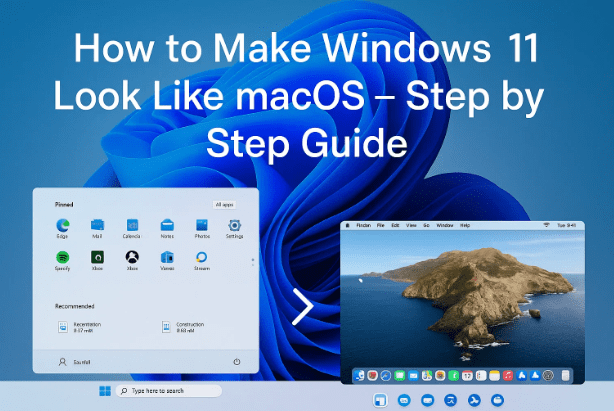
So, let’s get started and walk through the process carefully.
1. Install a macOS-Inspired Theme
The first step is to make Windows accept third-party themes. By default, Windows blocks external themes, so we’ll need a patcher.
Steps:
- Download UltraUXThemePatcher from its official page.
- Run the installer and follow the on-screen steps (click Next until finished).
- Restart your PC to activate the patch.
Now, Windows can use custom themes.
Next, download a macOS theme pack (for example, the Night Owl macOS Theme).
- Extract the downloaded ZIP.
- Copy the files from its Themes folder.
- Paste them into your Windows theme directory:
C:\Windows\Resources\Themes. - Right-click the desktop → Personalize → Themes → select your new macOS theme.
You’ll instantly see macOS-style red, yellow, and green window buttons, plus a matching cursor.
2. Add Frosted Glass Blur Effects
macOS is famous for its translucent “frosted glass” design. To mimic it, we’ll use DWM Blur Glass.
- Download from GitHub – DWM Blur Glass.
- Extract the ZIP and copy the folder to your C:\ drive.
- Run the
DWMGlass.exefile. - In the app:
- Go to Symbol tab → click Download.
- Under Settings, turn on Blur Radius and set it around 50.
- In Advanced → choose Aero effect → Save.
Now, your windows will have a smooth frosted-glass effect similar to macOS.
3. Change Wallpaper to macOS Style
A good wallpaper completes the Mac-like experience.
- Download the official macOS Tahoe wallpaper from 512pixels.net.
- Right-click the image → Set as desktop background.
- For a clean look, right-click the desktop → View → uncheck Show desktop icons.
This clears visual clutter and makes your new design stand out.





4. Add macOS Dock and Top Menu Bar
The dock and top bar are the most iconic macOS features. For this, we’ll use MyDockFinder.
- Download from Steam Store – MyDockFinder.
- Install it and launch from your library.
- A Mac-like dock will appear at the bottom, with a top menu bar too.
Tips for customization:
- Right-click the dock → Preferences: adjust blur, transparency, and icon size.
- Hide the Windows taskbar: click the Explorer icon on the top bar → select Hide Taskbar.
- Pin apps: open the app, right-click its icon in the dock → Keep in Dock.
- Change icons: go to Preferences → Icon Theme → Workshop → macOS Icon Pack.
Now, your dock not only looks like macOS but also behaves like it, including animations and launchpad.
5. Add macOS Widgets
macOS includes a widget area for quick info like weather, notes, and calendar. On Windows, we can use uWidgets.
- Download from GitHub – uWidgets.
- Extract the ZIP and run
uWidgets.exe. - Choose the Acrylic theme for transparency.
- Enable Run on Startup.
From the widget library, you can add:
- Weather forecasts
- Calendar and reminders
- CPU and system stats
- Sticky notes
Arrange them vertically on the right side for a true macOS look.
6. Add Spotlight-Style Search
No Mac setup is complete without Spotlight search. For Windows, we’ll use Flow Launcher.
- Download from FlowLauncher.com.
- Install and set it up.
- Press Alt + Space to launch it.
- In Settings → Appearance, set theme to Blur White.
- In Plugins → Explorer Settings, set search engine to Everything (Flow will guide you to install Everything if missing).
Now, you can search files, apps, and even do quick calculations instantly—just like Spotlight.
🆚 Windows 11 Default Look vs Windows 11 macOS-Style Look
| Feature / Aspect | Windows 11 Default Look | Windows 11 with macOS Customization |
|---|---|---|
| Taskbar & Start Menu | Centered taskbar with Start menu grid | Replaced with Dock + macOS Top Menu Bar (via MyDockFinder) |
| Window Controls | Standard minimize, maximize, close buttons (right side) | macOS-style red, yellow, green buttons (left side) |
| Visual Effects | Fluent design with rounded corners | Frosted glass blur effects, higher transparency (via DWM Blur Glass) |
| Wallpaper | Windows 11 stock wallpapers | macOS wallpapers (e.g., Tahoe, Monterey) |
| System Icons | Windows-style icons | macOS icon packs applied for consistency |
| Widgets | Windows 11 widget panel (limited) | Customizable widgets (calendar, weather, system stats via uWidgets) |
| Search | Windows Search integrated with Bing | Spotlight-style search (via Flow Launcher) with instant results |
| Customization Freedom | Limited (restricted by Microsoft) | Highly flexible (dock, animations, blur settings) |
| Performance Impact | Optimized for most hardware | Higher RAM/CPU usage due to extra effects & tools |
| Ease of Use | Works out of the box | Requires setup, patching, and tweaking |
| Best For | Users who prefer stability & default Windows experience | Users who love macOS aesthetics but need Windows functionality |
7. Performance Considerations
All these tools—theme patchers, blur effects, MyDockFinder, widgets, and Flow Launcher—run in the background. This means:
- RAM Usage increases (usually 500 MB–1.5 GB extra).
- CPU Usage spikes slightly, especially with animations and blur effects.
- Battery Life may decrease on laptops.
💡 Recommendation:
Only use this setup if you have at least 8 GB RAM and a modern multi-core CPU. For best results, 16 GB RAM and SSD storage are ideal. On low-end PCs, your system may lag or freeze.
8. FAQs – Windows to Mac Look Conversion
Q1: Will this harm my Windows installation?
No, but patching themes modifies system files. Always create a restore point before installing UltraUXThemePatcher.
Q2: Can I revert back to normal Windows look?
Yes, just switch to a default Windows theme and uninstall third-party tools.
Q3: Does MyDockFinder cost money?
Yes, it’s a paid tool on Steam. However, it’s polished and worth it if you want a proper dock.
Q4: Can I use this on Windows 10 too?
Most tools work on Windows 10, though some effects may look slightly different.
Q5: Will this make my PC slower?
Yes, slightly. If you have low RAM (4 GB or less), avoid installing all effects.
9. Conclusion
So far, we’ve walked through every step needed to transform your Windows 11 desktop into a macOS-inspired interface. From themes and wallpapers to docks, widgets, and Spotlight search, your system can now look almost identical to macOS while keeping the flexibility of Windows.
Just remember: these visual effects do consume system resources, so it’s best suited for PCs with at least mid-range hardware. If you’re on a low-end system, consider applying only the wallpaper and dock for the best balance.
With this guide, you can now enjoy the elegance of macOS without leaving Windows behind.
Disclaimer
Customizing Windows with third-party tools involves patching system files and running background apps. Do this only on systems with adequate hardware resources (8 GB RAM minimum recommended). Always create a restore point before applying major changes. Use tools only from their official websites or trusted sources.
Tags
windows 11 customization, make windows look like macos, macos theme for windows, macos dock on windows, windows 11 blur effect, spotlight search on windows, uwidgets, flow launcher windows
Hashtags
#Windows11 #macOS #Customization #TechGuide #WindowsToMac #FlowLauncher #DesktopCustomization







