Many students dream of getting better grades, improving focus, and creating an environment that actually helps them stay calm while working. Surprisingly, your desktop setup can play a huge role in your study habits.
This article will walk you through a step-by-step guide to transforming your Windows PC into a calming, minimal Lo-Fi study setup. With the right combination of tools, you’ll not only improve concentration but also make everyday tasks like note-taking, task management, and file searching much easier.
By the end of this guide, you’ll have a distraction-free environment that looks beautiful and functions better than standard Windows.
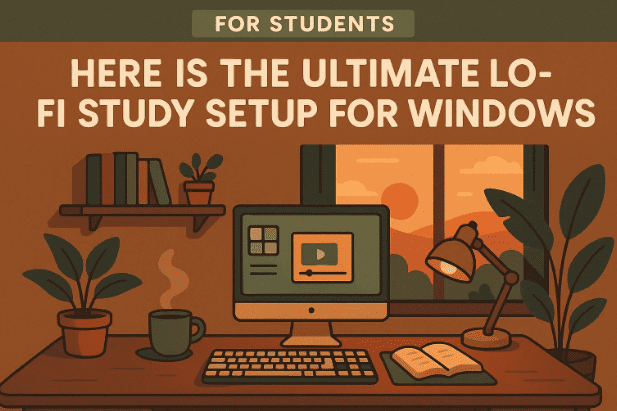
1. Why a Lo-Fi Study Setup Works
Before diving into the tools, let’s understand why a Lo-Fi inspired workspace can actually help with studying.
- Minimal distractions → Clean visuals reduce mental clutter.
- Soothing aesthetics → Lo-Fi wallpapers, muted widgets, and subtle transparency effects create calmness.
- Built-in organization → Productivity tools and widgets keep tasks visible but not overwhelming.
- Consistency → When your computer environment always feels the same, your brain associates it with “study time.”
Now that we know why it matters, let’s move on to the customization tools.
2. Customizing Windows with Windhawk
Windhawk is a lightweight customization tool that allows you to tweak the Windows interface without heavy performance costs.
👉 Official website: Windhawk
Steps to Install Windhawk
- Download the installer from the official site.
- Double-click the
.exefile and follow the on-screen setup. - Once installed, open the Windhawk control panel.
Inside Windhawk, you’ll find a collection of “mods”—each one changes something about Windows. Let’s apply the three most useful ones for a study setup.
A) Translucent Start Menu
- Open Windhawk → Search Start Menu Styler.
- Install the module and accept the warning.
- Go to settings → Choose Translucent Theme.
- Save and admire a minimal floating start menu.
This instantly creates a softer, less intrusive design.
B) Dock-Like Taskbar
- Search for Taskbar Styler in Windhawk.
- Install and apply the Dock-Like Theme.
- Save the changes.
Your Windows taskbar now looks clean and centered, resembling the macOS dock.
C) Translucent Notifications
- Install Notification Styler.
- Open its settings and choose Translucent Shell Theme.
- Save.
This makes the notification panel blend seamlessly with your wallpaper, reducing visual clutter.



3. Adding a Minimal Top Bar with Yasb
To take the setup further, we’ll add a distraction-free top bar using Yasb. This tool replaces clutter with a simple, functional menu.
👉 Official website/GitHub: Yasb
How to Install Yasb
- Install the required JetBrains Mono font (needed for proper icon rendering).
- Extract the downloaded font files → Right-click → Install.
- Download Yasb from the GitHub Releases page.
- Run the
.msiinstaller (click More Info → Run Anyway if Windows blocks it). - Complete the setup.
Now, you’ll see a clean top bar with shortcuts and system tools like a power button in the top-right corner. This helps reduce dependency on the cluttered Windows taskbar.
4. Choosing the Right Lo-Fi Wallpaper
No study setup is complete without the perfect wallpaper. A calming visual backdrop sets the tone for productivity.
- Option 1 (Paid): Wallpaper Engine on Steam – $5 with thousands of Lo-Fi community wallpapers.
- Option 2 (Free): Download Lo-Fi wallpapers from Google or community forums.
In Wallpaper Engine, you can search for “Lo-Fi Room” wallpapers—scenes with animated rain, desk lamps, or coffee cups. These give your setup the authentic cozy Lo-Fi vibe.
5. Adding UWidgets for Notes and Calendar
Widgets give you quick-access tools without opening separate apps. For this setup, we’ll use UWidgets.
👉 Official website/GitHub: UWidgets
Steps to Install
- Download the latest release (
winx64.zip). - Extract it into a new folder.
- Run
uwidgets.exe(ignore Windows warning → Run Anyway).
Recommended Widgets
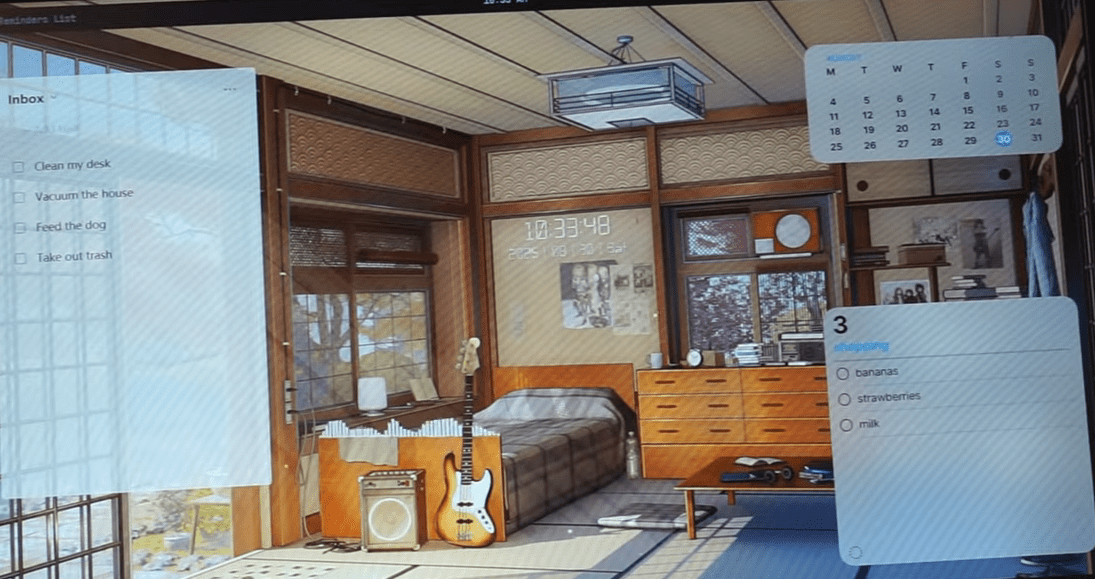
- Calendar Widget → Medium size, top-right corner.
- Notes Widget → Large size, bottom-right corner.
Both widgets are customizable: you can change background color, opacity, and accent tones to match your wallpaper.
👉 Together, they add utility while keeping the desktop minimal and stylish.
6. Finding Anything Instantly with Flow Launcher
Searching files in Windows can be frustrating. Flow Launcher is like macOS Spotlight—it finds apps, notes, documents, and even does quick calculations.
👉 Official website: Flow Launcher
Installation Steps
- Download the installer and run it.
- Open Flow Launcher → Go to Settings → Plugins.
- Under Explorer settings, switch search index from Windows Index to Everything.
- Install the Everything Plugin when prompted.
Now, press Alt + Space anytime to open Flow Launcher and type:
- “PDF” → shows all PDFs on your PC.
- “2+2” → outputs 4 instantly.
- “Google cats” → opens directly in browser.
This reduces time wasted on Windows search.
7. Staying Organized with TickTick
Assignments, habits, and deadlines can pile up. To keep everything in check, we’ll use TickTick, a task management app.
👉 Official website: TickTick
Steps to Install
- Download the Windows app.
- Sign up or log in with your Google account.
- Open Settings → Features.
- Enable Eisenhower Matrix (organize tasks by priority).
- Enable Habit Tracker (daily routines).
- Enable Countdowns (track deadlines).
Key Features
- Task Widget → Add tasks directly from desktop.
- Full-Screen Timer → Blocks distractions while studying.
- Eisenhower Matrix → Sorts urgent vs. important tasks visually.
- Custom Themes → Switch between dark/light modes to match your wallpaper.
TickTick is a powerful all-in-one study manager. It integrates perfectly into the Lo-Fi theme while adding productivity muscle.
8. Smarter Studying with Atlas AI
Finally, let’s bring AI into the mix. Atlas AI is a learning assistant that helps you study smarter, not harder.
👉 Official website: Atlas AI
What Atlas AI Can Do
- Summarize PDFs into short study notes.
- Generate Quizzes from your uploaded materials.
- Create Flashcards for quick review.
- Answer Questions from your documents.
For example:
- Upload a biology PDF.
- Generate a study guide with key facts highlighted.
- Create a quiz to test yourself.
- Ask “How many bones are in the human body?” → Atlas answers directly from your notes.
This tool essentially acts like a personal tutor powered by AI.
9. Common Questions (FAQs)
Q1. Will these tools slow down my computer?
Most are lightweight. Windhawk and Flow Launcher use negligible resources. Widgets and Wallpaper Engine use a bit more, but nothing major on modern PCs.
Q2. Do I need to pay for everything?
No. Windhawk, Flow Launcher, UWidgets, Yasb, and TickTick (basic) are free. Only Wallpaper Engine ($5) is paid, but you can replace it with free wallpapers.
Q3. Can I uninstall them easily?
Yes, all tools are removable like normal apps. If anything breaks, create a restore point before starting.
Q4. Does Atlas AI require internet?
Yes, since it’s an online service. TickTick also syncs online. The rest work offline.
Q5. Can this setup be used on Windows 10?
Yes. Most tools support Windows 10, though some (like taskbar mods) look best on Windows 11.
10. Final Thoughts
We began with a plain Windows desktop and transformed it into a calm Lo-Fi study environment. With:
- Windhawk for transparency tweaks,
- Yasb for a minimal top bar,
- Lo-Fi wallpapers for ambiance,
- UWidgets for quick notes,
- Flow Launcher for instant search,
- TickTick for organization, and
- Atlas AI for smarter studying—
you now have everything needed to stay focused, organized, and motivated.
The beauty of this setup is balance. It’s not overloaded with flashy effects but carefully designed to keep your workspace peaceful and productive.
So the next time you sit down to study, you’ll find it easier to concentrate and actually enjoy the process.
Disclaimer
Customization involves third-party tools. Always download from official websites and scan files before installation. Create a system restore point before applying major tweaks. Performance impact may vary depending on your hardware.
Tags
windows customization, lo-fi study setup, windhawk tweaks, yasb top bar, uwidgets, flow launcher, ticktick productivity, atlas ai, wallpaper engine, windows productivity tools
Hashtags
#Windows11 #LoFiSetup #Productivity #Customization #StudyHacks #TickTick #AtlasAI








