If you’ve ever stood in the dark before bed, eyeing that glowing Wi-Fi router light and wondering, “Should I just turn this off?”, you’re not alone.
It’s a surprisingly common question — especially as our homes fill up with smart devices, security cameras, and constant notifications.
Some people switch off Wi-Fi every night for peace of mind, while others leave it running 24/7 without a second thought. So, what’s actually safer, smarter, and healthier?
Let’s explore the real facts, trade-offs, and expert recommendations — and help you decide what’s best for your household.
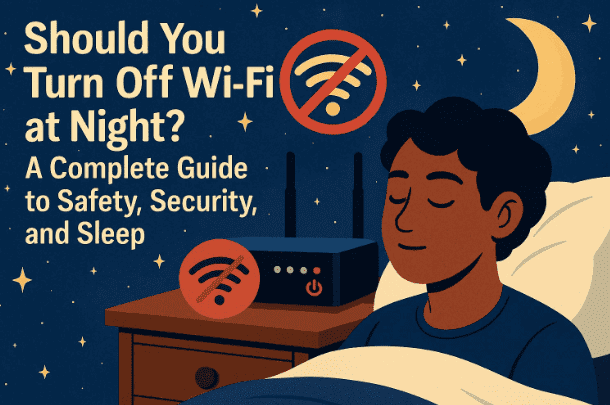
⚙️ 1. Is It Safe to Leave Wi-Fi On Overnight?
Let’s start with the short answer:
For most households, leaving Wi-Fi on overnight is safe and convenient.
The risks are generally low and manageable as long as your router is secured and up-to-date. But like many things in tech, it depends on your priorities — security, energy use, privacy, or even sleep quality.
We’ll go over all of these one by one so you can make an informed choice.
🔐 2. Security Concerns of Keeping Wi-Fi Always On
The biggest technical argument for turning Wi-Fi off at night is security exposure.
When your router is powered on, it remains an open doorway to your home network. That doesn’t mean someone’s attacking you, but it’s a theoretical surface for cyber threats.
Let’s break this down step by step and understand how to stay safe.
2.1 Remote Access Exposure
Leaving Wi-Fi on means your network is always discoverable. Hackers or automated bots might try connecting to it, especially if it’s weakly protected.
Fix it:
- Use WPA2 or WPA3 encryption (check your router’s settings).
- Disable WPS (Wi-Fi Protected Setup) — it’s a known weak point.
- Change your router’s default admin username and password immediately.
- Hide your SSID if you want to make it less visible (optional).
2.2 Outdated Firmware
Many routers never get updated — and that’s a risk. Outdated firmware may contain unpatched vulnerabilities that attackers can exploit.










Fix it:
- Enable automatic firmware updates in your router if available.
- Or manually check for updates once a month by logging into your router dashboard (often via http://192.168.1.1).
2.3 IoT Device Exposure
Always-on smart plugs, cameras, or lights often rely on your home Wi-Fi. Unfortunately, these Internet of Things (IoT) devices are notorious for weak security.
Fix it:
- Put IoT gadgets on a separate guest Wi-Fi network or VLAN.
- Change all default passwords on smart devices.
- Keep your main computer and phone on a different network if possible.
2.4 Guest Networks
When friends or visitors use your Wi-Fi, their devices may unintentionally introduce risks.
Fix it:
- Create a guest SSID with client isolation — it keeps guest devices from seeing each other or accessing your main network.
- Disable the guest network when it’s not needed.
So far, we’ve handled the digital side. Let’s now turn to something that people often worry about — health and sleep.
🩺 3. Health and EMF Exposure: The Science and Reality
This is a topic full of myths, so let’s clear the air.
Wi-Fi uses radiofrequency (RF) waves, which are non-ionizing radiation — similar to what your Bluetooth devices, baby monitors, or even TV remotes use. These are very low-power signals.
According to major scientific authorities — the World Health Organization (WHO) and ICNIRP (International Commission on Non-Ionizing Radiation Protection) — the RF emissions from home routers are far below harmful levels.
In simple terms:
The consensus so far shows no proven adverse health effects from normal Wi-Fi exposure.
Still, some people prefer extra caution. If you’d like to reduce exposure even further:
- Move your router a few meters away from where you sleep.
- Turn it off at night if it helps you feel better — it’s a personal choice, not a necessity.
The measurable health benefit will be minimal, but if it eases your mind, it’s harmless to do so.
😴 4. Does Wi-Fi Affect Your Sleep?
Interestingly, Wi-Fi itself doesn’t cause sleep disruption — but how we use Wi-Fi does.
The real culprits are:
- Blue light from screens (phones, tablets, TVs)
- Constant notifications and late-night scrolling
Turning off Wi-Fi can act as a digital curfew, forcing everyone to disconnect and rest. It’s not the router waves that keep us awake — it’s the temptation to stay online.
If you want a balanced solution:
- Use router scheduling to automatically disable Wi-Fi from midnight to morning.
- Many routers or mesh systems (like TP-Link Deco, Netgear Orbi, or Asus routers) have this feature in their app.
- Alternatively, use parental controls to block internet access for certain devices after bedtime.
This way, your home network “sleeps” without you remembering to unplug it.
⚡ 5. Energy Use and Cost Considerations
Let’s talk numbers — how much power does a Wi-Fi router really consume?
Most modern routers use between 2 to 15 watts.
That translates to roughly $2–$10 per year in electricity costs — depending on your country’s rates.
So while turning it off at night can save a few watts, the savings are tiny.
If your goal is to reduce your carbon footprint, there are more impactful changes (like switching off idle PCs or upgrading to efficient appliances).
Still, if every watt counts, you can schedule your router to power down automatically or use a smart plug for easy control.
🧩 6. What You Lose by Turning Wi-Fi Off
So far we’ve covered all the advantages of switching off Wi-Fi. But before you make it a nightly habit, let’s be honest about what you’ll lose.
Missed Updates and Backups
Your phone, tablet, or computer might delay:
- System updates
- App downloads
- Cloud photo backups
These usually happen automatically at night. Turning off Wi-Fi interrupts them.
Smart Home Disruptions
If you have security cameras, smart locks, or an alarm system connected to Wi-Fi, they may go offline at night.
That means no remote monitoring or alerts while you’re asleep.
Loss of Remote Access
If you use your router for VPN, NAS access, or remote control of devices, those features obviously won’t work when it’s off.
So while shutting Wi-Fi down can bring peace, it may also bring inconvenience — especially for households with connected devices.
🛠️ 7. Smart Middle-Ground: Scheduling and Selective Power-Off
So far we’ve done a good job understanding both sides — the pros and cons.
Now let’s find a balanced, practical solution.
If you want better control:
- Enable automatic schedules: Many routers let you disable Wi-Fi during specific hours (for example, 1 a.m.–6 a.m.).
- Turn off only guest or IoT networks: Keep your main network active while cutting off secondary SSIDs at night.
- Use smart plugs: Plug your router into a smart socket and create on/off routines.
- Unplug only nonessential devices: For instance, turn off the guest router but keep your main one on for smart cameras.
This approach offers the best of both worlds — lower exposure, small energy savings, and continuous service where you need it.
🔒 8. Advanced Options for Security-Conscious Users
If you handle sensitive work data, travel frequently, or just want higher digital hygiene, here are a few pro-level measures:
- Use a dedicated firewall (like Ubiquiti or pfSense).
- Set up a VPN router for encrypted always-on connections.
- Isolate IoT devices onto a guest or VLAN network.
- Enable network logging and alerts to detect suspicious activity.
- If you’re extremely cautious, keep a small travel router for remote access and power down your main network when away.
These steps go far beyond simply switching Wi-Fi off — they give you security without sacrificing convenience.
🧠 9. Frequently Asked Questions (FAQs)
Q1. Is it bad to keep Wi-Fi on 24/7?
No. Modern routers are designed for continuous use. Just make sure firmware and passwords are secure.
Q2. Can Wi-Fi radiation cause cancer or headaches?
According to WHO and ICNIRP, there’s no credible evidence that home Wi-Fi exposure causes any harm at normal levels.
Q3. Does turning Wi-Fi off make internet faster when I turn it back on?
Not directly. But restarting the router can sometimes fix small connection issues or free up memory.
Q4. Will my smart devices stop working overnight?
Yes, most will. Smart bulbs, locks, and security cameras depend on Wi-Fi for automation and cloud services.
Q5. Can I set Wi-Fi to turn off automatically at night?
Absolutely. Use your router’s scheduler or connect it to a smart plug with timers.
💡 10. Practical Recommendations (Quick Summary)
Let’s recap what we’ve learned so far.
If convenience and connectivity matter most:
- Keep Wi-Fi on 24/7.
- Secure it properly (WPA3, strong passwords, firmware updates).
- Separate IoT devices from your main network.
- Use automatic updates for your router.
If privacy, sleep, or energy savings matter more:
- Turn Wi-Fi off at night or use scheduled off-hours.
- Move your router away from bedrooms.
- Disable nonessential SSIDs like “guest” or “IoT” networks.
Either choice is valid — just know your trade-offs.
🌍 11. The Bottom Line
After exploring all sides, here’s the honest truth:
Keeping Wi-Fi on at night is low-risk if you follow good security hygiene.
It’s far more important to update firmware, use strong passwords, and isolate devices than to physically power down your router every night.
That said, if switching it off helps you sleep better, save a bit of power, or disconnect digitally, go for it — just remember that your smart gadgets may go offline in the process.
Technology should fit your life, not the other way around.
Choose the balance that brings you both peace of mind and convenience.
⚠️ Disclaimer
This article provides general information and best practices.
It is not medical or technical advice. For device-specific guidance, refer to your router manufacturer’s documentation or visit https://www.who.int/ for official EMF safety details.
#WiFi #HomeNetwork #RouterSecurity #SleepHealth #TechTips #SmartHome #EnergySaving #InternetSafety #Connectivity #DigitalWellbeing








