If you’re someone who prefers a sleek, eye-friendly interface while working on your WordPress site, enabling Dark Mode for your WordPress admin panel is a great idea. Not only does it reduce eye strain—especially during late-night work sessions—but it also gives your dashboard a modern and stylish look.
This article walks you through the step-by-step process to activate Dark Mode in your WordPress admin dashboard using popular plugins. It’s simple, effective, and only takes a few minutes!
🔧 Step-by-Step Guide to Enable Dark Mode in WordPress Admin
Step 1: Log in to Your WordPress Admin Panel
Start by logging in to your WordPress dashboard using your admin credentials.
Step 2: Install a Dark Mode Plugin
There are several plugins available for adding dark mode. One of the most popular and lightweight options is simply called “Dark Mode.” Here’s how to install and use it:
- In the left-hand menu, go to Plugins > Add New.
- Search for Dark Mode.
- Click Install Now, then Activate.
Step 3: Enable Dark Mode in Your User Profile
- Go to Users > Your Profile.
- Check the box labeled Enable Dark Mode.
- Click Update Profile to save changes.
Your dashboard will now be displayed in a smooth, dark theme.
🧛♂️ Try Dracula Dark Mode for More Features
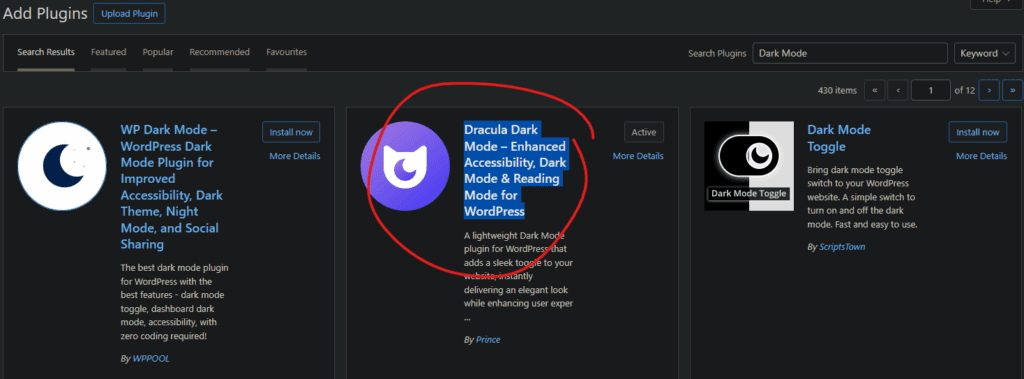
If you’re looking for more than just a simple color switch, Dracula Dark Mode – Enhanced Accessibility, Dark Mode & Reading Mode for WordPress is an excellent alternative. This plugin is packed with advanced features that go beyond a basic visual change.
🧩 Key Features of Dracula Dark Mode:
- Accessibility First: Built with improved readability and contrast for users with visual impairments.
- Dark Mode Toggle: Easily enable or disable dark mode from the admin bar.
- Reading Mode: Offers a clean and distraction-free reading experience for content-heavy pages.
- Custom Styling: Supports custom CSS, allowing developers to fine-tune the dark theme appearance.
- Front-End Compatibility: Can also apply dark mode to the front-end for logged-in users or visitors (optional).
🛠️ How to Install Dracula Dark Mode:
- Go to Plugins > Add New.
- Search for Dracula Dark Mode.
- Click Install Now, then Activate.
- After activation, go to Settings > Dracula Dark Mode to configure your preferences.
This plugin is a fantastic option for both aesthetic and usability improvements across your entire site environment.
💡 Why Use Dark Mode?
- Reduces eye strain in low-light environments
- Improves focus with a cleaner, distraction-free interface
- Extends battery life on OLED displays
- Offers a modern and professional aesthetic
- Enhances accessibility for visually sensitive users
🎨 Final Thoughts
Whether you choose the simple Dark Mode plugin or go with the feature-rich Dracula Dark Mode, adding a dark theme to your WordPress admin panel is a smart move. It makes managing your site more comfortable and visually appealing—especially if you spend a lot of time in the dashboard.
Take a few minutes to enable this upgrade today and enjoy a more personalized, accessible experience while working on your site.
Tags and Hashtags
Tags: WordPress, dark mode WordPress, Dracula dark mode, WordPress admin tips, enable dark theme, WordPress dashboard customization, WordPress plugins, web accessibility, reading mode WordPress, website UI
Hashtags:
#WordPress #DarkMode #DraculaDarkMode #WordPressTips #Accessibility #WebDesign #ReadingMode #WebsiteCustomization #WPPlugins #TechTips