In today’s connected world, being able to access your computer from anywhere is a major convenience. Whether you’re helping a friend fix their system, managing files on your office PC from home, or offering remote technical support, a good remote desktop tool makes all the difference.
While there are many paid options out there — like TeamViewer or AnyDesk — few people realize that DWService offers a completely free, secure, and browser-based remote desktop experience that works on Windows, Linux, and macOS.
In this article, we’ll walk through everything step-by-step: from installing the DW Agent on your computer, setting up remote access groups, and sharing sessions, to managing files and running commands remotely. You’ll also learn how to control what others can access when you share your connection.
💻 What is DWService?
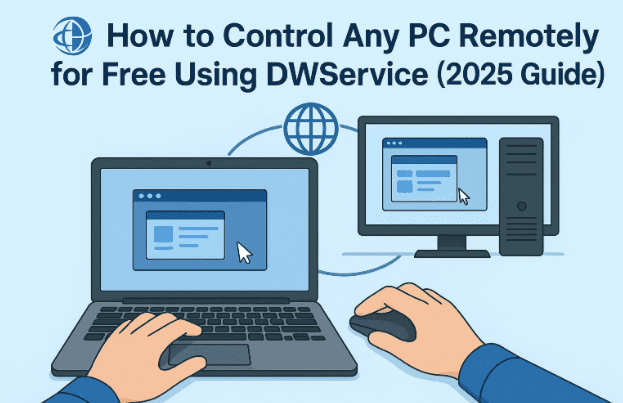
DWService (also called DW Agent) is a free, open-source remote desktop platform that lets you control any computer through a web browser.
Unlike other remote software, you don’t have to install a full client on your controlling device — everything happens directly from DWService’s website.
You just install a lightweight agent on the computer you want to access remotely. Once it’s running, you can connect from any other device (laptop, phone, tablet, or even a public PC) using your web browser.
👉 Official website: https://www.dwservice.net/en/home.html
🌟 Key Features of DWService
Let’s look at what makes DWService stand out among other remote access tools.
- Completely Free: No time limits or hidden restrictions.
- Cross-Platform Support: Works on Windows, macOS, and Linux.
- Browser-Based Control: No client app needed — access your computers through the web.
- File Management: Upload, download, rename, and delete files remotely.
- Shell Access: Run terminal commands on the remote device.
- Resource Monitor: View CPU, RAM, and disk usage in real-time.
- Custom Permissions: Grant access to others with fine control (full screen, file-only, shell-only, etc.).
- Group Organization: Manage multiple devices in networks or teams.
🔧 How DWService Works
Before we dive into installation, it’s helpful to understand the simple Agent–Client model used by DWService:
| Component | Description |
|---|---|
| Agent | Software installed on the computer you want to control remotely. It connects securely to DWService servers and waits for connections. |
| Client (Browser) | The device used to control the remote computer. You don’t install anything — just log in to your DWService account online. |
Once you’ve installed the Agent, your computer becomes remotely available whenever it’s powered on and connected to the internet. From your DWService dashboard, you can launch a screen session, open files, check logs, or even invite others to assist.
🪪 Step 1 – Create Your Free DWService Account
Let’s begin by creating your DWService account — it’s completely free.







- Go to DWService.net.
- Click Sign Up and fill in your name, email, and password.
- Confirm your email to activate the account.
- Log in to access your Dashboard.
This dashboard is your control center. You’ll manage all your agents, groups, and remote sessions here.
🧰 Step 2 – Install the DW Agent on the Remote Computer
Now that your account is ready, it’s time to install the DW Agent on the computer you want to control remotely.
- Log in to DWService.net.
- Click on Agents → + Add Agent.
- Before creating an agent, you must create a group (a network of computers).
- Go to Groups → + Add Group.
- Give it a name (e.g., “Home PCs” or “Office Network”).
- Save it and return to the Agents section.
- Now click + Add Agent, assign it to your new group, give it a name (e.g., “Windows 11 Pro”), and add a description if you like.
- You’ll see an installation code — copy this code.
- Download the DW Agent installer for your OS (Windows/Mac/Linux).
- Run the installer and, when prompted, enter the installation code from your DWService dashboard.
Once the agent registers successfully, it will appear as “Available” in your online dashboard.
⚙️ Step 3 – Configure Agents and Groups
Once the agent is active, you can configure its behavior directly from the DWService website.
- Rename or Disable Agents: Useful if you manage multiple computers.
- Uninstall or Reconfigure: You can change installation codes anytime.
- Set Up Unattended Access: Let your agent run automatically on startup.
- Organize by Groups: Perfect for managing multiple offices or home systems.
If you click the three dots (⋮) next to an agent, you’ll find all key options — edit, disable, delete, or share.
You can also manage Contacts — specific users you want to share access with. Each contact can have custom privileges (e.g., view-only, full access, or file access only).
🌍 Step 4 – Connecting Remotely from Any Device
Once everything is set up, connecting remotely is simple.
- On any computer, tablet, or phone, open your browser and visit https://www.dwservice.net.
- Log in using your credentials.
- Go to Agents — you’ll see your listed computer (e.g., “Windows 11 Pro”).
- Click on it to connect.
- Choose one of the following access modules:
- Screen – Full remote control of the desktop.
- Files & Folders – View, upload, or download files.
- Text Editor – Create or edit remote text files.
- Shell – Execute commands remotely.
- Resources – View CPU, RAM, and service info.
- Logs – Check recent system events.
After selecting Screen, DWService establishes a secure connection to the remote desktop — you’ll see and control it as if you were sitting right there.
You can switch display quality, disable remote keyboard/mouse, or send shortcuts like Ctrl+Alt+Del.
Let’s move to some of the advanced options that make DWService stand out.
🤝 Step 5 – Sharing Access with Others
Sometimes, you might want to let someone else — say, a colleague or a technician — access your system. DWService lets you safely share access.
Here’s how:
- From your DWService dashboard, click Shares → + Add Share.
- Choose whether you want to share:
- A specific agent (a single computer), or
- An entire group of agents.
- Configure the permissions:
- Full Access – Complete control.
- Screen Only – View and control desktop only.
- Files Only – Limited to file management.
- Shell Only / Logs Only – For technical or monitoring tasks.
- Choose whether to share via:
- Link: Generate a secure URL to send to someone.
- Contact: Assign access to a registered user.
- Set access duration (temporary or always-on).
The person you share with doesn’t need to install anything. They can simply open the link, log in (if required), and connect via browser.
🧠 Exploring DWService Tools and Features
Once connected, DWService provides several modules that go beyond simple screen sharing.
| Tool | Description |
|---|---|
| Screen | Full remote desktop with keyboard & mouse control. |
| Files & Folders | Manage the remote file system, upload/download, rename, delete, or create folders. |
| Text Editor | Edit or create new text documents directly in your browser. |
| Logs | Monitor system and service logs remotely. |
| Resources | Check CPU load, memory usage, disk space, and running tasks/services. |
| Shell | Run command-line or PowerShell commands directly from your browser. |
For example, if you just want to fix a configuration file, you can open the Text Editor instead of launching the full desktop. Similarly, to restart a stuck service, use the Shell or Resource panel.
🔐 Security and Privacy Considerations
DWService takes security seriously. All communications between your browser, their servers, and your agent are encrypted.
Still, as with any remote tool, you should take a few precautions:
- Always use a strong password and enable two-factor authentication (2FA) if available.
- Don’t share your agent link publicly.
- Limit permissions when granting access — share “screen only” or “files only” if full control isn’t necessary.
- Use the “Disable Agent” option when you no longer need remote access.
By following these, you can ensure your system remains safe while still being accessible remotely.
❓ Frequently Asked Questions (FAQ)
Q1. Is DWService really free?
Yes. The core version is completely free for personal and light professional use. Paid tiers exist for advanced enterprise options, but most users never need them.
Q2. Do I need to install anything on the controlling computer?
No — you only install the agent on the computer you want to access. The controlling device just uses a browser.
Q3. Can DWService be used for macOS or Linux?
Absolutely. DW Agent installers are available for macOS, Ubuntu, Debian, Fedora, and others.
Q4. How secure is DWService?
All traffic is encrypted. You can also limit access types and disable agents at any time.
Q5. Can I use DWService for multiple computers?
Yes. Just install an agent on each device and assign them to the same group. You can switch between them easily via your dashboard.
Q6. Does DWService work behind firewalls or NAT networks?
Yes — that’s one of its strengths. Because connections are made through DWService’s servers, you don’t need to configure port forwarding.
🏁 Conclusion
DWService is one of those rare tools that are both powerful and simple.
It combines the flexibility of a web-based interface with the reliability of full desktop access. Whether you’re helping a family member troubleshoot, managing multiple work PCs remotely, or monitoring a home server — this tool gets the job done without expensive licenses or complicated setups.
Once you’ve gone through the setup once — creating groups, adding agents, and learning the dashboard — you’ll find DWService to be an incredibly handy and dependable companion for remote access.
⚠️ Disclaimer
DWService is a third-party tool not affiliated with this website. This article is for educational purposes only. Always download software directly from official sources and ensure you comply with your organization’s security policies before enabling remote access.
Tags: DWService, DW Agent, remote desktop, remote control software, free remote access, web-based remote desktop, Windows 11 remote, macOS remote, Linux remote, secure remote connection
Hashtags: #DWService #RemoteAccess #RemoteDesktop #DWAgent #Windows11 #FreeSoftware #LinuxTools #TechGuide #WebApps








