If you’ve been using Windows for years, you’ve probably noticed that File Explorer hasn’t changed much. Sure, it’s reliable — but it looks the same, feels outdated, and lacks that modern, sleek touch that macOS or Linux desktop environments offer.
Fortunately, there’s a powerful, safe, and lightweight tool that can completely modernize your File Explorer without breaking your system: Windhawk.
In this detailed guide, we’ll walk you through how to install Windhawk, apply beautiful new icon themes, and give your Windows Explorer a refreshing, elegant look — all without touching system files or installing heavy software.
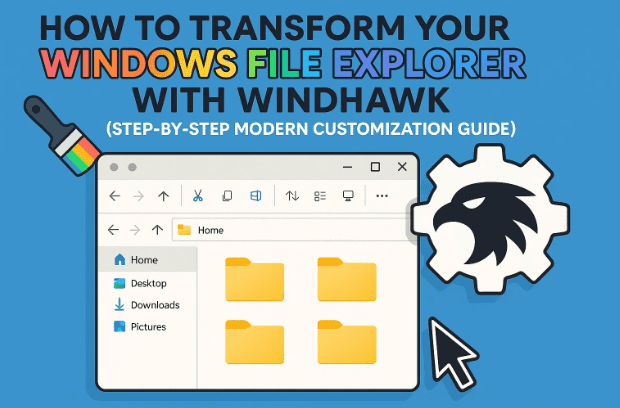
1️⃣ What Is Windhawk and Why Use It?
Before we begin, let’s understand what makes Windhawk special.
Windhawk is a Windows customization tool designed to safely tweak and extend system behavior using small “mods.” Think of it as an advanced customization layer that applies interface changes without modifying system files directly.
This makes it much safer than registry hacks or third-party shell replacements. You can enable, disable, or uninstall mods anytime — and everything reverts instantly.
Windhawk is trusted among Windows power users because:
- It doesn’t require administrator privileges for most actions.
- It doesn’t slow down your system.
- Mods are open-source and hosted publicly on GitHub.
- You can explore hundreds of interface mods (including Explorer themes, taskbar tweaks, etc.).
In this tutorial, we’ll focus on one specific mod — Resource Redirect — which allows us to change icons and visuals in File Explorer.
2️⃣ Step 1: Download and Install Windhawk
Let’s begin by installing the core tool.
- Open your browser and visit https://windhawk.net.
- Click on Download to get the installer (the file is small, usually under 10 MB).
- Once downloaded, double-click the setup file to start the installation.
- When prompted, choose Yes to allow it to run.
- Follow the on-screen instructions and complete the installation with the default settings.
When installation is done, Windhawk will open its main dashboard.
It’s clean and minimal, showing a search bar at the top and categories of mods below.


If you already have Windhawk installed, it might prompt you to repair or uninstall — simply skip that and continue with your existing setup.
3️⃣ Step 2: Add the Resource Redirect Mod
Now that Windhawk is ready, let’s install the mod that allows File Explorer customization.
- In the top-right corner of the Windhawk window, click on Explore.
- Use the search bar and type
resource. - You’ll see a mod named Resource Redirect appear in the list.
- Click on it, then select Details → Install.
- When asked to “Accept risk,” click Accept and Install.
This mod essentially redirects Windows Explorer’s visual resources (like icons and layout assets) to your own custom theme folder — safely and temporarily.
Once installed, it will appear under your Installed Mods list in Windhawk.
4️⃣ Step 3: Find and Download File Explorer Themes
After installing Resource Redirect, the next step is finding a theme you like.
The easiest way to get ready-made themes is through the official GitHub repository linked in the mod description.
To access it:
- Scroll down within the Resource Redirect mod window.
- You’ll find a section labeled “Icon Theme (Resource Redirect Icon Theme)”.
- Click the provided link — it will take you to the official GitHub page containing dozens of icon themes.
- GitHub link: https://github.com/ramensoftware/windhawk-mods (check for Resource Redirect themes there)
On the GitHub page, scroll down to preview available themes. You’ll find both modern minimalistic packs and platform-inspired styles (like macOS or GNOME).
Pick any theme that matches your preference.
For example:
- Faba Symbolic – clean, flat, Linux-inspired icons.
- Mac OS Dark Theme – replicates Apple’s aesthetic.
- Sweet Rainbow – colorful and vibrant theme with playful icons.
Once you choose one, click its name to open its detail page.
5️⃣ Step 4: Extract and Organize Theme Files
Now let’s download and organize the theme so Windhawk can access it easily.
- On the theme’s GitHub page, click the “Download Raw File” or “Download ZIP” button (top-right corner).
- Wait for the ZIP file to finish downloading.
- Once complete, right-click the ZIP file and choose Extract All.
- Choose a location (we’ll set up a permanent one next).
To keep things tidy, we’ll make a dedicated folder for all theme files:
- Open This PC → Local Disk (C:).
- Right-click in the empty space → New → Folder.
- Name it something simple like
PackorMods. - Open this new folder and paste your extracted theme folder inside.
For example, your final path might look like this:
C:\Pack\Faba_Symbolic
Once pasted, open the theme folder and check that you see files like:
theme.ini- folders for icons and resources
Now, let’s connect this folder to Windhawk.
6️⃣ Step 5: Apply the Theme Using Windhawk
To apply the downloaded theme, follow these steps:
- Copy the full folder path from File Explorer’s address bar.
- Example:
C:\Pack\Faba_Symbolic
- Example:
- Go back to Windhawk.
- Locate Resource Redirect in your installed mods list.
- Click on the Settings (gear icon) next to it.
- Scroll down until you find a field named Theme Path.
- Paste your copied folder path there.
- Click Save Settings to apply.
Now Windhawk knows where to look for the new icons and resources.
You’re almost done! All that’s left is to refresh File Explorer.
7️⃣ Step 6: Restart File Explorer to See the Changes
For your new theme to take effect, you need to restart Windows Explorer.
Here’s how:
- Right-click on the Taskbar and open Task Manager.
- Find Windows Explorer in the list of running processes.
- Right-click it and select Restart.
The screen may flicker briefly — this is normal.
When you reopen File Explorer, you’ll immediately notice the transformation:
- New folder icons
- Redesigned drive icons
- Updated toolbar visuals
- Consistent color palette
Congratulations! Your File Explorer now looks completely different — modern, minimal, and unique.
8️⃣ Trying Out Different Themes
Let’s move to the fun part — experimenting with multiple themes.
Switching between icon packs in Windhawk is fast and reversible.
Here’s how to try new ones:
- Go back to the GitHub page with theme lists.
- Choose another theme (for example, “Mac OS Dark” or “Sweet Rainbow”).
- Download and extract it just like before.
- Place the new theme folder inside
C:\Pack. - Copy its new path and paste it into Windhawk’s Theme Path setting.
- Save and restart File Explorer again.
Each time you restart, your icons will instantly switch to the new theme — no reboot required.
You can add as many themes as you want inside the same Pack folder for easy swapping later.
9️⃣ Recommended Themes You Should Try
Let’s explore a few standout themes you can test. These are widely used and praised for both aesthetics and clarity.
🌙 Mac OS Dark Theme
- Replicates macOS Finder icons and sidebar style.
- Perfect for users who prefer darker UIs and minimalist icons.
🎨 Sweet Rainbow
- Colorful, vibrant, and cheerful.
- Ideal if you want your Explorer to look lively and distinct.
- Icons feature smooth pastel gradients and clean outlines.
⚙️ Faba Symbolic
- Inspired by Linux and GNOME themes.
- Simplistic and monochrome — great for professionals who prefer subtlety.
💼 X Minimalism Symbolic
- A neutral, elegant icon pack that blends well with Windows 11 aesthetics.
Each of these can be swapped in seconds through Windhawk’s settings, so you’re never stuck with one look.
🔧 10️⃣ Troubleshooting and Safety Tips
Even though Windhawk is extremely stable, here are a few things to remember:
- If icons don’t change: Double-check that your theme path is correct and the folder contains a
theme.inifile. - If Explorer crashes: Simply reopen Windhawk and disable the mod temporarily.
- Want to revert to default? In Windhawk, disable the Resource Redirect mod or remove the theme path. Then restart Explorer.
- Backup tip: Since Windhawk doesn’t modify system files, you don’t need to back up icons — but saving theme folders separately is a good habit.
Because everything runs modularly, you can always revert safely without reinstalling Windows or touching system settings.
❓ 11️⃣ Frequently Asked Questions
Q1: Is Windhawk safe to use?
Yes. Windhawk is widely used by Windows enthusiasts and modders. It doesn’t alter protected system files — everything is modular and reversible.
Q2: Does Windhawk slow down my computer?
No. It’s lightweight and runs only small scripts in memory. You won’t notice any performance impact.
Q3: Can I use Windhawk on Windows 10 and 11?
Absolutely. Windhawk supports both Windows 10 and Windows 11, including the latest 24H2 builds.
Q4: What happens if a mod breaks after an update?
You can easily disable or uninstall the mod in Windhawk. The system will instantly return to normal.
Q5: Are these themes open-source?
Yes. All Resource Redirect themes are hosted publicly on GitHub, so you can inspect or even edit them yourself.
🏁 12️⃣ Conclusion
So far, we’ve done a great job turning the old, dull File Explorer into a stunning, personalized workspace.
With Windhawk and its Resource Redirect mod, you can completely transform the visual identity of Windows without installing bulky customization suites or risking system corruption.
It’s quick, elegant, and flexible — allowing you to experiment with multiple aesthetics until you find your perfect style.
Whether you prefer a professional monochrome look or a colorful macOS-inspired layout, Windhawk makes it all possible — safely and efficiently.
⚠️ Disclaimer
This article is for informational purposes only. Windhawk and its mods are third-party tools. Always download from official sources like https://windhawk.net or verified GitHub repositories. The author is not responsible for damage caused by unofficial modifications or third-party downloads.
#Windhawk #Windows11 #FileExplorer #Customization #WindowsMods #MacTheme #Windows10 #ExplorerTheme #SweetRainbow #TechGuide








