Apple continues to refine how we interact with our Mac computers, and with the release of macOS Tahoe 26, a brand-new feature called Spotlight Actions has arrived. For years, Spotlight has been the go-to tool for quickly finding apps, documents, and files on a Mac. But with Spotlight Actions, Apple takes things a step further—now Spotlight isn’t just about searching, it’s about doing.
In this article, we’ll dive deep into what Spotlight Actions are, how they work, and how you can take full advantage of them. By the end, you’ll know not only how to perform the built-in actions but also how to create your own shortcuts that supercharge your workflow.
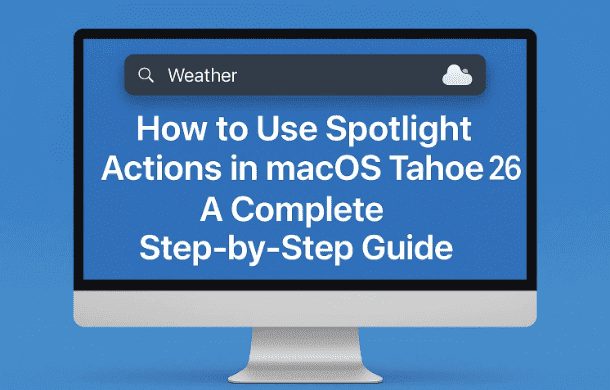
1. What Are Spotlight Actions?
Traditionally, Spotlight on macOS has been a universal search tool—you could press a shortcut, type something in, and Spotlight would fetch it: files, folders, emails, apps, or even web results.
Spotlight Actions expand this functionality by adding a dedicated Actions section where you can perform tasks directly. Instead of just searching for an app and then opening it to do something, you can now initiate actions right inside Spotlight.
For example:
- Generate a random number.
- Send a quick message.
- Create a new note.
- Move or count files.
- Even run custom shortcuts that you design.
This makes Spotlight a lot more than a search tool—it becomes a lightweight command center for your Mac.
2. How to Access Spotlight Actions
Let’s begin by learning how to open Spotlight and where to find these new actions.
You can access Spotlight in two ways:
- Click the magnifying glass icon in the macOS Menu Bar.
- Or use the shortcut Command (⌘) + Spacebar.
Once Spotlight is open, you’ll notice it’s divided into sections. The third section is dedicated to Actions.
- You can scroll with your mouse/trackpad to reach it.
- Or jump there instantly using Command + 3.
From here, you’ll see a list of available actions. These will depend on the apps installed on your Mac, but many of them come from built-in macOS apps like Notes, Mail, and Messages.
So far, so good. Let’s move to the fun part—trying out some of these actions.








3. Exploring Built-in Spotlight Actions
Once inside the Actions section, you’ll find a wide variety of commands.
Instead of describing them all at once, let’s explore with examples. This not only makes it easier to understand but also gives you an idea of how versatile Spotlight Actions really are.
4. Examples of Useful Actions
🎲 Example 1: Generate a Random Number
- Search for Random Number under Actions.
- Double-click it.
- Spotlight prompts you for two values: minimum and maximum.
- Type in
1and10, then press Return.
The result: a random number between 1 and 10 appears right there in Spotlight. Press Return again, and it generates another number instantly.
This is a neat feature for quick decisions, games, or even testing.
💬 Example 2: Send a Message
Instead of opening the Messages app, you can send messages directly from Spotlight:
- Type Send Message in the Actions search.
- Press Return.
- Type your message.
- Tab over to enter the recipient. Spotlight will suggest contacts.
- Press Return to send.
Your message is sent instantly—without ever opening the Messages app.
📝 Example 3: Create a New Note
If you often jot things down, Spotlight can save you clicks:
- Type Create Note.
- Enter a title or text.
- Choose the Notes folder if needed.
- Press Return.
A new note is created in the Notes app.
📧 Example 4: Send an Email
Similarly, try Send Email:
- Enter a subject, recipient, and body text directly in Spotlight.
- Press Return.
Your email is composed and sent, saving you time when you just want to fire off a quick note.
5. Assigning Quick Keys for Faster Access
Using the search box each time is fine, but if you frequently use an action, you can assign it a Quick Key.
- For example, after using Send Message, Spotlight might auto-assign the key SM.
- Next time, just type
SMin Spotlight, and it takes you straight to that action. - You can also define your own. Instead of SM, you might prefer
MMfor “My Message.”
This makes repeated tasks lightning fast.
6. Context-Sensitive Actions
One of the best things about Spotlight Actions is that they are context-sensitive. This means the options change based on what’s currently selected.
For example:
- Move File: If you select a file in Finder and then run this action, Spotlight knows which file is selected and asks for a destination.
- Count Items: Select multiple files, and the Count action tells you how many. Select text in TextEdit, and it counts words instead.
This flexibility makes Spotlight Actions feel smart and tailored to your current activity.
7. Combining Files and Working with Media
Spotlight Actions aren’t just about text or files—they can handle media too.
For example:
- Select multiple images in Finder.
- Search for Combine Images in Spotlight Actions.
- Choose whether to combine them horizontally, vertically, or in a grid.
- Press Return, and Spotlight generates a combined image.
You can then open it in Preview or save it as a new file.
This is incredibly useful for creating quick image collages without opening a design app.
8. Creating Your Own Spotlight Actions with Shortcuts
Now that we’ve explored built-in features, let’s unlock the real power: creating custom Spotlight Actions.
This is done through the Shortcuts app on macOS.
Here’s a simple example:
- Open the Shortcuts app.
- Create a new Shortcut named Synonym.
- Configure it to:
- Receive input from Spotlight.
- Accept only text input.
- Add the new Use Model action (introduced in macOS Tahoe).
- Set the prompt: “Give me a list of synonyms for [input word].”
- Choose where the AI model runs (on device, Apple’s servers, or ChatGPT).
Once saved:
- Open Spotlight → Actions → Search “Synonym.”
- Type a word (e.g., “happy”).
- Instantly receive a list of synonyms.
You can even assign a Quick Key like SY so you just type SY excited in Spotlight and get synonyms in one step.
This is just the beginning. You can build shortcuts for automation, reminders, file conversions, and more—all accessible through Spotlight Actions.
9. Menu Item Activation via Spotlight
Another subtle but powerful feature: Spotlight Actions can trigger menu items.
For instance:
- Type Bold or Strikethrough in Spotlight Actions while editing text.
- The corresponding formatting option is applied—even if buried deep inside the app’s menus.
This saves time when you can’t remember where a particular option lives in the menu bar.
10. Why Spotlight Actions Matter for Productivity
At this point, you may be wondering: why not just open the app directly?
Here’s why Spotlight Actions stand out:
- Speed: No need to wait for apps to launch.
- Focus: Stay inside Spotlight and avoid distractions.
- Consistency: One unified interface across apps.
- Customization: Build your own shortcuts for specialized needs.
For power users, Spotlight Actions reduce clicks, keystrokes, and mental load. For casual users, they make everyday tasks more accessible.
11. Frequently Asked Questions
Q1: Can I use Spotlight Actions without internet?
Yes. Many built-in actions (like random numbers, notes, or file management) work offline. AI-based shortcuts may require internet unless you choose the “On device only” option.
Q2: Will Spotlight Actions replace the Shortcuts app?
No. Spotlight Actions and Shortcuts complement each other. Spotlight is the trigger, while Shortcuts lets you design custom workflows.
Q3: Do third-party apps support Spotlight Actions?
Yes. Some apps like Microsoft Word, Excel, and others provide their own actions once installed. Support varies by app.
Q4: Can I remove or disable certain Spotlight Actions?
Currently, you cannot “delete” built-in actions, but you can manage custom ones in the Shortcuts app.
Q5: What’s the difference between Spotlight Actions and Quick Actions in Finder?
Finder’s Quick Actions are contextual tools shown in Finder windows. Spotlight Actions are broader, searchable, and accessible from anywhere.
12. Final Thoughts
So far, we’ve taken a long tour of Spotlight Actions—from simple built-in tools like sending messages or creating notes, to advanced custom shortcuts powered by AI.
Spotlight Actions turn Spotlight from a search utility into a true command center. The more you experiment, the more powerful your Mac becomes.
If you’re running macOS Tahoe 26, I encourage you to open Spotlight right now, press Command + 3, and explore the Actions list. Try combining images, sending quick messages, or counting words in selected text. And when you’re ready, dive into the Shortcuts app to create your own custom magic.
The future of productivity on the Mac looks brighter—and faster—than ever.
⚠️ Disclaimer
This article is based on features available in macOS Tahoe 26. Spotlight Actions may vary depending on the apps installed on your Mac, and some functions may evolve with future macOS updates. Always ensure your system is updated to access the latest features.
Tags:
macOS Tahoe 26, Spotlight Actions, Mac productivity, Apple Shortcuts, macOS features, Spotlight tips
Hashtags:
#macOS #SpotlightActions #Apple #MacTips #Productivity #Shortcuts





