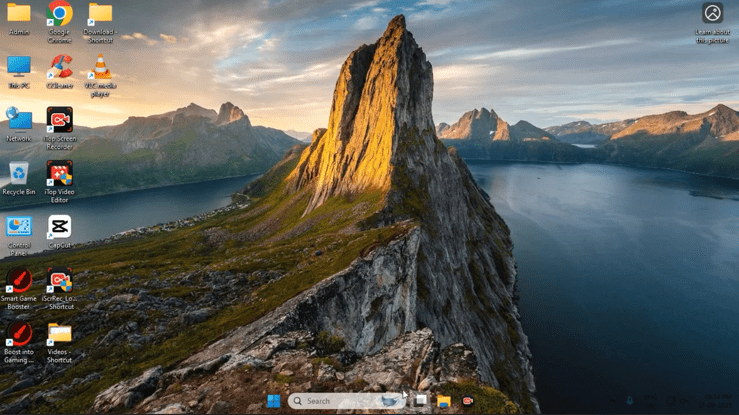
Windows 11 has brought a fresh and elegant design compared to older versions of Windows. Rounded corners, fluid animations, and centered taskbar icons already give it a modern look. But what if you could make the taskbar itself transparent, leaving only the icons visible?
This simple customization can add a touch of minimalism and make your desktop feel cleaner and more futuristic. Thankfully, with a free tool available on the Microsoft Store, you can achieve this effect in just a few minutes. In this article, we’ll guide you through the full process step by step.
1. Why Customize the Taskbar in Windows 11
Before diving into the installation process, it’s worth understanding why many users prefer a transparent taskbar.
- Aesthetic appeal: A transparent taskbar blends with your wallpaper, making icons look like they float on the screen.
- Minimalistic design: Reducing visual clutter helps create a cleaner workspace.
- Focus on content: When the taskbar fades into the background, your desktop and apps stand out more.
Windows 11 does offer some transparency effects by default, but they are limited and often look more like frosted glass than true transparency. That’s where TranslucentTB comes in.
2. Introducing TranslucentTB
TranslucentTB is a lightweight, free application available on the Microsoft Store. It’s designed to give you control over the appearance of your Windows taskbar.
With this tool, you can:
- Make the taskbar fully transparent.
- Apply blur effects similar to Windows Aero Glass.
- Set different looks depending on whether a window is maximized or minimized.
- Reduce distractions while keeping functionality intact.
👉 Official Microsoft Store Link: TranslucentTB
Let’s move to the installation part so you can start customizing right away.
3. Step-by-Step Guide to Installing TranslucentTB
Getting started is easy. Just follow these steps carefully:
- Open Microsoft Store
- Click on the Start Menu and type “Store” in the search bar.
- Select Microsoft Store from the results.
- Search for TranslucentTB
- In the Store’s search bar, type TranslucentTB.
- Look for the app with its official icon.
- Download and Install
- Click on the app result.
- Press the Get button, then wait for the installation to complete.
- Launch the App
- Once installed, click Open.
- The taskbar will instantly become transparent or apply the chosen effect.
That’s it—you now have a transparent taskbar! But there’s more to explore, so let’s look at the features.
4. Exploring Key Features of TranslucentTB
After installation, you’ll notice that the taskbar reacts immediately. But TranslucentTB offers much more than just a simple toggle.





Some of its key features include:
- Dynamic states: Change the taskbar look depending on your current activity (desktop, maximized app, or start menu open).
- Blurred transparency: Instead of fully transparent, you can add a smooth blur effect for a premium feel.
- Accent color customization: Choose whether to show or hide Windows accent colors on the taskbar.
- Lightweight performance: The app runs in the background without slowing down your PC.
So far, we’ve done a good job setting up the basics. Now, let’s move to customization options.
5. Customizing Transparency Modes
TranslucentTB gives you full control over how transparent you want your taskbar to be. Here are some popular modes you can experiment with:
- Clear Mode: Makes the taskbar fully invisible, showing only your icons.
- Blur Mode: Adds a frosted glass look, similar to Windows Aero Glass from older versions.
- Normal Mode: Keeps the standard Windows taskbar but with some tweaks.
- Dynamic Mode: Automatically changes transparency depending on whether a window is maximized.
👉 Example: You might prefer a clear taskbar when working on the desktop but a blurred taskbar when watching videos in fullscreen. TranslucentTB allows this level of customization.
6. Tips for Best Results with Transparent Taskbar
To get the most out of TranslucentTB, consider these tips:
- Use a dark wallpaper if you want your icons to pop.
- Pair with Windows 11’s accent color settings for a cohesive look.
- Enable Dynamic Mode if you switch between apps and desktop frequently.
- Check startup settings so the app runs automatically whenever your PC boots.
By tweaking these options, you’ll achieve a taskbar that feels like a natural part of your system rather than an add-on.
7. Troubleshooting Common Issues
Sometimes, users may encounter small issues while using TranslucentTB. Here’s how to solve them:
- App doesn’t start automatically: Go into settings and enable “Run at startup.”
- Taskbar becomes unreadable: Switch from Clear Mode to Blur Mode for better visibility.
- App crashes: Reinstall from Microsoft Store and make sure your Windows is updated.
Most of these problems are minor and can be resolved in a couple of clicks.
8. Frequently Asked Questions
Q1: Is TranslucentTB safe to use?
Yes, since it’s available on the official Microsoft Store, it has been verified for security.
Q2: Does it affect system performance?
No. TranslucentTB is lightweight and designed to run in the background without consuming noticeable resources.
Q3: Can I uninstall it easily?
Yes. Simply go to Settings > Apps, find TranslucentTB, and uninstall it.
Q4: Does it work on Windows 10 as well?
Yes, but the effect looks best on Windows 11 due to its modern UI design.
9. Final Thoughts
Customizing your Windows 11 desktop can make your system feel personal and refreshing. By using TranslucentTB, you can transform the default taskbar into a sleek, transparent bar that highlights your icons and wallpaper.
The process is simple, the app is free, and the results are visually striking. Whether you want a futuristic floating look or a subtle blur, this tool gives you complete control over your taskbar’s appearance.
So, if you’ve been looking for a way to make Windows 11 even more stylish, this small change can make a big difference.
Disclaimer
TranslucentTB is a third-party tool available via the Microsoft Store. While it is widely used and verified by Microsoft for distribution, always ensure you download such tools only from trusted sources to avoid security risks.
Tags
Windows 11, Transparent Taskbar, TranslucentTB, Windows Customization, Microsoft Store Apps, Taskbar Tweaks, Desktop Personalization
Hashtags
#Windows11 #Taskbar #Customization #TranslucentTB #MicrosoftStore #WindowsTips






