Hey everyone, and welcome to dtptips! If you’ve ever wondered whether you should update your laptop’s BIOS, the answer is—yes, but with caution. While Windows updates are quite common and often automated, BIOS updates are usually neglected—even though they can fix bugs, improve system stability, enhance performance, and ensure compatibility with new hardware.
In this ultimate step-by-step guide, we’ll walk you through how to safely update the BIOS on major laptop brands—HP, Dell, Lenovo, ASUS, MSI, and Acer. Let’s also talk about the precautions you MUST take before touching that update button!
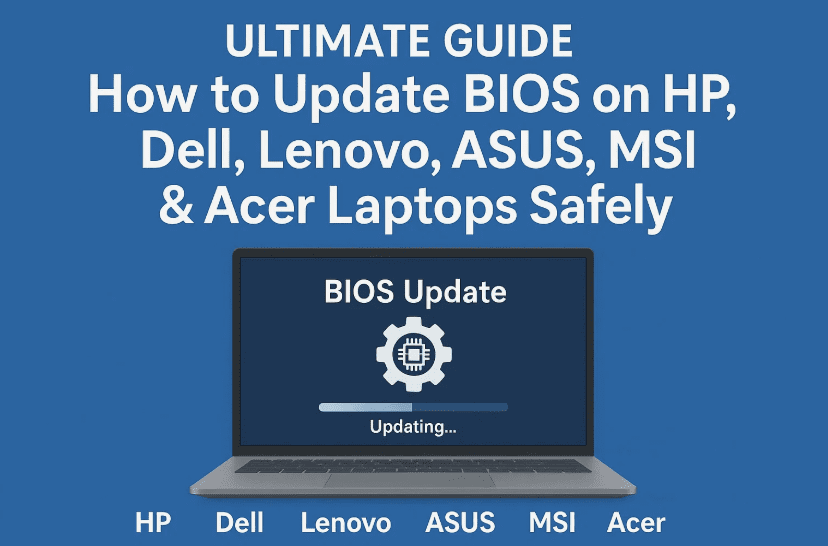
⚠️ Important Precautions Before Updating BIOS
Before jumping into the actual update process, let’s get this out of the way. These precautions are critical—don’t skip them.
- 🔌 Plug in your laptop to a power source. Never try to update BIOS on battery—power loss during update can corrupt your system.
- 🔐 Don’t turn off your device or press the power button during the update process.
- 📦 Back up your data, especially if you’re doing manual BIOS updates with a USB drive.
- 🌐 Close all other apps and let the BIOS update run undisturbed.
🖥️ How to Update BIOS on HP Laptops
Let’s begin with HP, one of the most common brands out there.
Step-by-Step:
- Open “HP Support Assistant“:
- Use the search bar to find “HP Support Assistant” and launch it.
- Go to “Software and Drivers” tab:
- You’ll see all available updates for your system.
- Look for BIOS Update:
- If a new BIOS version is available, it will be listed.
- If not, your BIOS is already up to date.
- Download & Install:
- Click the download/install button.
- Follow the prompts. It may ask you to restart the system.
- Restart and Wait:
- The laptop will restart several times during the update.
- Do not unplug it or press any buttons until it returns to your desktop.
💻 How to Update BIOS on Dell Laptops
Dell offers both a software and manual method, but here’s the cleanest approach.
Step-by-Step:
- Visit the Dell Support Website:
- https://www.dell.com/support
- Let the website auto-detect your device or enter your service tag.
- Go to “Drivers & Downloads” section.
- Filter by “BIOS” category on the left panel.
- Download the latest BIOS update file:
- Run the
.exefile after download. - The system will restart and install the update.
- Run the
📝 Note: Dell’s Support Assist app exists, but it can sometimes be buggy. The website method is preferred.
💼 How to Update BIOS on Lenovo Laptops
Lenovo makes it super easy thanks to their software called Lenovo Vantage.
Step-by-Step:
- Launch Lenovo Vantage (pre-installed on most models).
- Click on “System Update” in the sidebar.
- Click “Check for Updates”.
- If a BIOS update is available, it will show up here. Click “Install”.
If Vantage doesn’t work:
- Visit https://support.lenovo.com
- Enter your model number or let the site detect your system.
- Go to Drivers & Software > BIOS & Firmware and download the latest version manually.
🎮 How to Update BIOS on ASUS Laptops (TUF & Thin-and-Light)
ASUS provides two apps for this:
- Armoury Crate for gaming laptops
- MyASUS for ultrabooks/thin & light models
Using Armoury Crate:
- Open Armoury Crate.
- Go to Settings > Update Center.
- Click Check for Updates and install if BIOS is listed.
Using MyASUS:
- Open MyASUS App.
- Click on System Update.
- It’ll automatically check and show BIOS updates if available.
📌 If both apps don’t show updates:
- Visit https://www.asus.com/support
- Enter your model and download BIOS manually under “BIOS & Firmware.”
🛠️ How to Update BIOS on MSI Laptops
MSI’s BIOS update process is a little different and requires a USB flash drive.









Step-by-Step:
- Download the BIOS file:
- Go to https://www.msi.com/support
- Enter your laptop model and download the latest BIOS under “BIOS”.
- Extract and Copy Files to USB:
- Format a USB drive to FAT32.
- Copy the extracted BIOS files into the root directory.
- Reboot and Enter BIOS:
- Press
DELorF2key while booting to enter BIOS.
- Press
- Go to Advanced > UEFI BIOS Update:
- Choose your USB and select the BIOS file.
- Proceed with update, press OK, and wait for the system to restart.
📖 MSI often includes a PDF guide with the BIOS download—follow it closely.
💡 How to Update BIOS on Acer Laptops
Acer laptops may or may not have a pre-installed BIOS updater.
Option 1: Check Acer Support Site
- Visit https://www.acer.com/ac/en/IN/content/drivers
- Enter your laptop’s serial number or model name.
- Go to the BIOS section and download the update file if available.
Option 2: Manual USB Method (Similar to MSI)
- Extract the downloaded BIOS file to a USB drive (formatted to FAT32).
- Reboot and press
F2orDELto enter BIOS. - Look for the update utility and proceed with the file selection and flashing.
⚠️ Some older Acer models may not receive BIOS updates. If yours doesn’t show anything on the website, your model might be phased out.
Read more … Should You Update Your BIOS? A Complete Guide with Warnings, Benefits & Recovery Options
🤔 FAQs
Q1: Is it safe to update BIOS?
Yes—if done carefully. Always ensure the laptop is plugged in and follow official instructions.
Q2: Can BIOS update cause data loss?
No, but if done incorrectly or interrupted, it can cause boot issues or corruption. Backups are recommended.
Q3: How often should I update BIOS?
Only when necessary—like fixing bugs, hardware compatibility issues, or suggested by the brand.
Q4: What happens if BIOS update fails?
Your PC might fail to boot. Some systems have BIOS recovery tools, but service center help may be required.
🧩 Final Thoughts
Updating your BIOS may sound intimidating, but with the right steps—and patience—it’s very doable. Just remember: Always plug in your laptop, follow the instructions specific to your brand, and don’t panic if the screen goes black during update—it’s normal.
If you found this guide helpful, don’t forget to share it with friends who might be struggling with outdated BIOS versions.
Stay updated, stay optimized—only on dtptips!
Tags:
BIOS update, HP BIOS, Dell BIOS, Lenovo BIOS, ASUS BIOS, MSI BIOS, Acer BIOS, laptop optimization, firmware update, system maintenance
Hashtags:
#BIOSUpdate #LaptopTips #WindowsOptimization #dtptips #FirmwareUpgrade #LaptopMaintenance







