In 2025, ensuring online privacy and bypassing internet restrictions is more critical than ever. A VPN (Virtual Private Network) helps you encrypt your data, mask your location, and access blocked websites securely. If you’re looking for a 100% free VPN solution that still works, this guide will walk you through setting up a free VPN using VPN Gate — a trusted public VPN service — without installing any third-party apps.
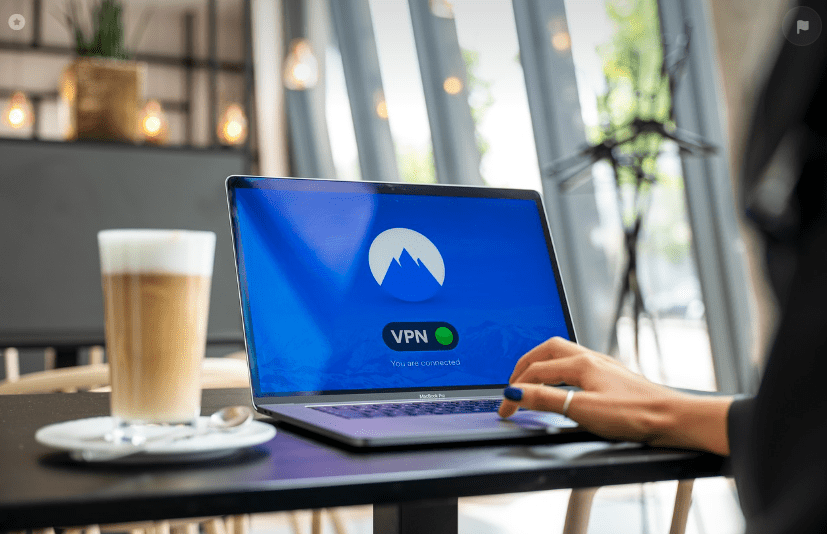
🔒 Why Use a VPN in 2025?
Using a VPN in 2025 is not just about streaming restricted content — it’s about protecting your personal data in an increasingly monitored online environment.
Key Benefits:
- Hide your real IP address
- Encrypt your internet activity
- Bypass geo-restrictions (e.g., access websites available only in other countries)
- Stay secure on public Wi-Fi networks
- Browse anonymously
While many VPNs are paid or require subscriptions, VPN Gate offers a community-powered, no-cost option.
🧩 Step-by-Step Guide to Set Up VPN Gate on Windows 11/10
Step 1: Open VPN Settings in Windows
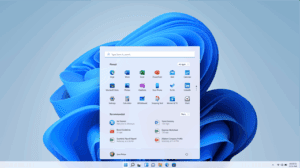
- Right-click on the Start Menu (Windows icon).
- Click on Settings.
- From the left-hand menu, go to Network & Internet.
- Select VPN from the options.
- Click on Add VPN.
Step 2: Configure VPN Settings
- VPN Provider: Select Windows (built-in).
- Connection Name: You can name it anything, e.g.,
MyFreeVPN. - Server Name or Address:
- Open your browser and go to https://www.vpngate.net/en/.
- Scroll to the list of public VPN servers.
- Choose a server with high speed and uptime.
- Copy the IP address (left-most column) of your preferred server.
- Paste it into the “Server Name or Address” field.
- VPN Type: Select Secure Socket Tunneling Protocol (SSTP).
- Type of Sign-in Info: Choose Username and Password.
- Username:
vpn - Password:
vpn - Click on Save.
Step 3: Connect and Verify
- Your VPN profile is now created.
- Click Connect to initiate the VPN.
- To confirm your IP has changed:
- Visit https://whatismyipaddress.com.
- Compare your current IP location — it should reflect the VPN server’s region (e.g., Japan, USA, Germany, etc.).
🌍 How to Switch VPN Locations
Want to connect to another country?
- Visit VPN Gate Public Server List.
- Pick a different server IP.
- Repeat the steps to create a new VPN connection or edit the existing one by:
- Clicking the dropdown arrow next to your VPN profile
- Selecting Advanced Options > Edit
You can store multiple profiles for different countries.
⚠️ Troubleshooting Tips
- If the VPN fails to connect or blocks your internet:
- Disconnect and try another server IP.
- Change the VPN Type (e.g., from SSTP to L2TP/IPSec) to see what works best.
- Some servers may be temporarily down or slow — just pick another one from the list.
🧠 Final Thoughts
This method is ideal if you’re looking for a lightweight, cost-free VPN solution in 2025. It doesn’t require installing third-party apps and offers access to dozens of international VPN servers. Whether you’re working remotely, streaming blocked content, or just browsing securely — this setup has you covered.
🔗 Useful Links:
🏷️ Tags:
free vpn setup, windows vpn 2025, vpn gate tutorial, secure internet connection, bypass geo-restrictions, vpn for streaming, vpn without software, vpn for windows 11, vpn for beginners
📌 Hashtags:
#FreeVPN #WindowsVPN #VPNGate #OnlinePrivacy #SecureBrowsing #BypassRestrictions #VPN2025 #TechTips #CyberSecurity #InternetSafety
📢 Disclaimer:
This article is for educational purposes only. VPN Gate is a public research project and should be used responsibly. Accessing content that violates terms of service or regional laws may have legal implications. Always respect the legal and ethical boundaries of internet usage in your country.