Biometric devices have become an essential part of modern authentication — whether it’s for Aadhaar-based eKYC, CSC work, government services, or digital attendance systems. Among them, the Morpho RD L1 fingerprint scanner is one of the most widely used and reliable devices in India.
If you’ve recently purchased a Morpho L1 or RDL1 device and want to install it on your Windows 10 PC, this article will guide you through every step — from downloading the official driver to configuring the correct date, time, and regional settings so that the device works flawlessly.
Let’s begin the process and make sure your Morpho device runs smoothly on your system.
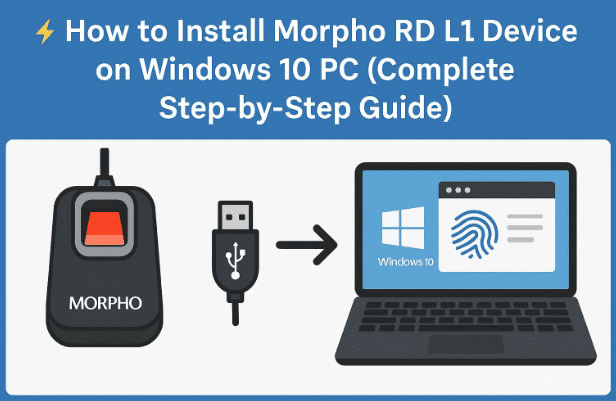
1. What is the Morpho RD L1 Device?
Before we dive into installation, let’s understand what the Morpho RD L1 actually is.
The Morpho RD L1 (also known as Safran Morpho or Idemia Morpho) is a registered biometric fingerprint scanner used for identity verification in government and private services.
It’s compatible with Aadhaar Authentication, Jeevan Pramaan, CSC eKYC, UIDAI, and other biometric-based platforms that require registered fingerprint verification.
🔍 Key Features:
- High-quality optical fingerprint sensor
- UIDAI and STQC certified
- Works on Windows, Android, and Linux
- Supports Registered Device (RD) Service
- Plug-and-play compatibility with supported drivers
Price-wise, it generally costs between ₹3000–₹3500 in offline markets, depending on the distributor and included cable/stand accessories.
2. System Requirements
Before installation, make sure your computer meets the basic requirements for running the RD service and driver.
| Requirement | Minimum Specification |
|---|---|
| Operating System | Windows 10 (32-bit or 64-bit) |
| Processor | Intel Dual-Core or higher |
| RAM | 2 GB or more |
| Internet Connection | Required for downloading drivers |
| USB Port | At least one available USB 2.0/3.0 port |
| Administrator Access | Needed to install drivers |
💡 Tip: Disable any third-party antivirus during installation to avoid accidental blocking of the driver setup files.
3. Step 1: Download the Morpho RD L1 Driver
The first step is to download the official Morpho RD Service driver for Windows 10. This driver allows your PC to recognize and communicate with the biometric device.
🔽 Steps to Download the Driver:
- Open Google Chrome (or any browser) on your computer.
- In the search bar, type:
“Morpho RD Service Windows 10” or “Morpho L1 device driver download”. - You’ll see several results, but always choose the official Morpho / Idemia website.
- Official website: https://rdserviceonline.com
- On the page, look for the section titled “Downloads” or “Windows Driver”.
- You’ll find the Morpho RD Service Installer (for L0, L1, or RDL1 devices).
- Click Download and wait for the process to complete.
Once downloaded, the installer file will appear in your Downloads folder (usually named something like MorphoRdServiceL1Setup.exe).
🕒 The download size is typically between 25–50 MB, so ensure you have a stable connection.




4. Step 2: Adjust Date and Time Settings
Before you install the driver, it’s important to check your system’s date, time, and region settings. This is a common reason why many users face errors like “Device not initialized” or “RD Service not working.”
Morpho RD services communicate securely with UIDAI servers, and if your system clock isn’t correct, the authentication fails.
🧭 Steps to Fix Date & Time:
- Click the Date/Time section on the bottom-right of your Windows taskbar.
- Select “Adjust date and time.”
- Ensure the option “Set time automatically” is ON.
- Scroll down and check Time zone — make sure it’s set to:
UTC+05:30 Chennai, Kolkata, Mumbai, New Delhi. - Finally, click Sync now to correct your system time.
✅ Once done, restart your PC to apply the changes.
💬 Why is this important?
Morpho RD verification depends on secure timestamping. An incorrect time zone can prevent RD services from working properly, especially during eKYC or Aadhaar authentication.
5. Step 3: Install the Morpho Driver Package
Now that your date and time are configured, let’s install the driver you downloaded earlier.
⚙️ Installation Steps:
- Navigate to your Downloads folder.
- Right-click the file
MorphoRdServiceL1Setup.exe→ select Run as Administrator. - The installation wizard will open. Click Next to continue.
- Accept the License Agreement.
- Choose the default installation path (don’t change it unless you’re an advanced user).
- Click Install and wait until the process finishes.
- Once done, click Finish to close the setup.
🎉 Congratulations — the Morpho driver is now installed on your PC!
6. Step 4: Connect the Morpho Device to Your PC
Now it’s time to plug in the actual biometric device and let Windows detect it.
🧩 Follow These Steps:
- Take your Morpho RD L1 device and connect it to an available USB port on your computer.
- Wait for a few seconds. You’ll notice a small light on the device turning on.
- Windows should automatically recognize it and display a notification like:
“Setting up device — Morpho RD Service installed successfully.” - If you see this message, it means your installation is successful.
💡 Pro Tip: Avoid connecting the device through external USB hubs or extension cables — plug it directly into your PC’s port for stable detection.
7. Step 5: Verify Device Installation
Now that the device is connected, let’s confirm that the RD Service is running correctly.
✅ Verification Process:
- Open Google Chrome again.
- Type this in the address bar:
https://localhost:11100 - Press Enter.
- If the driver is installed properly, you’ll see a webpage showing device details such as:
- Device serial number
- Manufacturer: Morpho / Idemia
- RD Service version
- Registered status: Yes
If you see this information, congratulations — your Morpho L1 device is fully functional!
8. Step 6: Troubleshooting if Device Doesn’t Work
Sometimes, even after installation, the device may not work correctly or show as “device not detected.” Let’s address common issues and their fixes.
⚠️ Common Problems & Fixes
Problem 1: RD Service Not Running
- Open Task Manager (Ctrl + Shift + Esc) and check if MorphoRdService is active.
- If not, go to Start → Services → Morpho RD Service → Start.
Problem 2: Fingerprint Not Capturing
- Check if your USB port is functioning correctly. Try another port.
- Make sure your finger is clean and dry before scanning.
Problem 3: Windows Update Needed
- If RD Service still fails, update your Windows 10 to the latest version.
- Go to Settings → Windows Update → Check for updates.
Problem 4: Device Detected But Not Working with eKYC Apps
- Reboot your system.
- Ensure date/time and timezone are correct (very important).
- Reinstall the Morpho RD Service as administrator.
💬 Tip: After reinstalling, clear your browser cache and relaunch any Aadhaar-based portal before testing again.
9. FAQs About Morpho RD L1 Installation
Q1. Is the Morpho RD L1 compatible with Windows 11?
Yes, the driver works with both Windows 10 and 11. Just make sure to download the latest RD Service version from the official website.
Q2. Why does my Morpho device show “Not Registered”?
It means the RD Service is not activated. You must connect the device to the internet once and allow it to auto-register with UIDAI servers.
Q3. Can I use the same device on multiple computers?
Yes, but each system must have the RD Service installed. You can plug and play after setup.
Q4. How do I check my RD Service version?
Visit https://localhost:11100 and scroll through the XML page. The version number will be listed near the top.
Q5. My RD Service stops after restart — what to do?
Set the service to automatic:
- Press Win + R, type
services.msc. - Find Morpho RD Service → right-click → Properties.
- Set Startup type to Automatic.
10. Final Tips and Best Practices
So far, we’ve covered all the steps to successfully install the Morpho RD L1 device on a Windows PC. Let’s wrap up with some quick tips to ensure your device works reliably over time.
- Always use the official Morpho RD driver. Avoid third-party links or cracked installers.
- Keep your Windows up to date. Security patches improve USB device stability.
- Don’t remove the device during scanning. Wait until the capture process is complete.
- Re-register RD Service periodically (every few months) to keep your device active.
- Use stable power sources. Sudden disconnections can corrupt the driver.
Following these best practices ensures your Morpho RD L1 device runs error-free for years.
11. Disclaimer
This article is meant for educational and technical setup guidance only. The installation process described here applies to genuine Morpho / Idemia biometric devices purchased through authorized resellers. Always download software from verified official sources such as https://rdserviceonline.com or your manufacturer’s support page.
Improper handling or use of unofficial drivers may cause malfunction or data security issues.
Tags: Morpho L1 installation, RD service setup, biometric device driver, Windows 10 RD service, Idemia fingerprint scanner, CSC eKYC setup, Aadhaar RD service, biometric installation guide
Hashtags: #MorphoL1 #RDService #BiometricSetup #Windows10 #Idemia #FingerprintScanner #TechGuide #AadhaarDevice #DeviceInstallation #MorphoDriver








