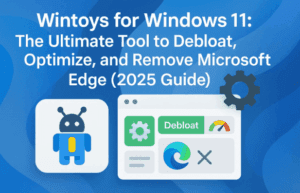
If you use Windows 10 or 11 daily, you’ve probably wished for a single app that gathers all the scattered system settings, performance tweaks, and privacy options into one clean interface. That’s exactly what WinToys does—and with its new version 2.0 update, it has become even more powerful.
In this blogpost, we’ll dive deep into what makes WinToys so essential, explore its new features, and walk step by step through how you can use it to optimize performance, remove unwanted apps like Microsoft Edge, and take more control over Windows.
1) 🖥️ What Is WinToys?
WinToys is a free Windows optimization and tweaking application available directly from the Microsoft Store. It centralizes dozens of hidden or hard-to-find system settings, allowing you to:
- Optimize performance with one click.
- Control Windows updates (security only, manual, or default).
- Manage startup apps and background services.
- Disable ads, telemetry, and privacy-invading features.
- Apply practical tweaks like disabling the Settings app homepage.
With WinToys you can change Windows settings in a friendly interface. It’s like having the Control Panel, Task Manager, Group Policy, and Registry Editor—all in one organized dashboard. Also, if you are intrested you can also check other windows optimized like;-
- ✨ Seelen UI: The Easiest Way to Transform Your Windows 11 Desktop (Free & Open-Source)
- 🎨 WinAero Tweaker: The Complete Guide to Unlocking Hidden Windows Features
- Customize Windows 11 Taskbar, Start Menu, and More with Windhawk
- Atlas OS: The Advanced Windows 11 Optimizer You Need to Know
- RyTuneX: The Ultimate Windows Optimizer Tool You Must Try
- Windows being Slow and Slower: Best Windows Optimizers You Actually Need in 2025
- or you can check the complete list of such articles!
2) 📥 How to Download and Install WinToys
The safest way to install WinToys is via the Microsoft Store:
- Open the WinToys Microsoft Store page.
- Click Get and allow it to install.
- Once installed, launch the app from Start Menu → WinToys.
WinToys is lightweight, doesn’t run in the background unless you open it, and doesn’t clutter your system.
3) 🆕 WinToys 2.0 Overview and New Features
With version 2.0, WinToys received:
- A new logo and refreshed UI.
- Updated compatibility with Windows 11 24H2.
- Expanded Tweaks section, now including DMA (Digital Markets Act) controls.
- Improved Health section for cleaning up disk space and managing updates.
On the homepage, you’ll see:
- System information (Windows version, specs).
- A sidebar with sections: Apps, Services, Performance, Health, Tweaks.
This structure makes it simple to navigate, even if you’re not a power user.
4) ⚡ Performance Settings That Actually Matter
Let’s start with Performance, where most users will spend time.
Here you can:

- Enable/disable Ultimate Power Plan → Unlocks the maximum system performance profile.
- Toggle VBS (Virtualization-Based Security) → Improves security but may cost performance; disable if you want raw speed.
- Manage startup apps → Similar to Task Manager but often shows more entries, giving you greater control.
- Disable Activity History → Prevents Windows from tracking your app/file usage.
- Control background apps → Stop apps you don’t use from running in the background.
- Gaming tweaks → Enable/disable Game Mode, disable Xbox-related services if not needed.
So far we’ve done a good job exploring performance tweaks—let’s move to system health.
5) 🧹 System Health and Cleanup Tools
The Health tab isn’t just about hardware—it’s about keeping Windows lean.
Here you’ll find:
- System cleanup options to remove temporary files and unnecessary clutter.
- Windows update controls →
- Default: All updates, including features.
- Security only: Just the important patches, no feature bloat.
- Manual: You decide when updates install.
This gives you a balance between stability and control—especially useful if you want to avoid constant feature updates.
6) 🔧 Tweaks That Make Windows Feel Better
Here’s where WinToys gets fun: the Tweaks section.
Some practical examples:
- Disable Settings App Homepage → Speeds up launch, removes ads/recommendations.
- Rebind Print Screen to Snipping Tool → Instantly launches Snip & Sketch when pressing PrtScn.
- Alt+Tab behavior → Limit how many apps show when switching.
- Disable Advertising ID & suggestions → Stops Windows from profiling you for recommendations.
These may sound small, but together they create a smoother, less annoying experience.
7) 🚫 The Digital Markets Act (DMA) Mode: Uninstall Microsoft Edge
One of the biggest new features in WinToys 2.0 is support for DMA Mode.
The Digital Markets Act is a European law that requires big tech companies like Microsoft to give users more freedom. In practice, it means:
- In Europe, Windows now lets you uninstall Microsoft Edge and other bundled apps.
- With WinToys, you can enable this mode anywhere—even outside Europe.
That means if you’ve always wanted to uninstall Microsoft Edge completely, you can now do it.
Other apps you can remove:
- Camera
- Microsoft Store (advanced users only; not recommended for most)
This puts real control back in your hands.
8) 🔒 Privacy & Security Controls
WinToys also gives you a clean dashboard for privacy settings:
- Disable Telemetry → Stop data collection.
- Turn off Suggestion Notifications.
- Disable Background Sync for things like Clipboard.
- Turn off Location & Sensors if you don’t use them.
Each option includes a short description, so you know exactly what it does before enabling/disabling.
9) 🧑💻 Real-World Example: Faster Settings App
Here’s a great example of a small tweak with a big payoff.
- By default, when you open Windows Settings, it loads a homepage with recommendations.
- This homepage is slow to load because Windows is trying to profile your activity.
- With WinToys, you can disable the homepage.
- Result: Settings app opens instantly, taking you straight to the sections you actually want.
This is just one example of how a single checkbox can make Windows feel lighter.
10) ❓ Frequently Asked Questions
Q1. Is WinToys free?
Yes, it’s free and available officially from the Microsoft Store.
Q2. Is it safe?
Yes. WinToys only changes existing Windows settings. You can always reset tweaks or uninstall the app.
Q3. Can I uninstall Microsoft Edge anywhere?
Yes—using the new DMA Mode, even outside Europe.
Q4. Does it run in the background?
No, it only runs when you open it.
Q5. Can I undo changes?
Yes. Most tweaks are reversible. If unsure, create a System Restore Point first.
11) ⚠️ Disclaimer
WinToys modifies real system settings. While safe, some tweaks (like disabling VBS or uninstalling system apps) may affect security or stability. Always:
- Read descriptions before applying changes.
- Avoid uninstalling critical apps unless you’re sure.
- Create a restore point if experimenting.
Tags
WinToys, Windows 11 optimization, Windows tweaks, Windows performance, disable Microsoft Edge, Digital Markets Act, Windows privacy, Windows optimizer, Microsoft Store apps
Hashtags
#Windows11 #Windows10 #WinToys #Optimization #Privacy #MicrosoftEdge #DMA #WindowsTweaks







