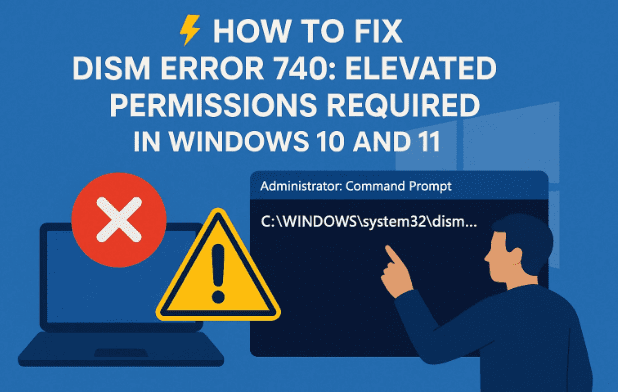
When running system repair commands in Windows—especially DISM (Deployment Imaging Service and Management Tool)—you may encounter the following error:
Error: 740

Elevated permissions are required to run DISM.
Use an elevated command prompt to complete these tasks.
At first glance, this can look confusing, especially if you’re not sure what “elevated permissions” means. But don’t worry—this is one of the easier errors to fix, and in this article, I’ll walk you through what it means, why it happens, and the multiple ways to solve it.
By the end of this guide, you’ll not only be able to fix Error 740, but also understand how to properly run DISM and SFC commands to keep your Windows system healthy.
📌 What Is DISM and Why Do We Use It?
Before fixing the error, let’s first understand the tool we’re working with.
DISM stands for Deployment Imaging Service and Management Tool. It’s a built-in Windows utility used for:
- Repairing corrupted Windows system images.
- Checking the health of your installation.
- Preparing and managing Windows installation images (.wim).
- Working alongside SFC (System File Checker) to fix corrupted files.
In short: DISM is like a repair toolkit for Windows itself. When your PC misbehaves due to corrupted system files, DISM is the command that comes to the rescue.
Common commands include:
DISM /Online /Cleanup-Image /CheckHealth
DISM /Online /Cleanup-Image /ScanHealth
DISM /Online /Cleanup-Image /RestoreHealth
Each of these checks your system at different levels—from quick scans to deep health restorations.
🔎 Why Does Error 740 Occur?
The message clearly says it:
Elevated permissions are required.
That means DISM needs administrator privileges to run. If you open Command Prompt normally (without admin rights), Windows blocks access to certain system functions—hence, Error 740.
So in simple words:
➡️ The error is not caused by DISM itself, but because you didn’t run it as Administrator.








🛠️ Fixing DISM Error 740 (Step-by-Step)
Let’s now go through the methods to run DISM properly and resolve this error.
1. Run Command Prompt as Administrator
This is the most straightforward solution.
- Click on the Start Menu (Windows icon).
- Type cmd or Command Prompt in the search bar.
- From the results, right-click Command Prompt and select Run as administrator.
- A User Account Control (UAC) pop-up will appear—click Yes.
- Now, your Command Prompt will open with elevated privileges.
Try running the command again:
DISM /Online /Cleanup-Image /CheckHealth
👉 This time, the error should not appear.
2. Use Windows PowerShell with Admin Rights
If you prefer PowerShell, it works the same way.
- Press Windows + X and choose Windows PowerShell (Admin) or Terminal (Admin) in Windows 11.
- In the blue/black PowerShell window, type:
DISM /Online /Cleanup-Image /CheckHealth
- Press Enter and let it complete.
PowerShell with admin rights works just like Command Prompt in elevated mode.
3. Use Windows Terminal (Windows 11 Users)
Windows 11 replaced Command Prompt shortcuts with Windows Terminal, but the concept is the same.
- Press Windows + X and click Windows Terminal (Admin).
- Inside the terminal, you can switch between Command Prompt and PowerShell tabs.
- Run your DISM commands normally.
4. Run DISM via Task Manager
If for some reason the Start Menu isn’t working, you can open an elevated command line via Task Manager.
- Press Ctrl + Shift + Esc to open Task Manager.
- Click File → Run new task.
- Type
cmd. - Check the box Create this task with administrative privileges.
- Click OK.
A Command Prompt window with admin rights will open, and you can run DISM without Error 740.
⚙️ Example: Correct Usage of DISM Commands
Once you’ve opened an elevated command prompt, here are the key DISM commands you can run to check and fix Windows system files:
- Check for corruption quickly:
DISM /Online /Cleanup-Image /CheckHealthThis only tells you if corruption exists, without fixing. - Scan for corruption in detail:
DISM /Online /Cleanup-Image /ScanHealthThis does a deeper scan but still doesn’t repair. - Repair Windows system image:
DISM /Online /Cleanup-Image /RestoreHealthThis not only scans but also repairs any corruption it finds.
⚠️ Pro Tip: Run sfc /scannow after DISM for complete repair coverage.
🧩 What If Running as Administrator Still Doesn’t Work?
In rare cases, you may still face issues even after running CMD as admin. Here are some additional checks:
- Check User Permissions: Make sure your account is an Administrator. Standard accounts cannot run elevated tasks.
- Disable Third-Party Security Tools: Some aggressive antivirus tools block system commands. Temporarily disable them and try again.
- Boot into Safe Mode: If Windows services are interfering, running DISM in Safe Mode with Networking often works.
- Use Windows Recovery Environment (WinRE):
- Restart your PC and hold Shift while clicking Restart.
- Go to Troubleshoot → Advanced options → Command Prompt.
- Run your DISM commands from there.
❓ Frequently Asked Questions
Q1. What does Error 740 mean?
It means you are trying to run a command that requires admin privileges, but you opened Command Prompt normally.
Q2. Will running as admin harm my system?
No. Running CMD as administrator is standard practice for system maintenance commands like DISM or SFC.
Q3. Can I fix Windows without using DISM?
Yes, but DISM is the most reliable way to repair corrupted system files. Alternatives include using System Restore or reinstalling Windows.
Q4. Should I always run DISM with admin rights?
Yes. DISM works on system-level files, so admin access is required.
✅ Final Thoughts
DISM is one of the most powerful tools in Windows, but to use it properly, you need to run it with elevated permissions. Error 740 simply reminds you that you forgot to open Command Prompt or PowerShell as an administrator.
By following the steps outlined above—running CMD as admin, using PowerShell, or even launching from Task Manager—you can easily fix this error and continue repairing your Windows system.
Always remember: when working with system repair commands, elevated permissions are a must.
Tags
DISM error 740, elevated permissions required, Windows 11 DISM fix, Command Prompt admin mode, SFC and DISM commands, Windows troubleshooting
Hashtags
#Windows11 #DISM #Error740 #TechFix #SystemRepair








