Windows users have always had a love-hate relationship with File Explorer. While it gets the job done, it has also been criticized for slow search performance, occasional freezes, and limited customization. Over the years, developers have created several alternatives like Files (the open-source explorer you may already know). But now, there’s a new player in town—File Pilot.
Unlike most alternatives, File Pilot focuses on speed, simplicity, and smoothness, making it feel even more native to Windows than File Explorer itself. Although still in beta (and currently free to try), the developers plan to make it a premium application once it hits stable release.
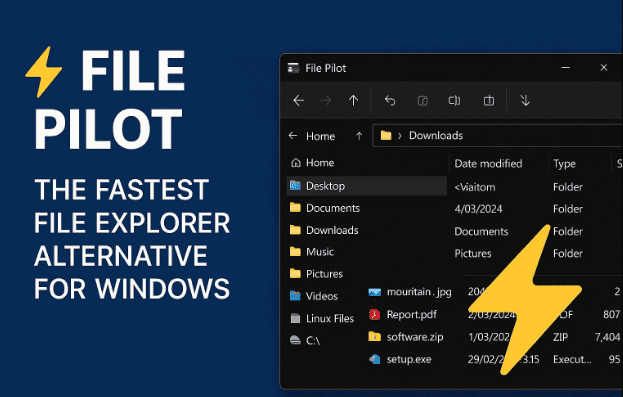
In this blogpost, we’ll break down everything you need to know about File Pilot: what makes it different, how to install it, its standout features like split view, blazing-fast search, and real-time navigation, plus a comparison with the traditional Windows File Explorer.
1) Why Look for a File Explorer Alternative?
Before we dive into File Pilot, it’s worth asking—why not just stick with the default File Explorer?
- Slow Search: Windows File Explorer search has long been criticized for lagging behind, even on SSDs.
- Limited Split View: Unlike Linux file managers (Nautilus, Dolphin), Windows doesn’t support multi-pane browsing natively.
- Occasional Freezes: Heavy directories or large file transfers can cause Explorer to hang.
- UI Stagnation: While Windows 11 polished the design, functionality remains similar to older versions.
This gap is exactly where File Pilot shines—faster, cleaner, and better for power users.
2) What Is File Pilot?
File Pilot is a modern Windows file manager designed with one primary goal: speed.
- It’s lightweight (just 1.8 MB installer size).
- It feels more responsive than Windows Explorer.
- It supports unique features like split view, instant search, and customizable layouts.
- It’s currently in beta and free to use, though developers have hinted that stable releases may require a paid license.
If speed and efficiency are what you want, this is one of the best tools to try.
3) How to Download and Install File Pilot
Getting started with File Pilot is straightforward:
- Visit the official site: filepilot.tech.
- Download the installer (only 1.8 MB).
- Run the setup like any normal Windows program.
- Launch File Pilot from the Start Menu or desktop shortcut.
Because it’s so lightweight, the installation is nearly instant.
4) Speed Test: File Pilot vs Windows Explorer
One of the first things you’ll notice is how quickly File Pilot launches compared to Explorer.
- File Pilot: Opens almost instantly.
- Windows File Explorer: Noticeable delay on some systems (especially with network drives or slower storage).
Even navigating folders feels snappier. File Pilot’s design prioritizes responsiveness, giving it a clear edge.







5) Lightning-Fast Search Performance
Searching in File Explorer has always been slow, indexing-based, and frustrating. File Pilot changes that.
- Instant Results: As you type, results appear in real time.
- No Indexing Delays: Unlike Explorer, File Pilot doesn’t wait for background indexing—it just works.
- Consistent Performance: Even large directories return results faster than expected.
This makes File Pilot a serious productivity booster for users who frequently need to find documents, code files, or assets.
6) Split View: Work with Multiple Panels at Once
Here’s one of File Pilot’s best features—Split View.
- You can split the window horizontally (top-bottom) or vertically (side-by-side).
- Each panel acts as an independent explorer, allowing drag-and-drop between panes.
- You can keep multiple splits open at once, depending on workflow.
This is particularly useful for:
- Developers managing multiple project folders.
- Designers moving assets between directories.
- Anyone tired of juggling multiple Explorer windows.
Windows Explorer doesn’t natively support this, making File Pilot stand out.
7) Customization and Font Controls
File Pilot isn’t just about speed—it also offers usability tweaks:
- You can change the font and font size.
- Adjust the interface to match your preference or accessibility needs.
- Match it with File Explorer’s size or make it larger for easier readability.
These customization options make the interface adaptable without being overwhelming.
8) Other Handy Features Worth Exploring
Apart from speed and split view, File Pilot offers:
- Smooth animations that feel native to Windows.
- Multiple splits for complex workflows.
- Simple options menu for quick adjustments.
- A “featherlight” memory footprint, keeping it responsive even on older hardware.
It doesn’t overload you with unnecessary gimmicks—it focuses on essentials done right.
9) Comparison Table: File Pilot vs Windows Explorer vs Files
| Feature | Windows Explorer | Files (Open-Source) | File Pilot (Beta) |
|---|---|---|---|
| Launch Speed | Moderate | Slower than Explorer | Instant |
| Search | Slow, indexing-based | Faster than Explorer | Real-time |
| Split View | ❌ Not supported | ✅ Supported | ✅ Supported (multiple modes) |
| File Size | Built-in | ~250 MB | 1.8 MB |
| Customization | Limited | Good (themes, tabs) | Moderate (fonts, layout) |
| Price | Free (built-in) | Free, open-source | Free in beta, paid planned |
10) Frequently Asked Questions (FAQ)
Q1. Is File Pilot free?
Currently, yes—it’s free in beta. Once stable, it may become paid software.
Q2. Does File Pilot replace File Explorer?
Not entirely. It works alongside File Explorer, so you can use both.
Q3. How does it compare to Files (open-source)?
Files is heavier but offers tabs and themes. File Pilot is faster and more lightweight.
Q4. Can I use it on Windows 10 and 11?
Yes, it works on both.
Q5. Is File Pilot safe?
Yes, as long as you download it from the official website.
11) Disclaimer
File Pilot is currently in beta stage. While stable in most use cases, there may be occasional bugs. Always download from the official site: filepilot.tech. Avoid third-party downloads to ensure security.
Tags
File Pilot, Windows File Explorer alternative, fastest file manager, Windows 11 tools, Windows productivity, File Pilot beta
Hashtags
#Windows11 #FilePilot #FileExplorer #Productivity #FileManager #WindowsTools








