If you’ve recently installed Windows Update KB5060829 and found yourself trapped in a frustrating cycle of missing taskbars, grey screens, or endless reboot loops—you’re not alone. This blog covers a complete step-by-step recovery and prevention guide from a real-life nightmare scenario. If you’re already dealing with this problem or want to avoid it entirely, this article can save you hours (or days) of troubleshooting.
🧠 What’s the Issue with KB5060829?
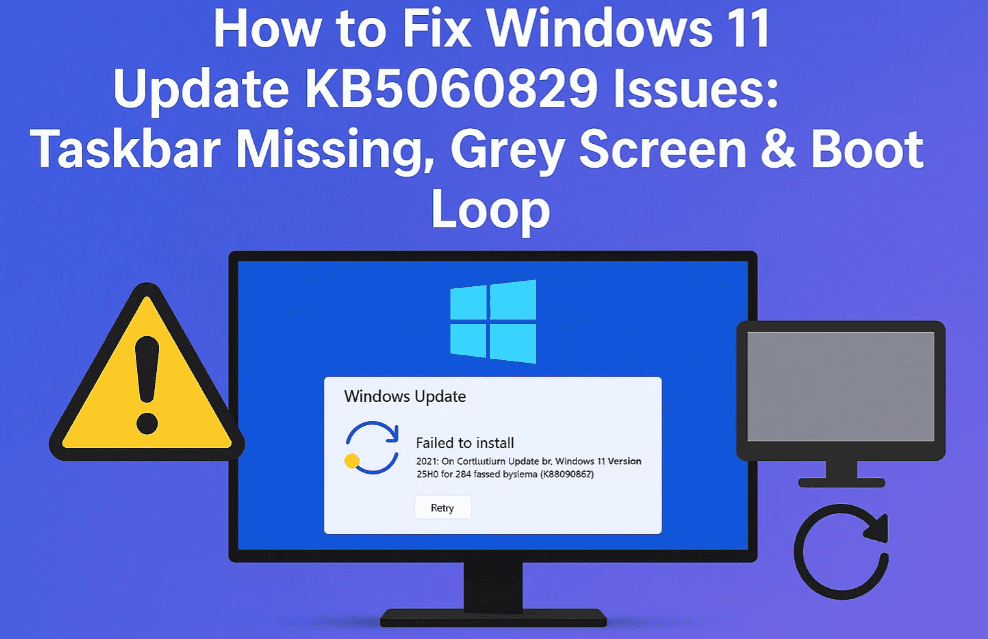
Windows Update KB5060829 has reportedly caused several critical issues, including:
- Disappearing taskbar
- Endless reboot loops
- Grey screen of death (GSOD)
- Paused/disabled update settings grayed out
- System restore points not working or unavailable
TL;DR: The update installs itself repeatedly, and once you uninstall it, it can break your Windows boot entirely.
🚨 Step-by-Step Fix: Stop and Remove KB5060829 Update
✅ Step 1: Disable Windows Update Service Temporarily
This step is essential before deleting any update files.
- Press
Win + R, typeservices.msc, and press Enter. - In the Services window, scroll down to Windows Update.
- Right-click > Properties
- Set Startup Type to Disabled
- Click Stop, then Apply and OK
⚠️ Warning: Microsoft may try to restart this service automatically, so continue quickly to the next steps.
✅ Step 2: Delete Update Files from SoftwareDistribution
These files contain the pending updates, including KB5060829.
- Open
File Explorerand navigate to:C:\Windows\SoftwareDistribution - Delete all files and folders inside this folder (not the folder itself).
- If any files don’t delete, ensure Windows Update service is still disabled.
Don’t worry—Windows will rebuild this folder on the next successful update cycle.
✅ Step 3: Prevent Automatic Reinstallation (Tricky Part)
You may find that Windows Update keeps reinstalling the broken update. Here’s how to block or delay it:
Option A: Use Pause Feature (If Enabled)
Sometimes the “Pause updates” option is grayed out. If it’s clickable:
- Go to Settings > Windows Update
- Click Pause updates for up to 4 weeks.
Option B: Unlock Extended Pause via Registry
To extend the pause duration beyond 4 weeks:
- Press
Win + R, typeregedit, press Enter. - Navigate to:
HKEY_LOCAL_MACHINE\SOFTWARE\Microsoft\WindowsUpdate\UX\Settings - Right-click in the right panel > New > DWORD (32-bit) Value
- Name it:
FlightSettingsMaxPauseDays - Double-click it and set value to:
Decimal: 365 (for 1 year) - Click OK and restart your PC.
✅ This prevents the update from reinstalling immediately and gives you time to wait for a safer patch.








✅ Step 4: (Optional) Enable Metered Connection
Setting your connection as metered may slow down update downloads:
- Go to Settings > Network & Internet
- Select your Wi-Fi or Ethernet
- Toggle Set as metered connection to ON
⚠️ Unfortunately, this didn’t work for everyone during KB5060829—but it’s worth trying.
🛑 Important Warnings
- Do not reboot immediately after deleting the update files, or you’ll likely face an “Install Error” that forces the update back.
- System Restore may not help, especially if you haven’t created restore points.
- Disabling Windows Update permanently isn’t always respected by Microsoft, especially on Windows 11 Home.
❓ Frequently Asked Questions (FAQ)
Q1: What happens if I uninstall KB5060829?
You might lose essential Windows functionality like the taskbar, or get stuck in a boot loop with a grey screen.
Q2: Is there an official fix from Microsoft?
As of now, no stable fix is available directly from Microsoft. The company has not acknowledged widespread taskbar or grey screen issues caused by this update.
Q3: Can I permanently block this specific update?
Yes, using Microsoft’s “Show or Hide Updates Tool.”
Download from:
👉 Microsoft Show or Hide Updates Troubleshooter
😩 Final Thoughts from a Real User
This isn’t a small bug—it’s a system-breaking problem that wastes your time and causes stress. Losing access to your desktop after a forced update is infuriating, and Microsoft really needs to improve testing before rolling out patches like KB5060829.
If you’re on Windows 11, keep an eye on update KB5060829 and seriously consider pausing updates or blocking this one specifically.
🔗 Helpful Links
🏷️ Tags
Windows 11, Windows update error, KB5060829, taskbar missing, grey screen, reboot loop, update uninstall, Windows registry, pause Windows updates, software distribution, fix Windows bugs
🔖 Hashtags
#Windows11 #KB5060829 #TaskbarMissing #GrayScreen #WindowsUpdateBug #MicrosoftFix #UpdateLoop #BootLoopFix #TechSupport #WindowsError
Disclaimer:
This guide is based on a real-world user experience with Windows Update KB5060829. Individual results may vary. Proceed with caution when editing registry or system files. Always create backups before making system changes.
If this article helped you, share it with other Windows users before they get stuck in the same loop! Have you experienced this bug? Let us know in the comments.








