Setting up a dual WAN router might sound complicated, but the Cudy R700 makes it surprisingly easy — even for home users. Designed for small offices, gamers, and professionals who need network stability, this router can combine two internet connections, manage VPN access, and prioritize bandwidth automatically.
In this article, we’ll go through the complete configuration process of the Cudy R700 — from login and WAN setup to load balancing, VPN, DHCP, QoS, and security. You’ll also learn how to monitor connected devices, update firmware, and keep your network stable.
Whether you’re setting this up for your home or small business, this detailed guide will help you configure everything correctly and understand why each feature matters.
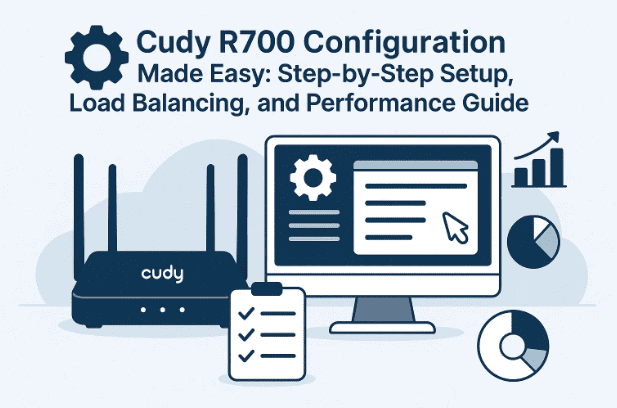
1. What is a Load Balancing Router?
Before diving into configuration, it’s important to understand what load balancing actually means.
A load balancing router like the Cudy R700 allows you to connect two or more internet sources at once. The router can:
- Distribute network traffic across multiple internet lines for better performance.
- Automatically switch to a backup line if one ISP fails.
For instance, if you have two broadband connections — one fiber and one 4G — you can use both simultaneously or let one act as a failover.
💡 This ensures uninterrupted internet connectivity, especially useful for offices or remote workers relying on stable connections.
2. Getting Started with Cudy R700
Before configuration, ensure the following:
- Power on the router and connect it to your computer via Ethernet.
- Connect your ISP cables to WAN1 and WAN2 ports.
- Check the sticker at the back — it shows the default IP address, username, and password for login.
You’re now ready to access the Cudy web interface.
👉 Official website: https://www.cudy.com
3. Logging in to the Web Interface
- Open a browser and type the router’s default IP (e.g.,
192.168.10.1). - Enter the default username and password printed on the label.
- Once logged in, the main dashboard appears.
You’ll notice a clean layout showing Internet status, Load Balance, VPN, DHCP, and System sections. At the top, there’s a real-time bandwidth graph, giving you a live view of network traffic.







If this is your first login, the router might prompt you to create a new admin password — do that for security before proceeding.
4. Understanding the Dashboard
The dashboard gives you a snapshot of your network.
You’ll see:
- WAN modules — showing all active internet ports.
- Load Balancing status — whether both WANs are being used.
- LAN, VPN, DHCP, and System panels.
- Bandwidth graphs — to visualize upload and download speeds.
Each tile on the dashboard is clickable and leads to its detailed settings. This design helps even beginners navigate effortlessly.
So far, you’ve logged in successfully and can see how the router divides tasks across its different modules. Next, let’s configure your first WAN connection.
5. Configuring WAN Connections (Dynamic, PPPoE, Static)
The Cudy R700 supports multiple WAN connections. Each WAN (WAN1, WAN2, etc.) can be set up using different methods based on your ISP.
Available Connection Types:
| Type | Description | Typical Use |
|---|---|---|
| Dynamic IP (DHCP) | Automatically gets an IP from your ISP. | Home broadband users. |
| PPPoE | Requires ISP-provided username & password. | Fiber/DSL users. |
| Static IP | Manually enter IP, Gateway, Subnet Mask, DNS. | Business or leased lines. |
Steps:
- Go to Network → WAN Settings.
- Select the WAN port (WAN1 or WAN2).
- Choose your Connection Type.
- Enter required details (for PPPoE or Static IP).
- Click Save and Apply.
Each WAN interface can be configured independently. You can even add extra WANs if supported.
💡 If you have two ISPs, use one as your primary and the other as backup for redundancy.
6. Setting Up Load Balancing and Failover
Now comes the star feature — Load Balancing.
This feature lets you combine or manage multiple internet lines in smart ways.
Key Concepts:
- Members: The WAN lines participating in load balance.
- Policy: The rules that define how traffic is distributed.
You can create:
- Load Balance Policy: Use both WANs together to share load equally.
- Failover Policy: One WAN acts as the main line, the other as backup.
- Custom Policy: Send certain traffic (like YouTube or gaming) through a specific WAN.
Example:
If you set both WANs with equal “weight,” the router will send 50% of the traffic through each. If one connection fails, the router immediately shifts to the other, ensuring uninterrupted internet.
💬 Advanced users can even automate rule creation or fine-tune metrics for traffic distribution.
7. LAN and Local Network Configuration
The LAN (Local Area Network) defines how devices communicate inside your home or office.
From the LAN Settings, you can:
- Change your router IP address (default: 192.168.10.1).
- Update subnet mask.
- Adjust the IP range for connected devices.
If you’re using multiple routers, make sure each has a unique LAN IP range to prevent conflicts.
8. Enabling VPN Services
The Cudy R700 offers built-in VPN server and client options, allowing you to securely connect to external networks or access your home remotely.
Supported VPN Protocols:
| Protocol | Type | Recommended Use |
|---|---|---|
| PPTP | Client/Server | Basic encryption; compatible with older systems. |
| L2TP/IPSec | Client/Server | Secure and stable for general use. |
| OpenVPN | Client/Server | Widely supported and strong encryption. |
| WireGuard | Client/Server | High speed and modern encryption. |
| ZeroTier | Master/Slave | Create virtual private networks across devices. |
| IPSec Site-to-Site | Gateway-Gateway | Connects two offices securely. |
How to Configure:
- Go to VPN Settings.
- Enable the VPN type you want.
- Enter your provider’s server address, username, and password.
- Enable Encryption.
- Click Save and Apply.
If you’re unsure, WireGuard offers the best balance between speed and security.
9. DHCP Server and IP Management
DHCP automatically assigns IP addresses to your devices, so you don’t have to set them manually.
Features:
- Enable/Disable DHCP Server
- Define Start and End IP Range (e.g., 192.168.10.100–250)
- Set Lease Time (how long an IP remains assigned)
- View DHCP Clients List (device name, IP, MAC address)
You can also reserve IPs for certain devices — useful for printers, NAS systems, or security cameras that need fixed addresses.
10. Device Management and Monitoring
Under the Device section, you can see every connected gadget in real-time.
Information shown includes:
- Device name
- IP and MAC address
- Connection type (LAN or Wi-Fi)
- Bandwidth usage
From here, you can:
- Rename devices
- Block/unblock access
- Limit speeds using Rate Limit
This is especially helpful for identifying unknown users or controlling bandwidth-hungry devices like TVs or game consoles.
11. General Network Settings and Features
Beyond WAN and LAN, the router includes several professional-grade tools. Let’s go over them briefly:
IPv6
Supports modern IPv6 addressing for ISPs that provide it, ensuring future compatibility.
QoS (Quality of Service)
Prioritizes bandwidth for specific devices or applications (e.g., gaming or video calls) to prevent lag during high traffic.
DDNS (Dynamic DNS)
Gives your network a domain name (e.g., myhome.ddns.net) even if your public IP keeps changing — perfect for remote access.
Custom DNS
Lets you use faster or privacy-focused DNS servers like:
- Google DNS:
8.8.8.8 / 8.8.4.4 - Cloudflare DNS:
1.1.1.1 / 1.0.0.1
Port Forwarding / Port Triggering
- Port Forwarding: Opens specific ports for web servers, games, or CCTV.
- Port Triggering: Opens ports only when a particular app initiates traffic (safer).
DMZ
Puts a single device outside the firewall — useful for debugging but risky for daily use.
Wake on LAN
Allows remote startup of PCs within the LAN using a “magic packet.”
UPNP
Automatically opens ports for compatible apps. Convenient, but keep it disabled for better security when not needed.
12. Security Settings and Firewall Options
Network security is where Cudy routers really shine. Let’s review the essentials.
Firewall
The first line of defense. It blocks suspicious or unauthorized traffic. You can create custom allow/deny rules as needed.
MAC & IP Filters
- MAC Filter: Allows or blocks devices based on their hardware ID.
- IP Filter: Restricts internet access by IP address or range.
- Domain Filter: Blocks specific websites — perfect for parental control.
IP-MAC Binding
Ensures that each device always gets the same IP, reducing spoofing risks.
Remote Web Access
Lets you manage your router from outside your network — use only with strong passwords and preferably via VPN.
ALG (Application Layer Gateway)
Helps services like VoIP or FTP communicate smoothly through the firewall.
13. System Maintenance and Firmware Updates
Routine maintenance keeps your router healthy.
Firmware Update
Two ways to update:
- Online Update: The router checks for updates automatically.
- Manual Update: Download firmware from Cudy Support and upload it manually.
Always ensure the firmware matches your exact model before updating.
Backup and Restore
Save your configuration before making big changes. You can restore it later if needed.
Admin Account
Change the login credentials immediately after setup to prevent unauthorized access.
Other Tools:
- Set Time Zone for accurate logs.
- Schedule Reboot to refresh memory automatically.
- LED Control to turn off router lights.
- Reset for factory defaults.
14. Diagnostics and Troubleshooting Tools
Cudy R700 includes built-in diagnostic utilities that make troubleshooting easier.
Tools:
- Internet Check: Confirms if WAN connectivity is active.
- Ping Test: Sends packets to servers (like Google DNS) to verify response.
- Traceroute: Displays each step between your router and the destination — helpful for latency diagnosis.
- NS Lookup: Checks if domain names resolve properly to IPs.
- System Log: Lists all system activities, connections, and errors.
These tools eliminate guesswork and let you analyze network health without third-party software.
15. FAQs
Q1. What’s the main advantage of load balancing on Cudy R700?
It lets you use two ISPs simultaneously or set one as a backup, ensuring uninterrupted internet.
Q2. Can I use the router only with one connection?
Yes, you can use a single WAN and keep the second for backup or future expansion.
Q3. Which VPN protocol should I choose?
For speed and modern security, WireGuard is ideal. For compatibility, OpenVPN works well.
Q4. Do I need to enable QoS?
If you experience buffering or gaming lag, enabling QoS can prioritize important traffic automatically.
Q5. How often should I update firmware?
Check once every 3–6 months. Updates often fix bugs and add features.
16. Disclaimer
This article is meant for educational and configuration guidance purposes. Always download official firmware only from the Cudy website.
Misconfiguring advanced options like DMZ or manual routing can affect your network’s performance or security.
Cudy® is a registered trademark of Cudy Technology Co., Ltd.
Tags & Hashtags
Tags: Cudy R700 setup, dual WAN router, load balancing router, VPN configuration, QoS settings, DHCP server, firmware update, network security, port forwarding, router troubleshooting
Hashtags: #CudyR700 #LoadBalancing #RouterSetup #WiFiRouter #Networking #VPN #QoS #TechGuide #NetworkSecurity








