Windows 11 has come a long way since its original release. With every update, Microsoft quietly slips in new tools and refinements that make the system faster, smarter, and more enjoyable to use.
Yet many of these features go unnoticed — hidden behind settings menus or overshadowed by bigger announcements.
In this article, we’ll explore ten underrated Windows 11 features that can genuinely improve your daily workflow and overall PC experience. Whether you’re a creator, gamer, student, or professional, these hidden gems can make Windows 11 feel fresh again.
So, let’s dive right in!
1. 📝 Notepad Tabs and Dark Mode
Let’s start with something simple but surprisingly powerful — Notepad.
For decades, Notepad was the most minimal text editor in Windows. But with recent updates, it’s been completely modernized. Now it supports multiple tabs in a single window — just like your web browser.
Why It’s Useful
If you often juggle between text snippets, log files, or small code scripts, tabbed Notepad saves you from having five separate windows cluttering your taskbar. You can open, rename, and switch between files effortlessly.
How to Use Tabs
- Open Notepad.
- Click the “+” icon at the top to open a new tab.
- Drag tabs around to reorder them or right-click a tab to close or duplicate it.
Bonus Tip: Enable Dark Mode
Notepad finally respects your system theme!
- Click the gear icon (⚙) in the top-right corner.
- Go to App Theme → Dark.
- Or choose “Use system setting” to sync with your Windows color mode.
This small visual improvement makes late-night editing a lot easier on the eyes.
2. 📁 File Explorer Tabs
Let’s move to another app you use every day — File Explorer.
Just like Notepad, File Explorer now supports tabs, making file management cleaner than ever. No more juggling multiple windows to copy or compare files.
Steps to Use It
- Open File Explorer.
- Click the “+” icon in the title bar to add a new tab.
- Drag files from one tab to another or right-click to open a folder in a new tab.
You can even middle-click a folder to open it in a new tab, exactly like a browser.

Pro Tip: You can press Ctrl + T to open a new tab and Ctrl + W to close it.
3. 🧩 Snap Layouts for Easy Multitasking
Windows 11 introduced Snap Layouts, a feature designed to make multitasking effortless — but it’s often overlooked.
Instead of manually resizing windows, Snap Layouts lets you instantly arrange apps into neat grids.
How to Use Snap Layouts
- Hover your cursor over the maximize button (top-right corner of any window).
- You’ll see several layout options — from side-by-side views to 3×3 grids.
- Choose one and click on the section you want the app to fill.
- Windows will then suggest other open apps to fill the remaining slots.
Why It Matters
If you’re writing while referencing another document or monitoring multiple dashboards, this feature can seriously declutter your desktop.
Shortcut: Press Windows + Z to bring up Snap Layouts instantly.
4. 🔋 Energy Saver Mode (Windows 11 24H2)
Battery life is one of the biggest concerns for laptop users, and Microsoft tackled it head-on in version 24H2 with a new Energy Saver Mode.
This feature helps extend battery life by limiting background processes and adjusting system behavior for efficiency.
How to Enable It
- Press Windows + I to open Settings.
- Navigate to System → Power.
- Click Energy Saver.
- Turn on Always use Energy Saver.
This feature is particularly handy when you’re traveling or working away from an outlet.
5. 📱 Phone Link – Connect Your Android or iPhone
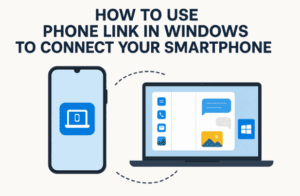
One of the most underrated tools in Windows 11 is Phone Link, a built-in feature that connects your smartphone directly to your PC.
It allows you to read and reply to text messages, view notifications, and even transfer photos instantly — no cables needed.
Setup Process
- Open Start Menu → Search “Phone Link” and open the app.
- Choose your phone type (Android or iPhone).
- A QR code will appear — scan it using your phone’s camera.
- Follow the setup instructions on both devices.
Once connected, you can drag and drop photos, check messages, or use your phone’s apps directly from your desktop.
👉 You can learn more on Microsoft’s official page: Phone Link for Windows.
6. 📰 Widgets – Personalized Info at a Glance
Windows Widgets have evolved dramatically since the early versions of Windows 11.
They’re now more customizable, faster, and packed with relevant information.
What Widgets Can Do
They show live updates on weather, stock prices, sports scores, news, and more — all in one place.
How to Open Widgets
- Hover over the bottom-left corner of your taskbar.
- Or press Windows + W.
Add or Remove Widgets
- Click the “+” icon at the top.
- Select widgets you want to pin.
- Rearrange them by dragging.
If you ignored widgets earlier, give them another shot — they’ve become far smoother and genuinely useful for quick glances without opening a browser.
7. 🧑💻 Quick Assist – Remote Help Made Simple
At some point, we all become the “tech support” person in the family.
Quick Assist makes that role much easier.
It’s a secure tool that lets you remotely access someone else’s PC (or let them access yours) to troubleshoot problems.
How It Works
- Search for Quick Assist in the Start menu.
- If you’re helping someone, click Help someone.
- Sign in with your Microsoft account.
- You’ll get a six-digit code. Send it to the other person.
- They open Quick Assist, enter the code, and grant permission.
You’ll then see their desktop and can guide them or even control their mouse.
It’s perfect for assisting friends or family without using third-party tools.
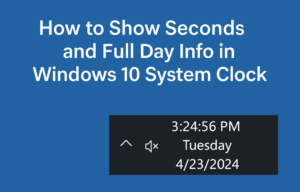
8. ⏰ Show Seconds in the Taskbar Clock
It may sound trivial, but Windows 11 now lets you display seconds on your taskbar clock — a small detail that power users appreciate.
How to Enable It
- Open Settings → Time & Language → Date & Time.
- Scroll down and click Show time and date in system tray.
- Enable Show seconds in system tray clock.
It’s great for developers, traders, or anyone needing precision timing.
Just note that showing seconds uses a little more power — though negligible on desktops.
9. 📦 Native ZIP Extraction (No Third-Party Apps Needed)
For years, Windows’ built-in ZIP tool was clunky and limited, leading users to rely on tools like 7-Zip or WinRAR.
But Microsoft has quietly improved the native extraction feature.
Now you can easily unzip files without any external software.
How to Use It
- Right-click a
.zipor.rarfile. - Choose Extract All.
- Pick a destination folder.
- (Optional) Keep Show extracted files when complete checked.
- Click Extract.
Windows automatically creates an uncompressed folder for you.
If you just need simple unpacking — this built-in feature works perfectly.
10. 🎙 Voice Dictation – Type with Your Voice
Let’s wrap up with a feature that keeps getting better: Voice Dictation.
Whether you’re writing emails, coding notes, or journaling, Windows 11’s voice typing tool lets you speak instead of type — with excellent accuracy.
How to Use It
- Open any text field (like Notepad, Word, or your browser).
- Press Windows + H.
- Start speaking — your words will appear in real time.
- Say “period,” “comma,” or “new line” to add punctuation.
Windows uses cloud-based speech recognition to deliver remarkably accurate results.
You can also enable Auto Punctuation in the dictation bar for smoother writing flow.
💬 Frequently Asked Questions (FAQs)
Q1. Are these features available on all Windows 11 versions?
Most of them are available in Windows 11 version 23H2 and above. Some (like Energy Saver) require 24H2 or newer.
Q2. Can I still use 7-Zip or WinRAR instead of Windows’ built-in extractor?
Absolutely. Third-party tools offer extra formats like
.taror.7z. But for basic ZIPs, Windows’ extractor now works fine.
Q3. Is Quick Assist safe?
Yes. Quick Assist uses encrypted Microsoft servers for connection. You can revoke access anytime, and the other user must grant permission before control is shared.
Q4. How accurate is Voice Dictation?
Very accurate if you have a clear microphone and stable internet. It’s ideal for quick notes, articles, or emails.
⚙️ Final Thoughts
Windows 11 is far more capable than many users realize.
Small refinements like Notepad tabs or Snap Layouts may seem minor, but together they make the system more fluid and modern.
If you’ve been using Windows 11 for a while, it’s worth revisiting these features — especially Energy Saver, Phone Link, and Quick Assist — which can dramatically improve your productivity and connectivity.
So next time you open your PC, explore these hidden gems and make Windows truly yours.
⚠️ Disclaimer
Features described in this article are based on the latest official Windows 11 builds (as of October 2025). Some settings may vary depending on your edition (Home, Pro, or Enterprise).
Always ensure your Windows is updated via Settings → Windows Update before expecting new features.
For official documentation, visit Microsoft’s site: https://www.microsoft.com/windows
#Windows11 #Microsoft #TechTips #Productivity #WindowsFeatures #PCTricks #VoiceDictation #SnapLayouts #PhoneLink #WindowsUpdate








