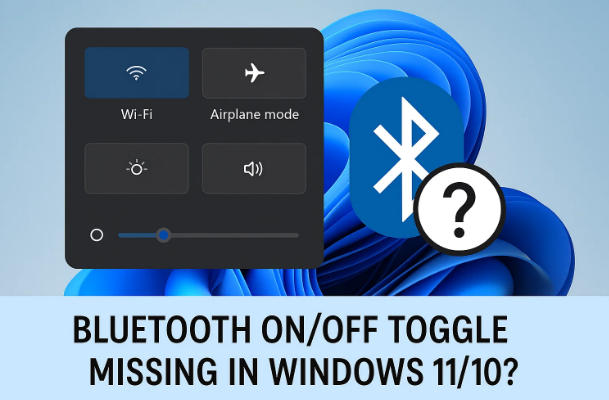
Ever opened Settings → Bluetooth & devices and… there’s no On/Off switch at all? Maybe Windows says “Couldn’t connect” and the Bluetooth category is missing from Device Manager. Frustrating, right? The good news: this isn’t magic—Windows only shows that toggle when (1) your PC actually has Bluetooth hardware and (2) the driver and services are running correctly. If either piece isn’t in place, the toggle vanishes.
In this guide, we’ll rebuild Bluetooth from the ground up—carefully, and in the right order. We’ll confirm hardware, start critical services, install clean drivers (from the right place), and only then polish the finishing touches. I’ll also flag common mistakes (e.g., relying on “Add legacy hardware” as a cure-all) and offer safer alternatives. Along the way, we’ll add small “breathers” before major steps so you know why we’re doing what we’re doing.
Quick note before we start: if your computer never had Bluetooth hardware (desktop without a BT/Wi-Fi card, older mini-PC, etc.), Windows can’t show a toggle—there’s nothing to control. You can add Bluetooth via a USB Bluetooth dongle (get a reputable one that supports Bluetooth 5.x and Windows 10/11).
1) What “Missing Bluetooth Toggle” Usually Means
Let’s start by demystifying the symptom. The Bluetooth On/Off switch in Windows only appears if:
- Bluetooth hardware exists and is detected, and
- A valid driver for that hardware is installed and initialized, and
- Core Bluetooth services are running (notably Bluetooth Support Service).
If any of those fail, Windows hides the switch. So our plan is simple but thorough: validate hardware → start services → install the correct driver → sanity-check settings. We’ll move from the least risky steps to deeper fixes.
So far, so good. Let’s give ourselves a clean baseline before we dive into services and drivers.
2) Before You Touch Drivers: Five Basic Checks
Before we enter the world of services and INF files, do the quick stuff. It saves time more often than you’d expect.
- Restart the PC (yes, really). Some Bluetooth stacks get stuck after sleep/hibernation.
- Turn Airplane mode off:
- Windows 11: Settings → Network & internet → Airplane mode.
- Windows 10: Settings → Network & Internet → Airplane mode.
- If using a laptop, flip any hardware wireless switch (some older models have one) or press the function key combo printed with a radio/antenna icon.
- Remove & reinsert any USB Bluetooth dongle (try another USB port—preferably a direct USB-A port on the machine, not an unpowered hub).
- Check Device Security/AV suites: some privacy tools can disable radios. Temporarily disable “Bluetooth control” or “hardware control” shields if present and retest.
If none of that brings the toggle back, we’ll bring Windows’ Bluetooth brain online via services.
Let’s move to the heart of Windows’ Bluetooth plumbing.
3) Start the Required Services (and Keep Them Started)
Windows depends on a couple of services for Bluetooth. If they’re not running, the stack never lights up.
- Press Start, type services, right-click Services, choose Run as administrator.
- Press B to jump down the list.
- Double-click Bluetooth Support Service → set Startup type = Automatic → click Apply, then Start.
- Also check:
- Bluetooth Audio Gateway Service (if present) → Manual or Automatic is fine.
- Bluetooth User Support Service (on some builds) → Manual (Trigger Start) is normal.
- Radio Management Service → Manual (but ensure it’s not Disabled).
- Close Services and recheck Settings → Bluetooth & devices. Is the toggle back?
If the toggle’s still missing, Windows likely isn’t seeing a driver/hardware pair. Time to inspect Device Manager.







Good progress. Next, we confirm the PC can actually see a Bluetooth adapter.
4) Confirm Hardware Presence in Device Manager
- Press Win + X → Device Manager.
- Look for a Bluetooth category.
- If present and it shows your adapter (e.g., Intel Wireless Bluetooth, Realtek Bluetooth Adapter, Qualcomm QCA**), great.
- If Bluetooth is missing, expand Network adapters and Universal Serial Bus controllers.
- From the View menu, select Show hidden devices.
- Do you see Unknown device with a yellow exclamation mark? That could be the Bluetooth controller without a driver.
Interpretation
- Bluetooth category present with a device → driver likely installed (still might be wrong/old).
- No Bluetooth category + Unknown device → driver is missing.
- Nothing at all (no hidden, no unknown) → either the adapter is disabled in BIOS/UEFI, physically absent, or the USB/PCIe connection isn’t enumerating (common with loose M.2 Wi-Fi/BT cards in desktops).
If hardware seems invisible, jump to the Radio/BIOS section below. If you do see a device (known or unknown), the best path is to install the correct driver—and this is where many tutorials go wrong.
We’re warmed up. Let’s install Bluetooth the right way—the first time.
5) Best Practice: Install/Repair the Right Driver
Drivers matter. Picking the correct one saves hours. The rule of thumb:
5.1 Use the OEM First, Then the Silicon Vendor
- Laptop/Desktop OEM (HP, Dell, Lenovo, ASUS, Acer, MSI, Microsoft Surface, etc.) usually customizes power, coexistence (Wi-Fi + BT), and hotkeys. Start here:
- HP Support: https://support.hp.com/drivers
- Dell Support: https://www.dell.com/support/home
- Lenovo Support: https://pcsupport.lenovo.com/
- ASUS Support: https://www.asus.com/support/
- Acer Support: https://www.acer.com/support
- Surface: https://support.microsoft.com/surface
- If OEM doesn’t offer a recent package—or you’ve built your own PC—go to the silicon vendor that matches your adapter:
- Intel® Wireless Bluetooth®: https://www.intel.com/content/www/us/en/download/17848/intel-wireless-bluetooth-for-windows-10-and-windows-11.html
- Realtek Bluetooth (often bundled in Wi-Fi driver packs at the OEM site)
- Qualcomm/Atheros (usually via OEM portals; sometimes included in Wi-Fi/BT combo drivers)
If you’re unsure which you have, check Network adapters for your Wi-Fi device brand. Wi-Fi and Bluetooth usually come from the same module (e.g., Intel AX201 Wi-Fi → Intel BT; Realtek 8822 → Realtek BT).
5.2 Clean Reinstall Technique (No “Ghosts” Left Behind)
To avoid leftover pieces that confuse Windows:
- Disconnect the internet (temporarily) so Windows Update doesn’t auto-install an old/generic driver mid-way.
- Device Manager → expand Bluetooth (or Unknown devices).
- Right-click your Bluetooth device → Uninstall device → Delete the driver software for this device (tick the box) → Uninstall.
- If you see multiple entries for Bluetooth devices (dongle + built-in, old instances), remove them the same way.
- Reboot.
- Run the OEM or Intel/Realtek/Qualcomm installer you downloaded.
- Reboot again, reconnect internet.
- Open Settings → Bluetooth & devices. The On/Off toggle should appear; if not, return to Services and ensure Bluetooth Support Service is Automatic and Running.
5.3 If Your PC Uses Intel Wireless (Very Common)
- Install the combo of Intel® Wireless Bluetooth® and Intel® Wi-Fi driver for your adapter generation.
- Optional but handy: Intel® Driver & Support Assistant https://www.intel.com/content/www/us/en/support/detect.html (it detects/update Intel networking stacks automatically).
Why the combo matters: Bluetooth and Wi-Fi share the same module and antennas. Installing both ensures proper coexistence and power management (which affects sleep/wake and that missing toggle problem).
So far we’ve built a strong foundation. Let’s address a tool many folks try next—and when to use it carefully.
6) Optional: Legacy Hardware Wizard—When It’s Useful and When It Isn’t
Action → Add legacy hardware in Device Manager can sometimes force-install drivers for non-PnP devices. But here’s the catch:
- If your Bluetooth controller is real, modern, and present, Windows PnP should see it once the correct driver is available.
- Forcing a random Microsoft “generic Bluetooth” class driver when your silicon requires vendor-specific firmware loaders can create phantom devices that still won’t turn the radio on.
Use it only if:
- You know the exact INF and model your hardware needs,
- You’re dealing with an unusual or older professional adapter, and
- The device is visible as a hardware ID but Windows won’t match an INF on its own.
For 99% of consumer systems, OEM/Intel/Realtek/Qualcomm installers are safer and more reliable.
Let’s shore up the last Windows pieces that can hide that toggle: updates and chipset layers.
7) Windows Update, Optional Updates, and Chipset Dependencies
- Run Windows Update after your driver reinstall:
- Windows 11: Settings → Windows Update → Check for updates
- Windows 10: Settings → Update & Security → Windows Update
- Optional updates sometimes include Bluetooth/Radio device drivers. Check Advanced options → Optional updates.
- Chipset/ME/USB controller drivers from your OEM or motherboard vendor help the OS enumerate devices correctly (especially on fresh installs). Install those if they’re missing.
If you recently updated the BIOS/UEFI or reset CMOS, recheck your wireless/BT enable settings there.
We’ve covered Windows. Now let’s make sure the hardware radio itself is actually allowed to turn on.
8) Radio, Airplane Mode, BIOS/UEFI, and Physical BT Switches
- Airplane Mode must be Off.
- Some laptops let you disable Bluetooth/Wi-Fi in BIOS/UEFI. Check for entries like Wireless Radio Control and ensure both Wi-Fi and Bluetooth are Enabled.
- On certain enterprise devices, a Group Policy or MDM profile can disable radios. If it’s a work PC, check with IT.
- For dongles, try another USB port (rear I/O on desktops is best), and avoid unpowered hubs.
If you re-enabled the radio at this level and you already installed proper drivers, the toggle almost always reappears after a reboot.
If you love command-line certainty, the next section equips you with a few helpful checks.
9) Command-Line Power Tools (Advanced but Safe)
These don’t replace the steps above, but they help you verify state quickly.
- Open Device Manager directly:
Win + R→devmgmt.msc→ Enter - Restart Bluetooth support service (elevated Command Prompt or PowerShell):
net stop bthserv net start bthserv - List Bluetooth devices (PowerShell):
Get-PnpDevice -Class Bluetooth | Format-Table -AutoLook for Status = OK and Problem = 0. - Driver package cleanup (advanced):
If you have many stale BT packages, you can enumerate and remove with:pnputil /enum-drivers | findstr /i "bluetooth bt intel realtek qualcomm"Then (carefully) remove a specific old package:pnputil /delete-driver oemXX.inf /uninstall /forceOnly do this if you know exactly which INF is stale and you’ve already downloaded the correct OEM/vendor installer.
With all the heavy lifting done, let’s polish the user experience.
10) Finishing Touches: System Tray Icon, Visibility & Pairing
Once the toggle is back:
- System tray icon (classic dialog):
- Control Panel → Devices and Printers → right-click your PC → Bluetooth settings
- Check Show the Bluetooth icon in the notification area → OK
- Make PC discoverable:
- Settings → Bluetooth & devices → ensure Bluetooth = On
- Click Devices and choose Add device → Bluetooth → put your device in pairing mode
- Remove stale pairings:
- If a device fails to reconnect, Remove device then pair fresh
- Audio quirks:
- For headsets that connect but don’t play audio, pick the correct output in Sound settings and disable the old Hands-Free (HFP) profile if you don’t need mic quality.
If you want an officially supported scanning app for BLE peripherals, Microsoft’s Bluetooth LE Explorer (from the Store) is handy for testing—but it’s optional.
11) FAQ: Your Most Common Questions, Answered
Q1: I don’t see Bluetooth in Device Manager at all—even as hidden. What now?
Check BIOS/UEFI to ensure Bluetooth is enabled, verify the Wi-Fi/BT module is seated (desktops), try another USB port (dongle), and make sure Chipset/USB drivers are installed. If the hardware still never enumerates, the module/dongle might be faulty.
Q2: Can I just use “Add legacy hardware” to force it?
You can, but it rarely solves modern consumer Bluetooth issues and may create phantom devices. The correct OEM or silicon vendor driver is the safer path.
Q3: I installed Intel’s driver but Windows still shows no toggle.
Install the matching Intel Wi-Fi driver too (same generation as your module), set Bluetooth Support Service = Automatic, reboot, and check Airplane Mode. Also confirm you installed the right 64-bit package for Windows 10/11.
Q4: My Bluetooth works after reinstall, but disappears after sleep.
Update to the latest OEM BIOS, chipset, Wi-Fi/BT drivers. In Device Manager → your BT adapter → Power Management, try unchecking “Allow the computer to turn off this device to save power.” Also update Wi-Fi; coexistence matters.
Q5: The toggle is back, but I still can’t connect to a specific device.
Remove the device from Windows, Factory-reset the accessory, and re-pair. Some devices remember old keys and refuse to re-use them. Also confirm the device isn’t paired to another phone/tablet in the room.
Q6: Is there a safe place to get drivers?
Yes: use your PC maker’s support page first. If you know you have an Intel adapter, Intel’s official page is safe. Avoid random driver sites.
Q7: Do I need Wi-Fi for Bluetooth to work?
You don’t need an active Wi-Fi connection, but the Wi-Fi/BT module is typically one board. Installing its Wi-Fi driver alongside the Bluetooth driver ensures a healthy shared stack.
Q8: Can antivirus or endpoint software hide Bluetooth?
Yes, some security/MDM tools can disable radios. Temporarily disable radio control, or ask IT if it’s a managed PC.
12) Disclaimer
This article is for educational purposes. Installing drivers, editing services, and changing power/BIOS settings should be done carefully. Always create a restore point or backup important data. If your device is under warranty or part of a managed fleet, follow your OEM/IT guidance.
You’ve done a thorough job so far—nice! We started with simple checks, moved through services, confirmed hardware visibility, performed a clean driver reinstall (OEM → silicon vendor), reviewed Windows Update/Optional Updates, verified radio/BIOS settings, and finished with refinements. In the vast majority of cases, this sequence restores the Bluetooth On/Off toggle and stable functionality.
Tags
bluetooth toggle missing windows 11, bluetooth toggle missing windows 10, bluetooth support service automatic, intel wireless bluetooth driver, realtek qualcomm bluetooth driver, add legacy hardware bluetooth, bluetooth missing device manager, airplane mode bluetooth, windows optional updates bluetooth, oem driver vs generic
Hashtags
#Windows11 #Windows10 #Bluetooth #Troubleshooting #DeviceManager #Drivers #Intel #Realtek #Qualcomm #TechGuide







