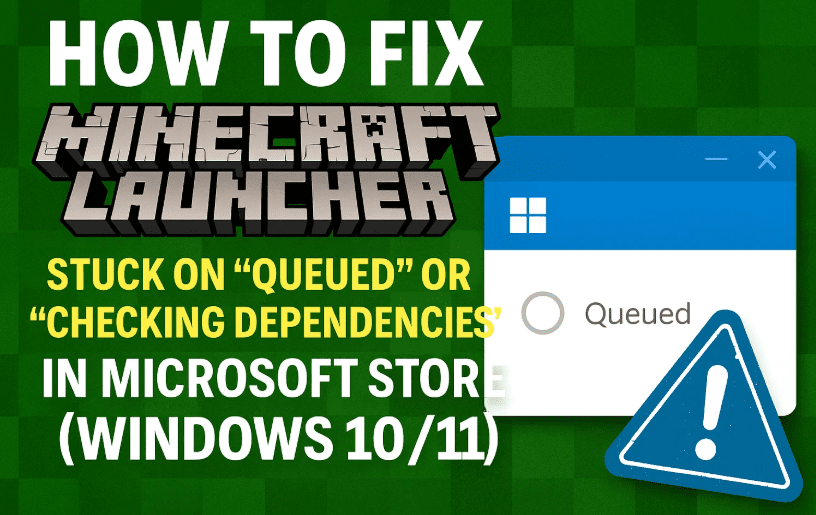
If you’ve been staring at the Minecraft Launcher saying “Queued” or “Checking Dependencies” forever — you’re not alone.
Thousands of players face this issue on Windows PCs while trying to install or update Minecraft through the Microsoft Store or Xbox App.
The good news? This problem is usually caused by broken Microsoft Store cache files, missing Gaming Services, or outdated Windows components — all fixable at home.
So, in this detailed guide, we’ll walk step-by-step through reliable methods to get your Minecraft Launcher (or Minecraft Game) downloading again smoothly.
Let’s start fixing it together.
⚙️ Step 1: Understand Why It Happens
Before jumping into commands, let’s quickly understand why this error appears.
When Minecraft is installed via the Microsoft Store, it relies on several background services:
- Microsoft Store app itself (handles download queue)
- Xbox App + Gaming Services (manages game licenses and installs)
- Windows Update components (verify dependencies)
If any of these are corrupted, the launcher gets stuck showing “Checking Dependencies” or “Queued”.
Now that we know the culprit, let’s move to the practical fixes.
🧹 Step 4: Run the WSRESET Command (Reset Microsoft Store)
Let’s begin with a simple yet powerful fix. The WSRESET command clears and resets the Microsoft Store cache without deleting your apps.
Here’s how to do it:
- Press Windows + R on your keyboard to open Run.
- Type
WSRESETand hit Enter. - A blank command window will appear for a few seconds — then automatically close.
- The Microsoft Store will reopen on its own once it’s reset.
Now try downloading Minecraft again. If it’s still stuck, don’t worry — we’ll go deeper.
🌐 Step 5: Download Minecraft Directly From the Official Website
Sometimes, the Microsoft Store version causes more trouble than it’s worth. The official Minecraft website offers direct installers that bypass Store issues entirely.
👉 Visit the official Minecraft download page:
https://www.minecraft.net/en-us/download
Here, you’ll find:






- The standard Windows 10/11 version
- The Legacy Launcher, which sometimes works better for older setups
Download, install, and launch Minecraft from here to see if the problem disappears.
If it still hangs, that means some deeper Windows Store components need repair — let’s tackle those next.
🧰 Step 6: Re-register Microsoft Store Apps Using PowerShell
Now let’s repair all Microsoft Store apps (including Minecraft) using PowerShell — Windows’ built-in automation tool.
⚠️ Warning: Run this carefully. It won’t delete anything, but it will re-register all system apps, which can take a few minutes.
Steps:
- Press Start → type “PowerShell” → right-click → Run as Administrator.
- Copy and paste the command below, then press Enter:
Get-AppxPackage -AllUsers | Foreach {Add-AppxPackage -DisableDevelopmentMode -Register "$($_.InstallLocation)\AppXManifest.xml"}
Once the command completes, restart your PC and check the Microsoft Store again.
If Minecraft now starts downloading — great! If not, keep going.
🗑️ Step 7: Delete Microsoft Store Local Cache Files
If WSRESET didn’t help, the store cache might be deeply corrupted. Let’s manually clear it.
Here’s how:
- Open File Explorer.
- Go to:
C:\Users\<YourUsername>\AppData\Local\Packages\Microsoft.WindowsStore_8wekyb3d8bbwe - Delete all the files inside this folder.
(Don’t worry — the Store will recreate them when it launches next.)
After deleting, restart your computer and check the Store again.
If the issue remains, it’s time to fix the backend Gaming Services that Minecraft depends on.
🎮 Step 10: Install Xbox Identity Provider & Gaming Services
Minecraft’s Microsoft Store version requires two key components:
- Xbox Identity Provider (links your Microsoft account)
- Gaming Services (handles download and license authentication)
If either is missing or corrupted, installation will fail.
1. Install Xbox Identity Provider
Get it from the official Microsoft link:
👉 Xbox Identity Provider
2. Reinstall Gaming Services
First, uninstall the old one completely.
Open PowerShell (Admin) and run:
get-appxpackage Microsoft.GamingServices | remove-AppxPackage -allusers
Then reinstall it by pasting this command:
start ms-windows-store://pdp/?productid=9MWPM2CQNLHN
That command opens the Gaming Services page directly in Microsoft Store. Click Install and let it finish.
Once both are installed, reboot your PC and try launching Minecraft again.
💾 Step 13: Uninstall and Reinstall the Microsoft Store or Xbox App
If none of the above worked, the Store or Xbox App itself may be damaged. Let’s rebuild them from scratch.
Steps to Reset Microsoft Store:
- Open PowerShell (Admin) again and run:
Get-AppxPackage -allusers *WindowsStore* | Remove-AppxPackage - Reboot your computer.
- Then reinstall it using:
Get-AppxPackage -allusers *WindowsStore* | Foreach {Add-AppxPackage -DisableDevelopmentMode -Register "$($_.InstallLocation)\AppXManifest.xml"}
After reinstalling, open the Store → sign in again → download the Xbox App and Minecraft Launcher fresh.
This resets the download logic entirely.
🌐 Step 14: Run the inetcpl.cpl Command (Internet Properties)
Let’s now check your system’s internet settings.
Sometimes, old proxy or cached connections interfere with Microsoft’s servers.
- Press Windows + R, type
inetcpl.cpl, and hit Enter. - Go to the Connections tab → click LAN Settings.
- Make sure “Automatically detect settings” is checked, and all proxy options are unchecked.
- Click Apply → OK.
Close the window and try downloading again.
🌍 Step 15: Refresh Your Network with DNS & IP Commands
If your connection itself is stale, flushing the DNS and renewing IP can help.
Open Command Prompt (Admin) and run these one by one:
ipconfig /flushdns
ipconfig /release
ipconfig /renew
Once done, restart your PC.
This ensures your system has a fresh connection to Microsoft’s servers.
🪟 Step 16: Update Windows to the Latest Version
If nothing else works, outdated system files could be the root cause.
The safest way to update Windows 10 or 11 completely is through the Media Creation Tool.
👉 Official Microsoft link:
https://www.microsoft.com/en-in/software-download/windows11
- Download the Media Creation Tool.
- Choose Upgrade this PC now.
- Follow the on-screen instructions to reinstall essential system components while keeping your data safe.
After the update, open the Store or download Minecraft directly again — the issue should now be resolved.
🧩 Bonus Tip: Bypass the Store Entirely (Optional)
If you just want to play and not deal with Microsoft Store at all, use the official installer from Minecraft’s website (as mentioned earlier).
It connects directly to your Microsoft account and usually bypasses any queue or dependency bugs.
💬 FAQs
Q1. Will these commands delete my saved worlds or Minecraft data?
No. These fixes target system apps and cache, not your game files. But it’s always smart to back up your Minecraft saves before troubleshooting.
Q2. Do I need to reinstall Windows?
Not unless all else fails. In most cases, resetting the Microsoft Store or Gaming Services resolves the issue.
Q3. What if none of these methods work?
Try creating a new Windows user account and downloading Minecraft there. If it works, your old account had corrupted app data.
✅ Final Thoughts
So far, we’ve tried everything — from clearing cache and resetting the Store to reinstalling Gaming Services and refreshing network settings.
By now, your Minecraft Launcher should download normally or open without the “Checking Dependencies” message.
Remember: Microsoft Store and Xbox App issues are more about Windows maintenance than the game itself.
Keeping your system updated and clearing old cache occasionally will prevent this from happening again.
Now that your Minecraft Launcher is fixed — it’s time to jump back into your world and build something awesome!
#MinecraftFix #MicrosoftStore #Windows11 #GamingServices #MinecraftLauncher #XboxApp #Troubleshooting #PCGaming #FixError #WindowsTips







