It started like any normal day — except that my WordPress dashboard on dtptips.com had begun to crawl like an old Windows XP system on dial-up. Pages were loading slowly, sometimes even timing out when I edited posts or refreshed analytics.
That’s when it hit me: my little shared hosting plan at Bluehost had finally reached its ceiling.
(Part 2: Moving WordPress, SSL Setup, DNS, and Fixing Every Real-World Error)
My site had grown — over 3,000 daily visitors, thousands of images, scripts, and experiments — and yet, my hosting was still running on shared CPU cycles and throttled memory.
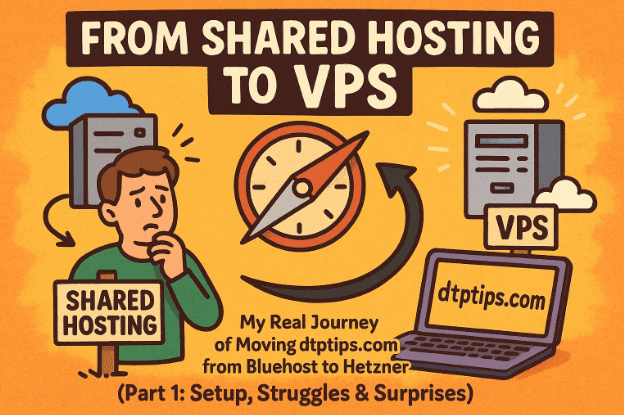
So I decided it was time to make a jump that most website owners eventually have to make —
🚀 From Shared Hosting to a VPS (Virtual Private Server).
🌍 Step 1: Why I Finally Said Goodbye to Shared Hosting
Shared hosting is like living in a huge apartment complex — cheap rent, shared utilities, but one noisy neighbour and everyone’s lights flicker.
When you buy a VPS (Virtual Private Server), it’s like moving into your own little house. You still share the same city’s power grid (the data centre), but you control every switch, lock, and wall.
Here’s how the two compared for me:
| Feature | Bluehost Shared | Hetzner Cloud VPS |
|---|---|---|
| CPU | Shared with hundreds of sites | 2 vCPU (dedicated) |
| RAM | Around 1 GB (shared) | 4 GB (dedicated) |
| Storage | Shared SSD | 40 GB NVMe SSD |
| Control | Limited | Full root access |
| Monthly cost | ~$9 USD | ≈ €5.80 (~₹520) |
👉 Bluehost Hosting Plans | Hetzner Cloud Servers
⚙️ Step 2: Creating the VPS on Hetzner
Once logged into Hetzner Cloud Console, I clicked Create → Cloud Server.
Hetzner instantly shows a configuration wizard.
I chose:







- Image: Ubuntu 24.04 LTS (64-bit) — stable, long-term support for five years.
- Location: choose a data-centre nearest to your readers (mine was Helsinki).
- Type: CX23 – 2 vCPU + 4 GB RAM + 40 GB NVMe.
- Authentication: Root Password (simpler than SSH keys for beginners).
- Name:
dtptips-vps.
After clicking Create & Deploy, Hetzner began provisioning — it took maybe 30 seconds.
📩 The Email You’ll Receive Next
Right after creation, you’ll get an email titled “Your Cloud Server is Ready.”
It contains three key details:
- Server IP Address (e.g.
xxx.xxx.xxx.xxx) - Root Username: usually
root - Temporary Password
🧠 Save that email carefully.
It’s your master key to the server. If you lose it, you’ll have to reset the root password manually through the Hetzner Console.
💡 Pro tip: copy the IP address and password into a secure note or password manager — not a plain text file.
🔐 Step 3: Logging in via SSH for the First Time
On Windows, open Command Prompt or PowerShell and type:
ssh root@your_server_ip
The first time you connect, you’ll see:
The authenticity of host 'xxx.xxx.xxx.xxx' can't be established.
Are you sure you want to continue connecting (yes/no/[fingerprint])?
Type yes and press Enter.
Now paste the password from the email — remember, when typing or pasting a password in SSH, nothing shows up on screen (not even “*” symbols). That’s normal.
If you see:
root@your-server:~#
🎉 Congratulations — you’re inside your server!
If the window closes immediately, the server might still be booting.
Just reboot from Hetzner Console → Power → Reboot and retry.
🧱 Step 4: Updating the System
Before installing anything, make sure all existing packages are up to date:
apt update && apt upgrade -y
apt updatetells Ubuntu to fetch the latest package lists.apt upgrade -yautomatically installs all available updates without asking “yes/no.”
This can take a few minutes the first time.
You’ll see a progress bar as it downloads kernel and security patches.
When it finishes, the system is clean and ready.
⚙️ Step 5: Installing Nginx, PHP 8.3, and MariaDB
WordPress needs three layers to run:
- Nginx — the web server that handles HTTP requests.
- PHP 8.3 — processes WordPress code.
- MariaDB — the database storing posts and settings.
Install them all together:
apt install -y nginx mariadb-server php8.3-fpm php8.3-mysql php8.3-cli php8.3-curl php8.3-xml php8.3-gd php8.3-zip php8.3-mbstring php8.3-intl unzip
Here’s what each package does:
| Package | Purpose |
|---|---|
| nginx | Web server engine |
| mariadb-server | Database system (MySQL compatible) |
| php8.3-fpm | FastCGI Process Manager for PHP |
| php8.3-mysql | Connects PHP ↔ MariaDB |
| php8.3-cli | Lets you run PHP commands from terminal |
| php8.3-curl | Enables API and external requests |
| php8.3-xml | Parses XML/feeds |
| php8.3-gd | Handles image processing |
| php8.3-zip | Reads ZIP archives |
| php8.3-mbstring | Handles multi-byte (text) strings |
| php8.3-intl | Language/locale support |
| unzip | Extracts compressed files |
When installation completes, check that everything’s alive:
systemctl status nginx
systemctl status php8.3-fpm
systemctl status mariadb
Each should show active (running) in green.
If any service shows inactive, start it with:
systemctl start servicename
🗃️ Step 6: Creating Your WordPress Database
MariaDB uses databases to store WordPress content.
We’ll create one and assign it a secure user.
Start MariaDB:
mysql_secure_installation
This short setup script asks a few questions:
| Prompt | Recommended answer |
|---|---|
| Switch to unix_socket authentication? | N |
| Set root password? | Y |
| Remove anonymous users? | Y |
| Disallow remote root login? | Y |
| Remove test database? | Y |
| Reload privilege tables now? | Y |
Then create your own database and user:
mysql -u root -p
Enter the root password you just set, then:
CREATE DATABASE your_database_name CHARACTER SET utf8mb4 COLLATE utf8mb4_unicode_ci;
CREATE USER 'your_db_user'@'localhost' IDENTIFIED BY 'your_password';
GRANT ALL PRIVILEGES ON your_database_name.* TO 'your_db_user'@'localhost';
FLUSH PRIVILEGES;
EXIT;
✅ This creates an isolated user only WordPress can access.
Write these credentials down securely — you’ll need them in a minute.
📦 Step 7: Downloading and Installing WordPress
Move to the web directory and grab WordPress directly from the official site:
cd /var/www/
wget https://wordpress.org/latest.zip
unzip latest.zip
mv wordpress your_site_folder
Now set correct ownership and permissions:
chown -R www-data:www-data /var/www/your_site_folder
find /var/www/your_site_folder -type d -exec chmod 755 {} \;
find /var/www/your_site_folder -type f -exec chmod 644 {} \;
www-datais the user account Nginx runs under.755lets directories be entered but not modified by the public.644lets files be read but not changed.
If you skip this step, WordPress may show “permission denied” when uploading media or installing plugins.
🌐 Step 8: Configuring Nginx for Your Site
Create a new configuration file:
nano /etc/nginx/sites-available/your_site.conf
Paste:
server {
    listen 80;
    server_name _;
    root /var/www/your_site_folder;
    index index.php index.html;

    location / {
        try_files $uri $uri/ /index.php?$args;
    }

    location ~ \.php$ {
        include snippets/fastcgi-php.conf;
        fastcgi_pass unix:/run/php/php8.3-fpm.sock;
    }

    location ~ /\.ht {
        deny all;
    }
}
Save and exit (Ctrl + O, Enter, Ctrl + X).
Enable the site and reload Nginx:
ln -s /etc/nginx/sites-available/your_site.conf /etc/nginx/sites-enabled/
nginx -t && systemctl reload nginx
- The
ln -screates a symbolic link, telling Nginx to serve that config. nginx -ttests for syntax errors before reloading.systemctl reloadapplies changes without restarting.
Now visit http://your_server_ip in a browser — you should see the WordPress installation screen 🎉
If you instead get “Welcome to Nginx!”, check the root path in your config.
If you get a blank page, ensure PHP-FPM is running.
🧠 Step 9: Setting Up wp-config.php
Copy the sample configuration:
cp /var/www/your_site_folder/wp-config-sample.php /var/www/your_site_folder/wp-config.php
Edit it (using WinSCP or VS Code SSH):
define( 'DB_NAME', 'your_database_name' );
define( 'DB_USER', 'your_db_user' );
define( 'DB_PASSWORD', 'your_password' );
define( 'DB_HOST', 'localhost' );
Then add your secret keys:
Generate fresh ones from WordPress Salt Key Generator
and replace the placeholder lines.
These keys secure cookies and sessions, so always use unique values.
🧰 Step 10: Testing Your Installation
Back in the browser, run the WordPress installer:
- Choose language
- Set site title
- Create admin username & password
- Enter your email
When you see “Success! WordPress has been installed.”, you’re done.
You can now log into your dashboard at http://your_server_ip/wp-admin.
⚠️ Step 11: Common Pitfalls and Real Fixes
| Issue | Symptom | Cause | Fix |
|---|---|---|---|
| 500 Error | Blank page after reload | Typo in Nginx config | nginx -t then reload |
| Database Error | “Error establishing connection” | Wrong DB credentials | Edit wp-config.php |
| Nano Freezing | Can’t type in SSH | Windows console bug | Use WinSCP or VS Code Remote SSH |
| Uploads Fail | “Permission denied” | Wrong file ownership | chown -R www-data:www-data /var/www/your_site_folder |
| Slow Performance | High load | Missing cache layer | Install Redis or OPcache later |
💾 Step 12: Making Everything Persistent
Enable services to start automatically on boot:
systemctl enable nginx php8.3-fpm mariadb
Backup your key configs:
cp /etc/nginx/sites-available/your_site.conf /root/
cp /var/www/your_site_folder/wp-config.php /root/
Exit the session safely:
exit
You’ll see your PC prompt again (meaning you’ve disconnected from the VPS).
🎯 Wrap-Up: What We’ve Built So Far
You now have:
- Ubuntu 24.04 LTS VPS on Hetzner
- Nginx + PHP 8.3 + MariaDB (LEMP stack)
- A fresh WordPress installation
- Proper permissions and ownership
- Services that auto-start on reboot
You can access your dashboard through your server IP and see WordPress fully operational.
The next phase is where things get really interesting:
migrating your live site, fixing broken themes, adding SSL, and re-pointing DNS records without downtime.
👉 Continue to Part 2 → Full Migration, SSL & DNS Configuration
⚠️ Disclaimer
All server commands are for educational purposes. Replace placeholders with your own secure values.
Always store passwords safely and keep root access private. dtptips.com and its author take no responsibility for data loss caused by misconfiguration or improper server management.
#WordPress #Hetzner #VPS #Bluehost #Migration #ServerSetup #dtptips








