Losing your favorite photos can feel like losing memories themselves. Whether it’s a picture from your graduation, a wedding, or a travel moment — one wrong tap on “Delete” and it seems gone forever.
But what if I told you those deleted photos might still be recoverable — even if you deleted them months or years ago?
In this detailed guide, you’ll learn how to recover permanently deleted photos using Google Photos, your Gmail account, and a tool called Google Takeout, which securely exports all your backed-up data.
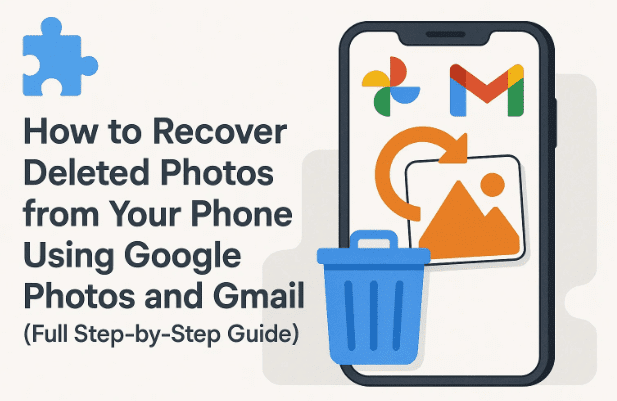
Let’s explore this process in easy steps so you can get your precious memories back.
Understanding How Google Photos Backup Works
Before diving into recovery steps, it’s important to understand where your deleted photos actually go.
When you use Google Photos on your phone, every picture and video in your gallery can be automatically backed up to your Google account’s cloud storage (15 GB free space shared between Photos, Drive, and Gmail).
That means even if your phone is lost, damaged, or reset — your backed-up photos can be restored later simply by signing in to your Gmail account on any device.
Why Deleted Photos Can Still Be Recovered
When you delete photos from your phone’s gallery, two scenarios can happen:
- If Backup is OFF: The photo is only stored on your phone, so once deleted, it’s usually lost unless you use third-party recovery software.
- If Backup is ON (through Google Photos): The image is uploaded to your Google Photos library. Even if you delete it from your phone, it stays online temporarily (or sometimes archived in your Google account).
So, the first thing is to check if your photos were backed up using Google Photos.
If yes, there’s a very high chance of recovery — even years later.
Check and Enable Backup in Google Photos
Let’s start by ensuring your photos are backed up correctly so you can retrieve or prevent future losses.
Step-by-Step: How to Enable Backup in Google Photos
- Open the Google Photos app on your phone.
- Tap on your profile picture (top right corner).
- Tap Photos settings → Backup.
- Turn Backup ON.
- Select your Gmail account that you want to use for storing photos.
Once this is done, every photo or video in your gallery will be automatically uploaded to Google’s secure servers.
💡 Tip: You can also choose the upload quality — Original (full resolution) or Storage Saver (compressed but lighter).









From now on, even if your device gets lost or you switch phones, your photos will be safe in your Gmail-linked cloud.
Recover Recently Deleted Photos from the “Trash” Folder
Let’s move to the first recovery method — if you recently deleted photos.
Google Photos has a Trash (Bin) section that keeps deleted items for 60 days before they are permanently erased.
Steps to Restore Photos from Trash
- Open the Google Photos app.
- Tap your Library tab at the bottom.
- Tap Trash (or Bin).
- Select the photos you want to recover.
- Tap Restore.
Your photos will reappear in the same albums or locations they were before deletion.
But if 60 days have already passed, you’ll need to use a more advanced recovery process — let’s move to that next.
Recover Old Deleted Photos Using Google Takeout
Now, if your photos are not visible in Google Photos or Trash, don’t lose hope yet.
Google automatically stores a copy of your media files within your Google Account storage, and you can retrieve them using an official tool called Google Takeout.
What is Google Takeout?
Google Takeout is a service that lets you download all your Google data, including photos, videos, emails, and documents — safely and directly from your account.
You can access it here: https://takeout.google.com
Using Takeout, you can:
- Access photos linked to old Gmail accounts.
- Download media from years ago.
- Restore your entire photo library in a single click.
Step-by-Step: How to Use Google Takeout to Restore Photos
This is the most powerful and reliable recovery method. Let’s go through it carefully step-by-step.
Step 1: Open Gmail and Access Your Google Account
- On your phone or PC, open the Gmail app or go to mail.google.com.
- Tap your profile photo → Manage your Google Account.
Step 2: Go to “Data & Privacy” Section
- Scroll through the tabs and tap Data & Privacy.
- Under Your Data & Privacy Options, scroll down until you see Apps and Services.
Step 3: Select “Photos”
- Under Apps & Services, tap Photos to check if your images are stored there.
- You might be surprised — many users find thousands of backed-up photos they didn’t know existed.
Step 4: Go to Google Takeout
- Visit https://takeout.google.com.
- Sign in with the same Gmail account used in Google Photos.
Step 5: Choose What You Want to Export
- By default, Takeout selects all Google services — uncheck everything first.
- Scroll down and select Google Photos only.
Step 6: Choose Export Format and File Size
- Click Next Step.
- Choose how you want to receive your photos:
- Download link via email (recommended)
- Add to Google Drive / Dropbox / OneDrive
- Set file size — e.g., 4GB or 10GB.
(If your photos exceed this, Google automatically splits them into multiple ZIP files.)
Step 7: Create Export
- Click Create Export.
- Google will now prepare your archive — this can take a few minutes to a few hours, depending on your data size.
You’ll receive an email from Google Takeout once your photos are ready for download.
Extracting and Accessing Your Downloaded Photos
Once you receive the email from Google, it’s time to download and restore your images.
Step 1: Open the Takeout Email
- You’ll receive a message titled “Your Google data is ready to download.”
- Tap Manage Exports → Download.
Step 2: Verify Your Identity
- For security reasons, Google may ask for your password or fingerprint to verify your identity before the download starts.
Step 3: Download the ZIP File
- The archive file (like
takeout-photos-2025.zip) will begin downloading. - Wait until it reaches 100% — the file may be large depending on your data size.
Step 4: Extract the ZIP File
- After downloading, open your File Manager → Downloads Folder.
- Tap on the ZIP file → Extract.
- Once extracted, you’ll see a folder named Takeout → Google Photos.
Step 5: Browse and Restore
Inside the “Google Photos” folder, you’ll find subfolders sorted by year and month (e.g., 2019, 2020, 2021, etc.).
Open each folder — you’ll see your old memories restored!
✅ Example:
You may find a folder like Google Photos/2021/Family Trip with all your old vacation images intact.
Step 6: Move to Gallery
- You can move these recovered photos to your Gallery or any preferred folder.
- They’ll now appear in your Photos app again.
That’s it — you’ve successfully recovered deleted photos using Google Takeout.
Tips to Protect Photos for the Future
So far, we’ve done a good job restoring your data. Now let’s make sure it never happens again.
Here are some practical tips to keep your photos safe permanently:
- Keep Google Photos Backup ON at all times.
- Regularly check your storage quota at https://one.google.com/storage.
- Use multiple backups: Cloud + external drive.
- Avoid deleting old Gmail accounts — your photos might still be linked there.
- Enable 2-Step Verification on your Google account to protect from unauthorized access.
These steps will ensure your memories stay safe no matter what happens to your device.
Common Mistakes People Make When Deleting Photos
Before we wrap up, let’s understand what not to do when cleaning your gallery:
- Deleting from both Gallery and Photos simultaneously:
If you delete from the Photos app while backup is ON, it removes the file from cloud too. - Clearing cache without checking Trash:
Some cleaner apps delete “trash” files automatically. - Using third-party recovery apps carelessly:
Many fake “photo recovery” apps can harm your privacy. - Deleting old Gmail accounts:
Your backed-up photos might vanish permanently.
Remember: deleting something doesn’t always mean it’s gone forever — but prevention is always better than cure.
❓ Frequently Asked Questions (FAQs)
Q1. Can I recover photos deleted years ago?
Yes, if your photos were backed up to Google Photos or linked to any Gmail account, you can recover them using Google Takeout — even after years.
Q2. What if I never turned on backup?
If backup was never turned on, you’ll need to use professional recovery software for your device (like Tenorshare 4DDiG, DiskDigger, or Recuva). These can sometimes scan and restore recently deleted files.
Q3. Are recovered photos in original quality?
Yes, if you selected “Original quality” during backup. If not, they’ll be in “Storage Saver” mode (slightly compressed).
Q4. How much time does Takeout take to prepare files?
Depending on the total data size, it can take anywhere from 5 minutes to a few hours. You’ll receive an email once the archive is ready.
Q5. Can I recover deleted videos too?
Absolutely. Google Takeout also includes videos stored in your Google Photos backup.
⚠️ Disclaimer
This article explains official and secure methods to recover photos using Google’s own services (Google Photos and Takeout).
We do not recommend using any third-party recovery tools unless necessary.
Recovery success depends on whether photos were backed up before deletion.
Always follow privacy-safe methods and ensure your Gmail account is secure with 2-Step Verification.
Official link: https://takeout.google.com
🏷️ Tags & Hashtags
Tags: Google Photos recovery, recover deleted photos, Google Takeout, Gmail backup, Android photo recovery, phone data restore, Google account data, deleted pictures restore, data privacy, cloud storage recovery
Hashtags: #GooglePhotos #DataRecovery #PhotoBackup #AndroidTips #GmailAccount #GoogleTakeout #RecoverDeletedPhotos #PhoneBackup #TechGuide #CloudStorage








