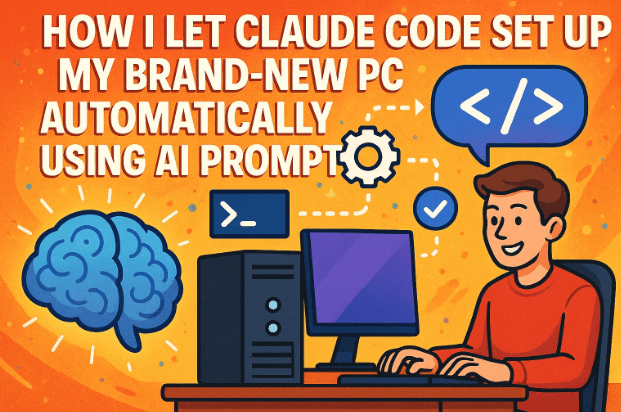
When I first thought about giving control of my freshly formatted PC to an AI, even I wasn’t sure if it was going to work. But curiosity won. I wanted to see whether Claude Code, an AI-powered terminal assistant by Anthropic, could handle something as complicated as setting up a new developer workstation from scratch — installing tools, enabling modes, and managing configurations.
In this article, I’ll share the entire process step by step, including what went right, what failed, and how you can safely try something similar on your own system. We’ll also understand what Claude Code actually is, why developers love it, and how AI prompt engineering plays a key role here.
1️⃣ What Is Claude Code?
Before diving into the automation part, it’s important to understand what Claude Code actually is.
Claude Code is a command-line AI assistant developed by Anthropic, the same company behind the Claude 3, Claude 3.5 Sonnet, and Opus language models. Think of it as an AI terminal buddy that can execute code-related tasks, generate scripts, explain errors, and even write automation workflows.
Unlike standard chat interfaces, Claude Code integrates with your terminal so that you can:
- Run AI-generated shell commands directly.
- Automate package installations and configurations.
- Receive detailed explanations of what’s happening behind the scenes.
It’s particularly popular among developers because it combines Claude’s strong reasoning and safety filters with a smooth command-line interface.
2️⃣ Why Use AI for PC Setup?
Now, you might be wondering — why go through all this trouble just to set up a PC?
The answer is simple: time and consistency.
Every time a developer formats their computer, they go through the same repetitive cycle — install VS Code, Chrome, Git, Node.js, database clients, and extensions. It takes hours.
What if an AI could remember your entire setup, generate a single prompt, and rebuild everything automatically?
That’s exactly what this experiment was about. I wanted to see if Claude Code could:
- Detect missing developer tools.
- Install applications automatically.
- Recreate the same programming environment I used before formatting.
Let’s move to the next part — preparing the system.







3️⃣ Preparing the System: Backup & Reset
Before giving control to any AI or automation script, one golden rule applies — always back up your data.
So before resetting my PC, I took a complete backup of:
- Project folders and repositories.
- Custom configuration files (
.bashrc,.npmrc, etc.). - Browser data and saved credentials.
After safely copying everything to an external drive, I used the built-in Reset This PC option in Windows 11.
There are two reset choices:
- Keep my files – keeps user data but removes applications.
- Remove everything – wipes the system completely.
I chose Remove everything to start fresh.
⚠️ Warning: Never reset your PC without confirming backups. This process permanently deletes your installed programs and settings.
Once Windows rebooted, I was looking at a completely clean desktop — a perfect canvas for AI automation.
4️⃣ Installing Prerequisites (Node.js, NPM, Git Bash)
Claude Code runs via the terminal and requires Node.js and NPM (Node Package Manager) to function.
Let’s walk through the setup process.
Step 1: Install Node.js
Download the latest LTS version of Node.js from its official website.
During installation, ensure that “Add to PATH” is selected.
You can verify the installation by opening Command Prompt or PowerShell and typing:
node -v
npm -v
If both commands return version numbers, you’re good to go.
Step 2: Install Git Bash
Next, install Git for Windows. It includes Git Bash, which provides a Linux-like terminal experience — essential for running Claude Code smoothly.
After installation, test it:
git --version
This confirms Git is properly configured.
Now that our base environment is ready, let’s move to the heart of the project — installing Claude Code itself.
5️⃣ Setting Up Claude Code in Terminal
Installing Claude Code is quite simple once Node.js is ready.
Just open your terminal and type:
npm install -g @anthropic-ai/claude-code
This will globally install Claude Code so it can be launched from anywhere.
After installation, run the following to start:
claude
At first launch, it will ask:
- Light mode or Dark mode preference.
- Whether to connect to your Claude account.
Click Authorize and sign in using your Anthropic account linked to https://claude.ai.
Once authorized, you’ll see the terminal ready to accept AI commands.
6️⃣ Creating the AI Prompt File
So far, we’ve done the groundwork. Now comes the interesting part — training Claude Code to set up your PC automatically.
I asked Claude itself to generate a master prompt that could rebuild my developer environment.
Here’s what I did:
- I prompted Claude in the browser: “Write a setup script prompt that will reinstall all my essential developer tools, extensions, and configurations after formatting my PC.”
- Claude generated a large setup prompt including installations for:
- Git, Node.js, Python
- Visual Studio Code
- VS Code extensions (Live Preview, Python, etc.)
- MySQL Workbench, MongoDB, PostgreSQL
- Chrome, VLC, and WinRAR
- I saved this prompt in a text file on an SD card.
This prompt file became my “AI installer” — the brain that tells Claude Code exactly how to restore my environment.
7️⃣ Running the Setup Script with Claude Code
Once I reinstalled Windows, I opened Git Bash and installed Claude Code again using the same command.
After that, I simply pasted my saved master prompt inside the terminal.
Claude Code immediately started working like an AI technician.
It began with:
- Enabling Developer Mode in Windows.
- Installing Chocolatey, a package manager for Windows.
- Installing Winget (another package manager).
- Setting up Git configuration.
- Downloading and installing VS Code, Chrome, VLC, and other listed tools.
It even prompted me for permissions whenever administrative rights were required.
At that moment, watching Claude Code operate felt like seeing a digital assistant rebuilding my PC exactly how I liked it — one line at a time.
8️⃣ Handling Errors and Permissions
Of course, not everything went perfectly on the first try.
Some common issues appeared:
- PostgreSQL and MongoDB failed to install because of missing admin rights.
- Claude kept asking for permission confirmations.
- Some VS Code extensions didn’t install automatically.
Here’s what I learned:
- Run your terminal as Administrator. Otherwise, system-level installations fail.
- Claude has a special flag to skip confirmations:
claude --dangerously-skip-permissionsThis allows Claude Code to execute commands without asking repeatedly — but use it carefully.
If something goes wrong, you can simply re-run a specific installation command manually. For example:
winget install PostgreSQL
After fixing those issues, most applications were installed correctly, and the environment looked almost identical to my pre-format setup.
9️⃣ Testing Installed Tools and Extensions
Once Claude Code reported “Setup Complete,” I tested everything.
- VS Code: Installed successfully, but I had to reinstall a few extensions manually.
- Python: Initially failed during setup but worked fine after reinstallation.
- MySQL Workbench & Chrome: Installed perfectly.
- PostgreSQL: Missing, probably due to permission issues.
Still, I was impressed. For an AI-powered setup, achieving about 85–90% automation on the first attempt was incredible.
Then I ran a few test prompts inside Claude Code like:
claude install python packages pandas numpy
and
claude create empty folders section1 to section20
Both commands worked flawlessly — saving time compared to manually writing multiple mkdir commands.
🔍 10️⃣ Lessons Learned from This AI Experiment
After running this experiment for hours, I came away with a few key insights worth sharing.
✅ 1. AI Can Save Hours — But Still Needs Guidance
Claude Code can handle repetitive setups faster than any human. But it doesn’t “guess” what you need.
You must clearly define your tools and versions in the prompt.
⚠️ 2. Always Combine AI with Human Oversight
Even small mistakes like missing admin mode or incorrect package names can break automation.
So supervision is essential during first-time setup.
🧠 3. Create a “Master Setup Prompt” for Future Resets
Once you refine your setup script, save it.
Next time you reset your PC, simply paste it into Claude Code — and your workstation will rebuild automatically.
💡 4. Claude Is Ideal for Developers
While tools like ChatGPT or Gemini are versatile, Claude’s coding-oriented models (Sonnet and Opus) excel at scripting, terminal tasks, and logical automation.
🔁 5. Continuous Improvement
Each format or reinstall is an opportunity to improve your master prompt — removing unnecessary installs, updating versions, and automating configurations you forgot last time.
❓ 11️⃣ Frequently Asked Questions (FAQs)
Q1. Is Claude Code free to use?
Claude Code requires an Anthropic account, and its advanced features may need a Claude Pro subscription. You can sign up at https://claude.ai.
Q2. Can Claude Code damage my PC?
Not directly. However, running AI-generated scripts with administrator privileges always carries some risk. Always review prompts and commands before executing them.
Q3. Does Claude Code work offline?
No, it requires an internet connection to communicate with Anthropic’s servers and execute AI-driven logic.
Q4. How is it different from ChatGPT or Copilot?
While ChatGPT and Copilot can explain code, Claude Code actually runs inside your terminal — bridging AI reasoning with real command execution.
Q5. Can I use it for Linux or macOS setups too?
Yes, Claude Code is cross-platform. On Linux and macOS, installation commands are similar; just make sure Node.js and NPM are installed first.
⚠️ 12️⃣ Disclaimer
This article is for educational and experimental purposes only.
Running AI-generated commands can modify system files or install third-party software.
Please:
- Backup your important data before trying.
- Use a non-critical system or virtual machine if possible.
- Verify every command before granting administrative permissions.
Neither the author nor this publication is responsible for data loss or system damage caused by incorrect use.
🏁 Final Thoughts
This experiment proved something powerful — AI isn’t just a text generator; it’s becoming a true digital assistant capable of managing real computer systems.
Watching Claude Code rebuild a developer environment after a full reset felt like stepping into the future — one where setup scripts write and run themselves.
If you’re a developer or tech enthusiast, I strongly encourage you to try Claude Code on a test machine. You’ll not only save hours in future reinstalls but also learn a lot about automation and prompt precision.
#ClaudeCode #AISetup #Windows11 #Automation #CodingTools #Anthropic #DeveloperLife #AIAutomation #VSCode #PromptEngineering








